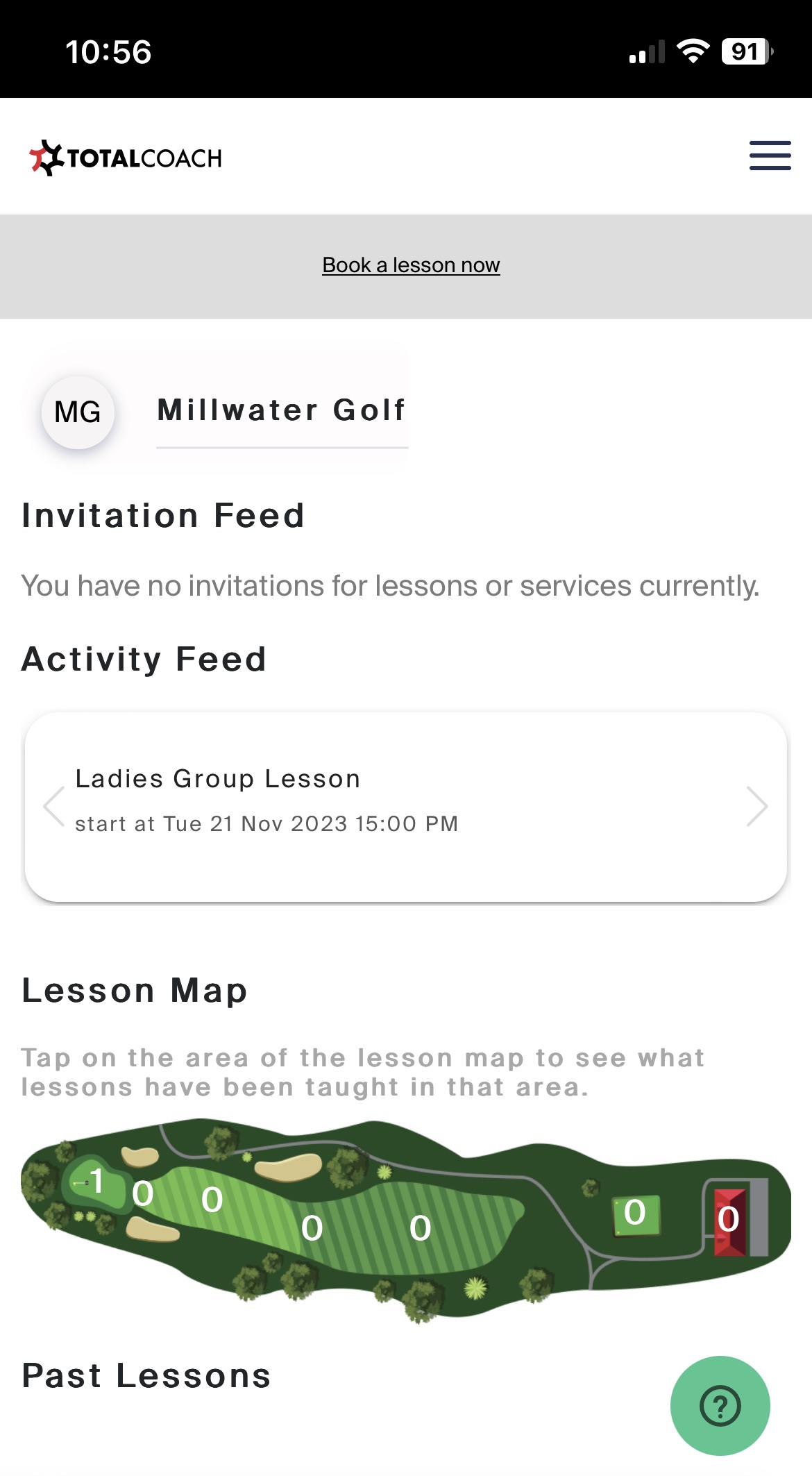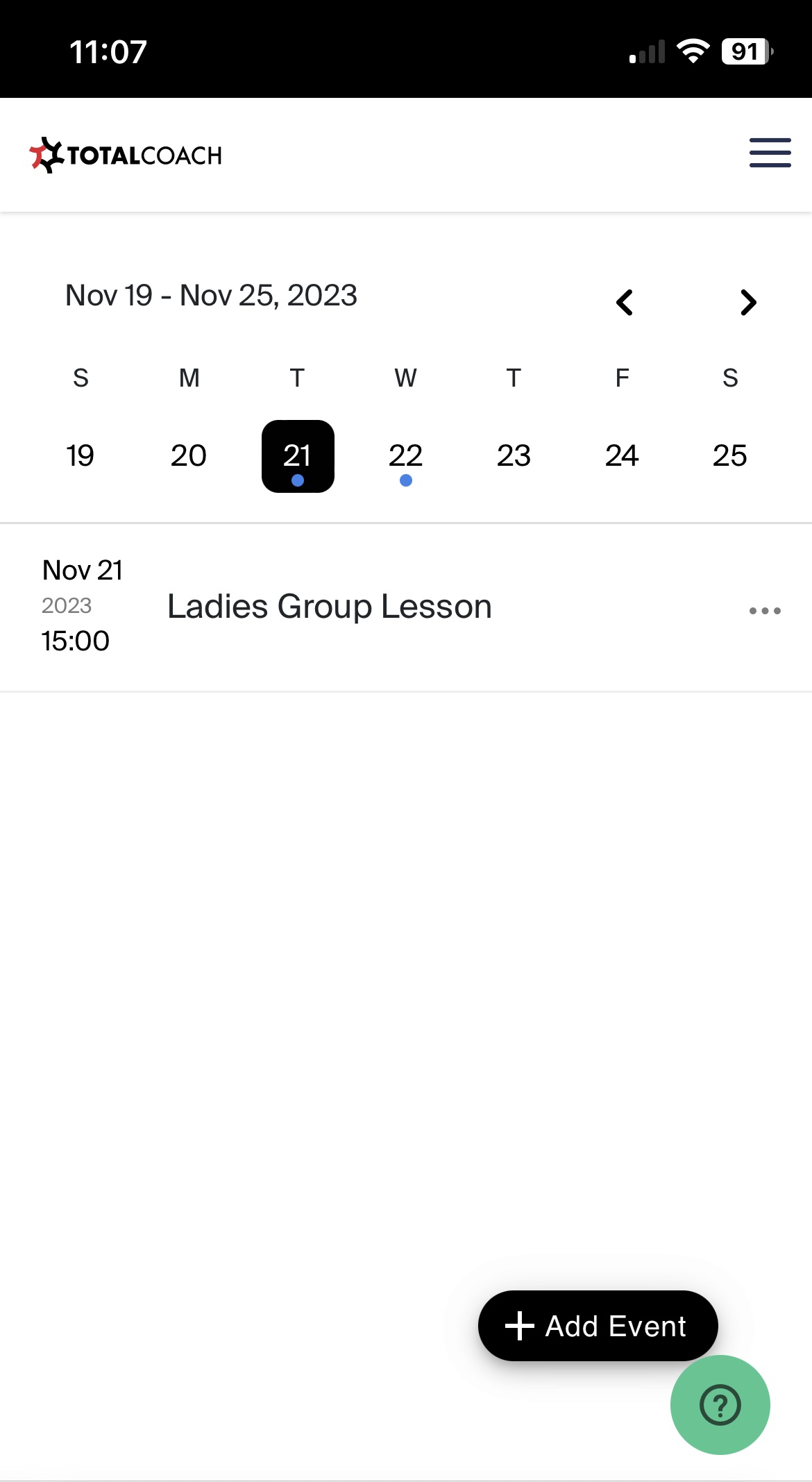
# Welcome to TotalCoach Support

We're here to help, if you don't find the answer you are looking for immediately, please contact our friendly support team!

<figure><img src="https://content.gitbook.com/content/AQGETajdcxecrar4lUBE/blobs/blhuaURqMDRBbVTmGaij/AdobeStock_438607777-2048x755.jpeg" alt=""><figcaption></figcaption></figure>

{% content-ref url="/pages/qC0C7h02KiwidlYZVzzy" %}
[Setting up your workspace](/coaches/support-for-coaches-organisations/welcome-to-totalcoach-support/setting-up-your-workspace)
{% endcontent-ref %}

{% content-ref url="/pages/DYiguVKe5AR8br2uZsR8" %}
[Manage clients](/coaches/support-for-coaches-organisations/welcome-to-totalcoach-support/manage-clients)
{% endcontent-ref %}

{% content-ref url="/pages/bGNEpF15OpgzlLxcWQ3Z" %}
[Manage staff](/coaches/support-for-coaches-organisations/welcome-to-totalcoach-support/manage-staff)
{% endcontent-ref %}

{% content-ref url="/pages/h5svLy2ArUEZQorxsMOf" %}
[Manage lessons](/coaches/support-for-coaches-organisations/welcome-to-totalcoach-support/manage-lessons)
{% endcontent-ref %}

{% content-ref url="/pages/Pd0FDZYQXMNcVLSvHoju" %}
[UView Video Analysis Tool](/coaches/support-for-coaches-organisations/welcome-to-totalcoach-support/uview-video-analysis-tool)
{% endcontent-ref %}

{% content-ref url="/pages/O5vf9hKp2OMOjs0EL5wR" %}
[Features](/coaches/support-for-coaches-organisations/welcome-to-totalcoach-support/features)
{% endcontent-ref %}

{% content-ref url="/pages/UVo7Zq5eoUTIfA1nG8Kv" %}
[FAQ's](/coaches/support-for-coaches-organisations/welcome-to-totalcoach-support/faqs)
{% endcontent-ref %}


# Setting up your workspace

Follow the steps below to set up your TotalCoach app to start accepting bookings and payments from clients.


# Sign up to TotalCoach

This article guides you through the Coach sign-up process. A complimentary 30-day trial of TotalCoach is provided, starting from the day you create your account, before any subscription charges apply.

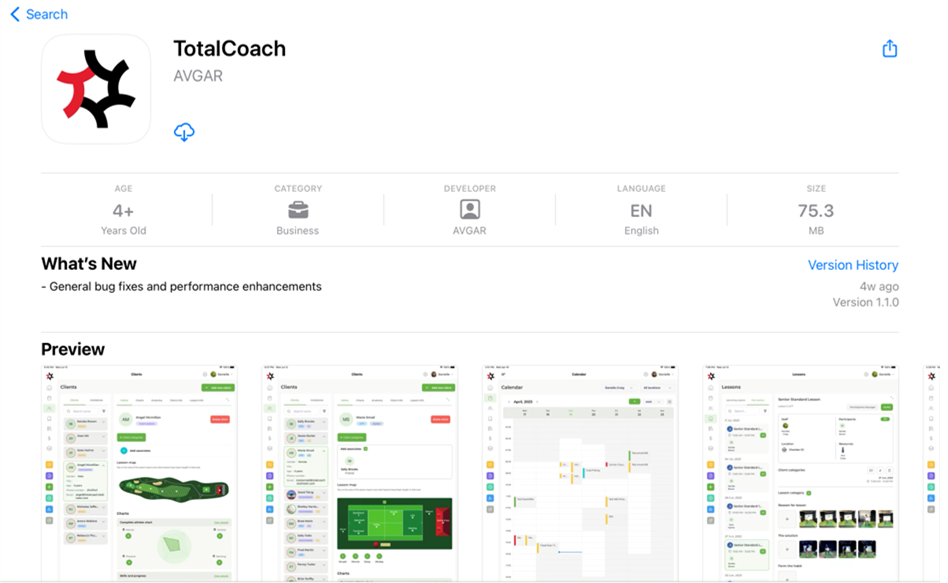
1. Search for **TotalCoach** in the Apple App Store and download it to your iPad.&#x20;

<figure><img src="https://content.gitbook.com/content/AQGETajdcxecrar4lUBE/blobs/Jz8HIjQXVVxlo9CH0Vvn/image.png" alt=""><figcaption></figcaption></figure>

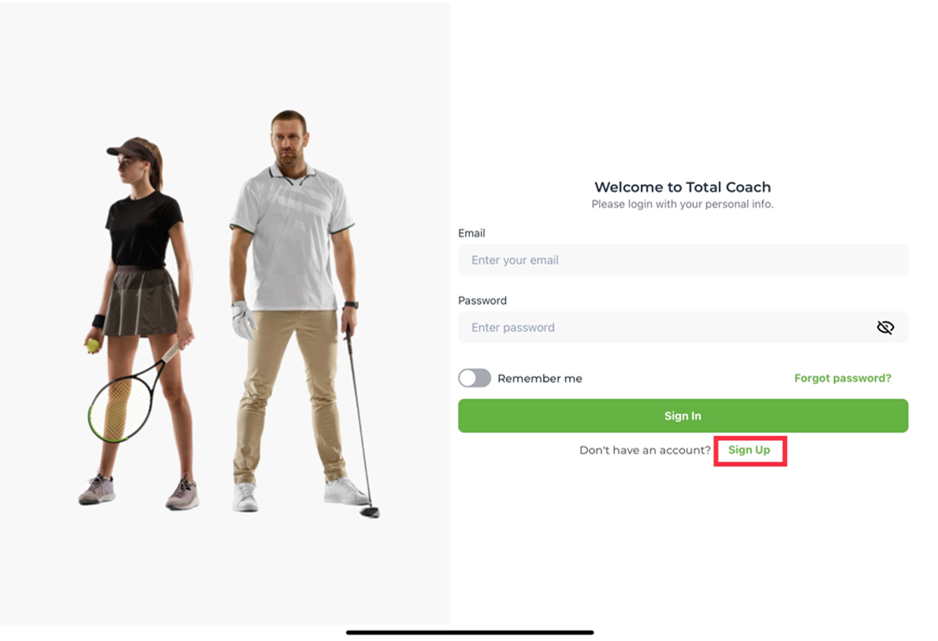
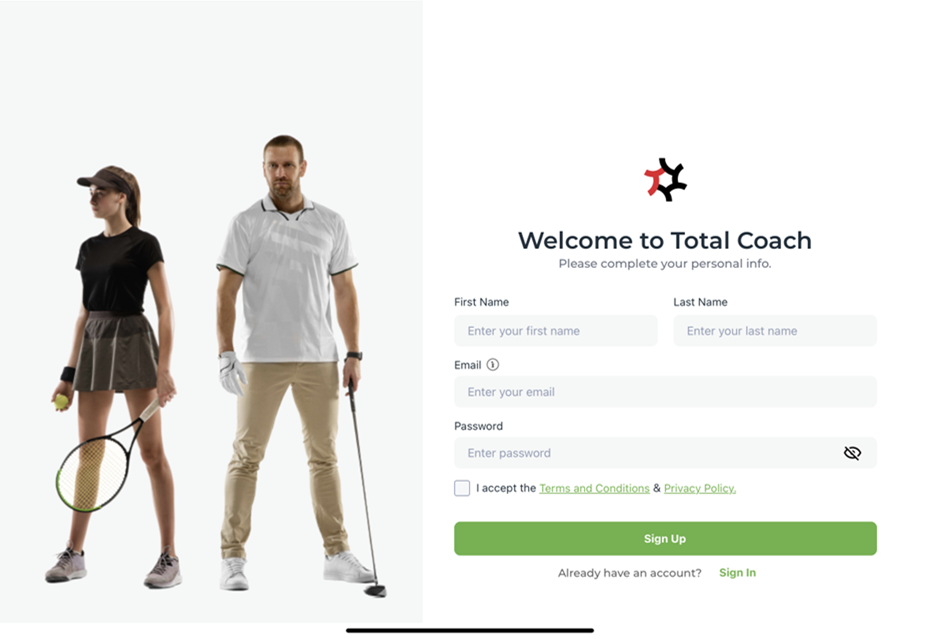
2. Open TotalCoach and click **Sign Up**.

<figure><img src="https://content.gitbook.com/content/AQGETajdcxecrar4lUBE/blobs/7COel1ZG0P1bwt0R5YgR/image.png" alt=""><figcaption></figcaption></figure>

3. Enter your **First Name**, **Last Name**, **Email** and create a **Password**. Check the **Terms and Conditions** box and click the green **Sign Up** button.&#x20;

<figure><img src="https://content.gitbook.com/content/AQGETajdcxecrar4lUBE/blobs/QOskOWhK8gEQLvvebseS/image.png" alt=""><figcaption></figcaption></figure>

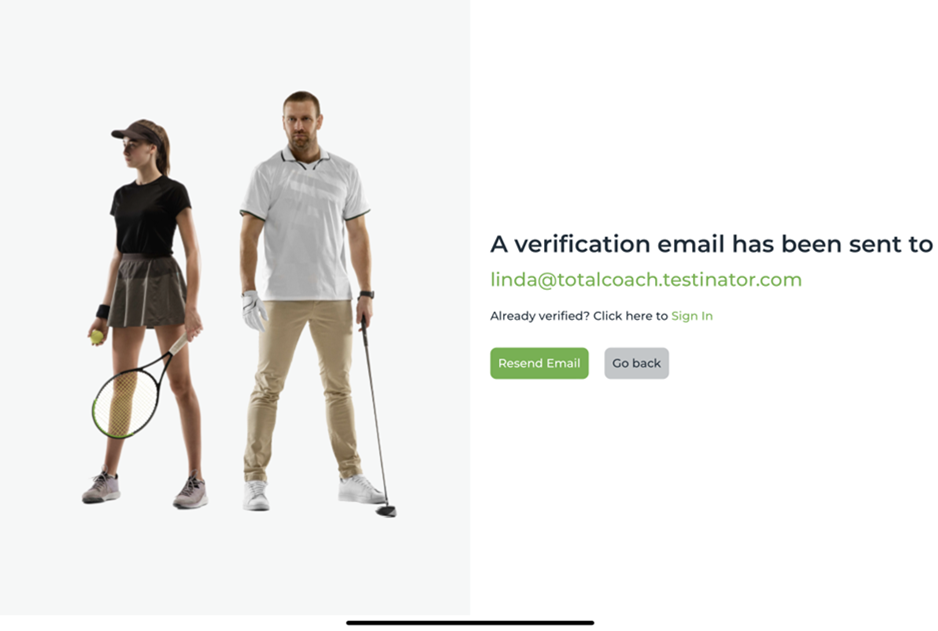
4. This will send a welcome email to you from TotalCoach and you can now sign in.&#x20;

<figure><img src="https://content.gitbook.com/content/AQGETajdcxecrar4lUBE/blobs/xjYe3lPmWijwp7qk10fq/image.png" alt=""><figcaption></figcaption></figure>

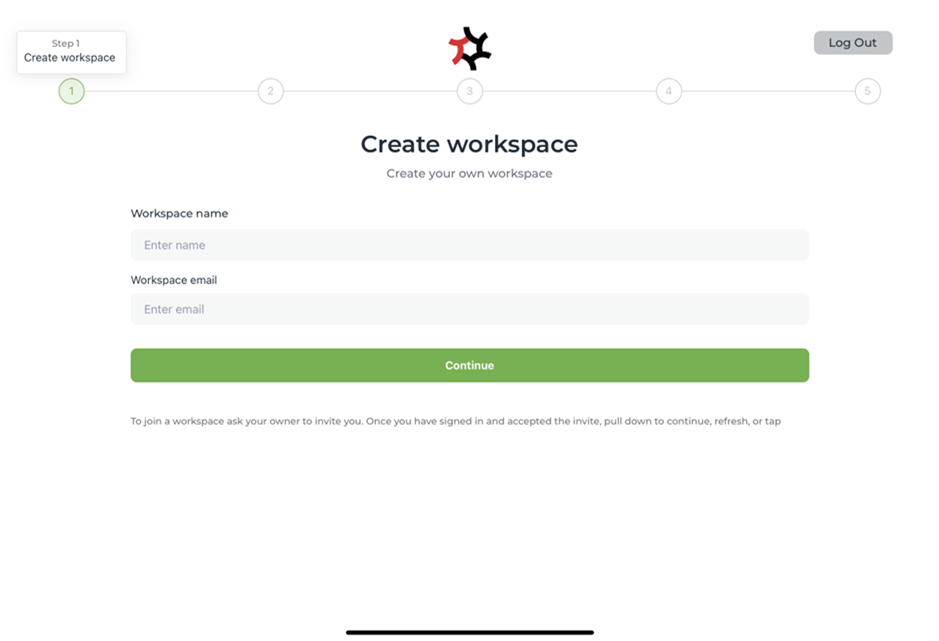
5. Once you have signed in using your email and password you can begin [creating your workspace](/coaches/support-for-coaches-organisations/welcome-to-totalcoach-support/setting-up-your-workspace).&#x20;

<figure><img src="https://content.gitbook.com/content/AQGETajdcxecrar4lUBE/blobs/8xayabMc0R4pmwOjtk8X/image.png" alt=""><figcaption></figcaption></figure>


# Dashboard

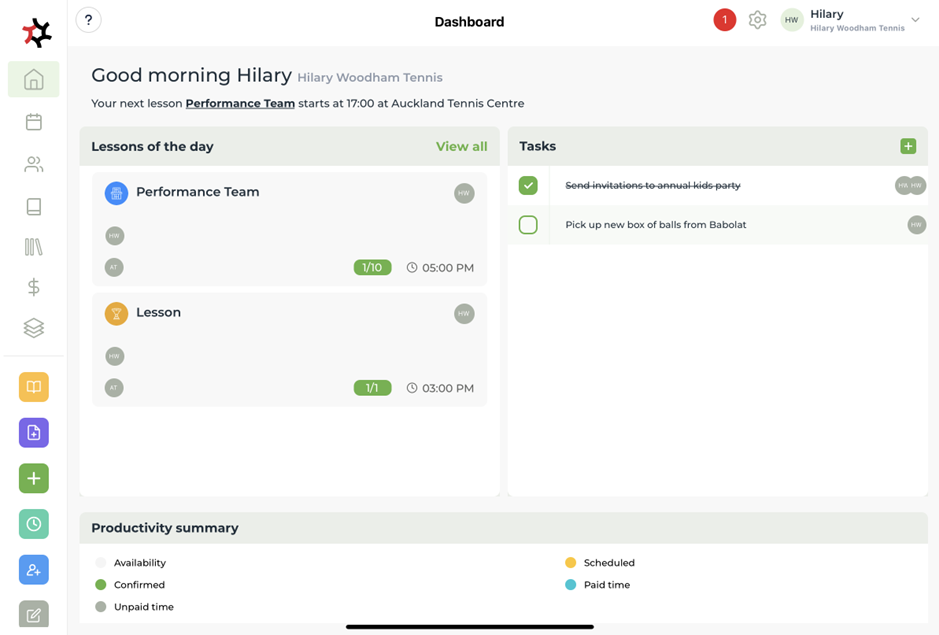
Learn how to navigate your dashboard.

<figure><img src="https://content.gitbook.com/content/AQGETajdcxecrar4lUBE/blobs/e5Ng40OhqR1HOKcXUN7F/image.png" alt=""><figcaption></figcaption></figure>

Use the side menu to quickly navigate your way around your workspace. The icons represent key features that you will use day to day in running your business.&#x20;

<figure><img src="https://content.gitbook.com/content/AQGETajdcxecrar4lUBE/blobs/h2NiaTpnJ4PWbOGi1hZ6/Home%20(2).png" alt=""><figcaption></figcaption></figure>


# Adding locations

Add locations to your TotalCoach app.

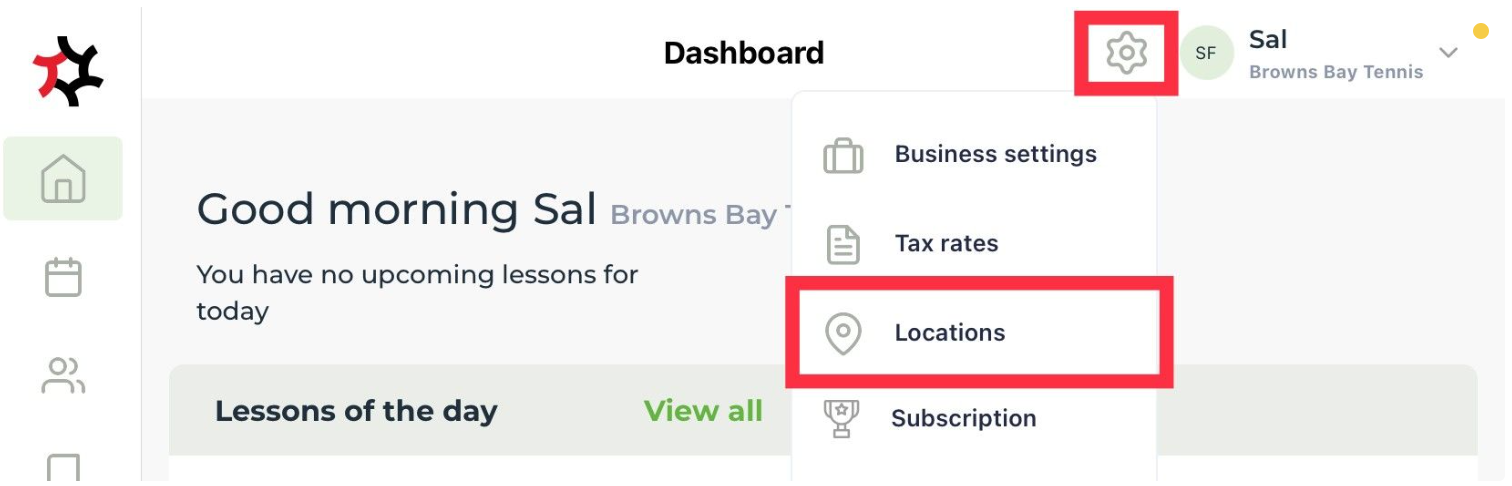
1. Select the **Settings** cog on the top toolbar and select **Locations**.

<div align="left"><figure><img src="https://content.gitbook.com/content/AQGETajdcxecrar4lUBE/blobs/KF2m6UAde1vfAft6inzL/spaces_8MSmRHI9L4ZzXNGvQu7d_uploads_GWIzWvplR7wq5AdtJrzA_Screenshot%202023-10-16%20at%201.webp" alt="" width="563"><figcaption></figcaption></figure></div>

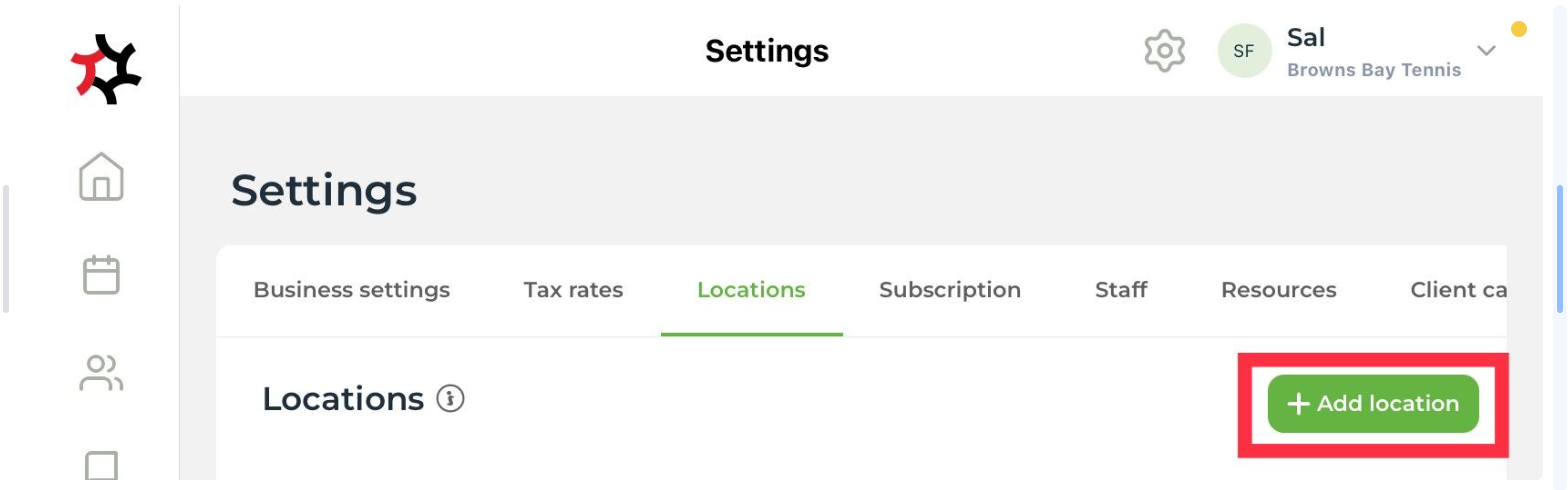
2. Select the **Add location** button on the top right corner.&#x20;

<div align="left"><figure><img src="https://content.gitbook.com/content/AQGETajdcxecrar4lUBE/blobs/r6XE5U9p3RXjwetOs5FR/addLocation.webp" alt="" width="563"><figcaption></figcaption></figure></div>

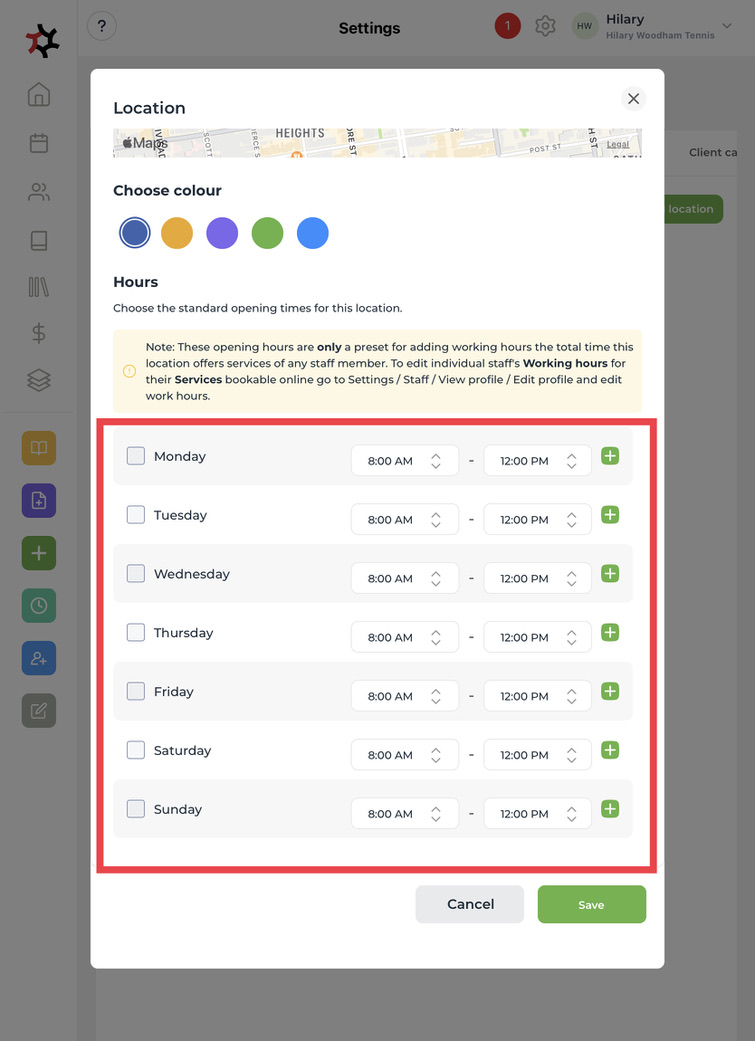
3. Enter the location **Name**, **Phone number** and **Address**, then **Choose a colour**.&#x20;
4. Next, add the **Hours** for the location then tap **Save**.

<figure><img src="https://content.gitbook.com/content/AQGETajdcxecrar4lUBE/blobs/yCteLARwC4nRyhY6qbB8/0753B96F-4B56-4D4E-A932-262A91129FAB_1_105_c.jpeg" alt=""><figcaption></figcaption></figure>

Important: **Location hours** will determine a staff member's availability when [adding staff working hours](/coaches/support-for-coaches-organisations/welcome-to-totalcoach-support/setting-up-your-workspace/adding-staff-working-hours).&#x20;


# Adding staff

In addition to a single coach subscription, TotalCoach includes a complimentary staff account.

### Adding a staff member to your workspace

You can invite staff members to join your workspace. Once added, each staff member will receive an invitation to confirm their account and install TotalCoach via the App Store.

Staff members will log in using the same email address used to create their account.

The staff member's phone number will appear on the booking confirmation email to clients in case they need to reach them.

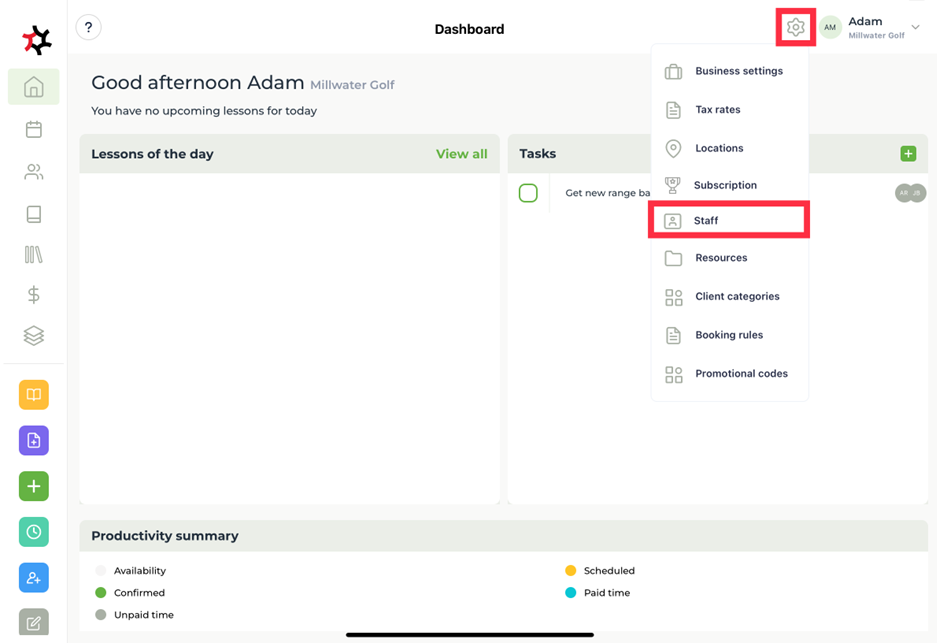
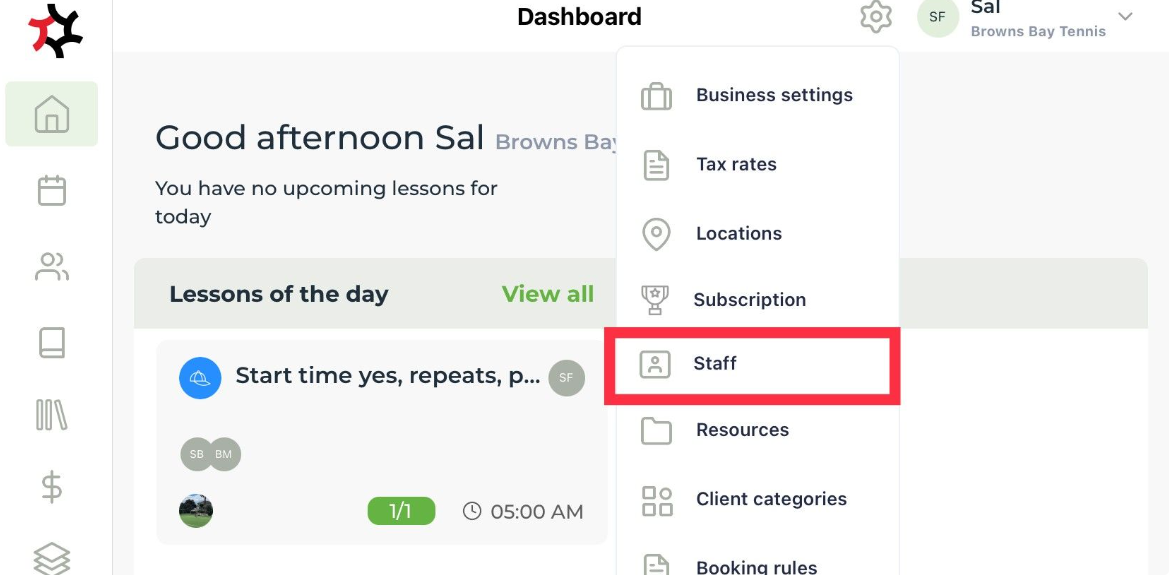
1. To add a new staff member, press the **Settings** cog, then select **Staff**.&#x20;

<div align="left"><figure><img src="https://content.gitbook.com/content/AQGETajdcxecrar4lUBE/blobs/m7Ly8fdYfSPvKrr1v3tG/image.png" alt="" width="563"><figcaption></figcaption></figure></div>

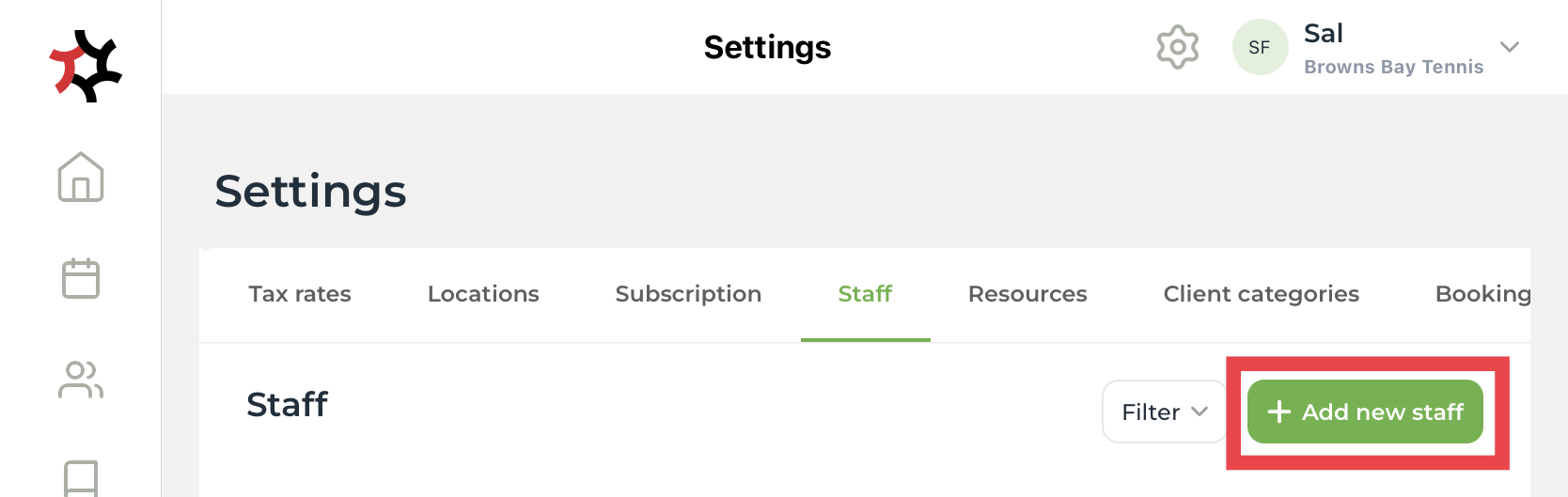
2. Then, tap the **Add new staff** button.&#x20;

<div align="left"><figure><img src="https://content.gitbook.com/content/AQGETajdcxecrar4lUBE/blobs/D5fMwrsiVm3aqxCuoKwI/IMG_95D005807BBD-1.jpeg" alt="" width="563"><figcaption></figcaption></figure></div>

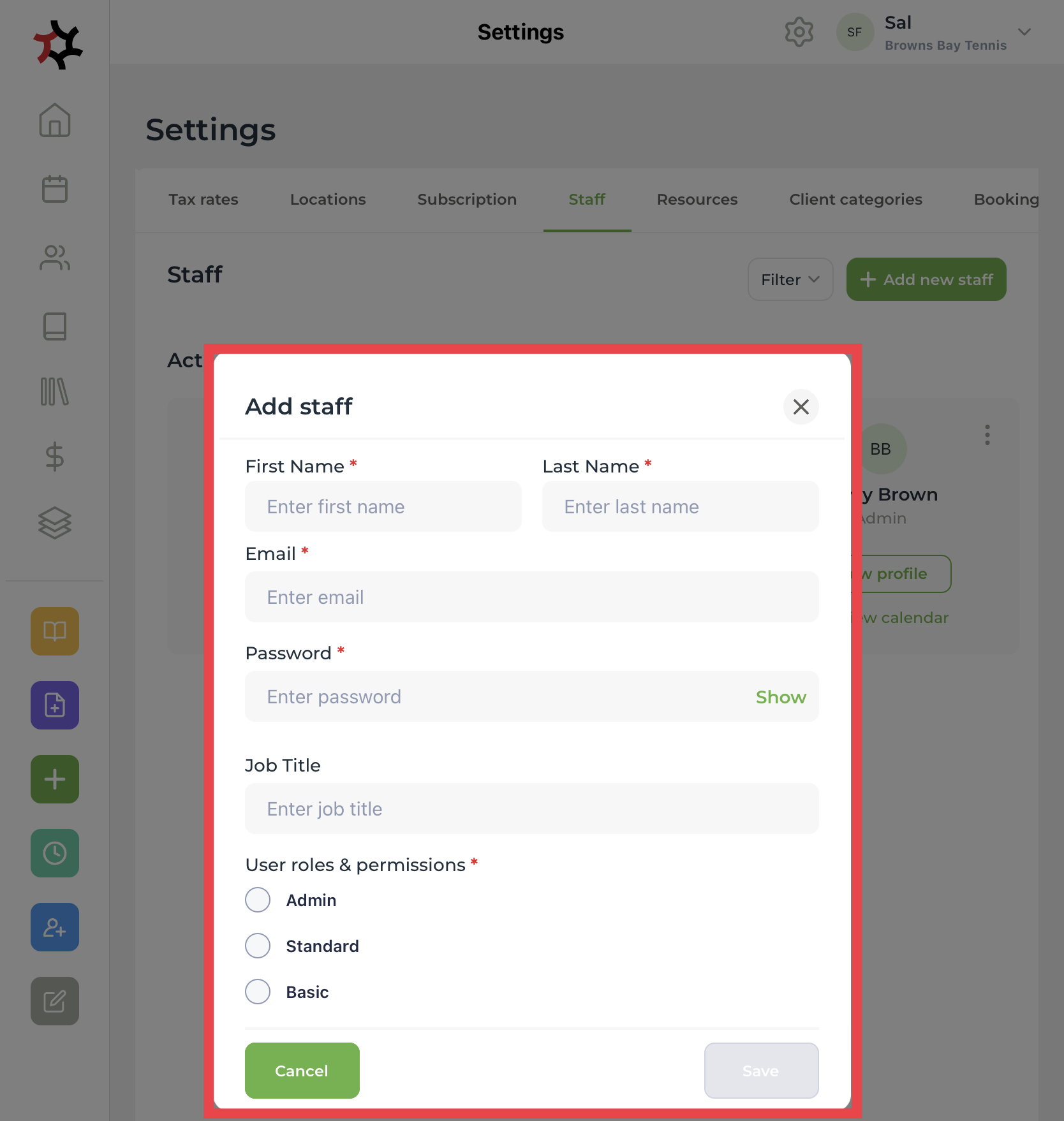
3. Add staff details then choose the [User roles and permissions](/coaches/support-for-coaches-organisations/welcome-to-totalcoach-support/manage-staff/staff-roles-and-permissions) you want to give the staff member, and then tap **Save**.  You can also edit and delete the staff member's account later on.                  &#x20;

<div align="left"><figure><img src="https://content.gitbook.com/content/AQGETajdcxecrar4lUBE/blobs/pNQ617xcMimNFSHDjqiE/IMG_70E28FBD89BE-1.jpeg" alt="" width="563"><figcaption></figcaption></figure></div>


# Adding staff working hours

Ensure you have set location hours before adding staff hours.

1. Select the **Settings** cog on the top toolbar and select **Staff**. &#x20;

<div align="left"><figure><img src="https://content.gitbook.com/content/AQGETajdcxecrar4lUBE/blobs/PDwDXcpRst8SDdzDn40z/staff.webp" alt="" width="563"><figcaption></figcaption></figure></div>

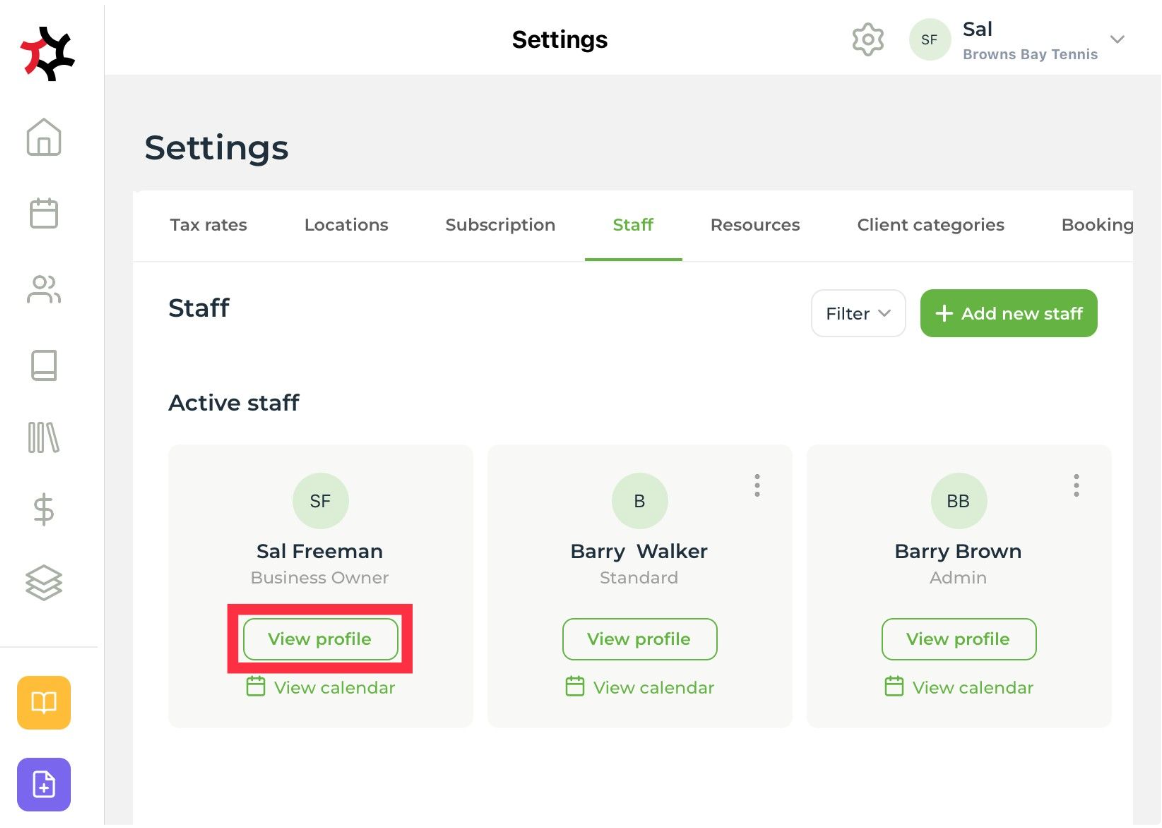
2. Press the **View profile** button.

<div align="left" data-full-width="false"><figure><img src="https://content.gitbook.com/content/AQGETajdcxecrar4lUBE/blobs/ktpPmZ65Wql7UnFtQQaI/viewProfile.webp" alt="" width="563"><figcaption></figcaption></figure></div>

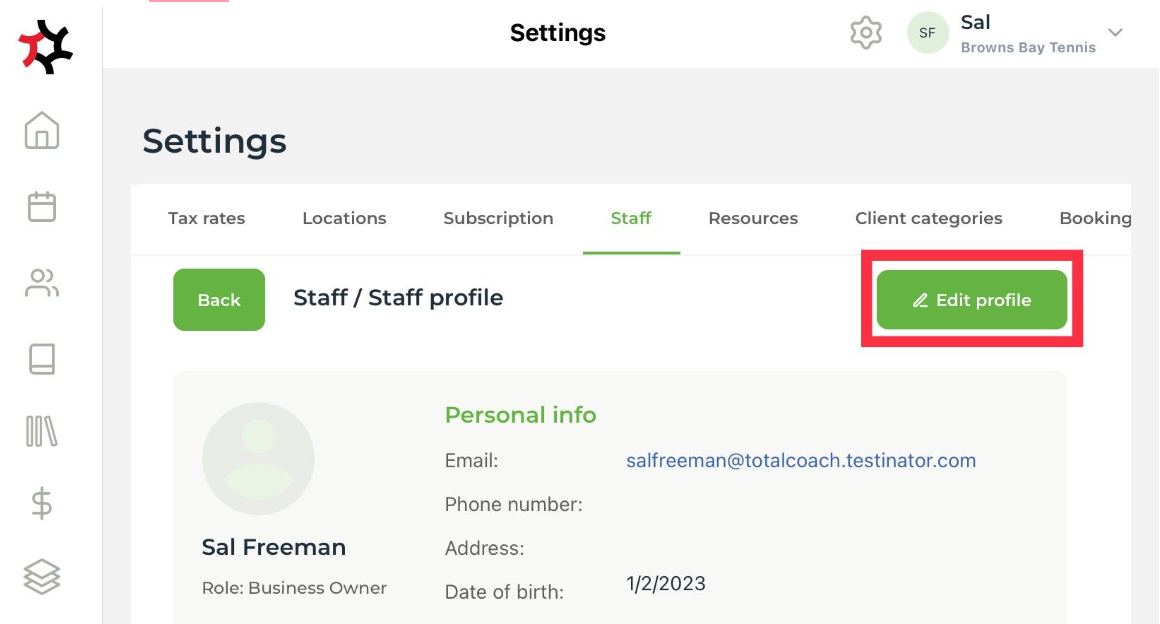
3. Press the **Edit profile** button - you can add, change, or remove information in this section.&#x20;

<div align="left"><figure><img src="https://content.gitbook.com/content/AQGETajdcxecrar4lUBE/blobs/cMx8oXLBaRCCZBrDMhbK/editProfile.webp" alt="" width="563"><figcaption></figcaption></figure></div>

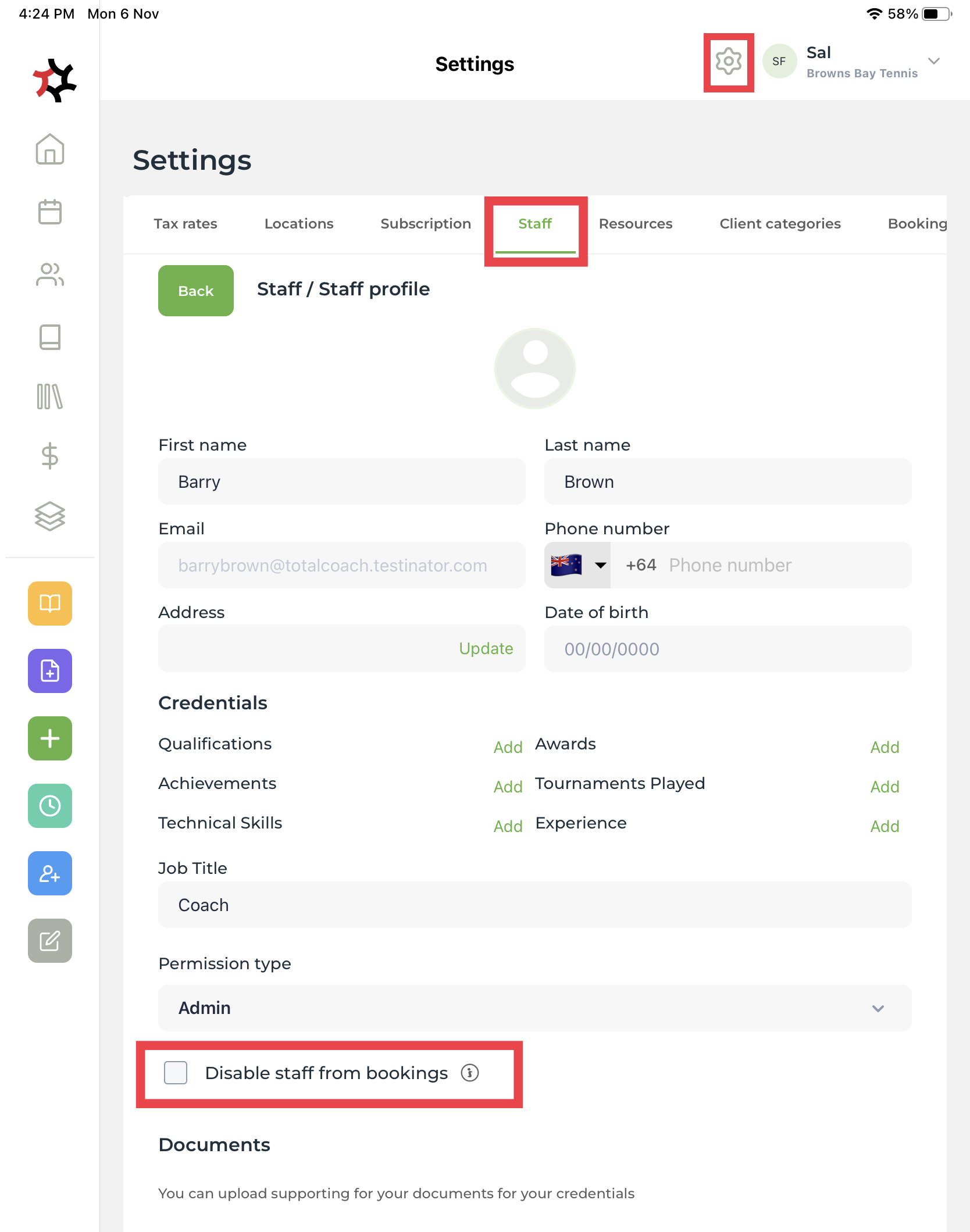
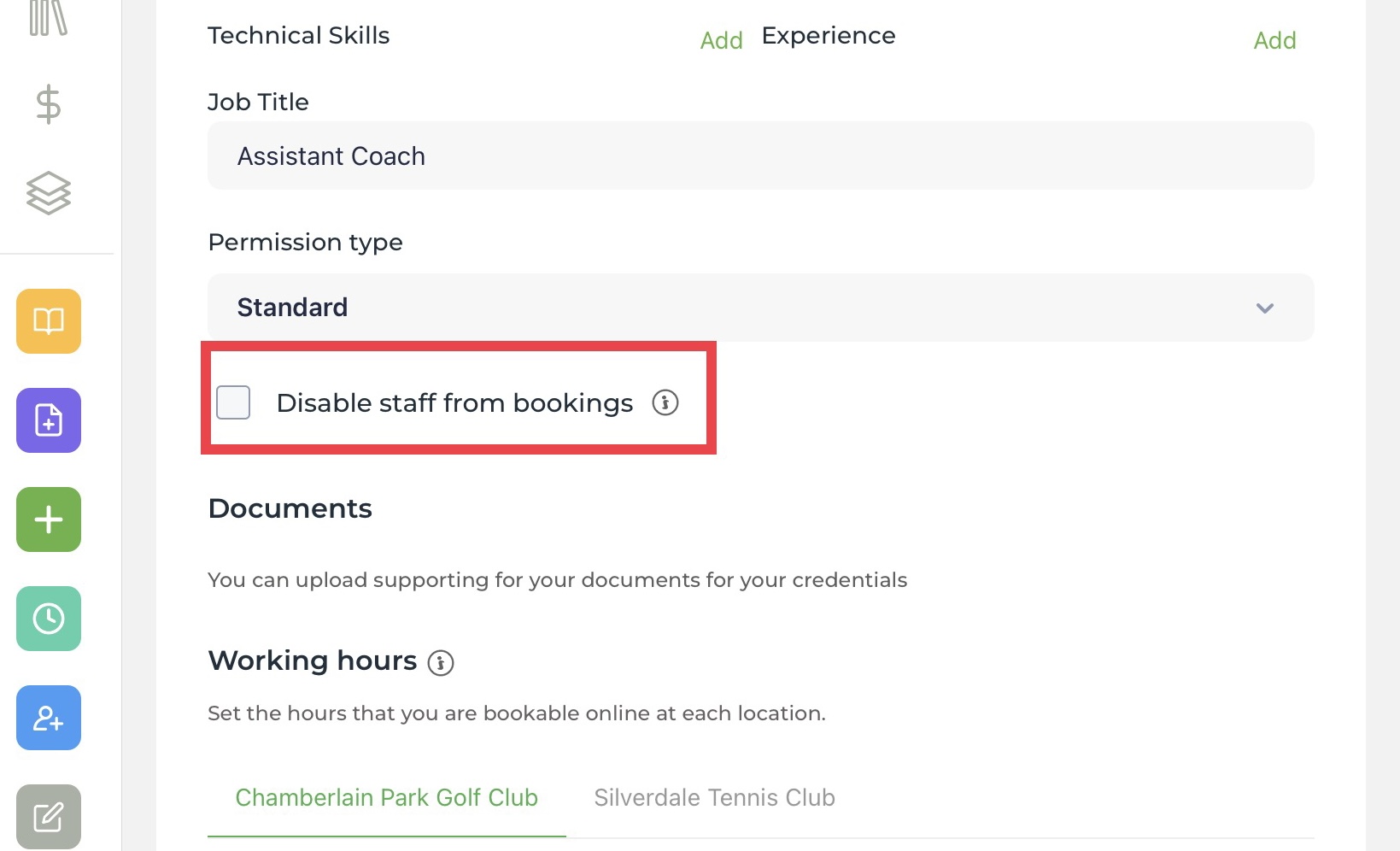
4. Staff won't appear on your public booking site when **Disable staff from bookings** is checked, so they can't be scheduled online. Additionally, they will not be available for selection when adding new lessons and services.

<div align="left"><figure><img src="https://content.gitbook.com/content/AQGETajdcxecrar4lUBE/blobs/YyEE0lr16giKb2agfmAm/IMG_0247.jpeg" alt="" width="563"><figcaption></figcaption></figure></div>

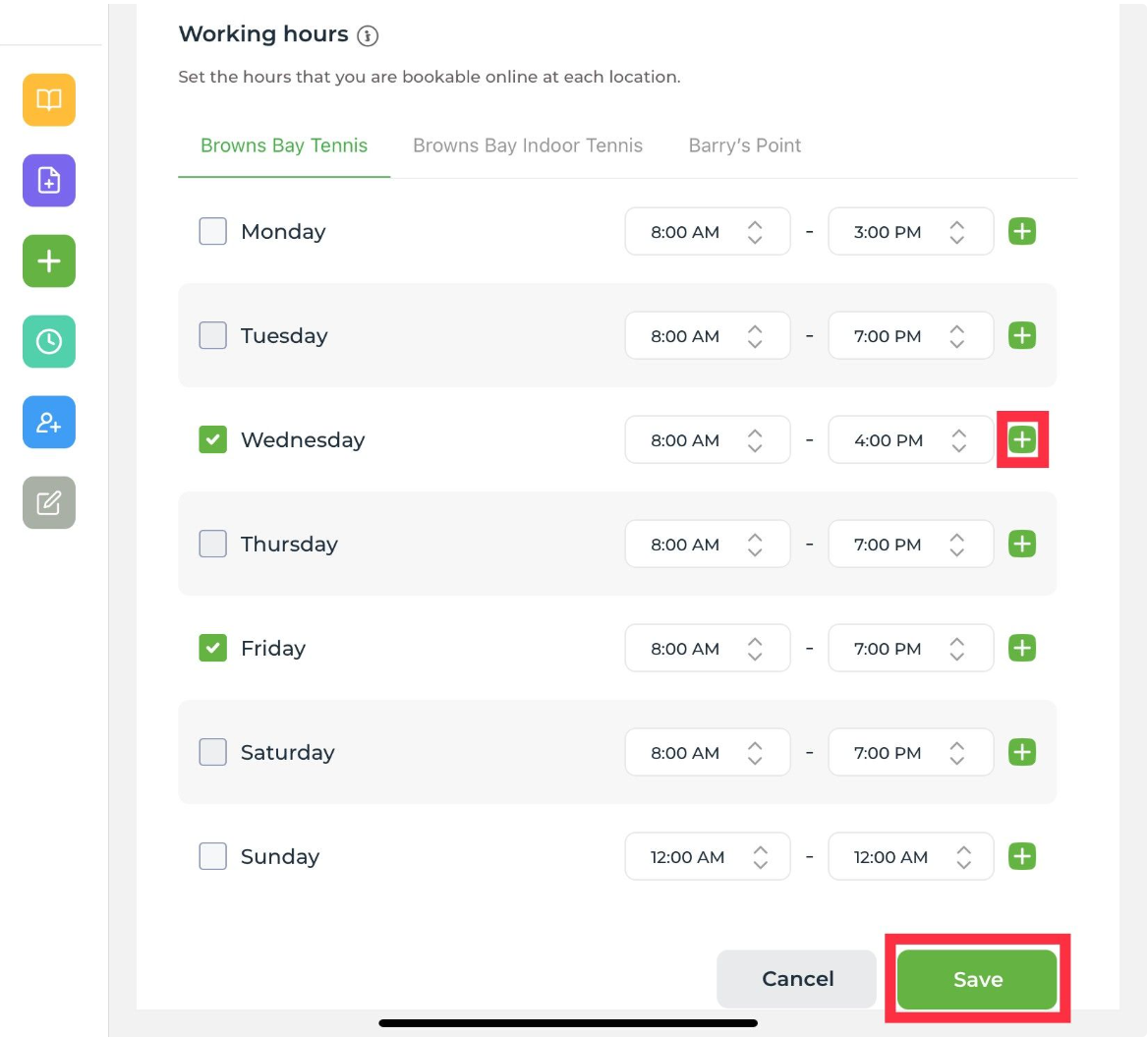
5. Add working hours for the staff member at each location. You can use the green **plus +** button to add more than one time period in a day to allow for regular breaks. Staff hours can only be set within the operating hours entered when [adding locations](/coaches/support-for-coaches-organisations/welcome-to-totalcoach-support/setting-up-your-workspace/adding-locations).

<div align="left"><figure><img src="https://content.gitbook.com/content/AQGETajdcxecrar4lUBE/blobs/Igzo1lKsQ6zGu1ixI5Pc/saveProfile.webp" alt="" width="563"><figcaption></figcaption></figure></div>

6. Finally, press **Save** to apply your changes.


# Adding busy times

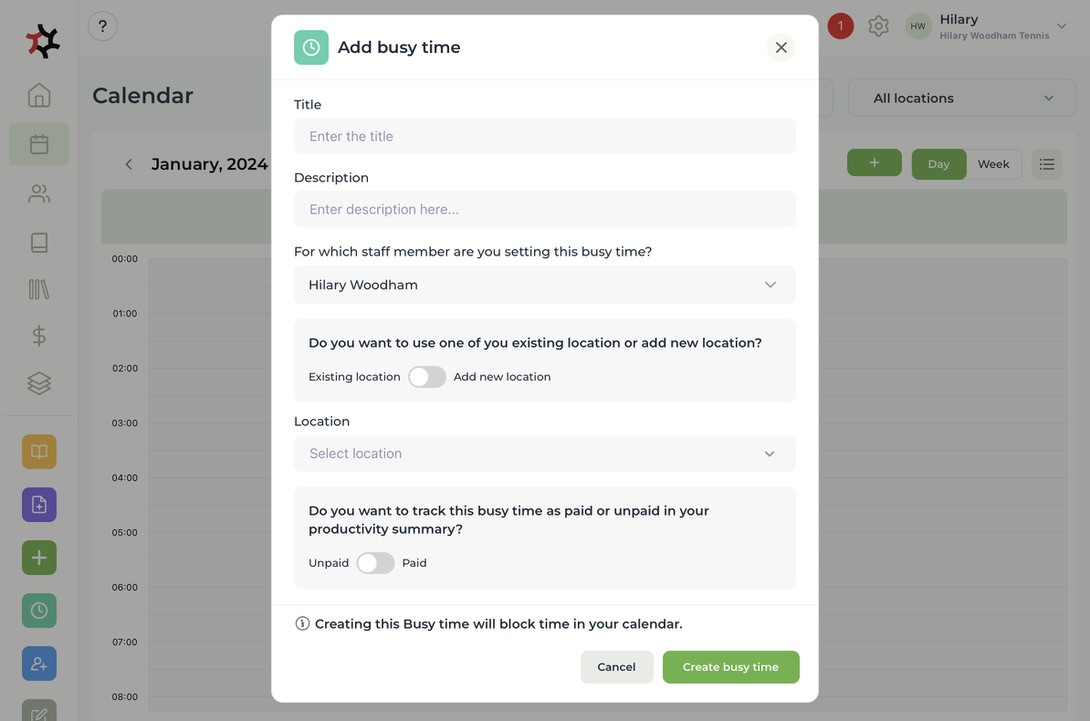
Add a Busy time to block out time(s) when a staff member is unavailable for online bookings. Use busy times for irregular events like a personal appointment or a staff lunch.

1. To add a busy time, choose one of the following methods:
   * Press the turquoise **Clock button** on the sidebar.
   * From the **Calendar** tab, press and hold on an available time slot and select **Busy time**.
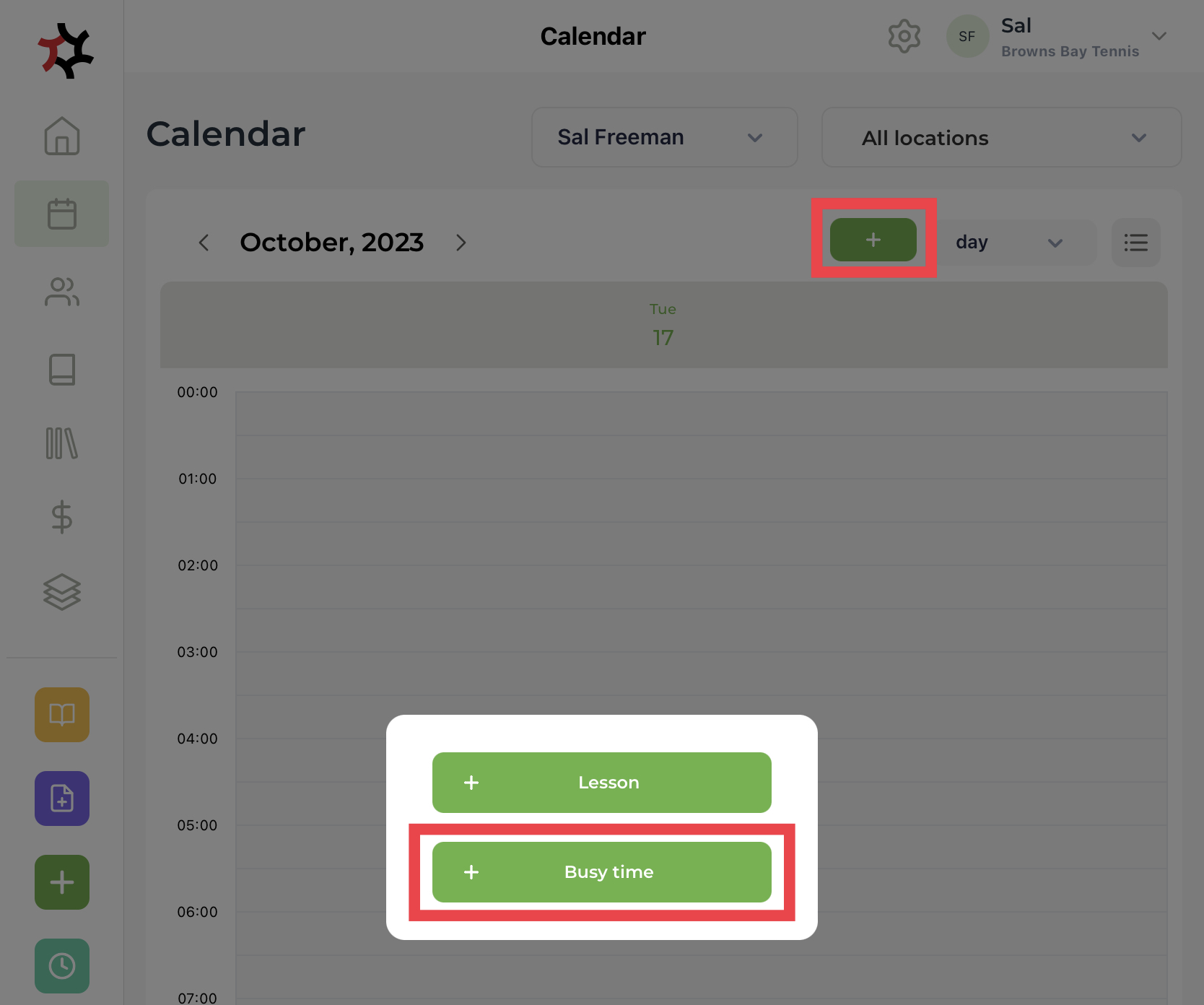
   * &#x20;From the **Calendar** tab, press the green **+** button and select **Busy time**.

<figure><img src="https://content.gitbook.com/content/AQGETajdcxecrar4lUBE/blobs/SEJSB1f6LTy2fMot1DP4/6A513B08-FBA7-4070-8C59-B5CFF2456E94_1_105_c.jpeg" alt=""><figcaption></figcaption></figure>

<figure><img src="https://content.gitbook.com/content/AQGETajdcxecrar4lUBE/blobs/WjtLK0QezK3YHUBEraxr/busyTimeButton.jpeg" alt=""><figcaption></figcaption></figure>


# Add basic and advanced services

Add services that can be booked online during your available working hours, or use the advanced flow to create customised services where you can invite specific clients and set times.

{% embed url="<https://app.heygen.com/share/7256c6d13fb643bbac19b3a25afe0d89>" %}

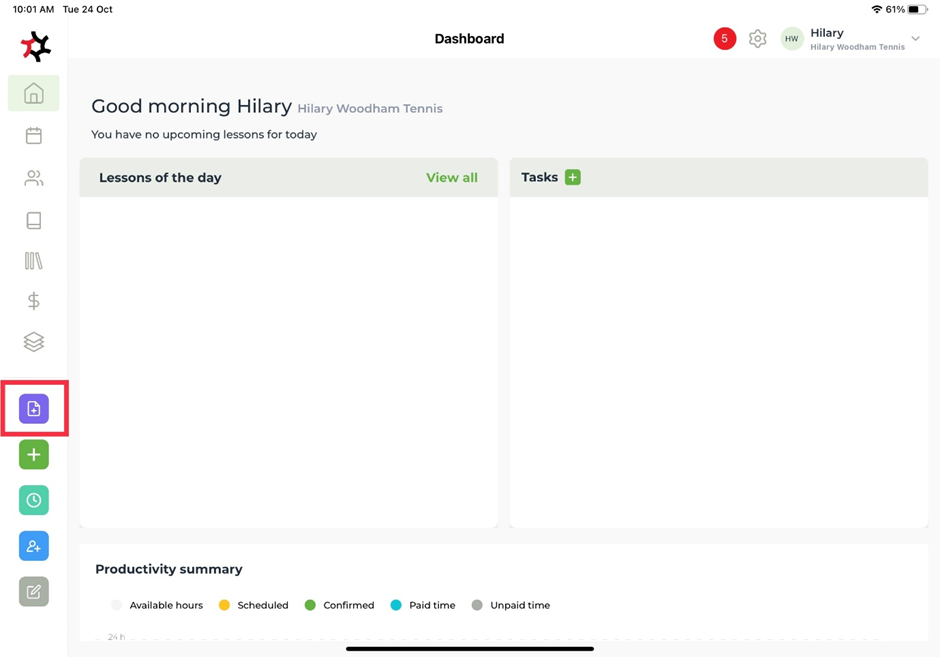
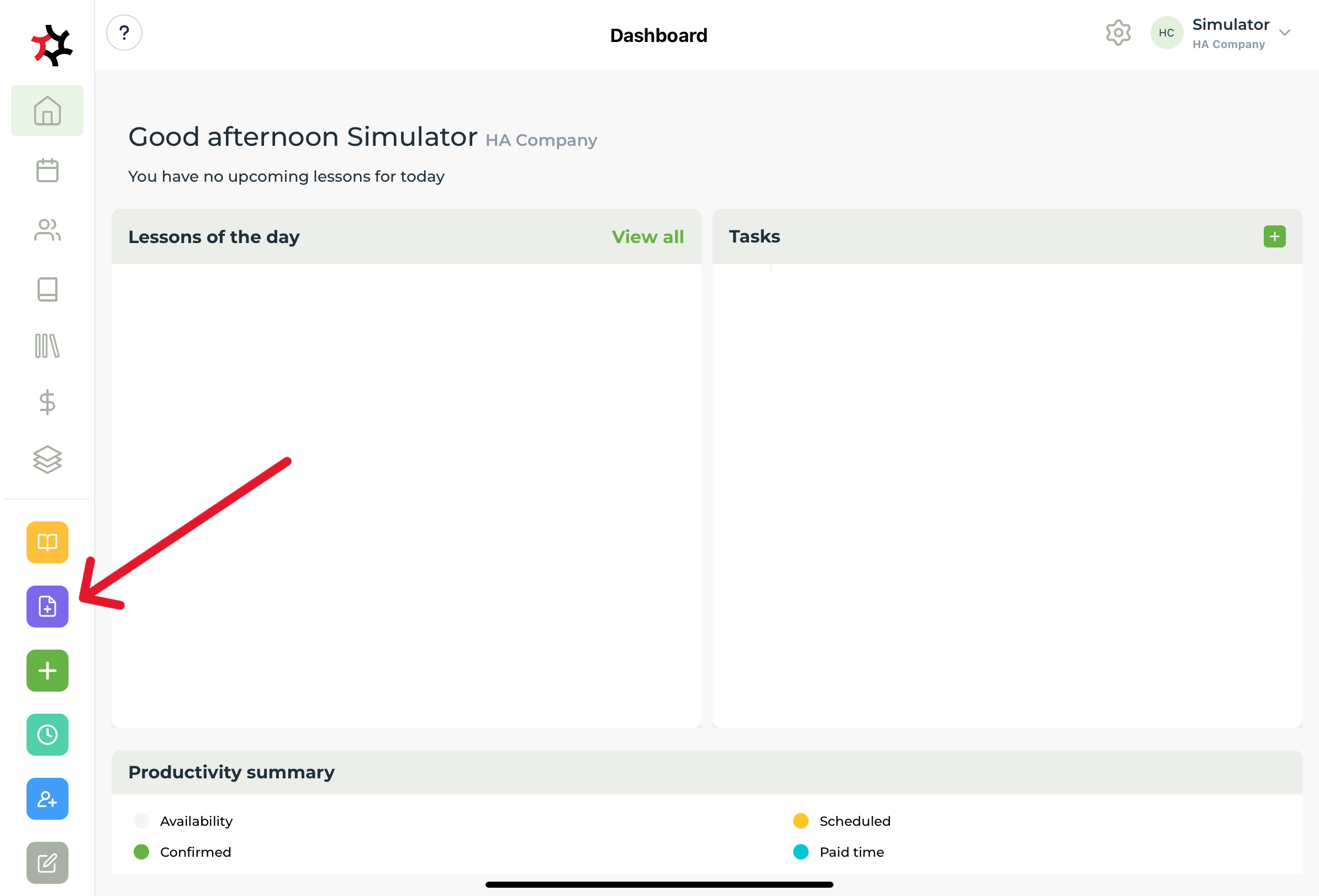
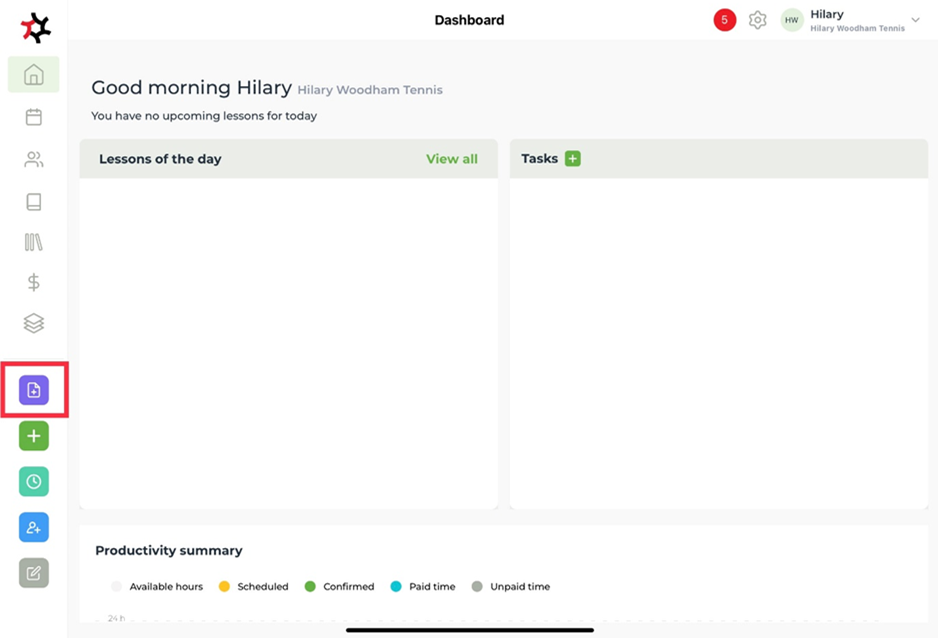
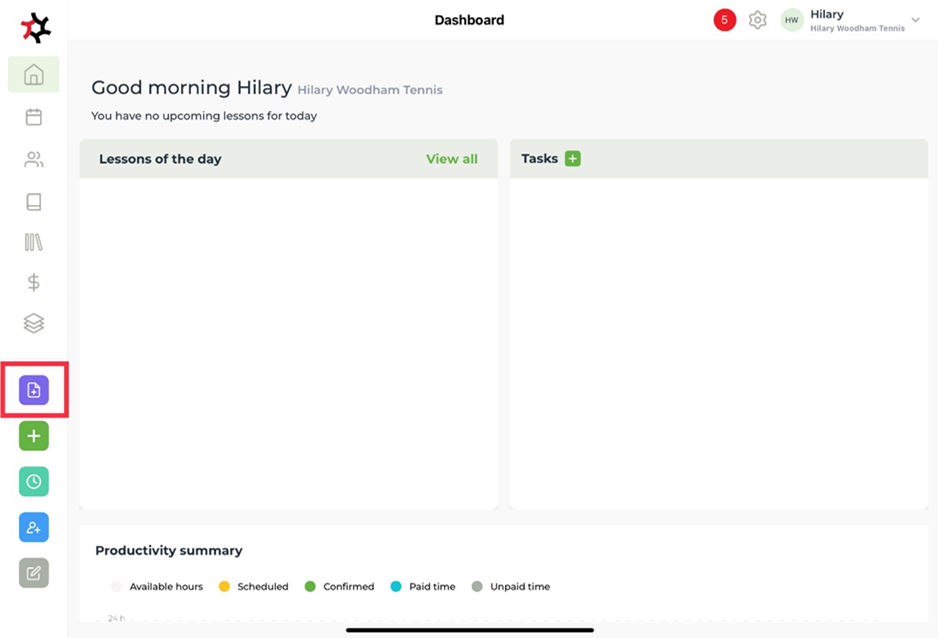
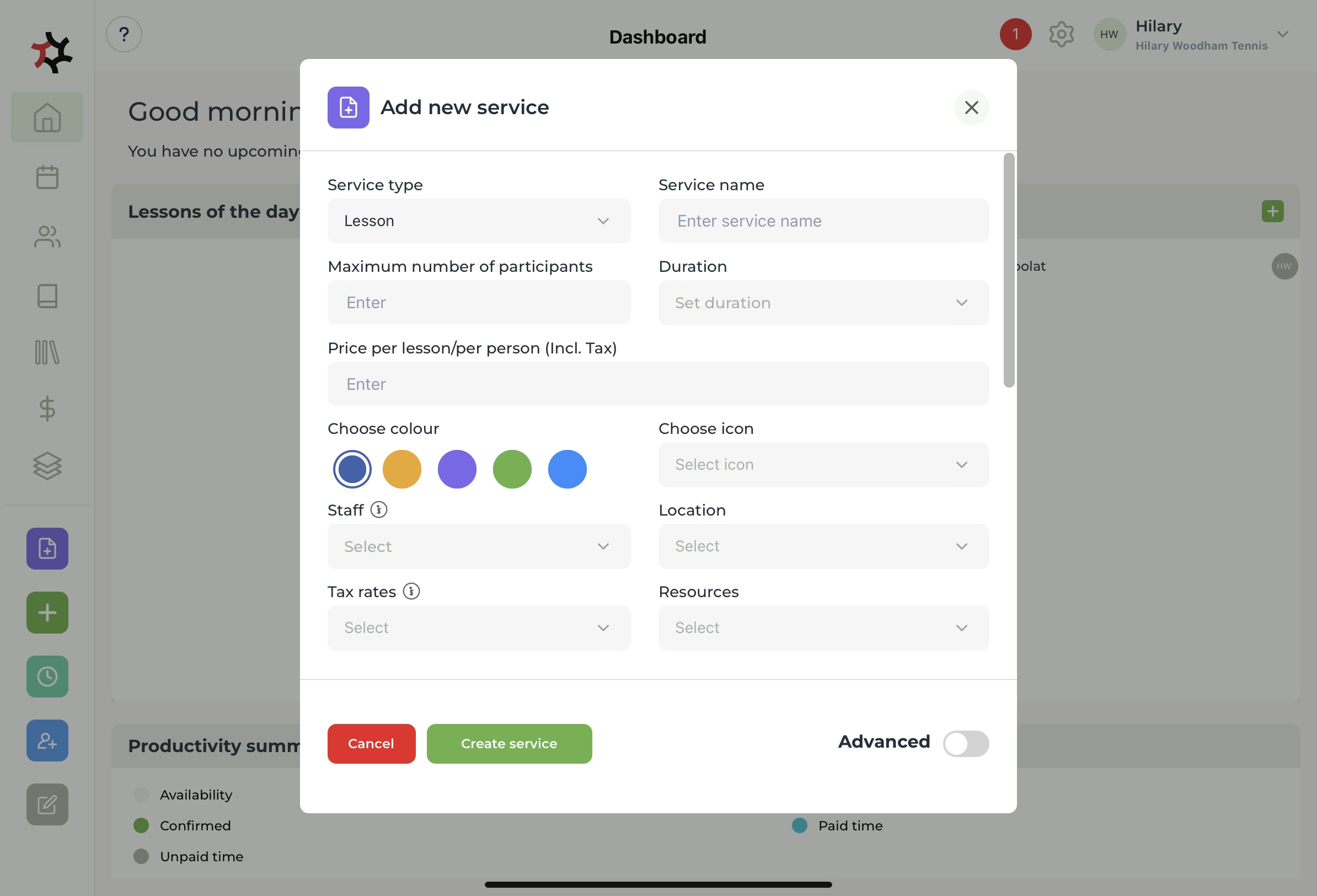
1. Select the **Add service** quick link in the side bar to add a new service.

<figure><img src="https://content.gitbook.com/content/AQGETajdcxecrar4lUBE/blobs/UHJtrPMhbFrbPdkcbQXp/image.png" alt=""><figcaption></figcaption></figure>

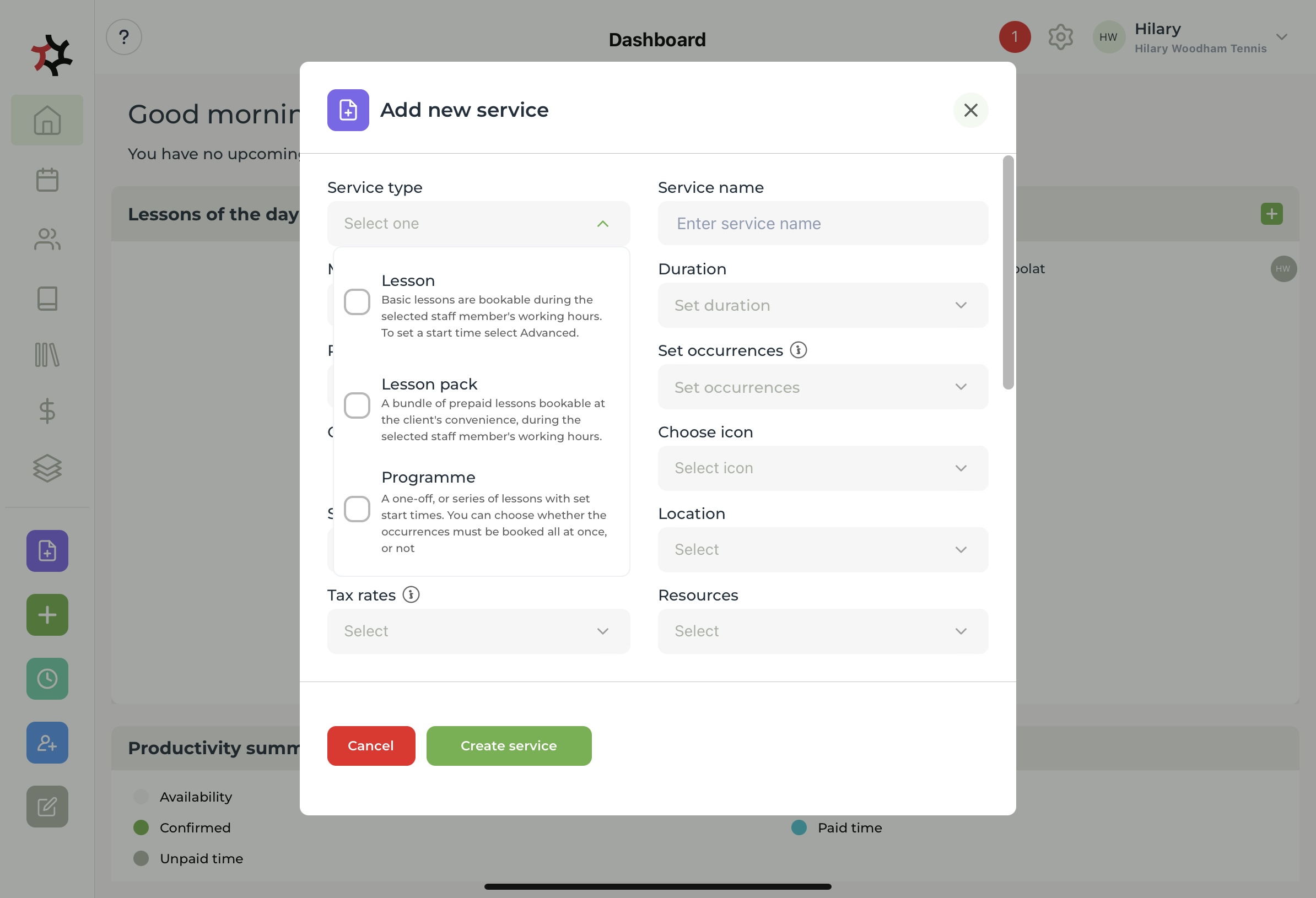
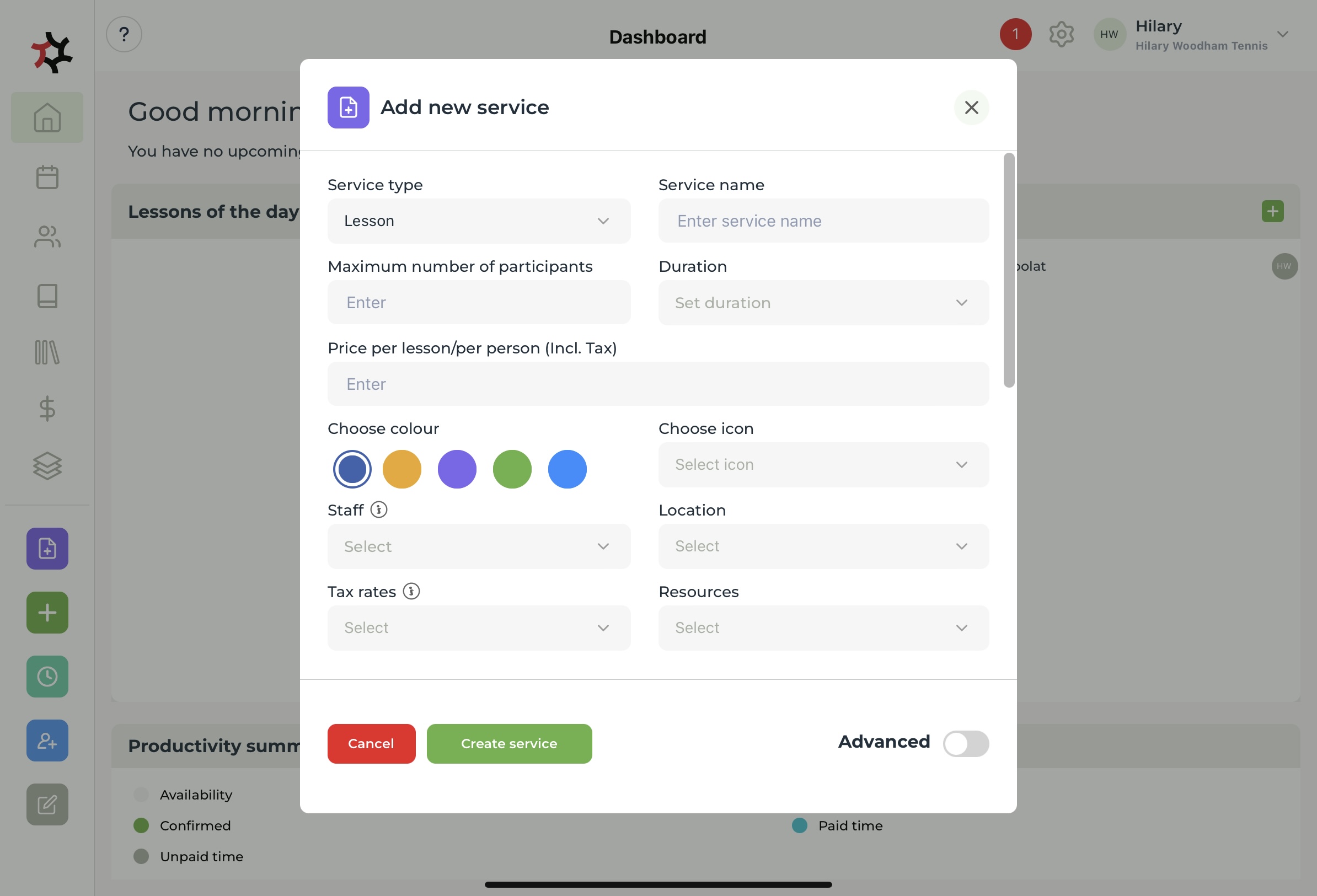
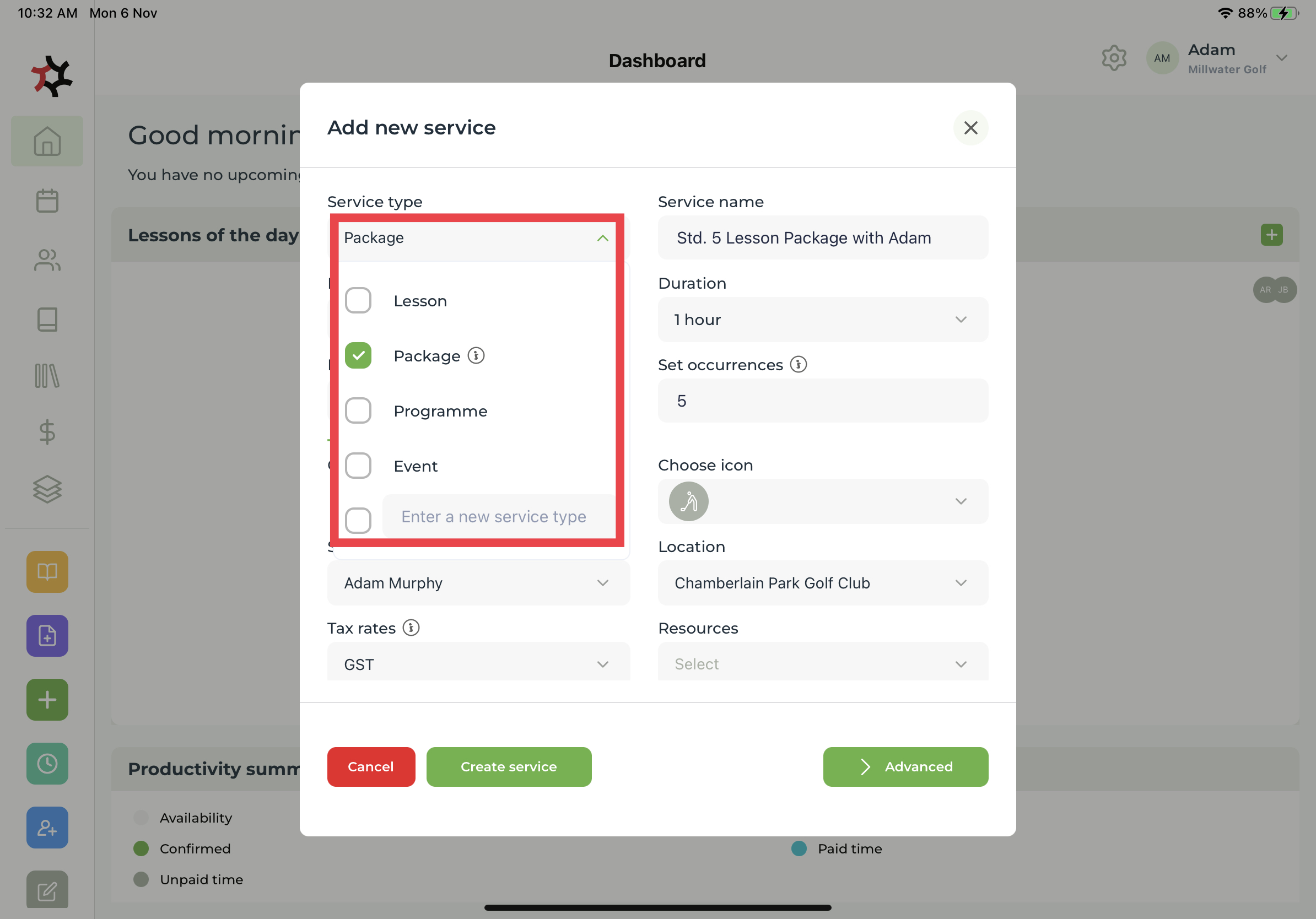
2. Select your **Service type** from the pre-made options or enter a new service type.&#x20;

<figure><img src="https://content.gitbook.com/content/AQGETajdcxecrar4lUBE/blobs/eK6E1CwnCc3vcDyWYQzH/image.jpeg" alt=""><figcaption></figcaption></figure>

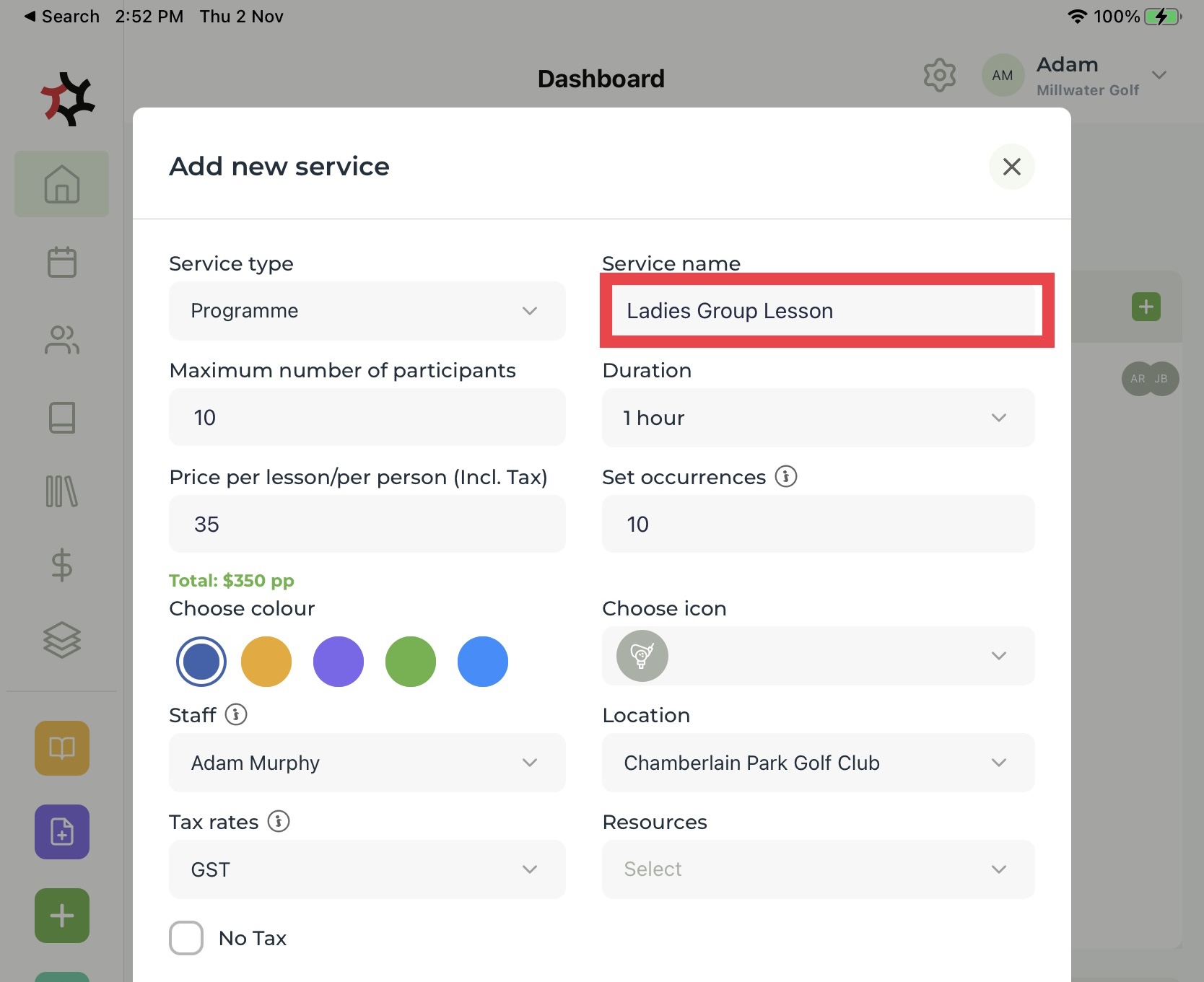
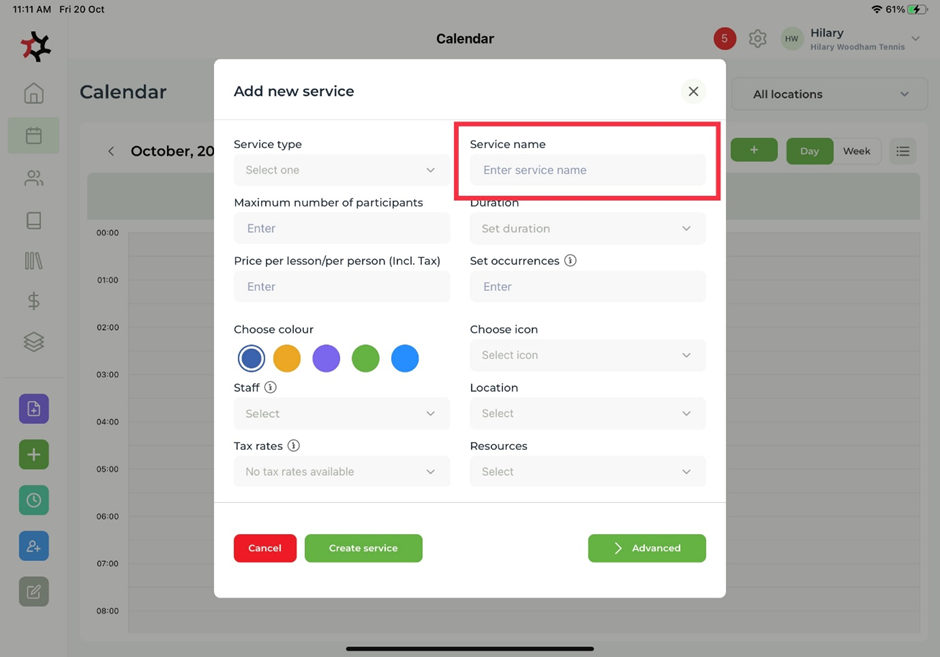
3. Create a **Service name** for your service. For example, Private Lesson or Junior Groups.

<figure><img src="https://content.gitbook.com/content/AQGETajdcxecrar4lUBE/blobs/Gq9mEMstumoaYVGUkQAm/image.png" alt=""><figcaption></figcaption></figure>

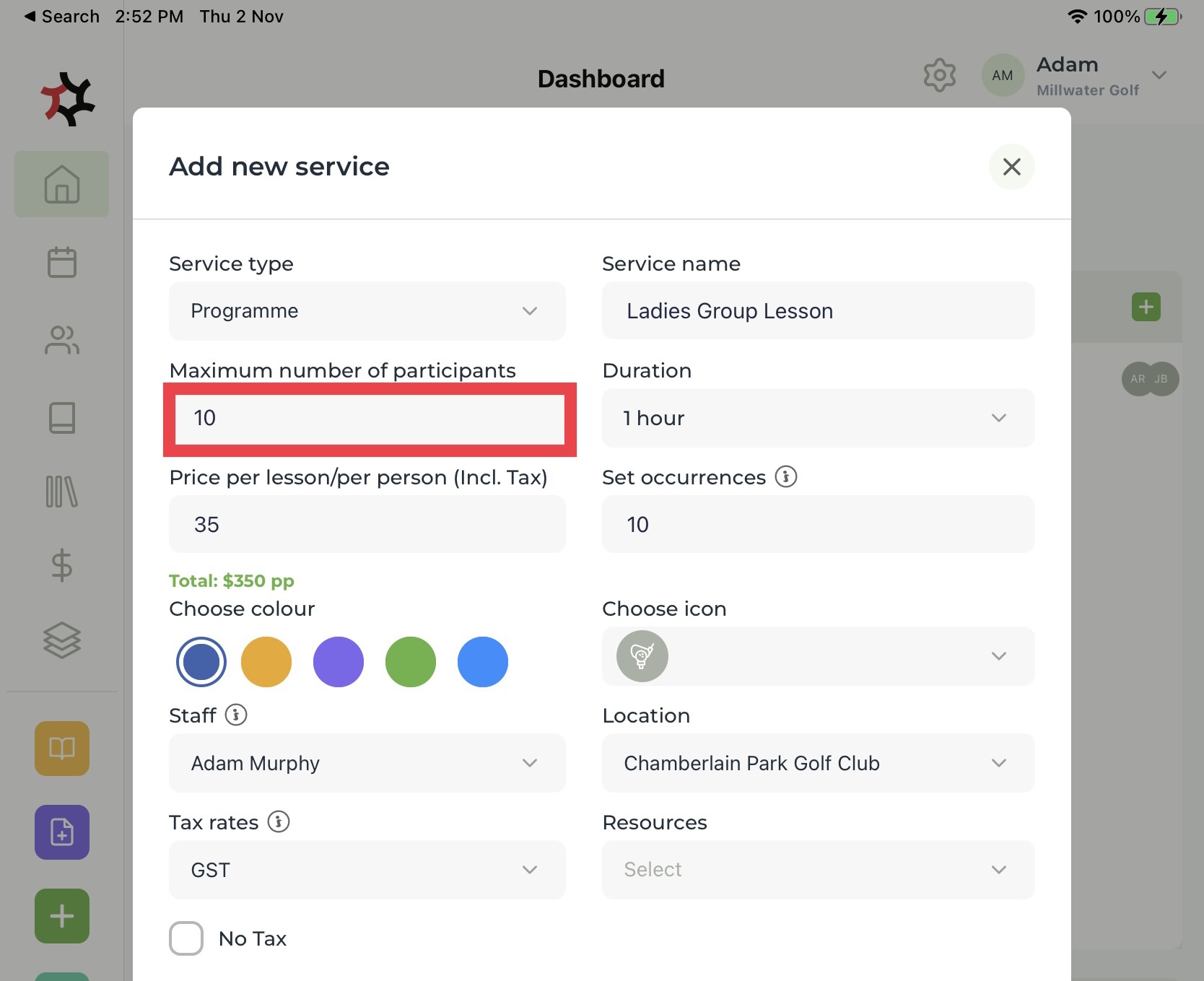
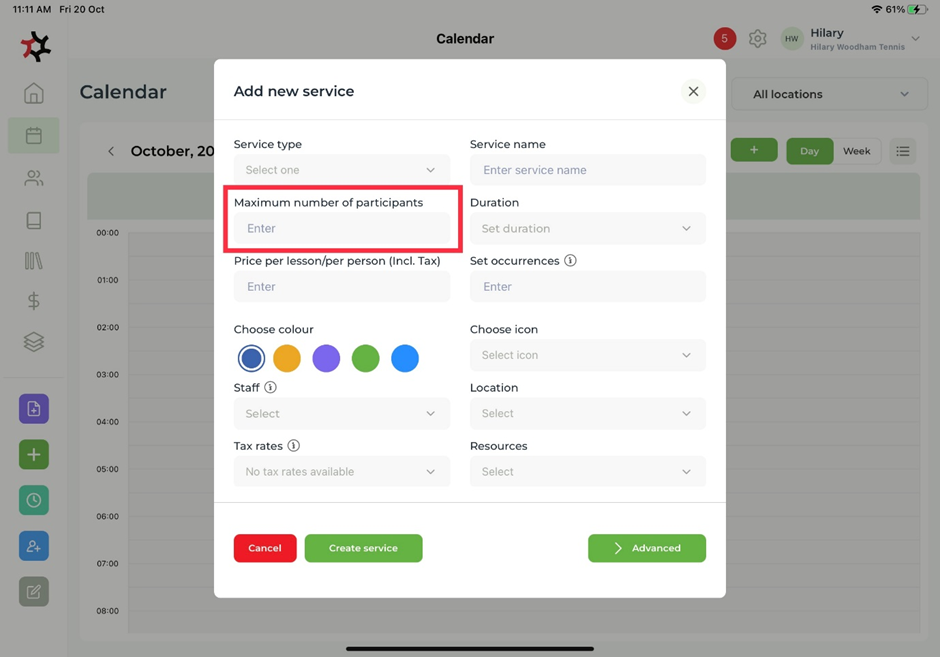
4. Enter in the **Maximum number of participants** for your service.

<figure><img src="https://content.gitbook.com/content/AQGETajdcxecrar4lUBE/blobs/kyITz4kbPVmh7VFk8POQ/image.png" alt=""><figcaption></figcaption></figure>

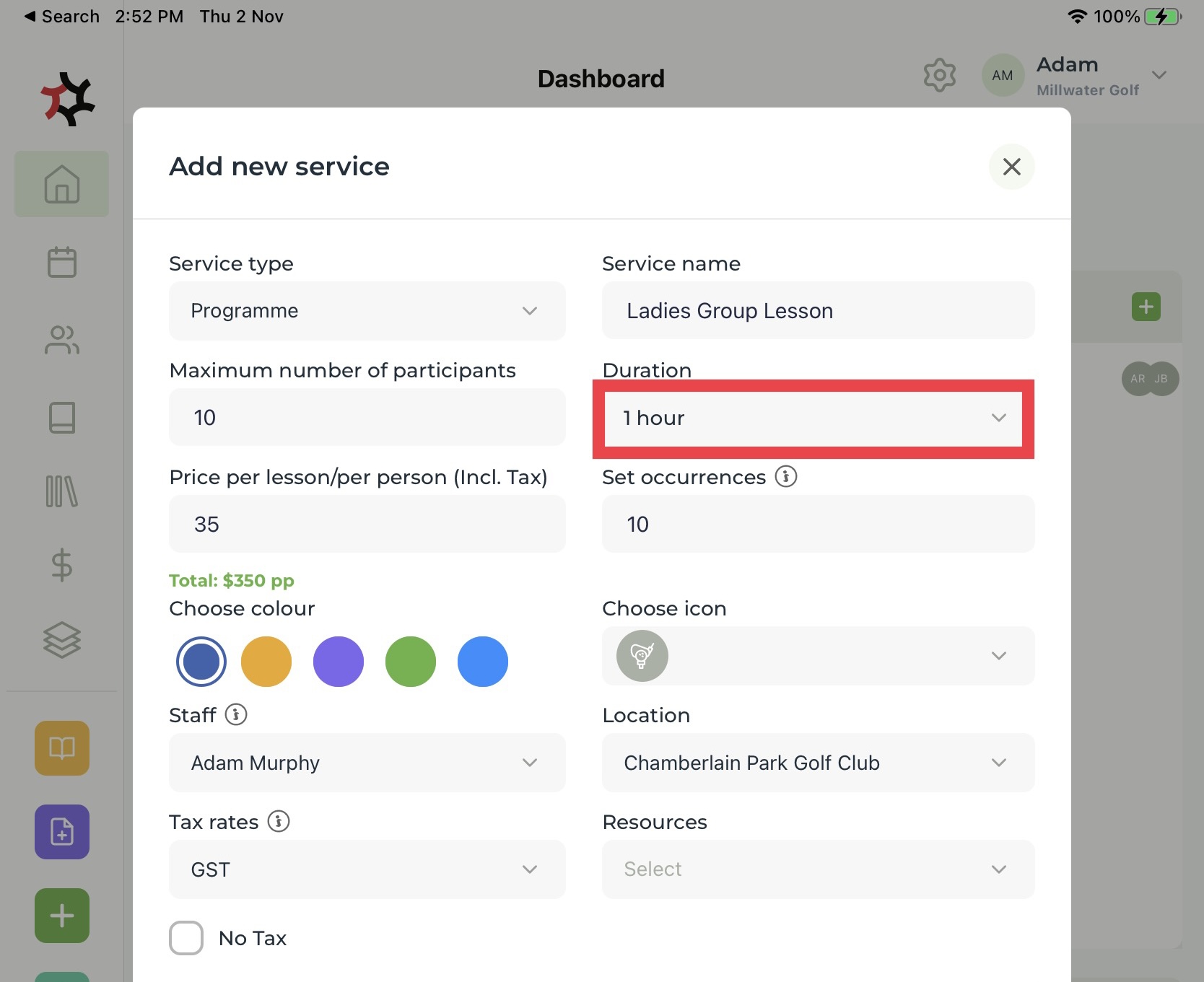
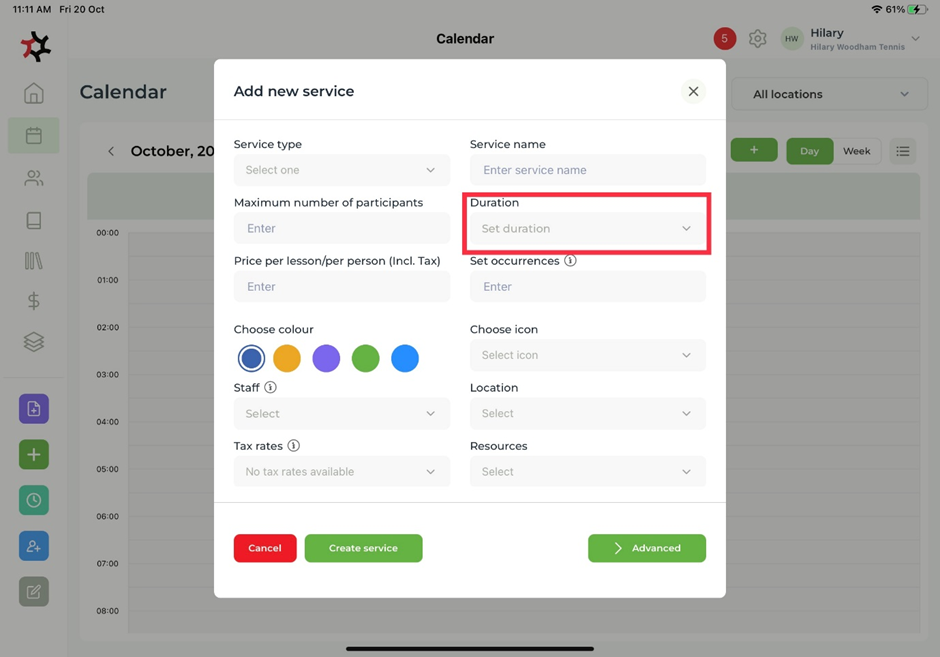
5. Set the **Duration** of the service you are providing.

<figure><img src="https://content.gitbook.com/content/AQGETajdcxecrar4lUBE/blobs/4I7yCDhz4Jta8i4fi92D/image.png" alt=""><figcaption></figcaption></figure>

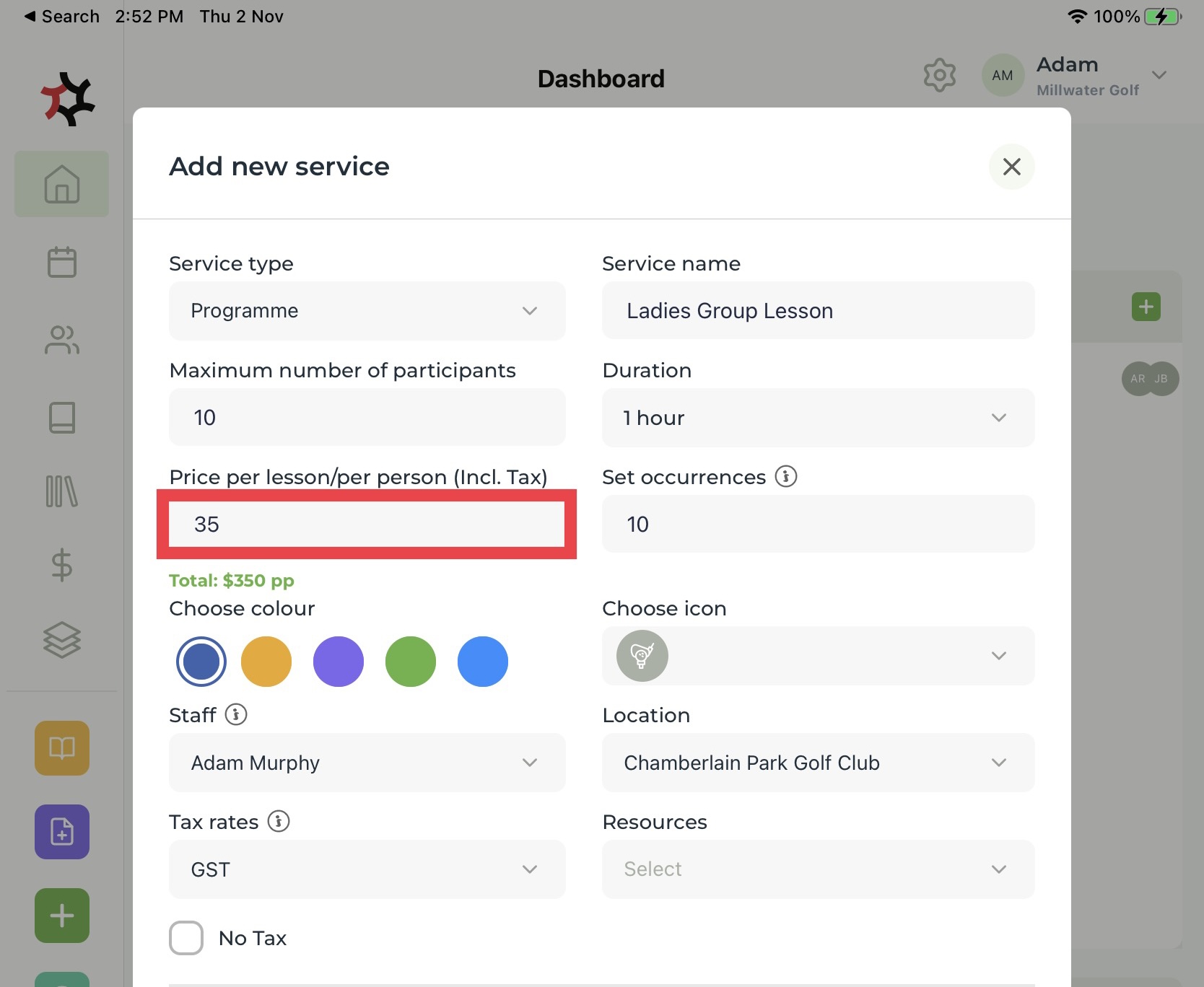
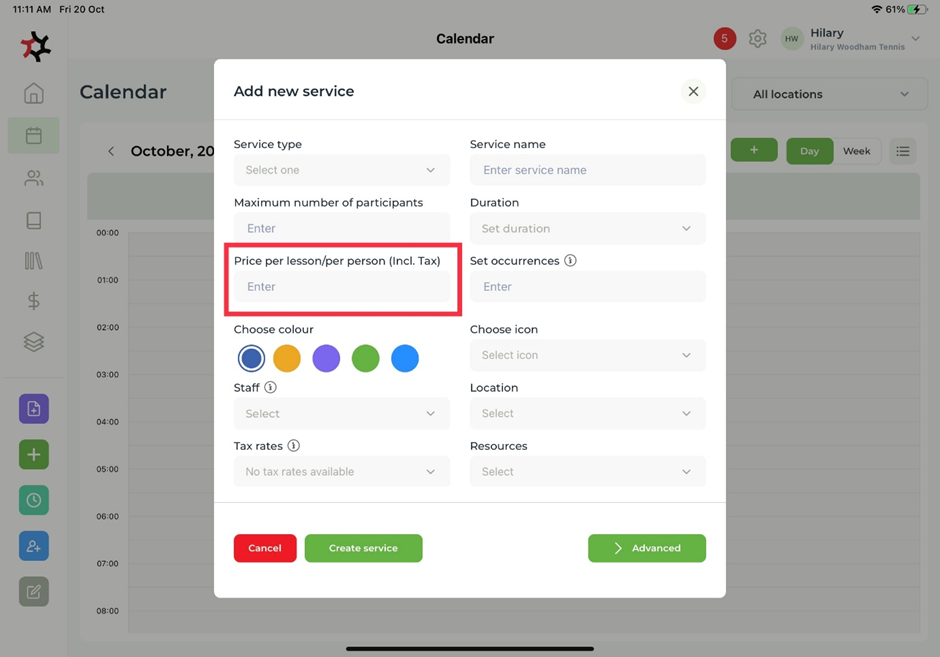
6. Enter the **Price per lesson/per person**.

<figure><img src="https://content.gitbook.com/content/AQGETajdcxecrar4lUBE/blobs/4wO8aWXQ38GrAT66HE9v/image.png" alt=""><figcaption></figcaption></figure>

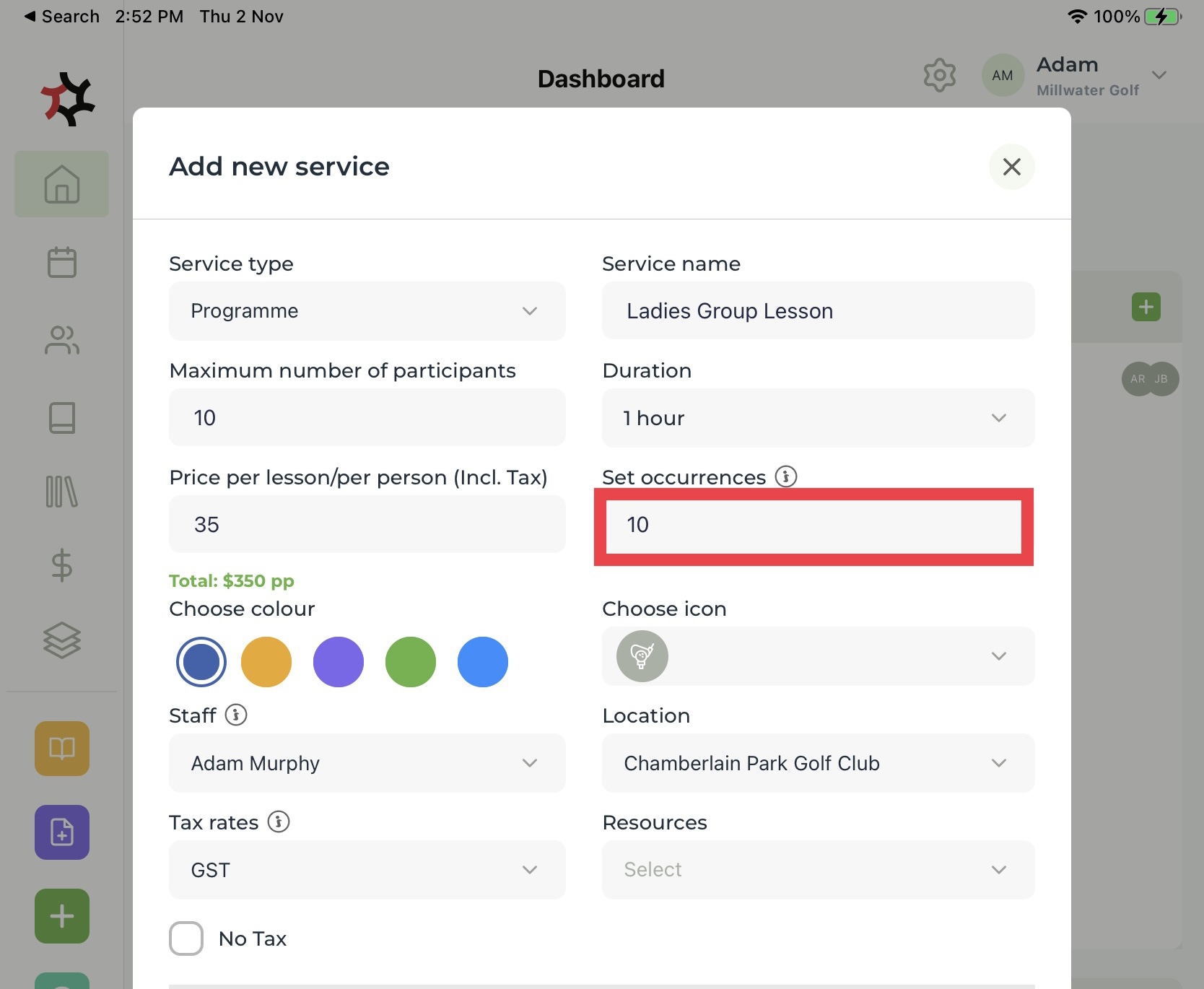
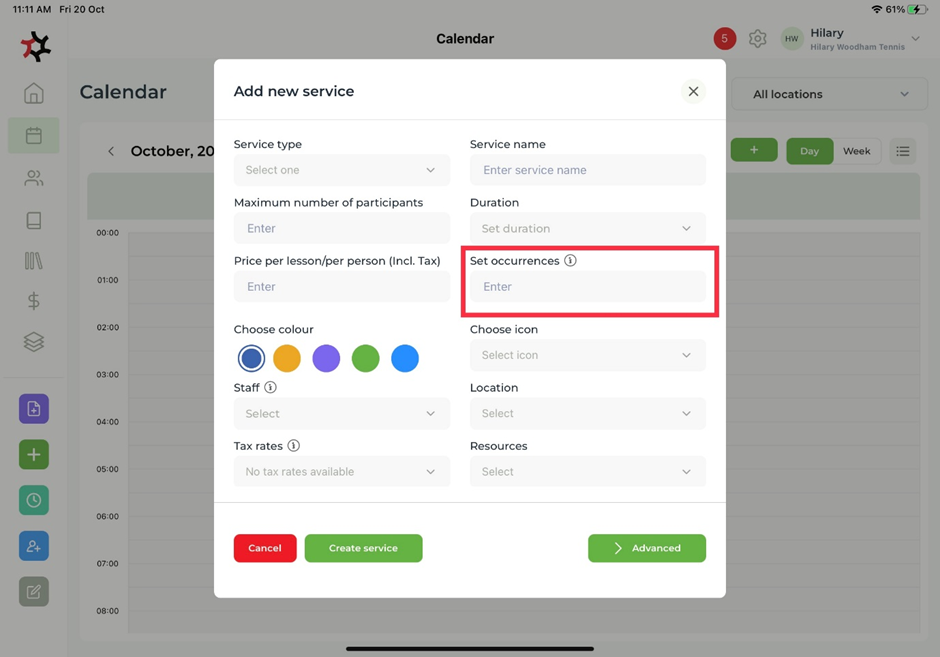
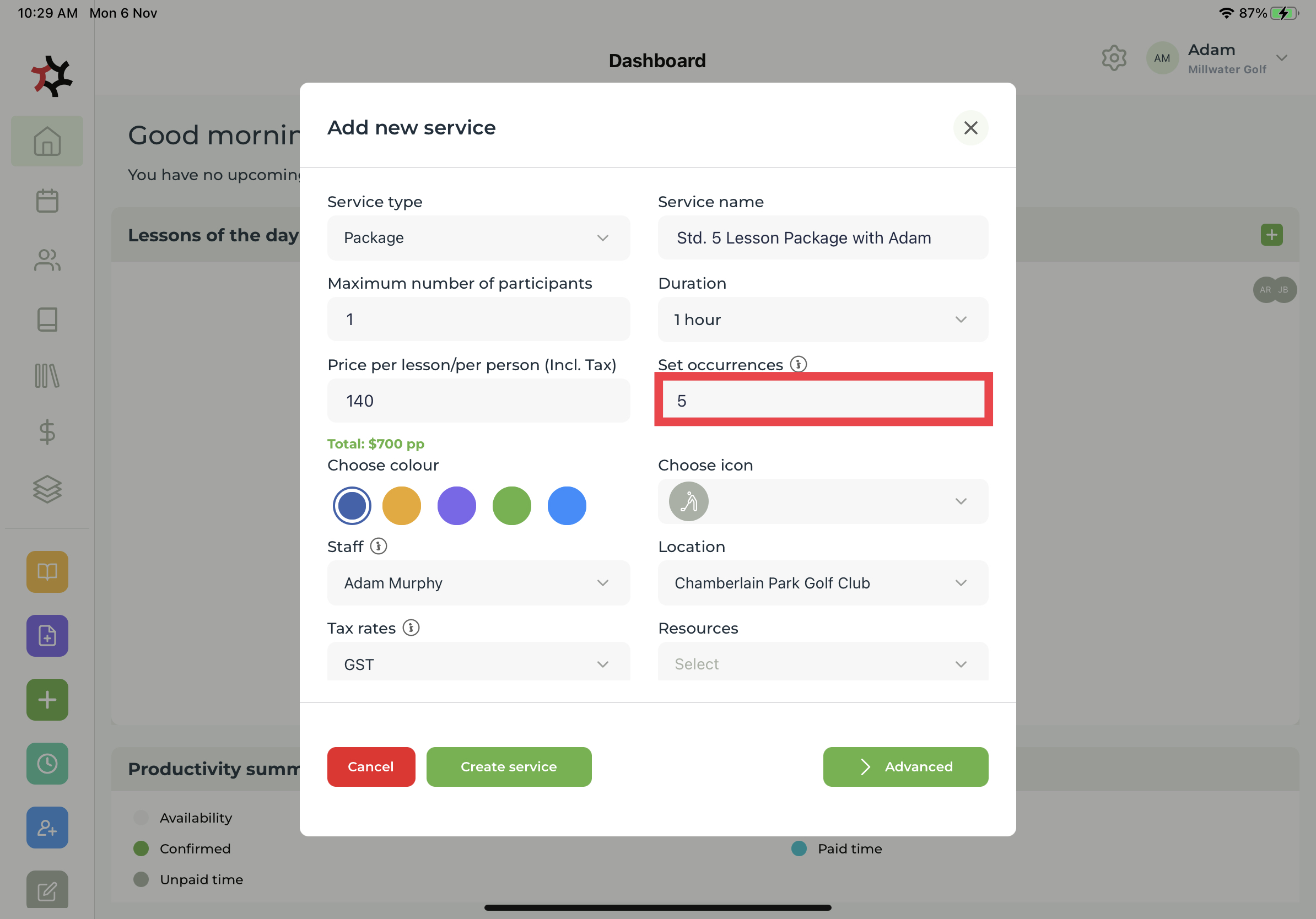
7. If you have selected a package, programme or event as your service type you will then need to set the amount of **Occurrences**. You can then edit the occurrences under the **Advanced** section. If you have selected **Lesson** as your **Service type** you can skip this step.

<figure><img src="https://content.gitbook.com/content/AQGETajdcxecrar4lUBE/blobs/JwNM76RBR5s138X5t9mr/image.png" alt=""><figcaption></figcaption></figure>

&#x20;

<figure><img src="https://content.gitbook.com/content/AQGETajdcxecrar4lUBE/blobs/F2zwthKjhBceZrMFiwIn/image.png" alt=""><figcaption></figcaption></figure>

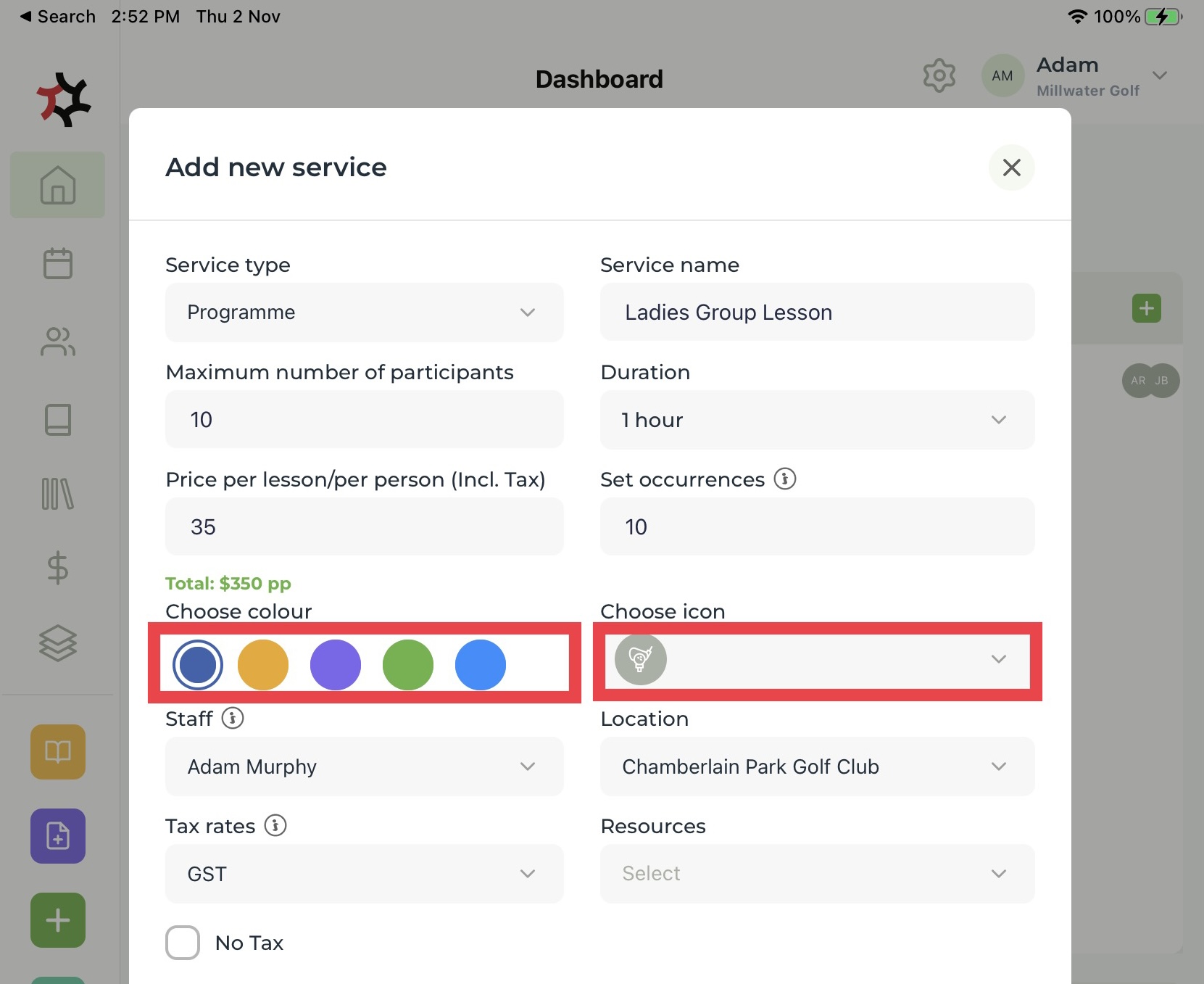
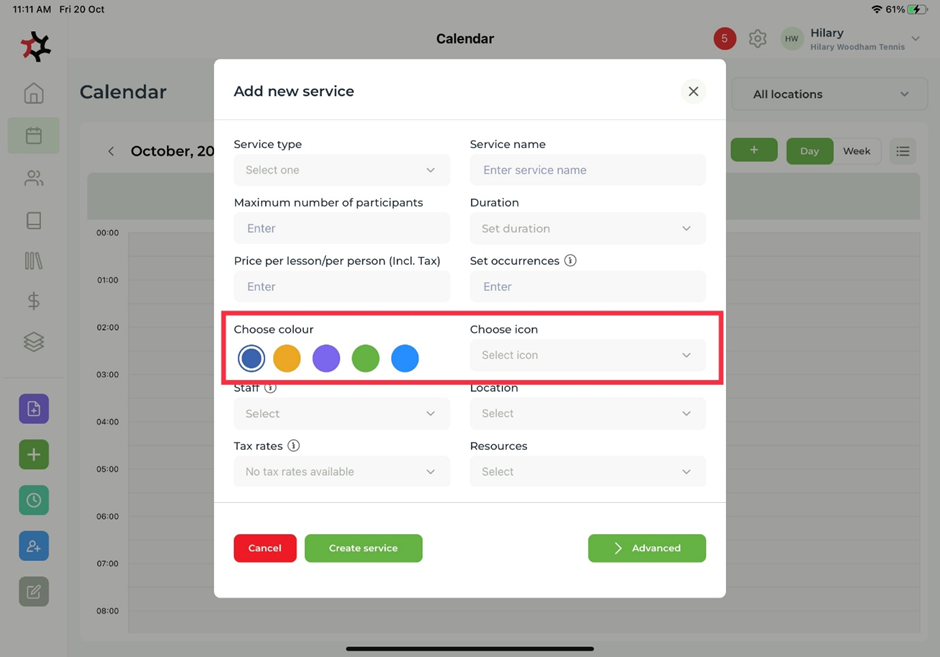
8. Choose a **Colour** and an **Icon** for your service to help you recognize it in the **Calendar**.

<figure><img src="https://content.gitbook.com/content/AQGETajdcxecrar4lUBE/blobs/6lmioFsbE9iCeMw0kzHA/image.png" alt=""><figcaption></figcaption></figure>

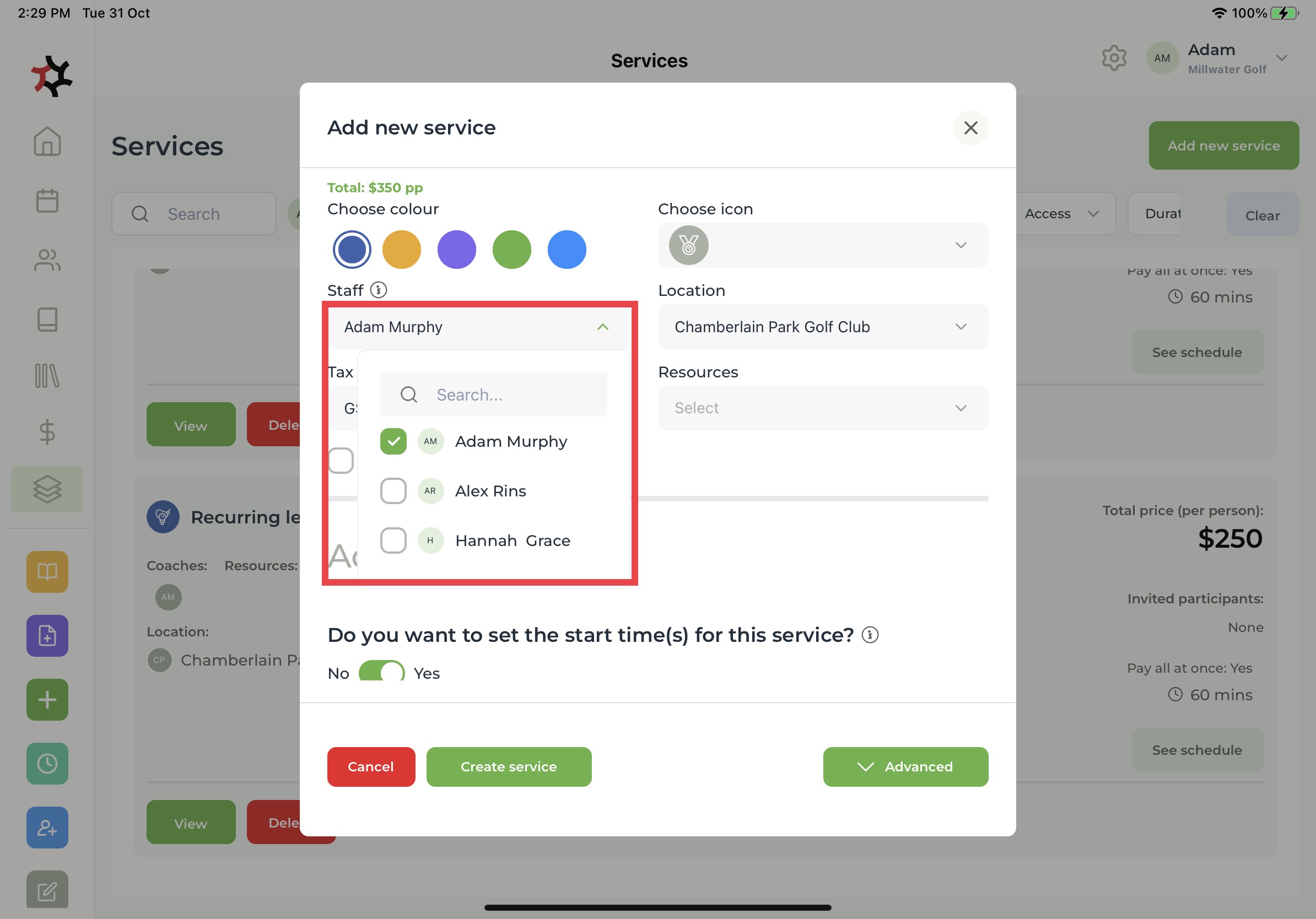
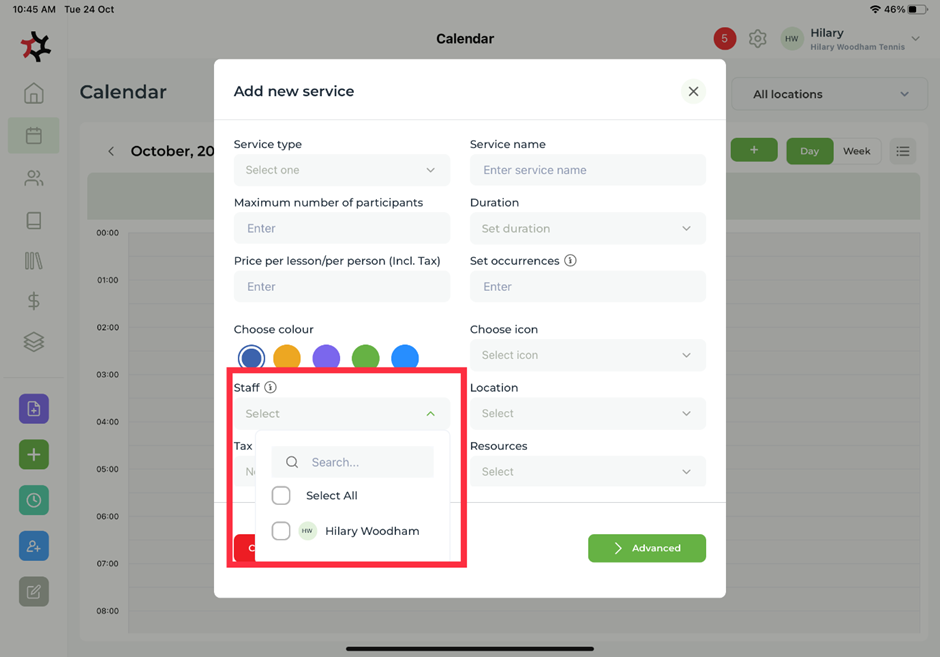
9. Select the **Staff member(s)** that clients can choose from to perform this service or allocate a staff member to a specific service.

<figure><img src="https://content.gitbook.com/content/AQGETajdcxecrar4lUBE/blobs/yEJuKgmGqIQrhvjxIyP9/image.png" alt=""><figcaption></figcaption></figure>

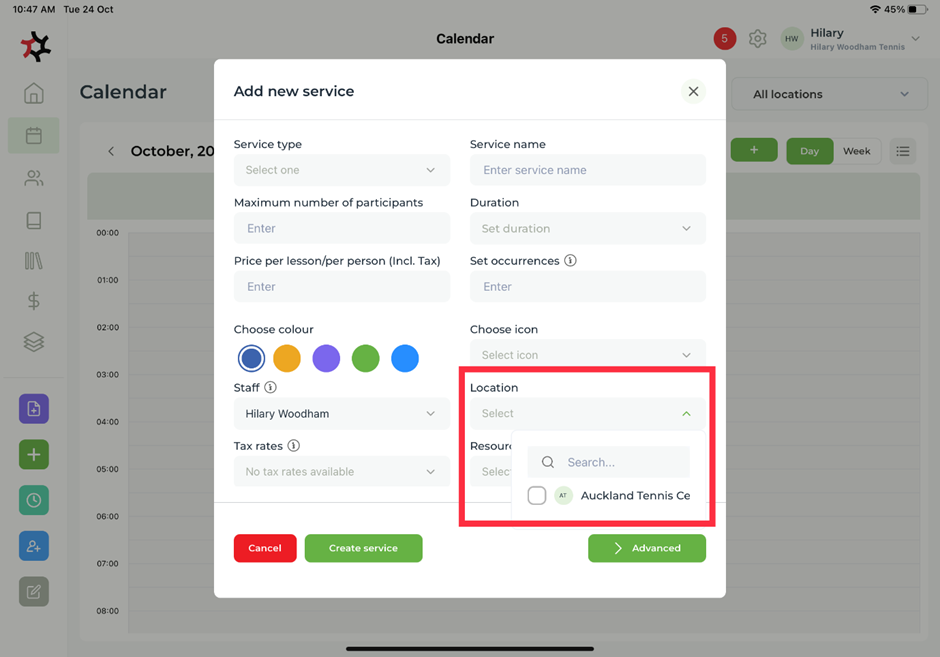
10. Select the **Location** where your selected staff will provide the service.

<figure><img src="https://content.gitbook.com/content/AQGETajdcxecrar4lUBE/blobs/bFkVggcXOiwBynxd3HuQ/image.png" alt=""><figcaption></figcaption></figure>

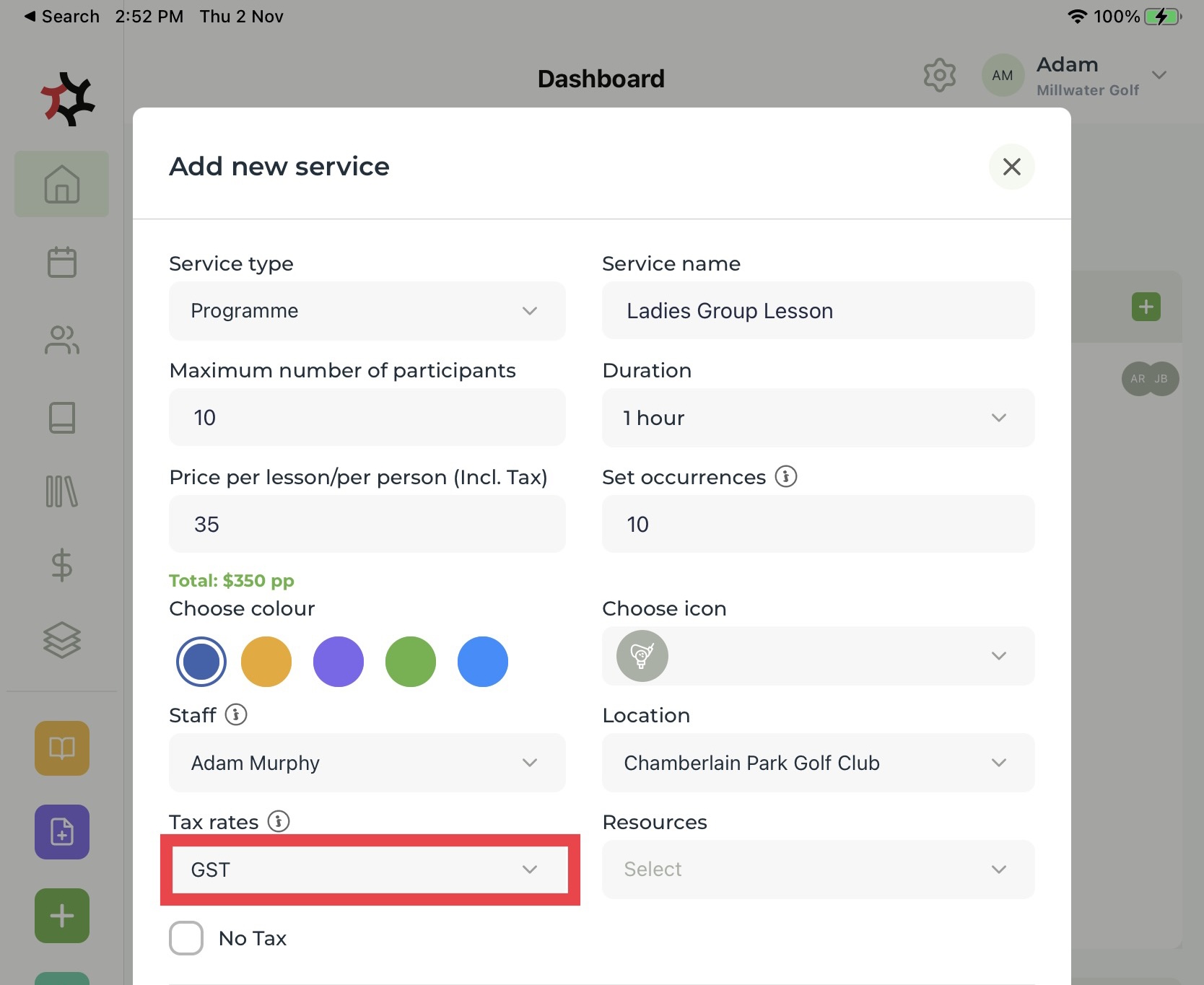
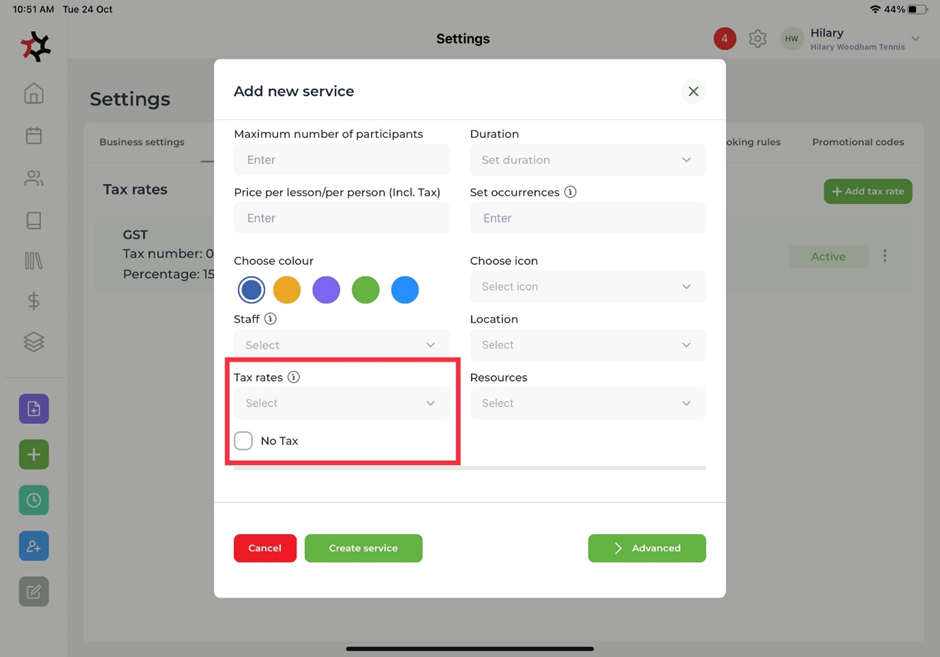
11. Select your **Tax rate** from your premade rates in **Settings** or select **No tax**.

<figure><img src="https://content.gitbook.com/content/AQGETajdcxecrar4lUBE/blobs/WuUzo5qFDCfWYec3xzfc/image.png" alt=""><figcaption></figcaption></figure>

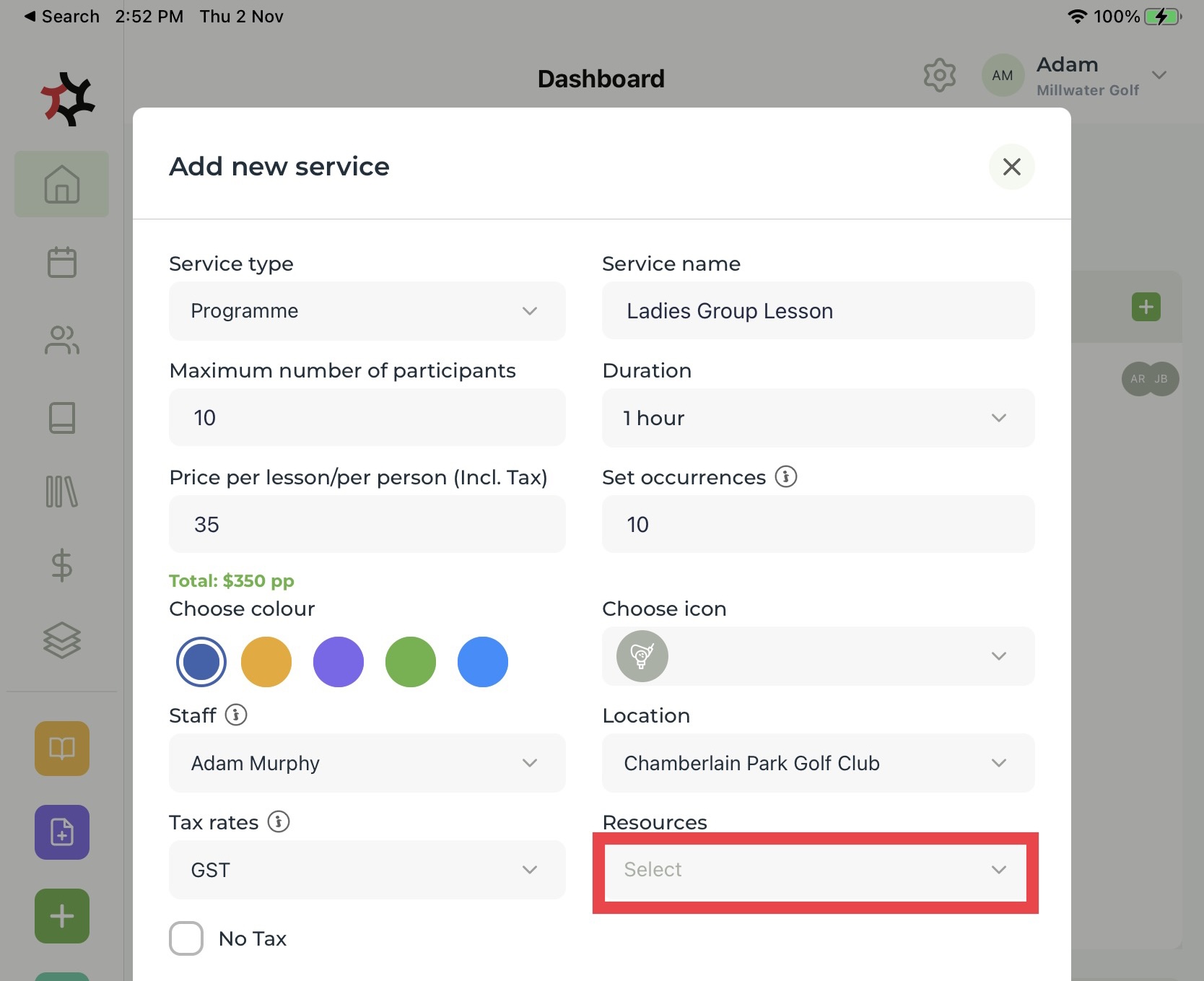
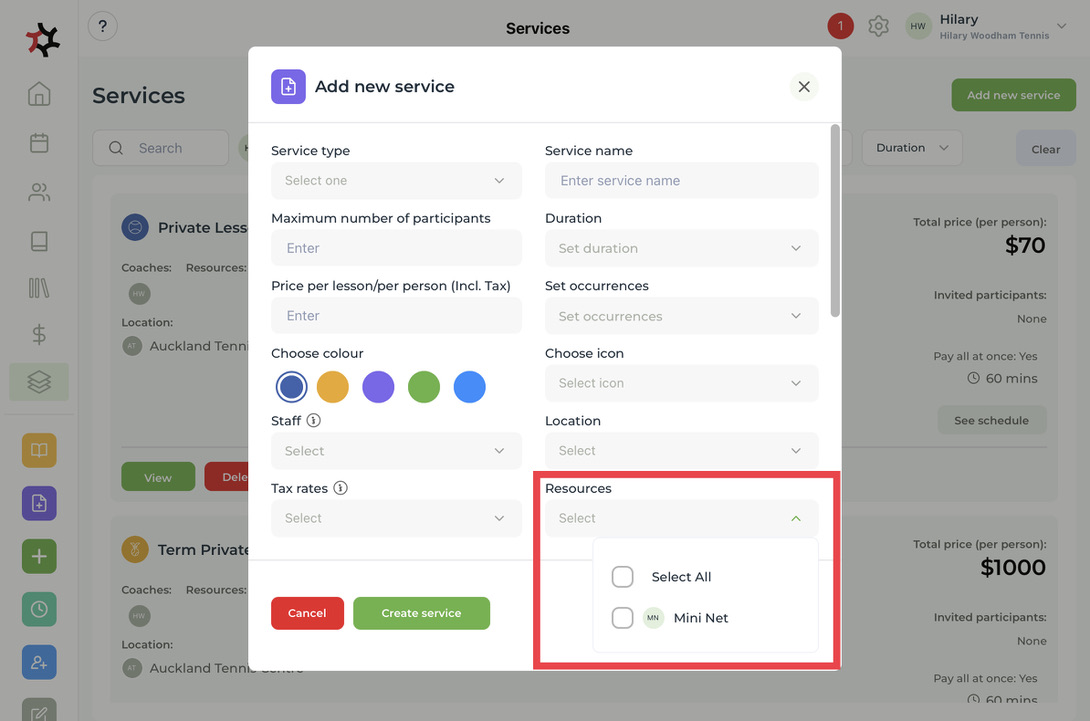
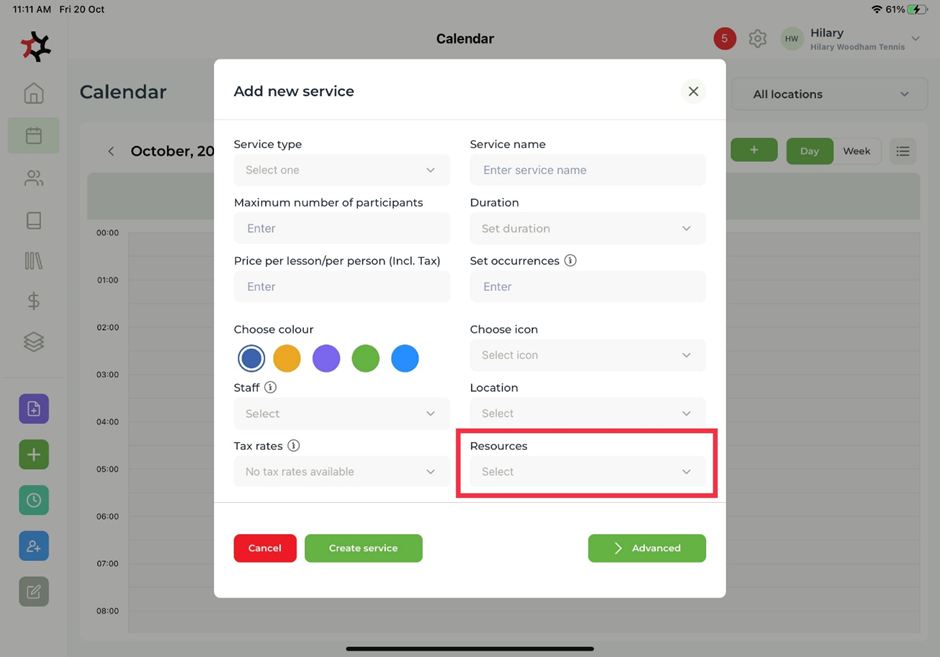
12. Select the **Resources** you will need to carry out this service.

<figure><img src="https://content.gitbook.com/content/AQGETajdcxecrar4lUBE/blobs/6wYDZAhJzbbYWPliVYq9/image.png" alt=""><figcaption></figcaption></figure>

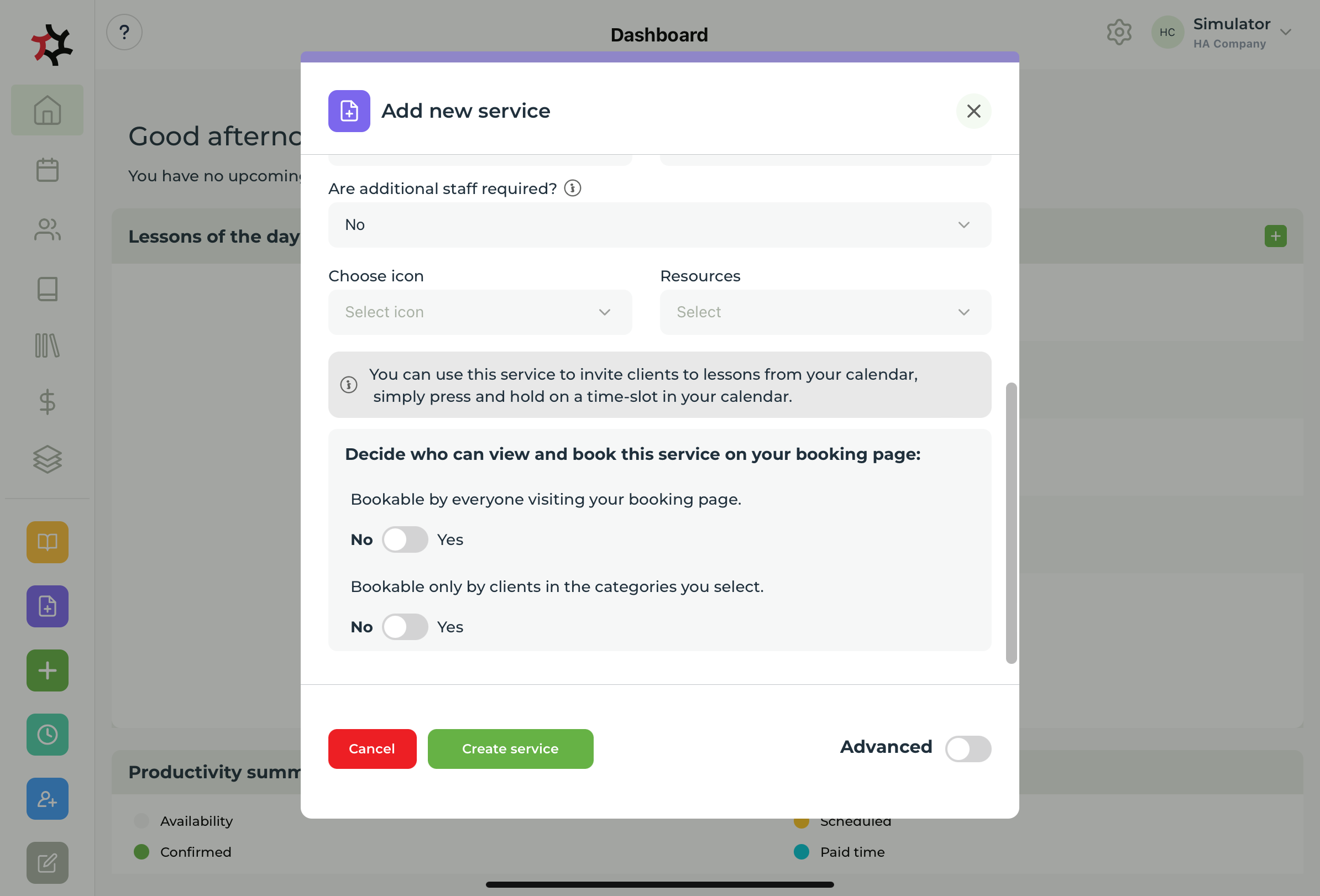
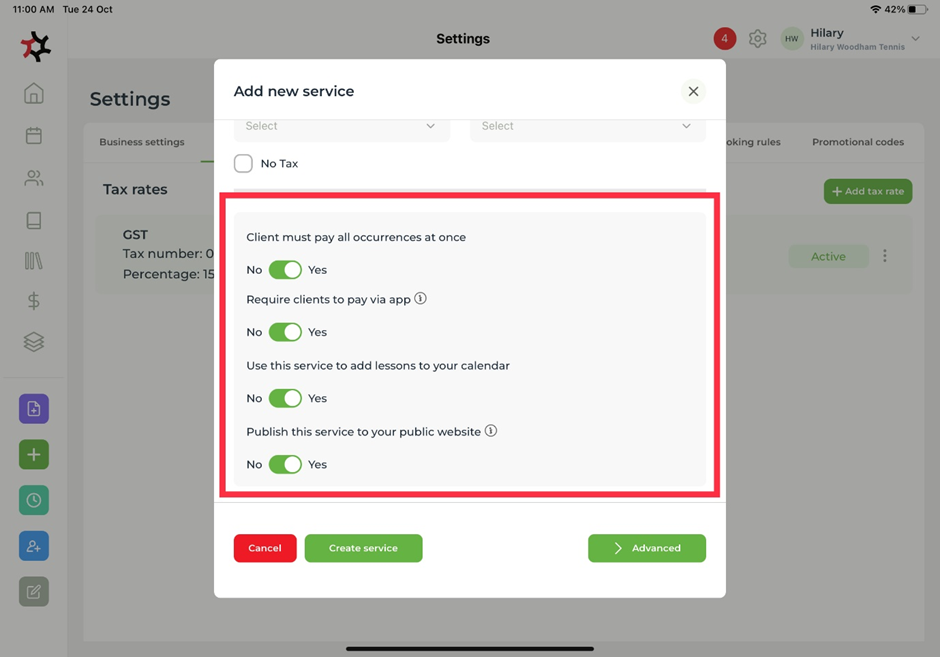
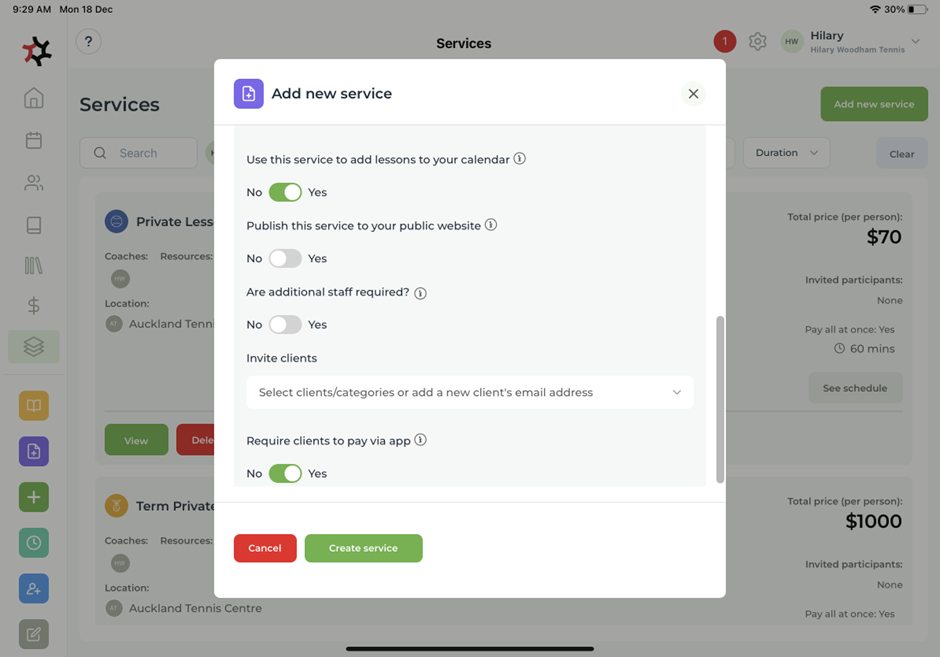
13. Decide from the options on how you would like to structure your service by selecting yes/no. This will help with your administration of the service and how easily you can view them in your calendar and online.

<figure><img src="https://content.gitbook.com/content/AQGETajdcxecrar4lUBE/blobs/L6vRtymbN0JDoam8ixik/image.png" alt=""><figcaption></figcaption></figure>

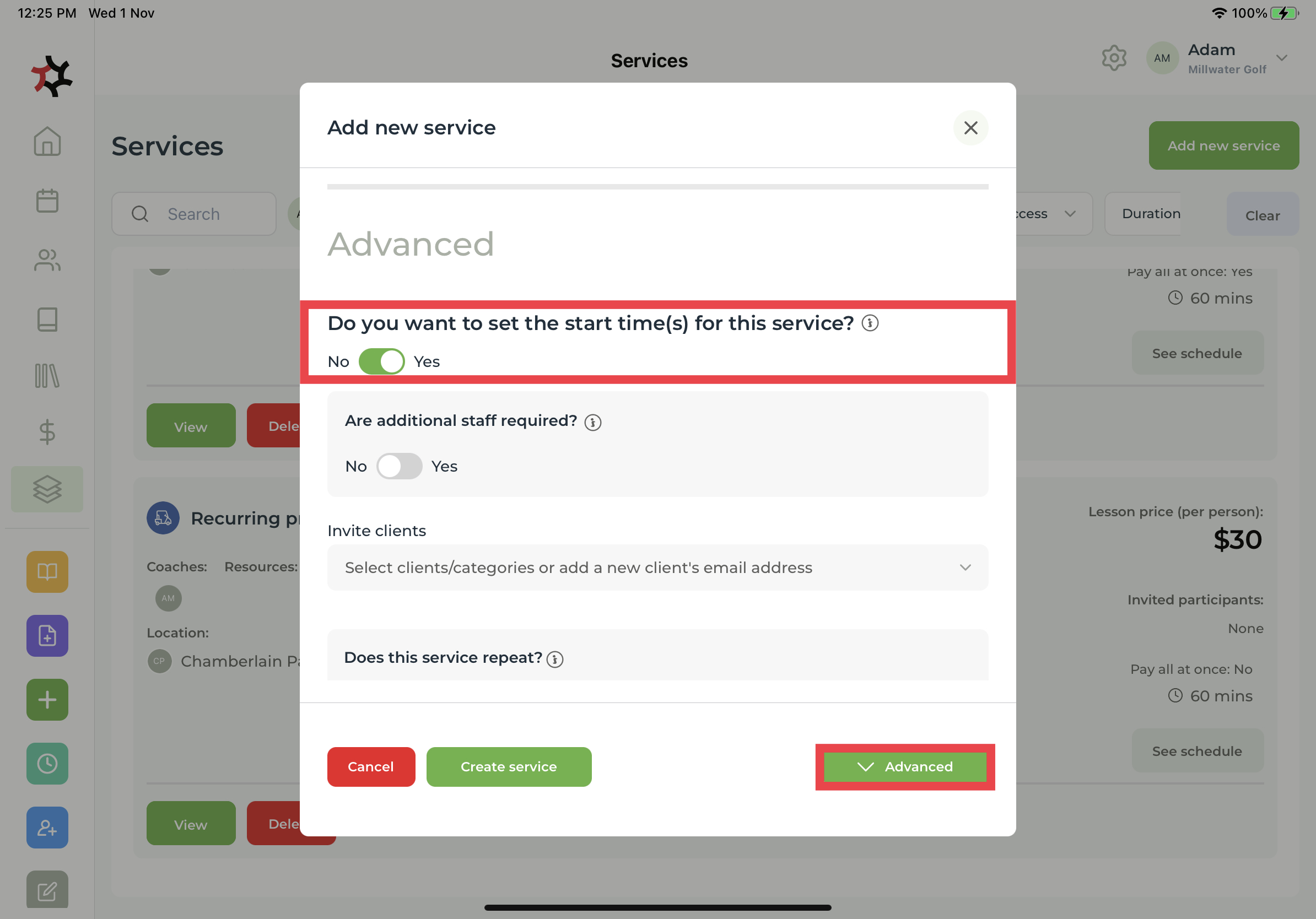
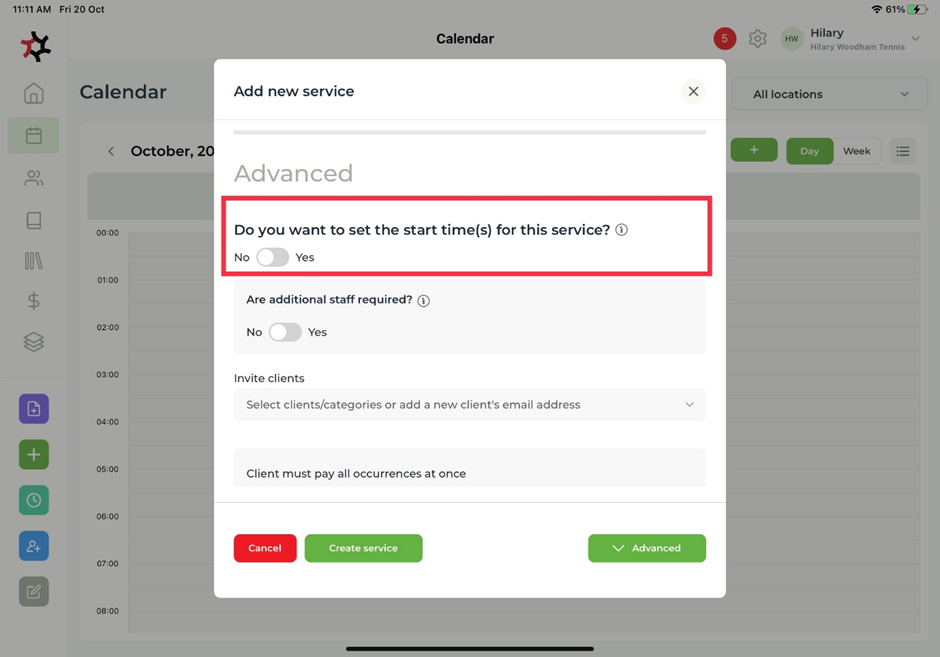
14. **Advanced** – Select yes to setting start time for this service if you want to reserve the staff exclusively for this service, or, select no for this service to be bookable during the staff members available working hours.

<figure><img src="https://content.gitbook.com/content/AQGETajdcxecrar4lUBE/blobs/EmyImTo5KOVLts2rhbxy/image.png" alt=""><figcaption></figcaption></figure>

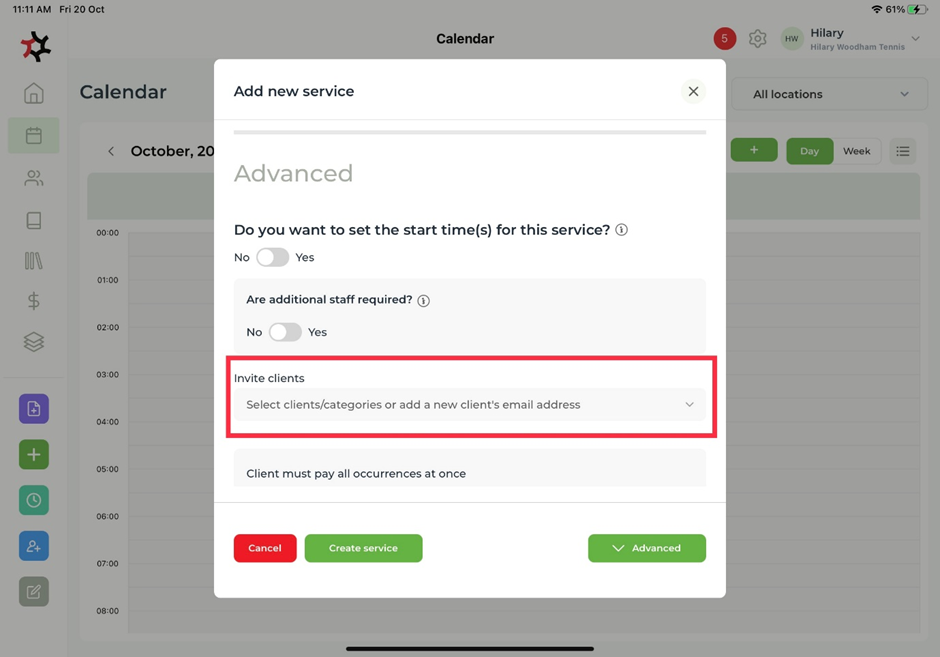
15. Advanced – **Invite clients** for this service.

<figure><img src="https://content.gitbook.com/content/AQGETajdcxecrar4lUBE/blobs/G0anGlBEY0I2zoZtVrUg/image.png" alt=""><figcaption></figcaption></figure>

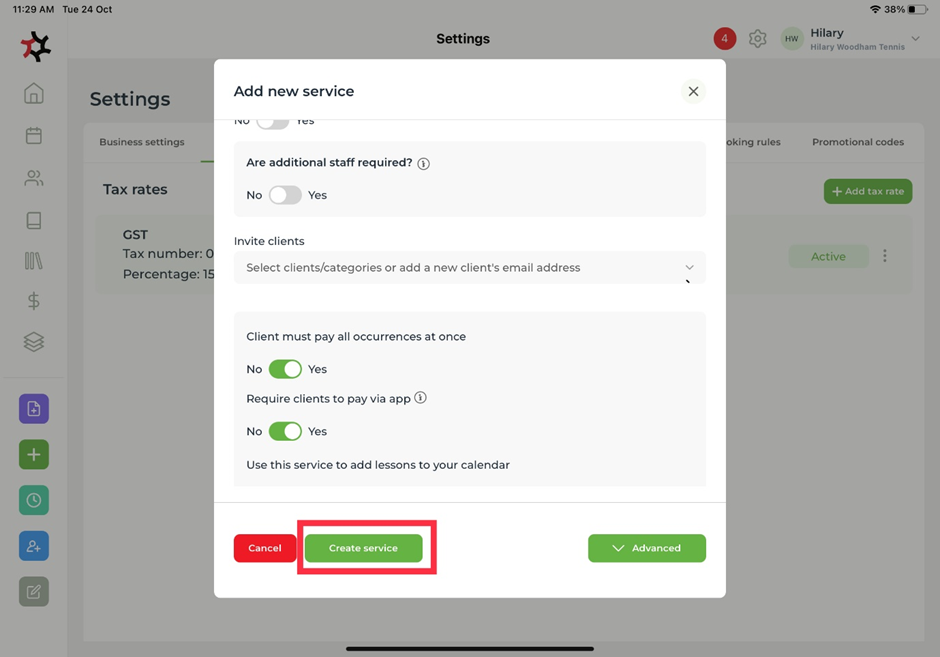
16. Click **Create service** to finalize your service.

<figure><img src="https://content.gitbook.com/content/AQGETajdcxecrar4lUBE/blobs/bKBgxcneEwbN83WdbTH7/image.png" alt=""><figcaption></figcaption></figure>


# Basic service: create a basic service that can be booked during your available work hours

1. Select the **Add service** quick link in the side bar to add a new service.

<figure><img src="https://content.gitbook.com/content/AQGETajdcxecrar4lUBE/blobs/18coV0L4x5lDdClncsVi/image.png" alt=""><figcaption></figcaption></figure>

2. Select **Lesson** **service type** from the pre-made options or enter a new service type.&#x20;

<figure><img src="https://content.gitbook.com/content/AQGETajdcxecrar4lUBE/blobs/eK6E1CwnCc3vcDyWYQzH/image.jpeg" alt=""><figcaption></figcaption></figure>

3. Create a **Service name** for your service, for example Private Lesson.

<figure><img src="https://content.gitbook.com/content/AQGETajdcxecrar4lUBE/blobs/8kQWqDbxLrMHGmvWFxBl/image.jpeg" alt=""><figcaption></figcaption></figure>

4. Enter in the **Maximum number of participants, Duration, Price, Staff** and **Location** of your service.

<figure><img src="https://content.gitbook.com/content/AQGETajdcxecrar4lUBE/blobs/lsI7b9Iwwhurbd1eqdMd/image.png" alt=""><figcaption></figcaption></figure>

5. Select whether you would like this service to be in your calendar and your website. You can also add **Additional staff** and **Invite clients.**&#x20;

<figure><img src="https://content.gitbook.com/content/AQGETajdcxecrar4lUBE/blobs/wNeMwnVQRhU8JW8e31Xa/image.png" alt=""><figcaption></figcaption></figure>

6. Select **Create service.**&#x20;


# Advanced service: create advanced services packages, programmes, events or a customised service

You can invite your client(s), to book a series of advanced services with pre-set start times and/or post it to your public booking page.

**Packages:**&#x20;

1. Select the **Add new service** icon from the quick link sidebar.
2. Choose **Programme** under **Service type** drop-down.
3. Complete the required fields and then select **Advanced**. Here you can invite clients and/or set the start times for this service.
4. If you would like to set the start time you will be asked to fill in the details of when and how often the service will occur.
5. As you scroll down you will be able to view all of the scheduled days and times for the entire package.
6. Clients must pay for all occurrences at once is defaulted to **Yes.**
7. Choose **Yes** or **No** for the remaining steps.
8. Finally, tap **Create service**.


# Advanced service: create a package of pre-paid lessons the client can book at their convenience

Once paid, clients can choose their own start times. You can invite your client(s) and/or publish this service to your public booking page and/or book the client from your calendar

**Package Prepaid:** &#x20;

Note: Clients can only book unfilled slots during your available working hours.&#x20;

1. To create this **Package prepaid service**.
2. Open the [Add new service](/coaches/support-for-coaches-organisations/welcome-to-totalcoach-support/setting-up-your-workspace/add-basic-and-advanced-services) modal.
3. Select **Service Type: Package**.

<div align="left"><figure><img src="https://content.gitbook.com/content/AQGETajdcxecrar4lUBE/blobs/6EkWWVnTBpTdzbaWqvlg/IMG_0240.jpeg" alt="" width="563"><figcaption></figcaption></figure></div>

4. Enter the **Service name**, **Maximum number of participants**, **and Price per lesson/person**. Then select **Staff**, **Choose icon**, **Location**, **Tax rate** and any applicable **Resources**.
5. Select **Occurrences**.

<div align="left"><figure><img src="https://content.gitbook.com/content/AQGETajdcxecrar4lUBE/blobs/phbt6s5y1CaxVY2kbx9v/IMG_0239.jpeg" alt="" width="563"><figcaption></figcaption></figure></div>

6. Select **Advanced**.&#x20;
7. From **Advanced** selection options, select **"Client must pay all occurrences at once"  Yes**. The system is set with this as the default position.
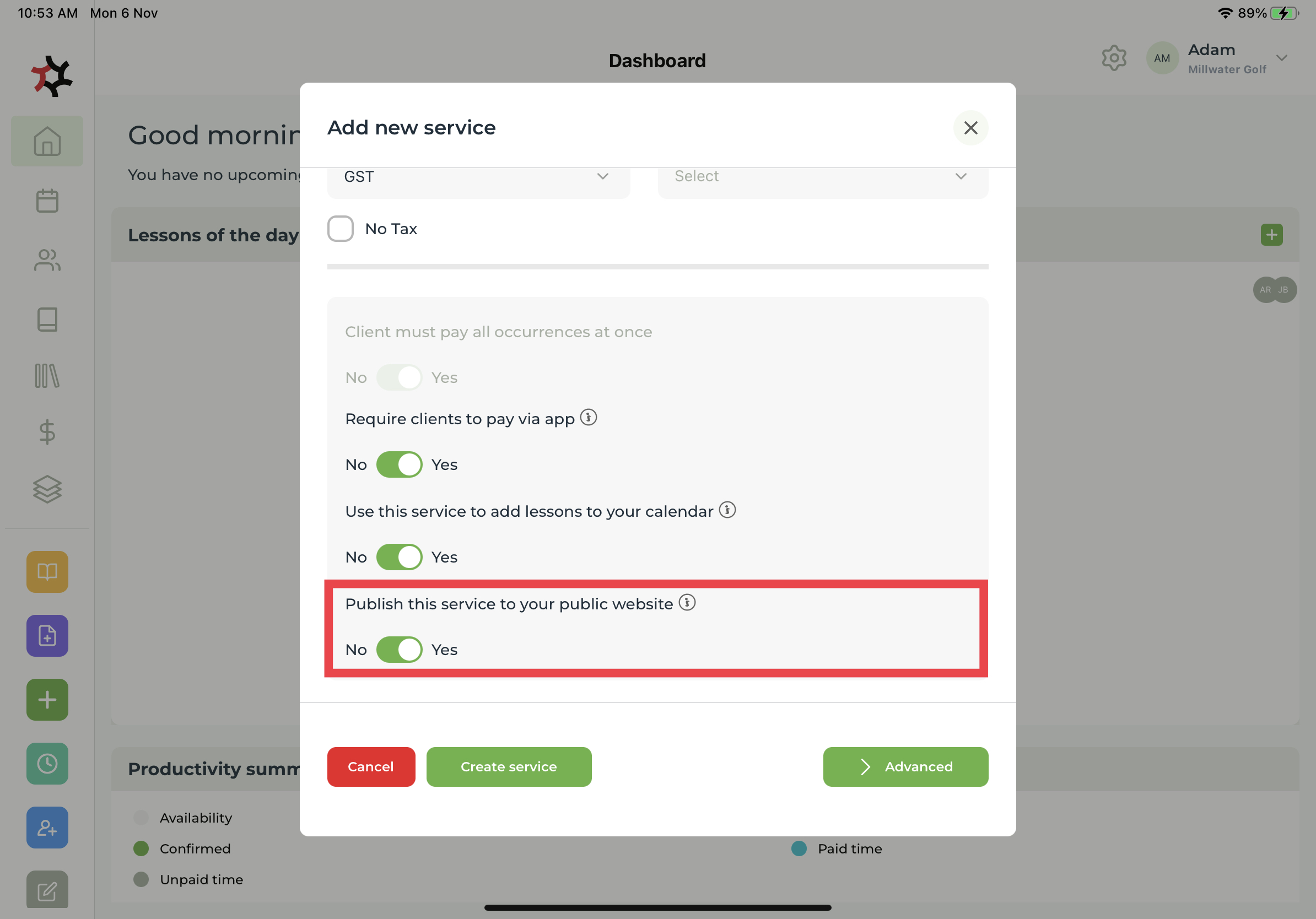
8. Select **Publish to public booking webpage** to **Yes** or **No**. If you select **Yes** the clients and the public will be able to book this service from your online booking page. If **No** the Service will not show on your public booking webpage but you as a coach can use this option when selecting the **Service** holding down the date on the calendar you wish this service to occur on. See [Adding lessons](/coaches/support-for-coaches-organisations/welcome-to-totalcoach-support/setting-up-your-workspace/adding-lessons) from your calendar ( NB: the option show on my calendar must also be selected to **Yes** in the **Advanced** selection for this to be made available. )

<div align="left"><figure><img src="https://content.gitbook.com/content/AQGETajdcxecrar4lUBE/blobs/VItYyMI0l2L6Ltdt04oR/IMG_0241.jpeg" alt="" width="563"><figcaption></figcaption></figure></div>

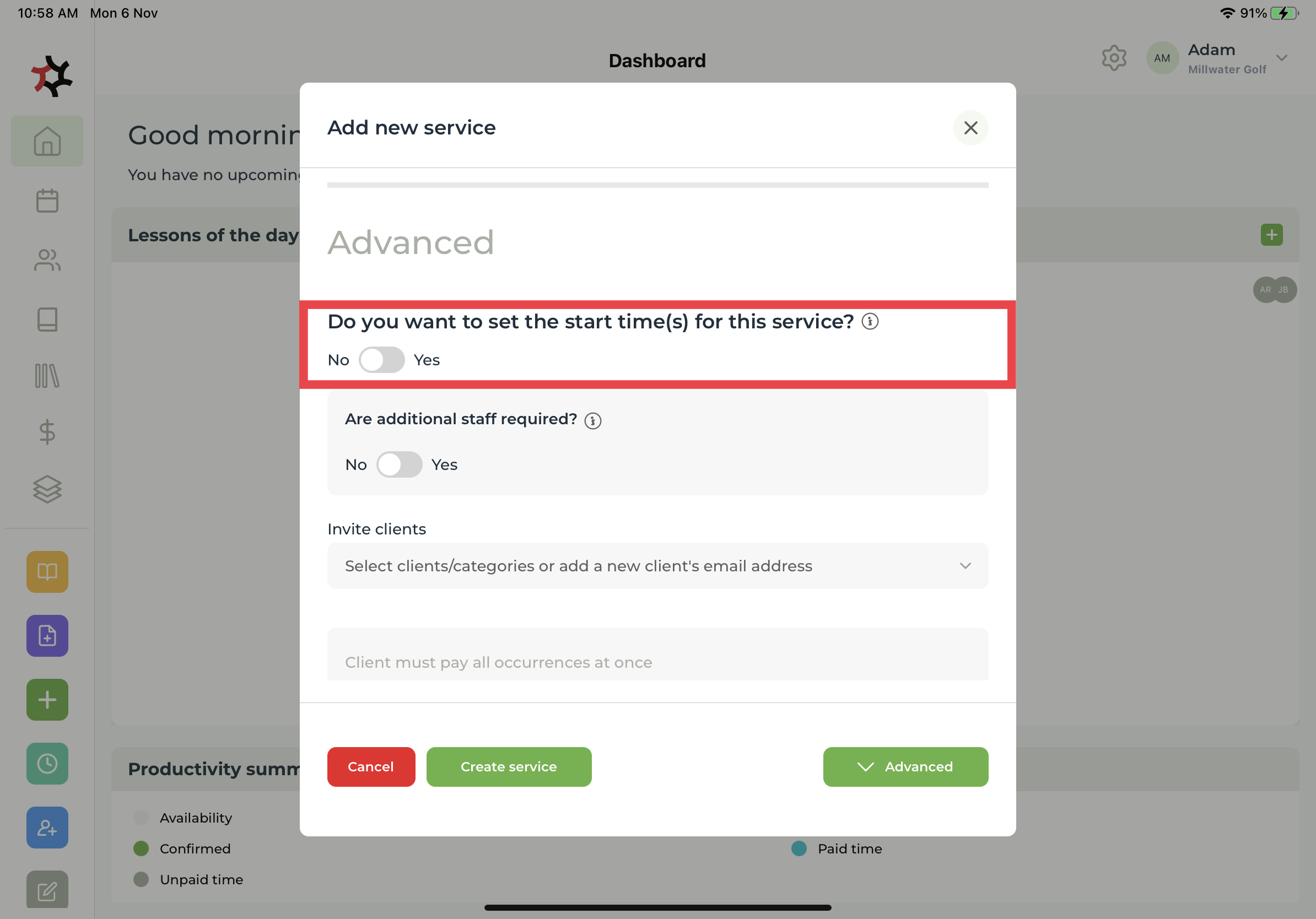
9. Choose **Advanced,** then select '**No**' for **Do you want to set the start times(s) for this service?** Your client is able to choose a date or time when purchasing a Package without a set start time. This service is available only during your working hours and only those times that are available.

<div align="left"><figure><img src="https://content.gitbook.com/content/AQGETajdcxecrar4lUBE/blobs/W3y8MYbn0AzP7RomkgTQ/IMG_0242.jpeg" alt="" width="563"><figcaption></figcaption></figure></div>

10. Complete the remaining sections and then tap **Create service.** If you **Invite clients** to your new service, they will receive an email inviting them to boo&#x6B;**.** If you selected **Published this service to your public website,** then all visitors to your booking page can view and purchase this service.
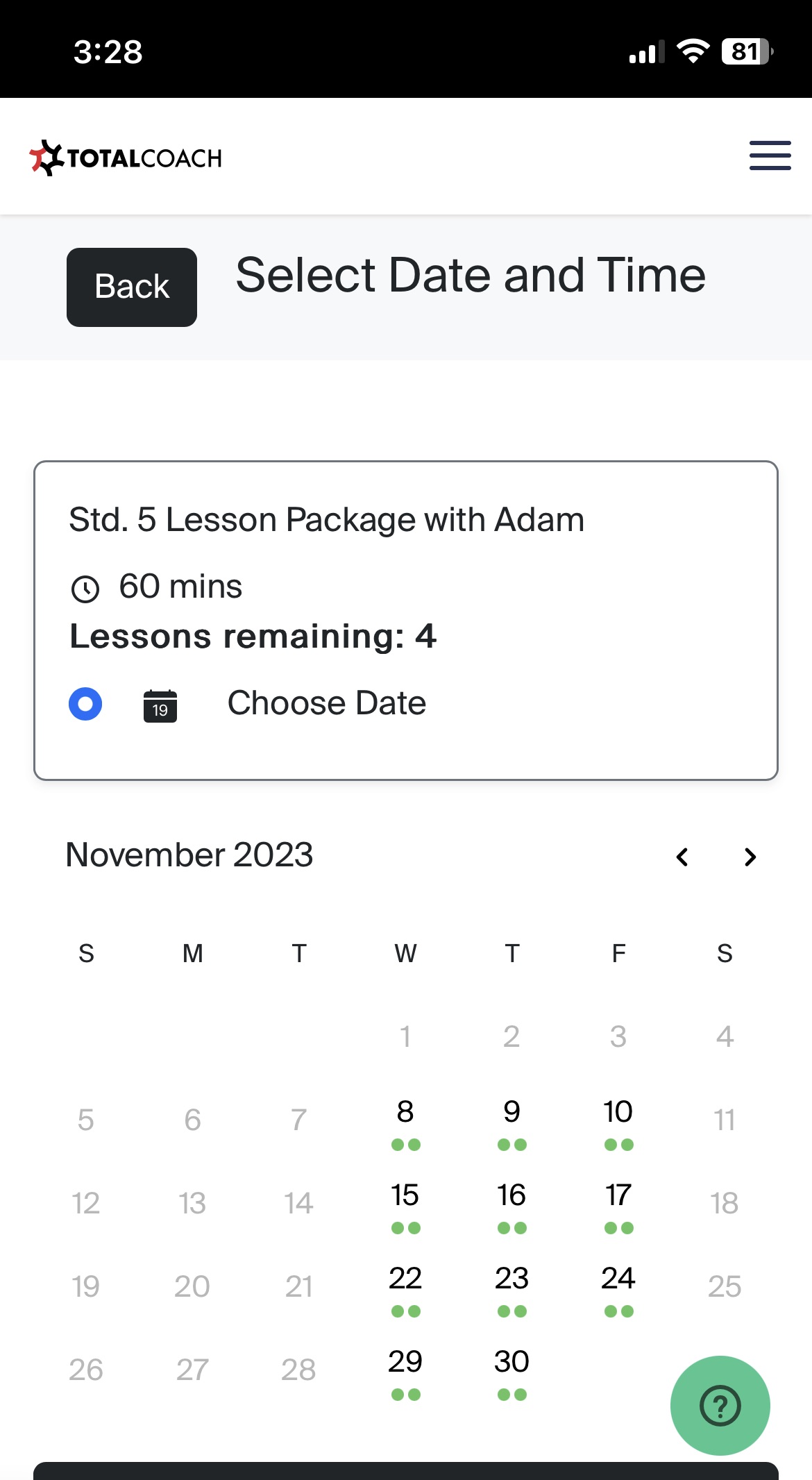
11. Your client can select a date and time for the purchased **Packaged service** by following these simple steps:
    1. Going to your booking website.
    2. Selecting the location or coach where the service is available.
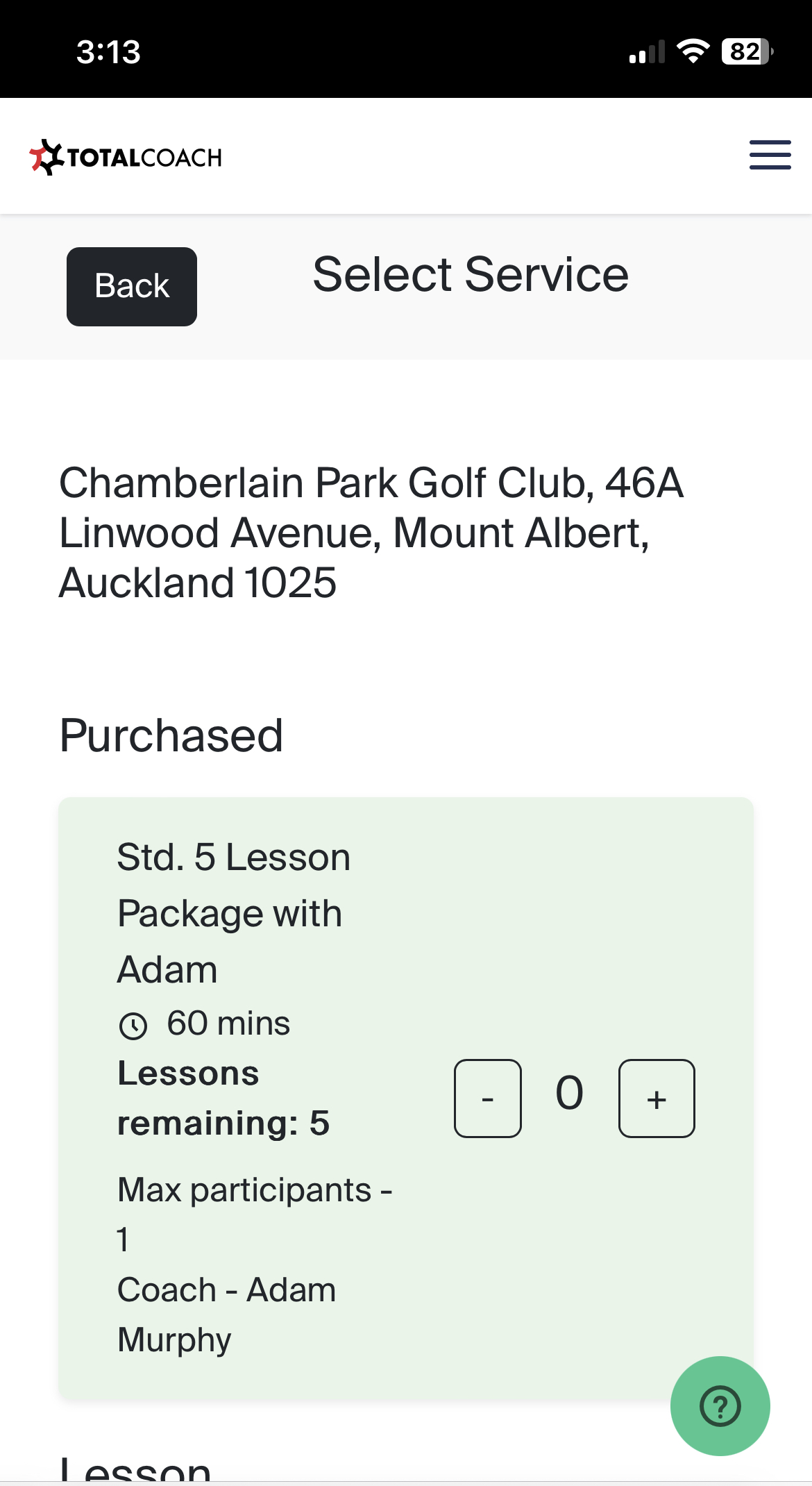
    3. The Purchased service will be highlighted at the top of the Select Service section. It is now possible for your clients to select their pre-purchased package service on any date and time convenient for them.
    4. The **Lessons Remaining** total in the **Purchased** Services section will help your client keep track of the number of lessons booked.

<div align="left"><figure><img src="https://content.gitbook.com/content/AQGETajdcxecrar4lUBE/blobs/PuFZ6BwBllGqY4mZQBAo/IMG_0932.jpeg" alt="" width="375"><figcaption><p>Purchased Services are highlighted at the top of the Select Service section</p></figcaption></figure> <figure><img src="https://content.gitbook.com/content/AQGETajdcxecrar4lUBE/blobs/8BWnKttgdhEqE0Xz6vJ2/IMG_0933.jpeg" alt="" width="375"><figcaption><p>Clients can Select a Date and Time convenient for them.</p></figcaption></figure></div>


# Advanced service: create recurring lessons with pre-set start times  clients can book individually

This article will show you how to add recurring services with a set start time that your clients can book and pay for individually.

**Advanced Service-Progamme with a set start time.**

1. Select the **Add service** quick link in the sidebar to add a new service.

<div align="left"><figure><img src="https://content.gitbook.com/content/AQGETajdcxecrar4lUBE/blobs/4iAPvmu3ktnJK2rN30E8/image.png" alt="" width="563"><figcaption></figcaption></figure></div>

2. Select **Programme** for the service type from the pre-made options or enter a new service type.&#x20;
3. Create a **Service name** for your service.&#x20;

<div align="left"><figure><img src="https://content.gitbook.com/content/AQGETajdcxecrar4lUBE/blobs/RL9j8ynWCpwBEKhA1Fz8/IMG_0235.jpeg" alt="" width="563"><figcaption></figcaption></figure></div>

4. Enter the **Maximum number of participants** for your service. Multiple participants will determine that the service is now a **Group** lesson.&#x20;

<div align="left"><figure><img src="https://content.gitbook.com/content/AQGETajdcxecrar4lUBE/blobs/j8FGDeL3NtjsoiMCcKrW/IMG_0235.jpeg" alt="" width="563"><figcaption></figcaption></figure></div>

5. Set the **Duration** of the service you are providing.&#x20;

<div align="left"><figure><img src="https://content.gitbook.com/content/AQGETajdcxecrar4lUBE/blobs/a8XatKMXHRW4teATHZIc/IMG_0235.jpeg" alt="" width="563"><figcaption></figcaption></figure></div>

6. Enter the **Price per lesson**, or if there are multiple participants, enter the **price** **per person**.

<div align="left"><figure><img src="https://content.gitbook.com/content/AQGETajdcxecrar4lUBE/blobs/8VAfByNShOucFEYMtcwu/IMG_0235.jpeg" alt="" width="563"><figcaption></figcaption></figure></div>

7. When selecting **Programme** as the service type, you must specify the number of **Occurrences**.

<div align="left"><figure><img src="https://content.gitbook.com/content/AQGETajdcxecrar4lUBE/blobs/NEquczqWQqkFMaZ8gFQG/IMG_0235.jpeg" alt="" width="563"><figcaption></figcaption></figure></div>

8. Choose a **Colour** and an **Icon** for your service to help you identify it in the calendar.

<div align="left"><figure><img src="https://content.gitbook.com/content/AQGETajdcxecrar4lUBE/blobs/9ATZ5swzjCgGIosAWteX/IMG_0235.jpeg" alt="" width="563"><figcaption></figcaption></figure></div>

9. Select the **Staff member(s)** that clients can choose from to perform this service, or allocate a single staff member to the service.

<div align="left"><figure><img src="https://content.gitbook.com/content/AQGETajdcxecrar4lUBE/blobs/HizxzX2FkkbDWJa8bgaR/IMG_0225.jpeg" alt="" width="563"><figcaption></figcaption></figure></div>

10. Choose the **Location** where the selected staff will provide their services.

<div align="left"><figure><img src="https://content.gitbook.com/content/AQGETajdcxecrar4lUBE/blobs/bFkVggcXOiwBynxd3HuQ/image.png" alt="" width="563"><figcaption></figcaption></figure></div>

11. Select your **Tax rate** from your premade rates in **Settings** or select **No tax**.

<div align="left"><figure><img src="https://content.gitbook.com/content/AQGETajdcxecrar4lUBE/blobs/yZ5bvQ7dvI3VuYiGwOmj/IMG_0235.jpeg" alt="" width="563"><figcaption></figcaption></figure></div>

12. Select any **Resources** you may need to carry out this service.

<div align="left"><figure><img src="https://content.gitbook.com/content/AQGETajdcxecrar4lUBE/blobs/wbQ9bQEdnhJ3JLDyPu5g/IMG_0235.jpeg" alt="" width="563"><figcaption></figcaption></figure></div>

13. Tap the **Advanced** button, then select the option for **Yes** for **Do you want to set the start time(s) for the service?**

<div align="left"><figure><img src="https://content.gitbook.com/content/AQGETajdcxecrar4lUBE/blobs/0p4SL7PHAQDd9rSTojHC/IMG_0229.jpeg" alt="" width="563"><figcaption></figcaption></figure></div>

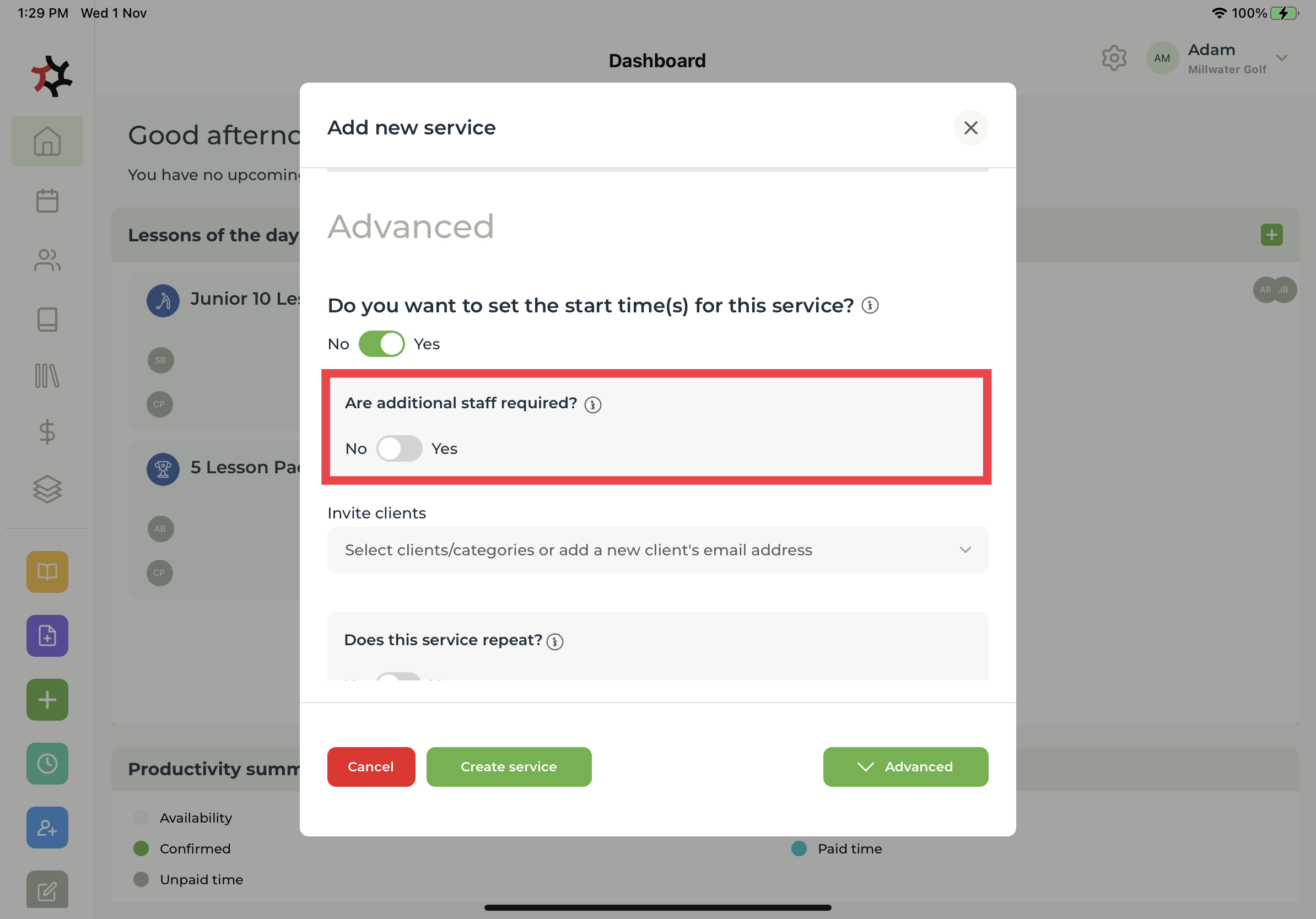
14. Add any **Additional Staff** required to perform the service.

<div align="left"><figure><img src="https://content.gitbook.com/content/AQGETajdcxecrar4lUBE/blobs/yDWd9RCVT77bNIt8i0dY/IMG_0230%202.jpg" alt="" width="563"><figcaption></figcaption></figure></div>

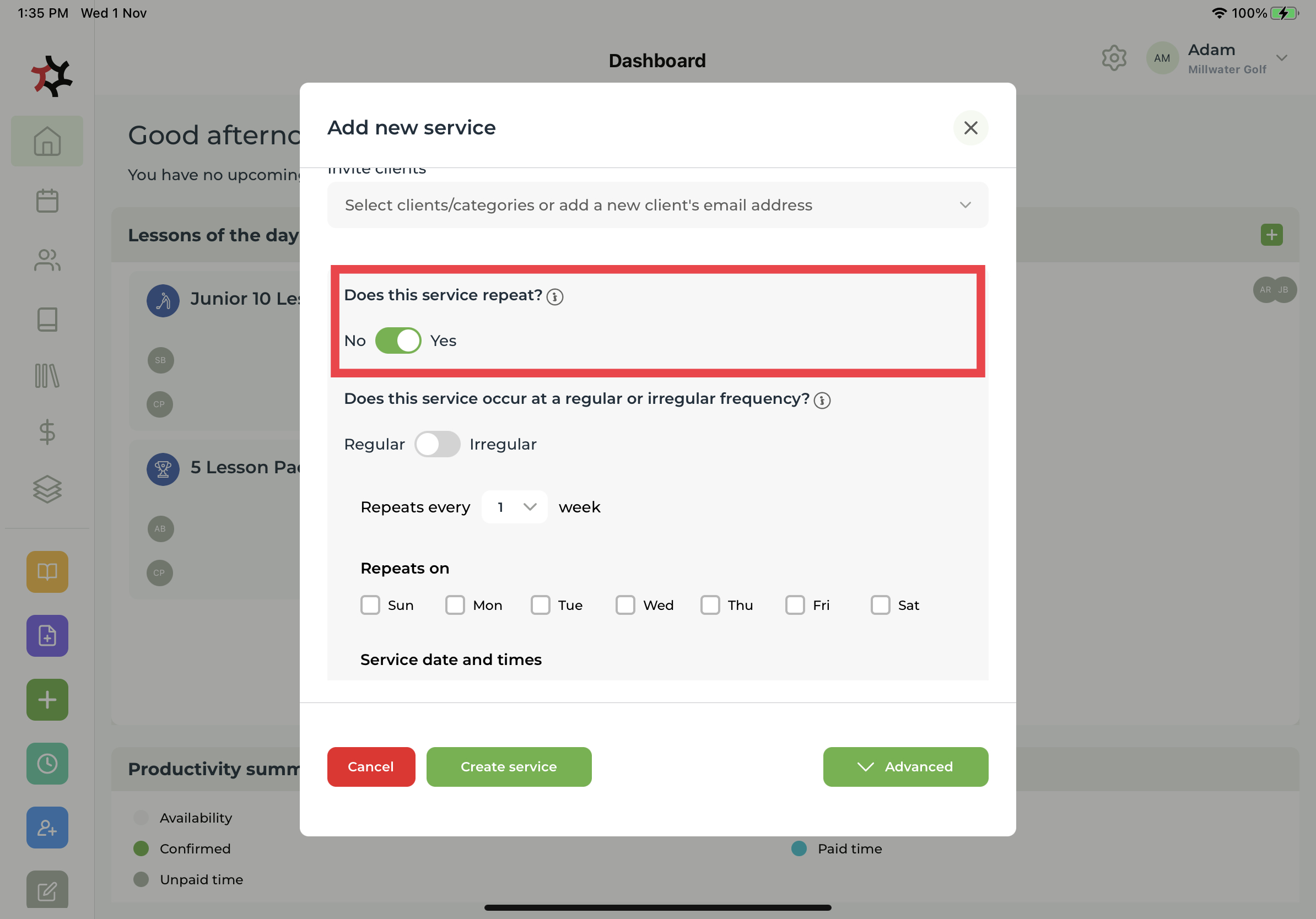
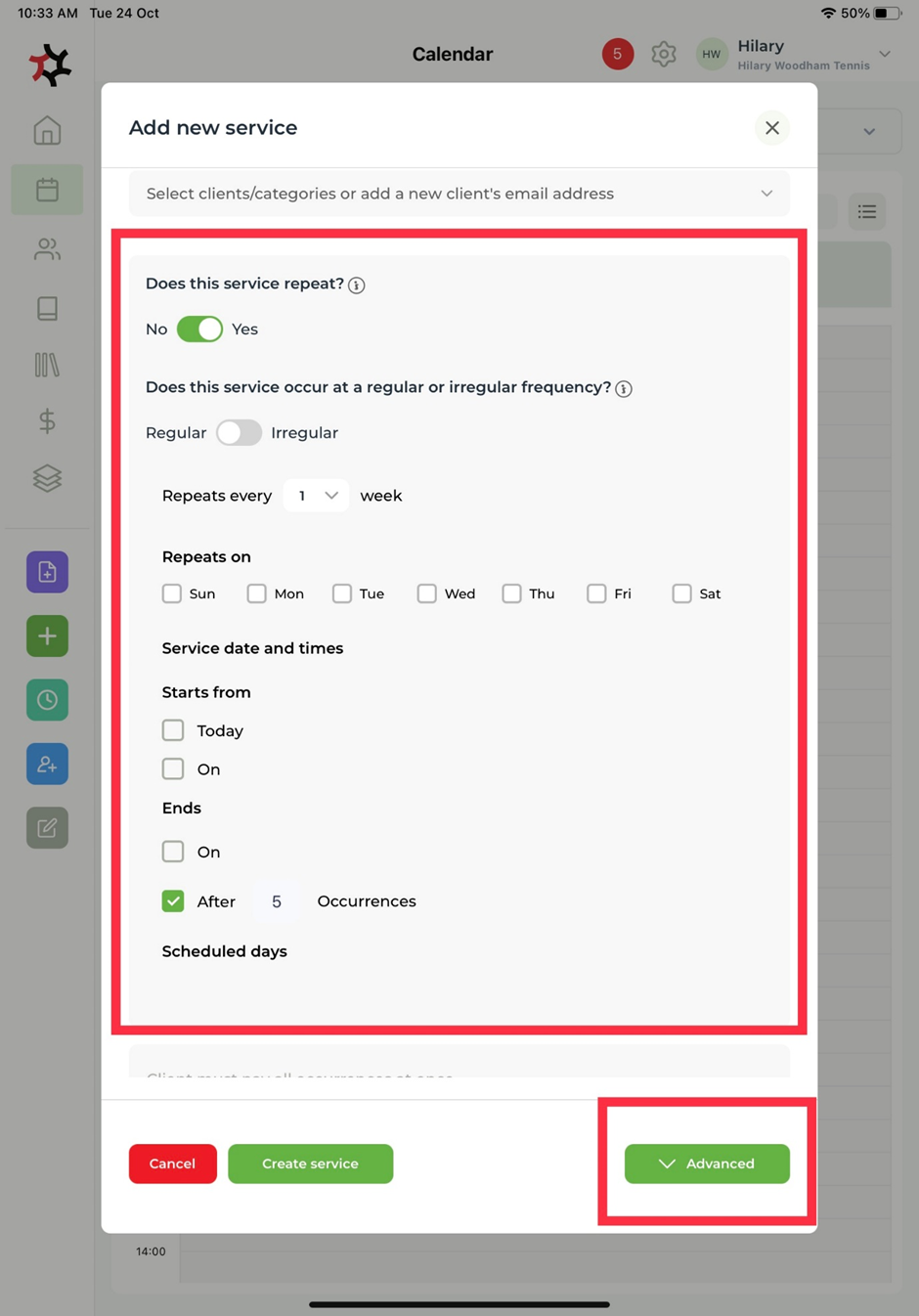
15. Select the **Yes** option for **Does this service repeat?**

<div align="left"><figure><img src="https://content.gitbook.com/content/AQGETajdcxecrar4lUBE/blobs/qSwpsSIhCNKGfNoQknBi/IMG_0232.jpeg" alt="" width="563"><figcaption></figcaption></figure></div>

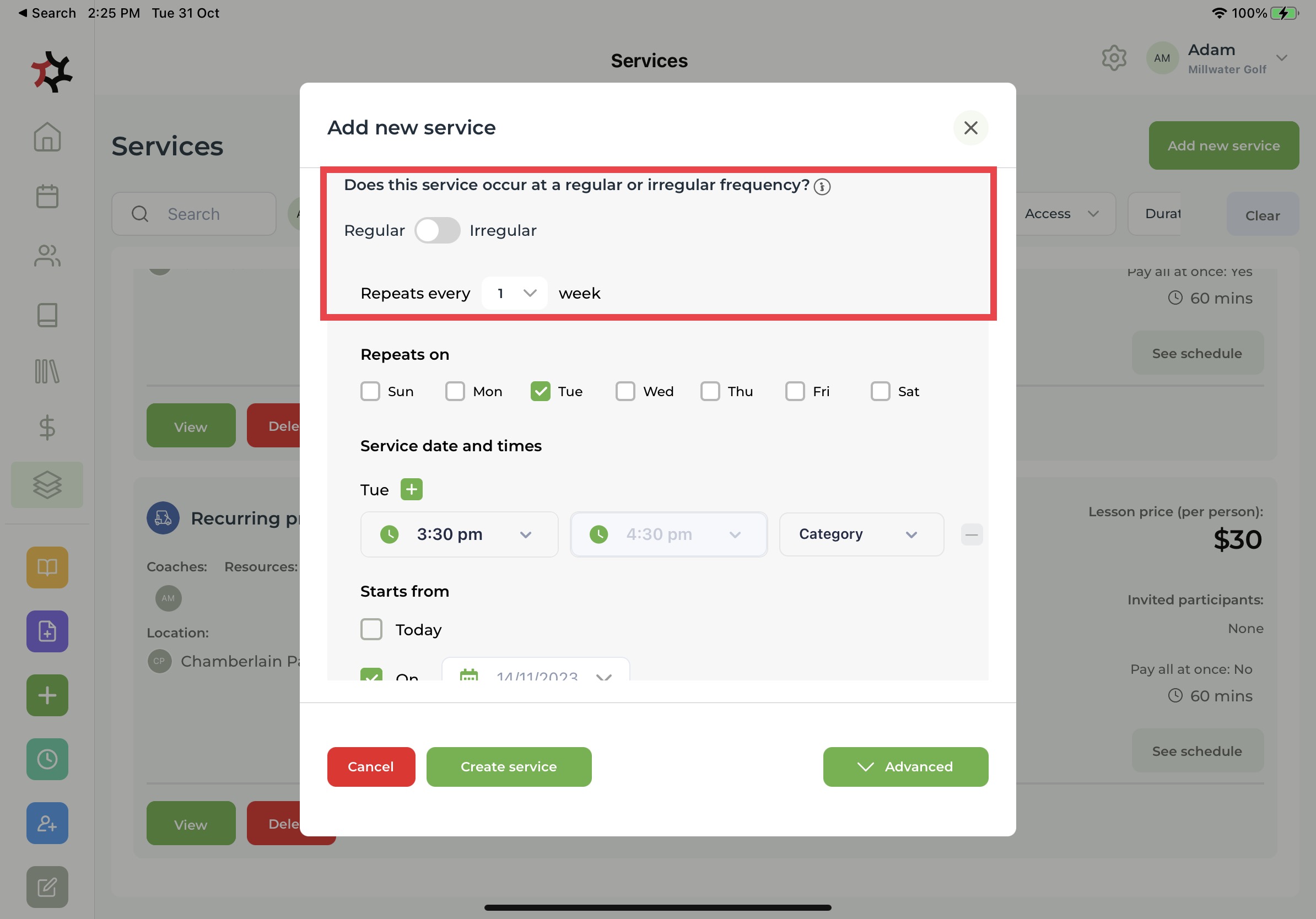
16. Select either **Regular** or **Irregular** for **Does this service occur at a regular or irregular frequency?**

<div align="left"><figure><img src="https://content.gitbook.com/content/AQGETajdcxecrar4lUBE/blobs/PurDZOIAMz74kjBAnJnp/IMG_0219.jpg" alt="" width="563"><figcaption></figcaption></figure></div>

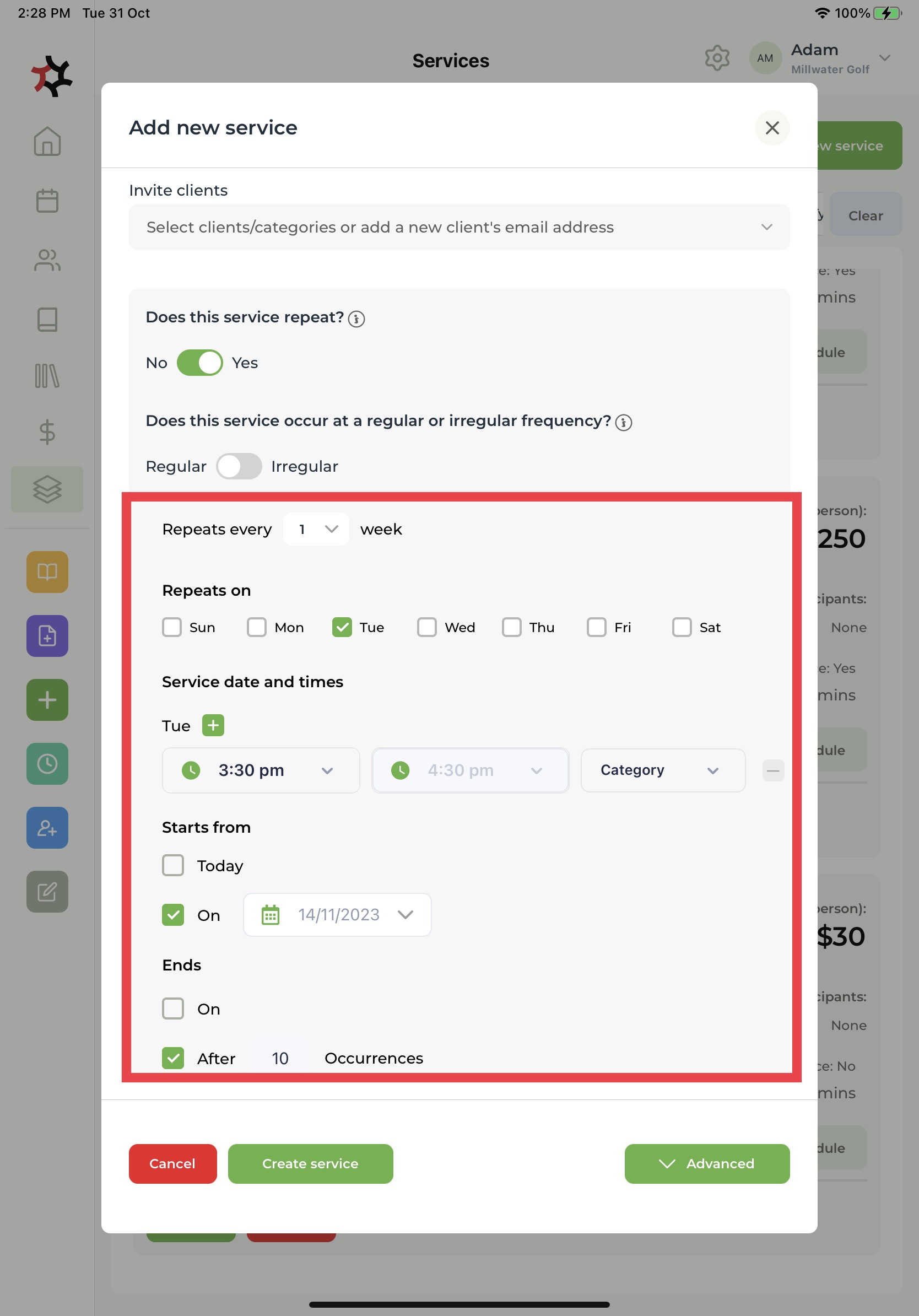
17. Select how often the service **Repeats,** for example **every week.** Select the specific day(s) the service repeats on.
18. Select when the service **Starts**, and when it **Ends**.&#x20;

Note: the number of Occurrences is prefilled based on your choice in step 7. If you change the value in this section, the value in step 7 will also change to match.

<div align="left"><figure><img src="https://content.gitbook.com/content/AQGETajdcxecrar4lUBE/blobs/3OUAdTqVzEUVq73J4AxT/IMG_0223%202.jpg" alt="" width="563"><figcaption></figcaption></figure></div>

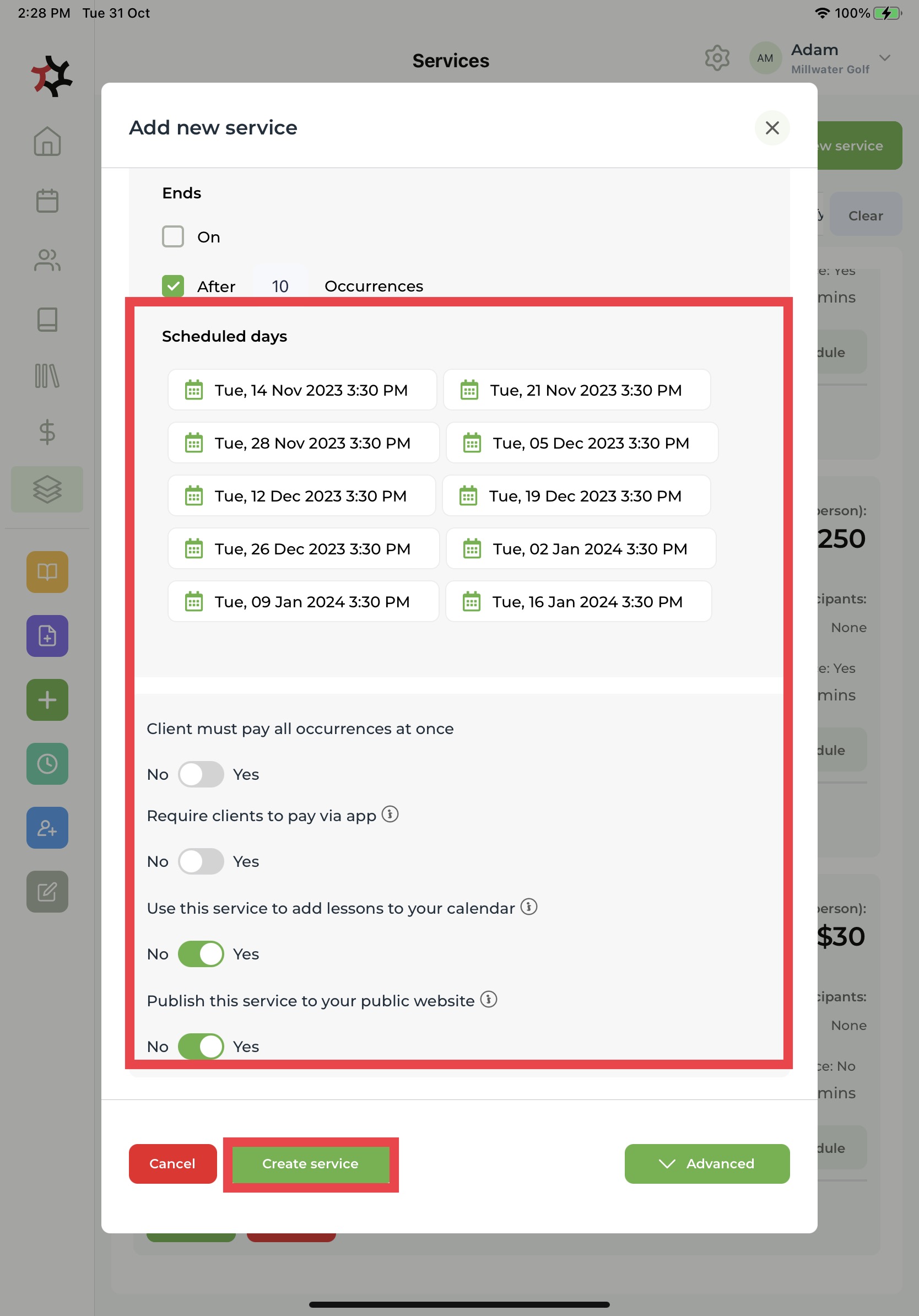
19. You will see a list of **Scheduled days** when the service will be available for your clients to book. Ensure **Clients must pay all occurrences at once** is set to **No.**&#x20;
20. You can choose if you want to **Require clients to pay via the app -** if this step is set to **No** clients will have the option to pay you directly or pay via the app. If this step is set to **Yes**, then clients can only pay you via the app.
21. Set **Use this service to add lessons to your calendar** to **Yes**.
22. Select **Yes, Publish this service to your public website**.
23. Finally, tap **Create service** to publish the new service to your public website.

<div align="left"><figure><img src="https://content.gitbook.com/content/AQGETajdcxecrar4lUBE/blobs/S2oY0mAXxCO84wDVyJv9/IMG_0224%202.jpg" alt="" width="563"><figcaption></figcaption></figure></div>

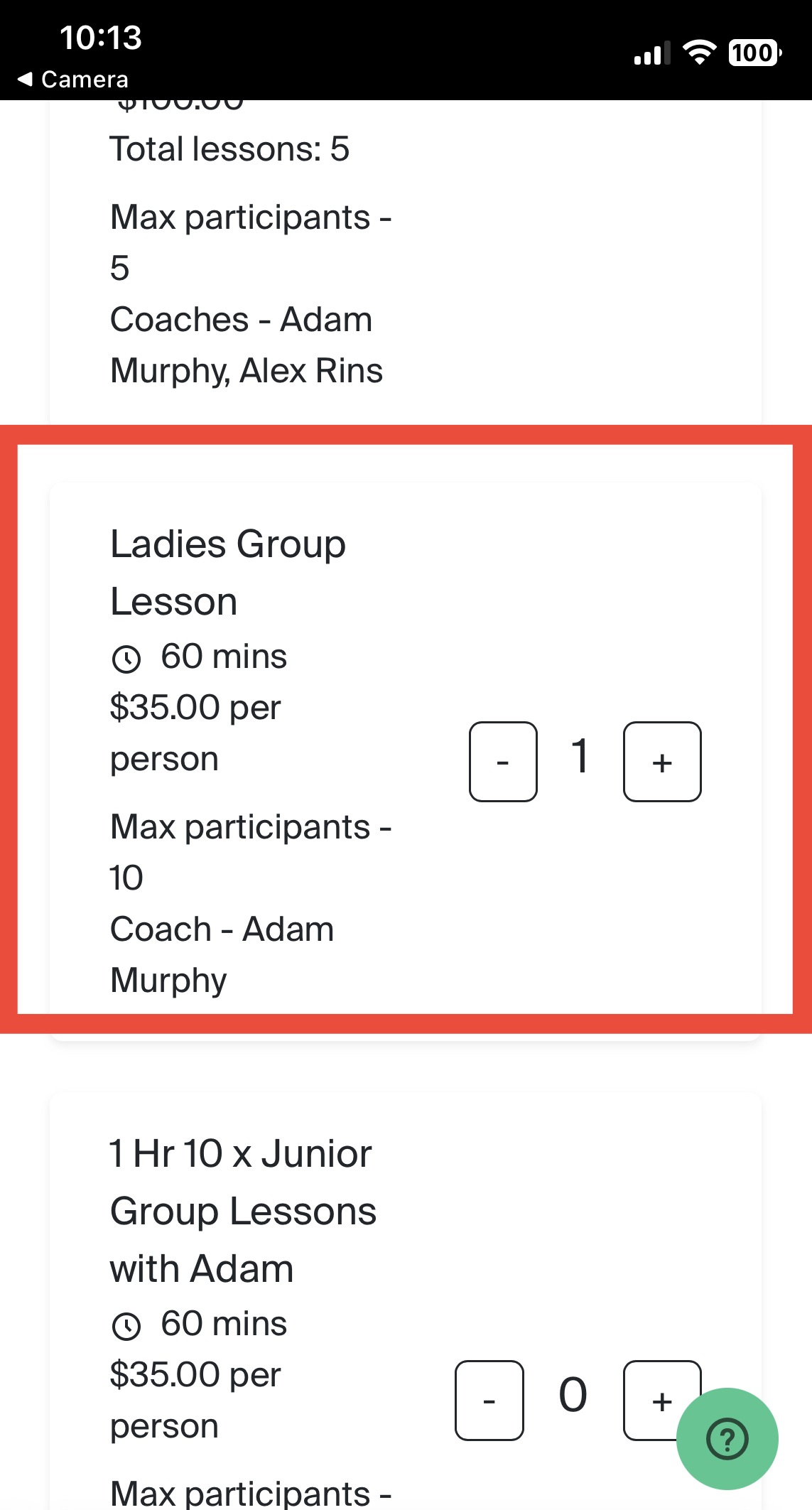
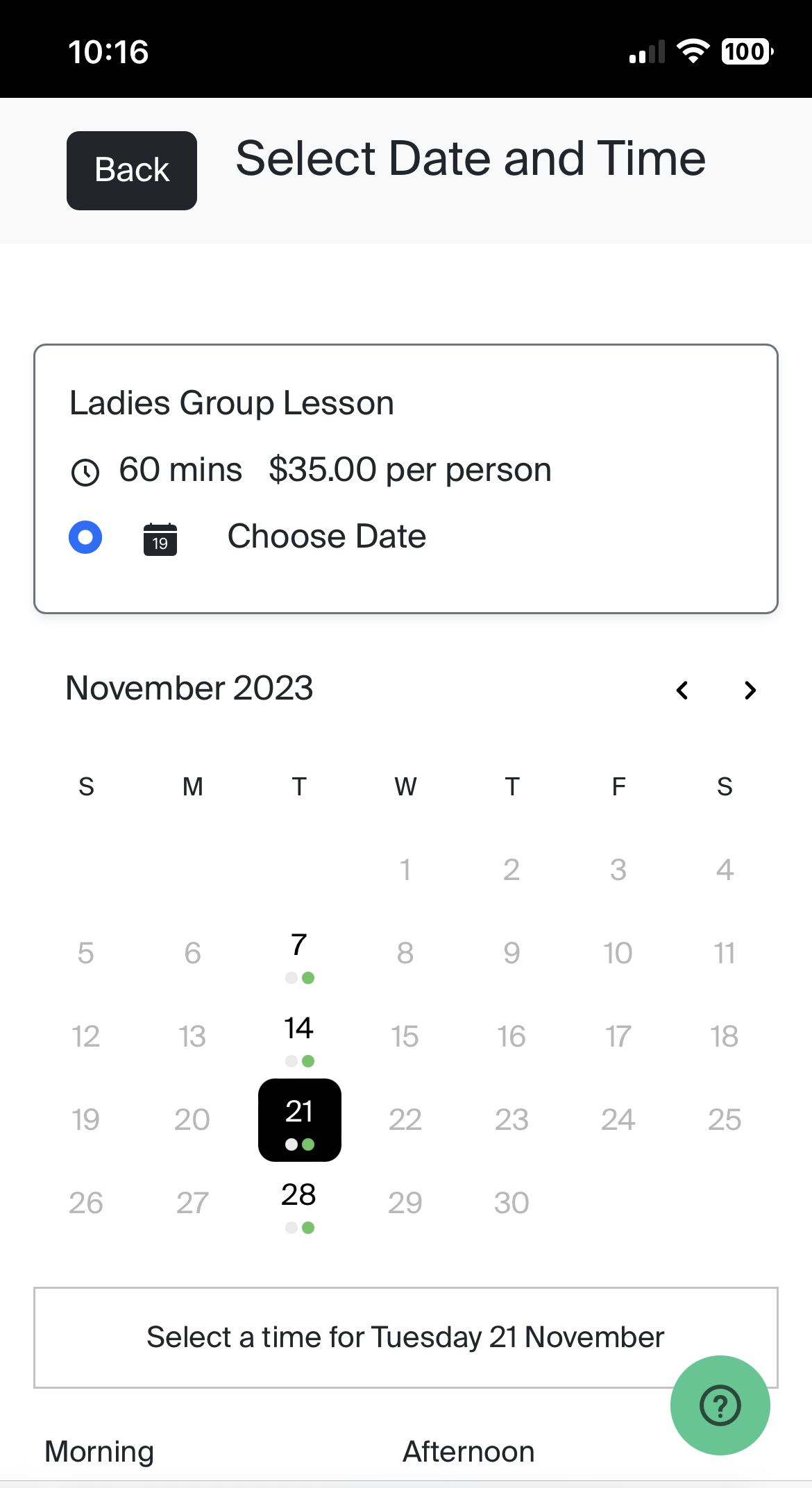
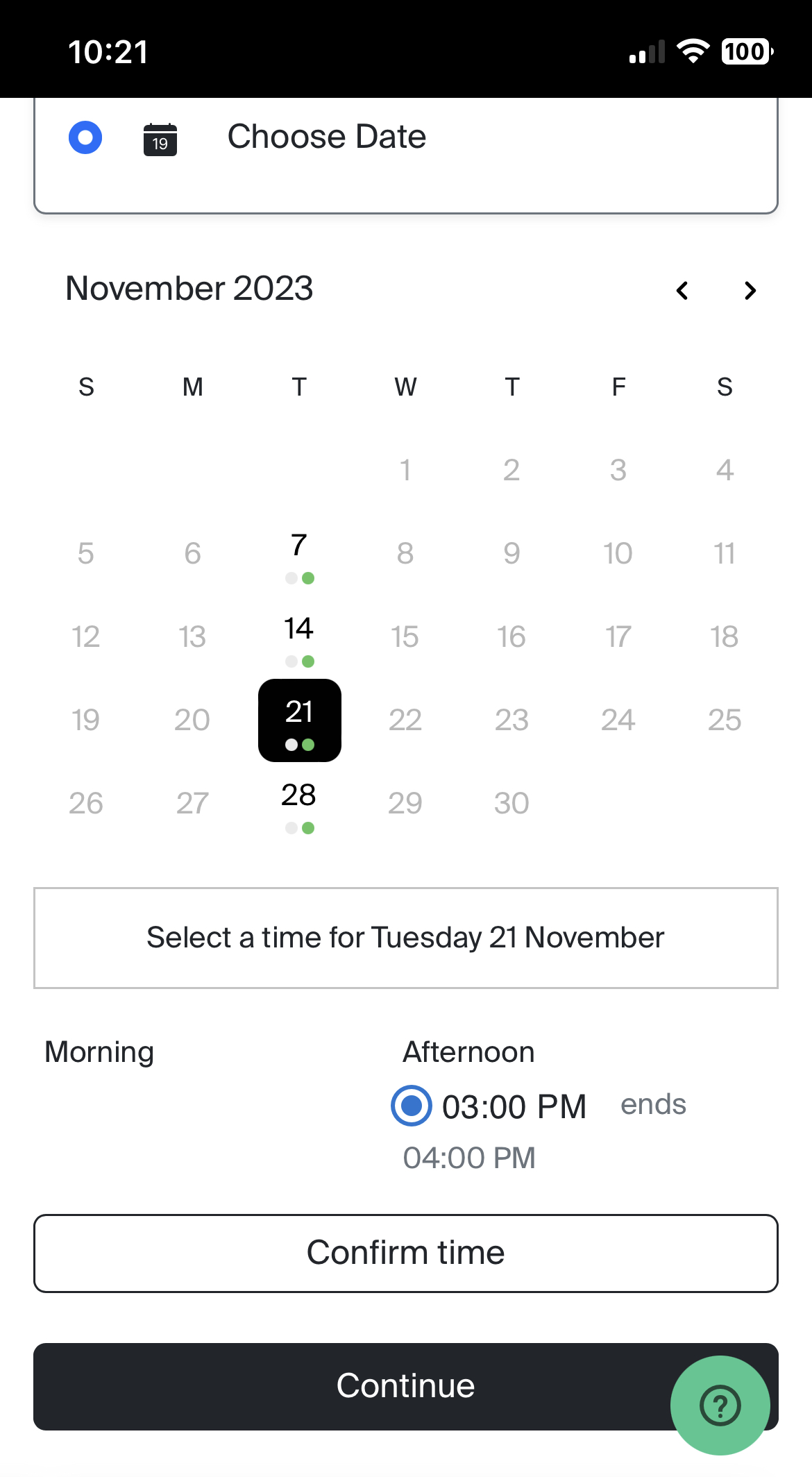
24. This is how your service will appear via your public booking website. Your client will select the **Service** of their choice, select and **Date** and **Time**, and then pay for the service.

<div><figure><img src="https://content.gitbook.com/content/AQGETajdcxecrar4lUBE/blobs/Es6k5yjHFIfcMp71sYv6/IMG_0886.jpeg" alt=""><figcaption><p>Service via public booking website</p></figcaption></figure> <figure><img src="https://content.gitbook.com/content/AQGETajdcxecrar4lUBE/blobs/wl0j5SUsUr0Sh7DHox0s/IMG_0887.jpeg" alt=""><figcaption><p>Client selects available date</p></figcaption></figure> <figure><img src="https://content.gitbook.com/content/AQGETajdcxecrar4lUBE/blobs/av8iZciTLvsfDmt5fe8E/IMG_0888.jpeg" alt=""><figcaption><p>Client selects available time and continues to payment</p></figcaption></figure></div>

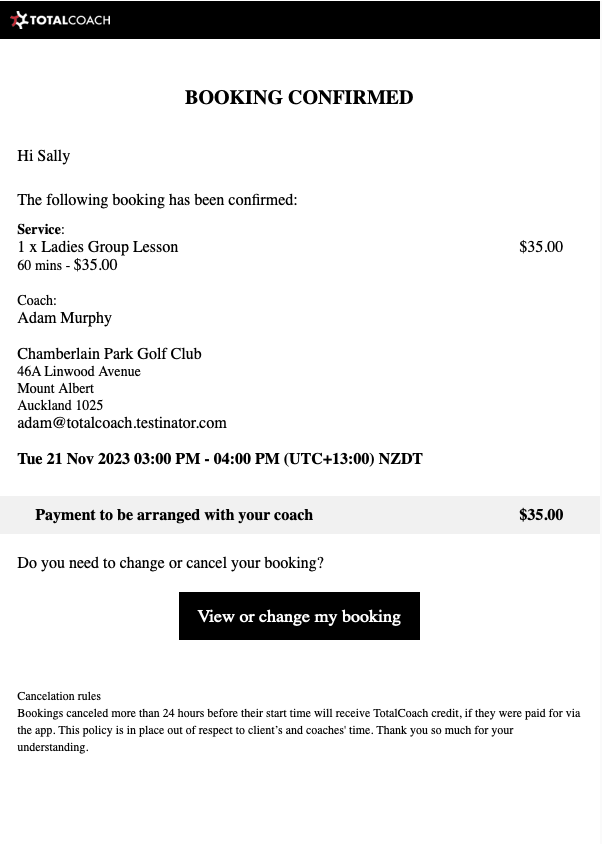
25. Your client will receive an email confirming their booking with you. The future booking also appears under their **Activity feed** on their homepage and the in-app **Calendar**.

<div><figure><img src="https://content.gitbook.com/content/AQGETajdcxecrar4lUBE/blobs/DRgQouU0ixujmf006I2W/Screenshot%202023-11-03%20at%2011.16.12%20AM.png" alt=""><figcaption><p>Email to confirm booking</p></figcaption></figure> <figure><img src="https://content.gitbook.com/content/AQGETajdcxecrar4lUBE/blobs/Gl1LcUsdmVZftuPaW4SX/IMG_0890.jpeg" alt="" width="563"><figcaption><p>Homepage Activity Feed shows booked lesson</p></figcaption></figure> <figure><img src="https://content.gitbook.com/content/AQGETajdcxecrar4lUBE/blobs/80h2P1FiiomlhPQJurhM/IMG_0891.jpeg" alt="" width="563"><figcaption><p>Booked lesson via In-app calendar</p></figcaption></figure></div>


# Setting up payments

TotalCoach requires a Stripe account to accept online payments. A guide to setting one up is provided in this article.

Note: Booking fees are added to lesson prices for payments made via the app. Each transaction is charged a 2.2% platform fee plus Stripe fees. For example, if the lesson price is $100 and the client pays via the app, they will be charged $105.34. The $100 lesson price will be paid to you.

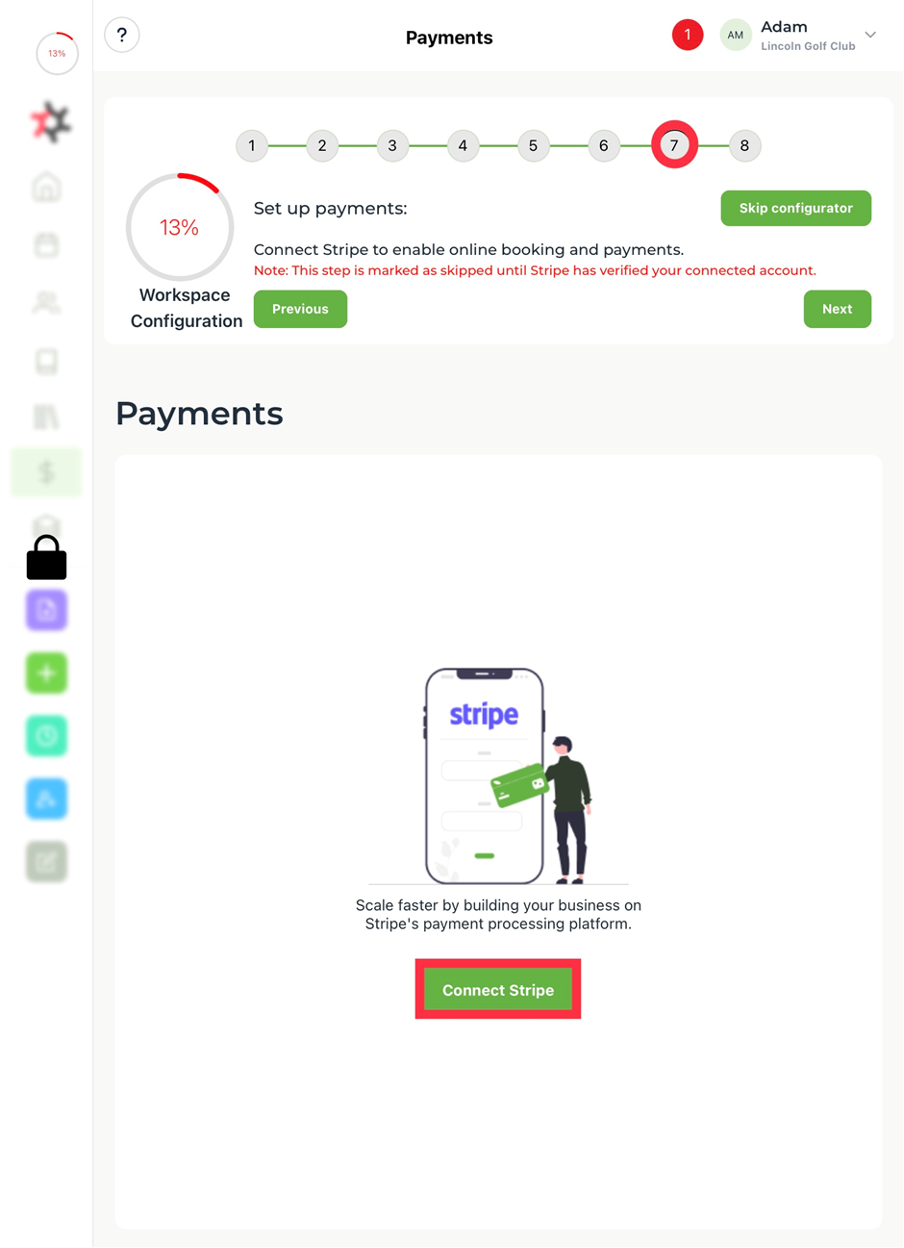
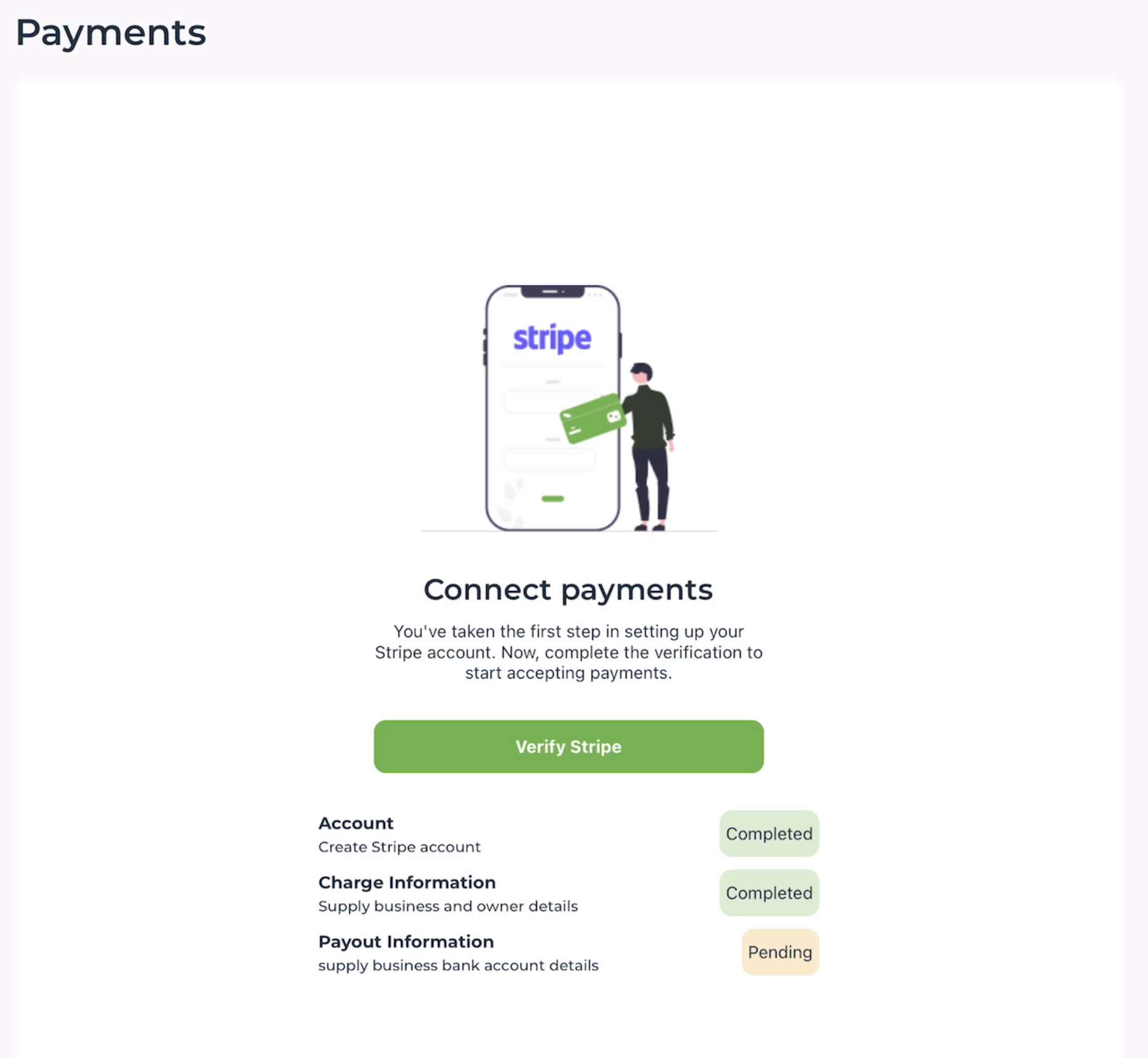
1. Go to Step 7 in the Workspace configurator to accept online payments or tap the $ symbol on the sidebar to access the **Payments** page. Next, tap the **Connect Stripe** button to open a unique URL beginning with <https://connect.stripe.com/setup>...
<figure><img src="https://content.gitbook.com/content/AQGETajdcxecrar4lUBE/blobs/ozf51nOD13aX9bFtlQAT/Picture%201.png" alt=""><figcaption></figcaption></figure>

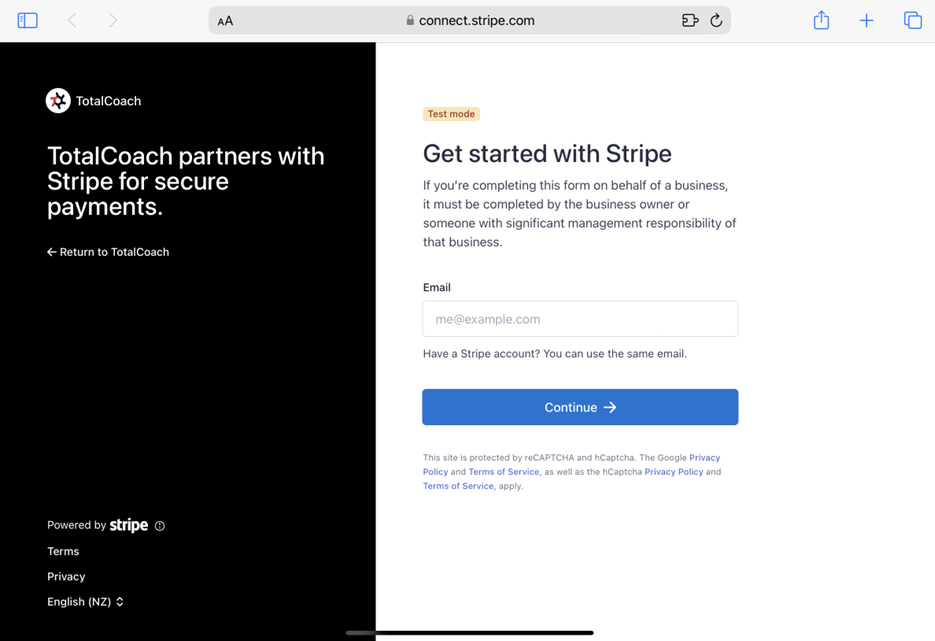
2. Follow Stripe's process to create a connected account.

<figure><img src="https://content.gitbook.com/content/AQGETajdcxecrar4lUBE/blobs/Wc3Z3YdoKA82408Jwmrh/image.png" alt=""><figcaption></figcaption></figure>

3. Once you have completed the steps required to connect Stripe, you will be taken back to TotalCoach. Note: you will not be connected immediately, your account status will be pending until a Stripe agent has connected you.&#x20;

<div align="left"><figure><img src="https://content.gitbook.com/content/AQGETajdcxecrar4lUBE/blobs/IPfXFQXPujI3YEJ3tdua/IMG_BE638E2596EA-1.jpeg" alt=""><figcaption></figcaption></figure></div>

4. Once your Stripe account is active, you will be able to view and manage all of your payments and transactions, including downloading invoices via <https://dashboard.stripe.com/invoices>


# Setting up booking rules

Set your booking rule preferences.

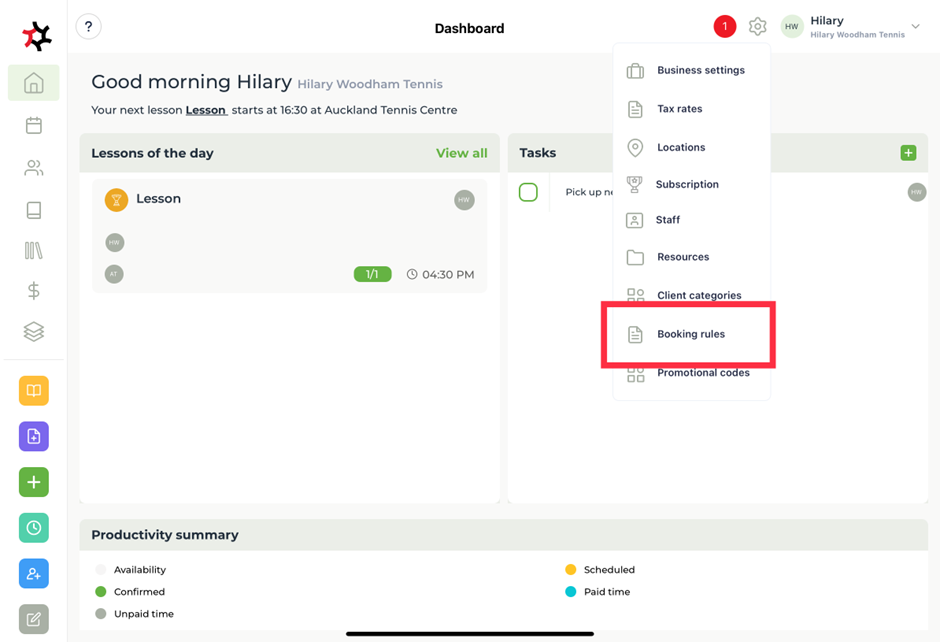
1. Select the **Settings** cog on the top toolbar and select **Booking rules**.&#x20;

<figure><img src="https://content.gitbook.com/content/AQGETajdcxecrar4lUBE/blobs/gVOqj3koCRXlbcJBWppt/image.png" alt=""><figcaption></figcaption></figure>

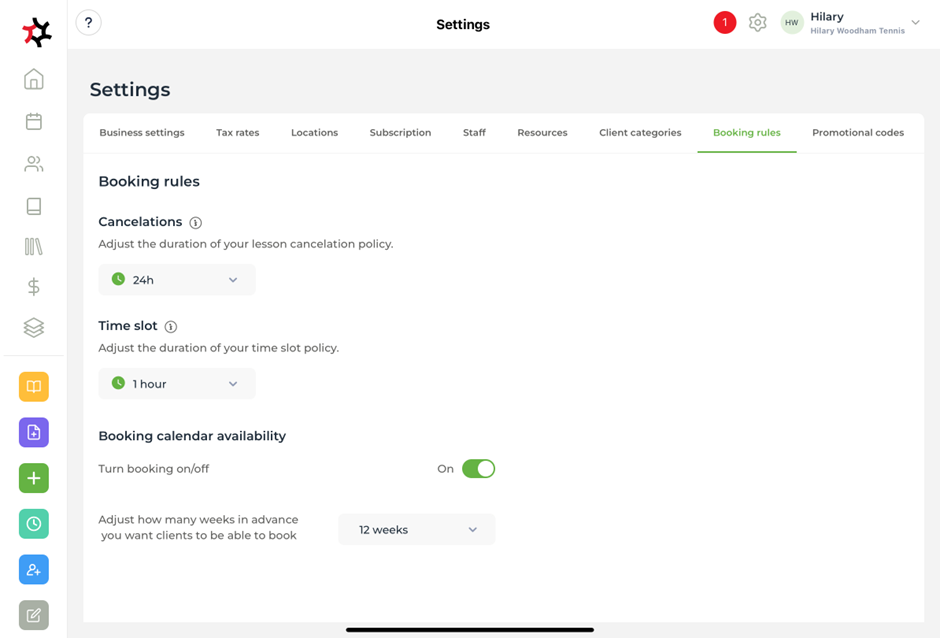
2. **Cancelations** allows you to adjust the cancelation policy. If your client cancels before this time and paid via the app, they will receive TotalCoach credit for the value of their lesson, which they can use for future purchases. &#x20;
3. **Time slot** allows you to adjust the duration of your time slot policy. Select the time increments that you would like your services to be bookable.&#x20;
4. **Booking calendar availability**. Here you can turn your booking availability on or off, and adjust how many months in advance you want clients to be able to book.

<figure><img src="https://content.gitbook.com/content/AQGETajdcxecrar4lUBE/blobs/9FPO1XM11yU8HRZd5vy7/image.png" alt=""><figcaption></figcaption></figure>


# Adding tax rates

TotalCoach lets you add tax to your services if you are registered to pay tax in your local authority.

To add tax rates to your account:

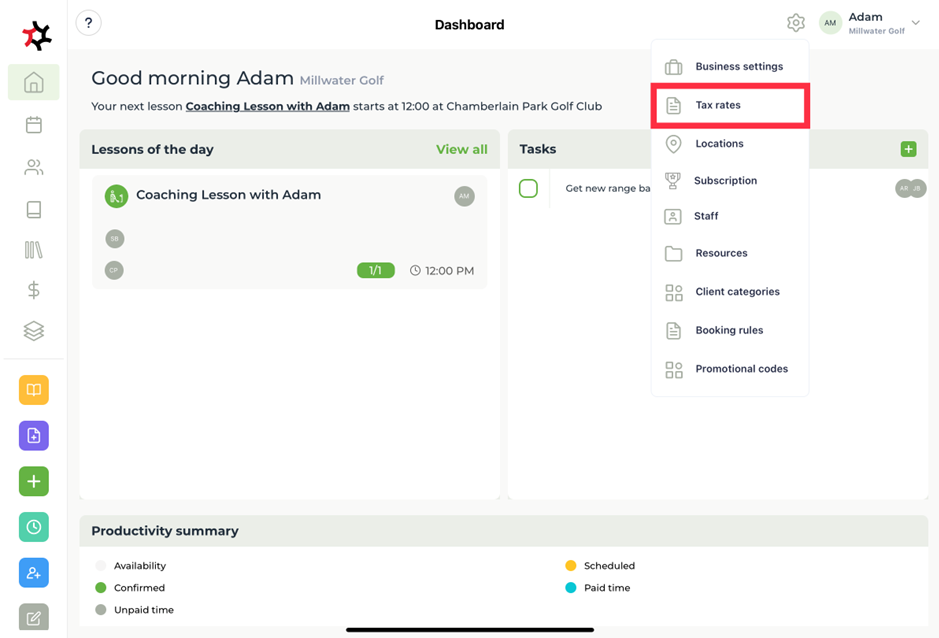
1. Select the **Settings** cog and then **Tax rates**.

<figure><img src="https://content.gitbook.com/content/AQGETajdcxecrar4lUBE/blobs/ICTSBNyGnIjz7fuQSKIc/image.png" alt=""><figcaption></figcaption></figure>

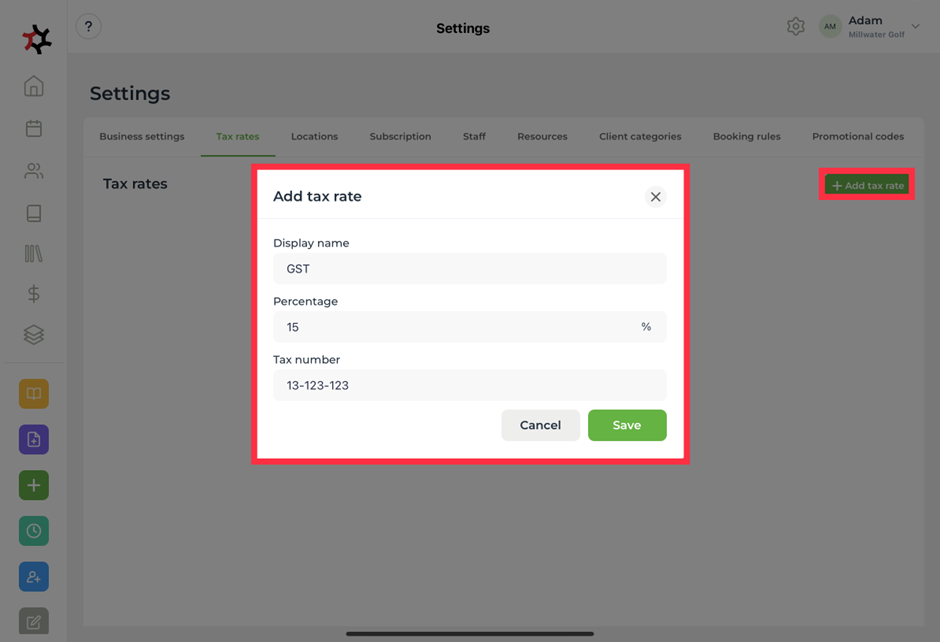
2. Tap **Add tax rate** and enter the **Display name**, **Percentage**, and your unique **Tax number**.

<figure><img src="https://content.gitbook.com/content/AQGETajdcxecrar4lUBE/blobs/6Z0sazngbFhSTVmXcLBX/image.png" alt=""><figcaption></figcaption></figure>

3. Tap **Save** to add this tax rate.


# Using your calendar

The Calendar is the core part of the TotalCoach application and is where you'll spend much of your time. This guide steps you through how to use the calendar to your manage your business.

From your **Calendar** you can:

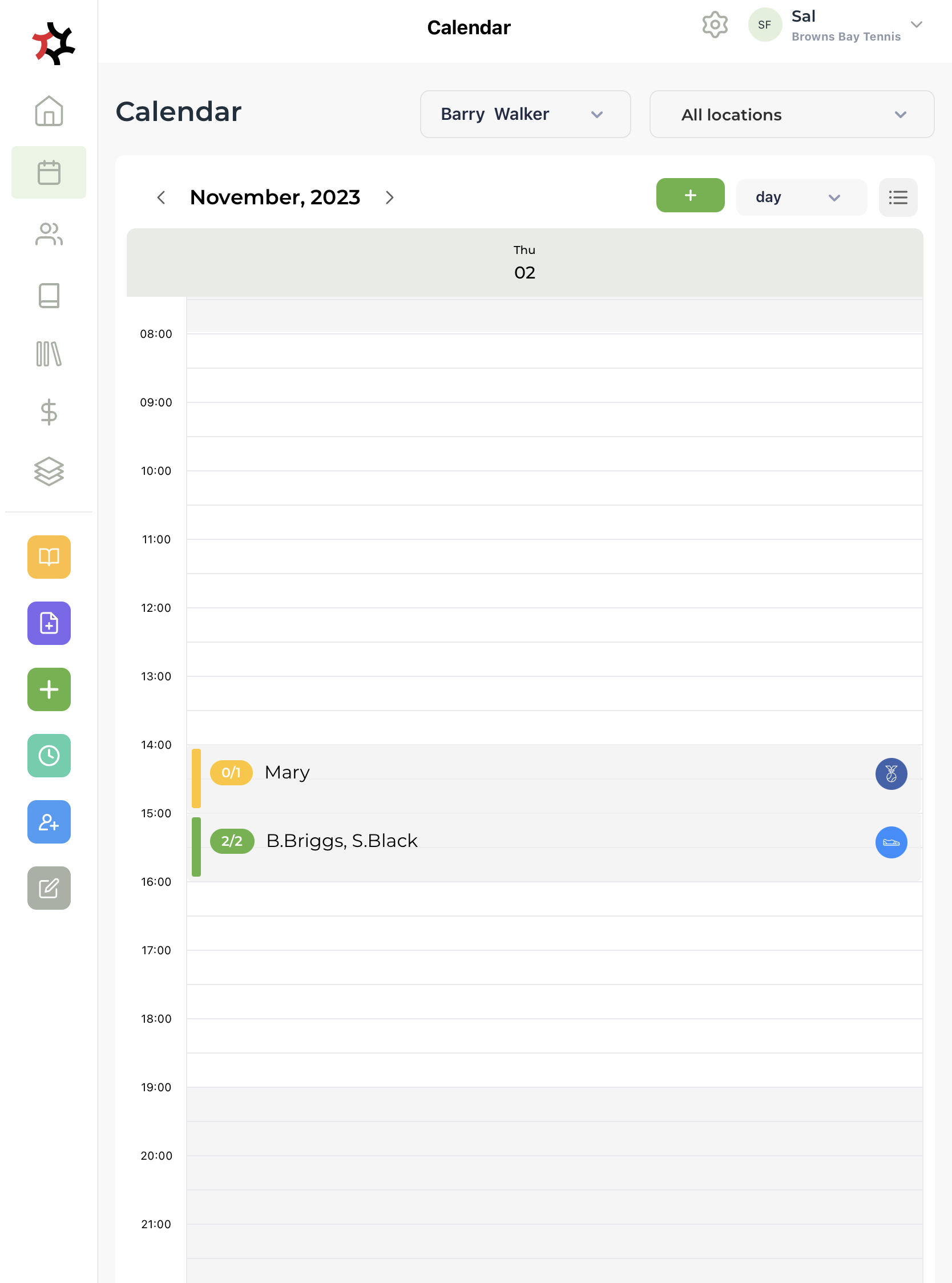
1. **View** your upcoming **Lessons, Events** and **Busy times**.
2. **Change** the view to display the current **Day** or **Week**.
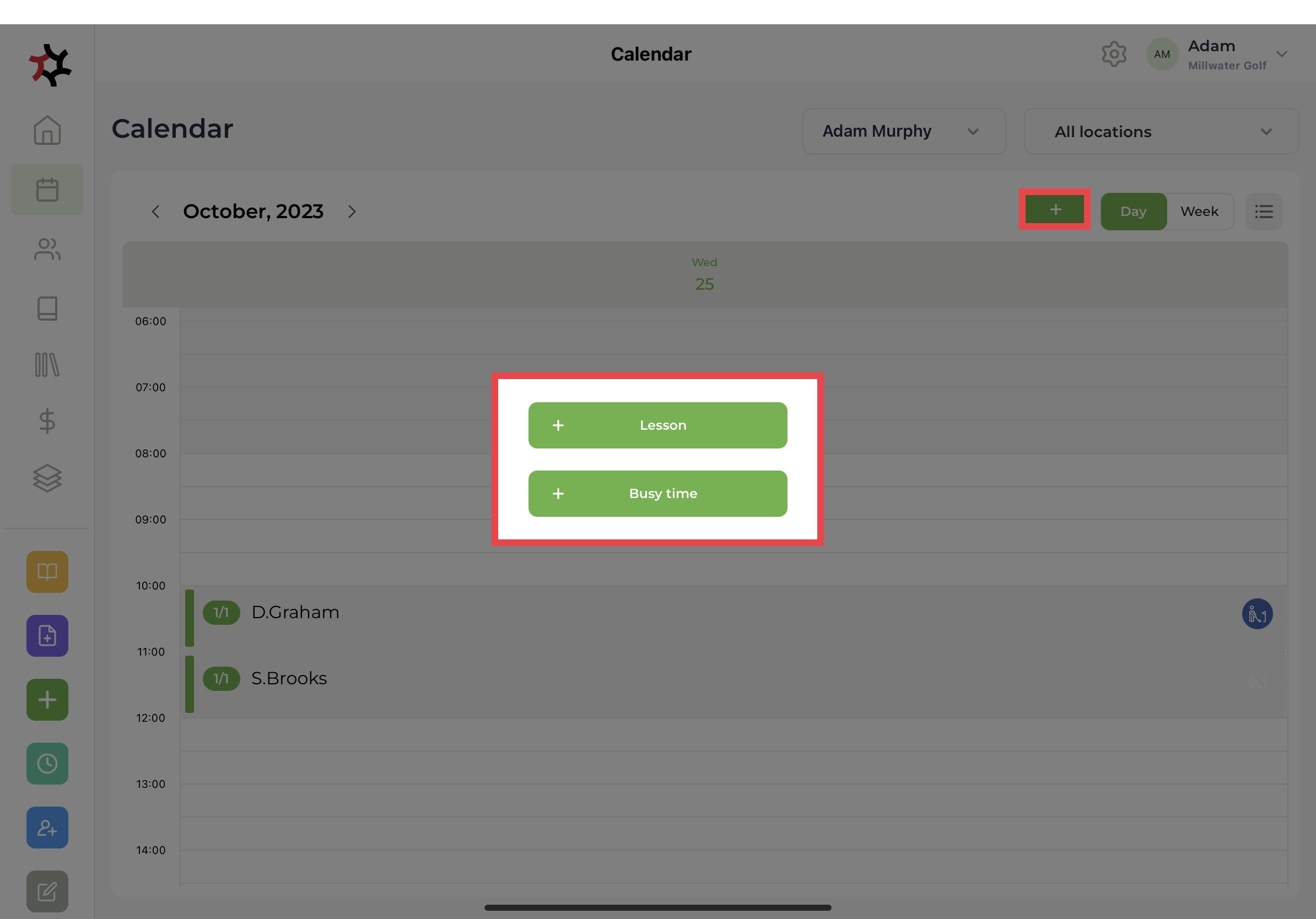
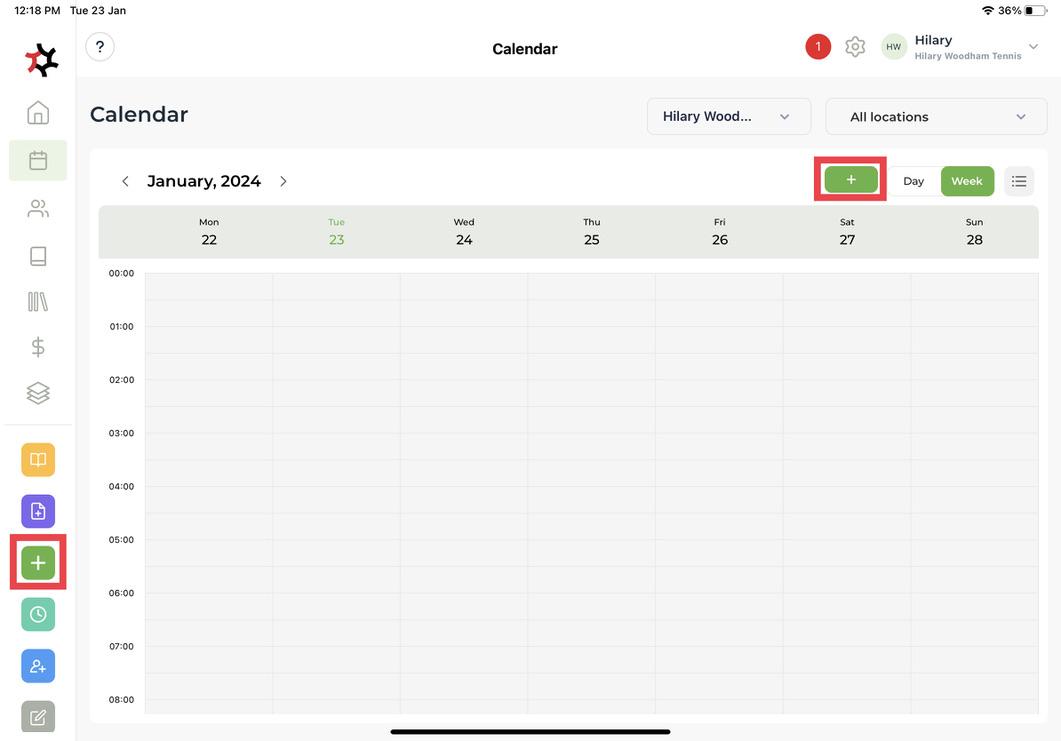
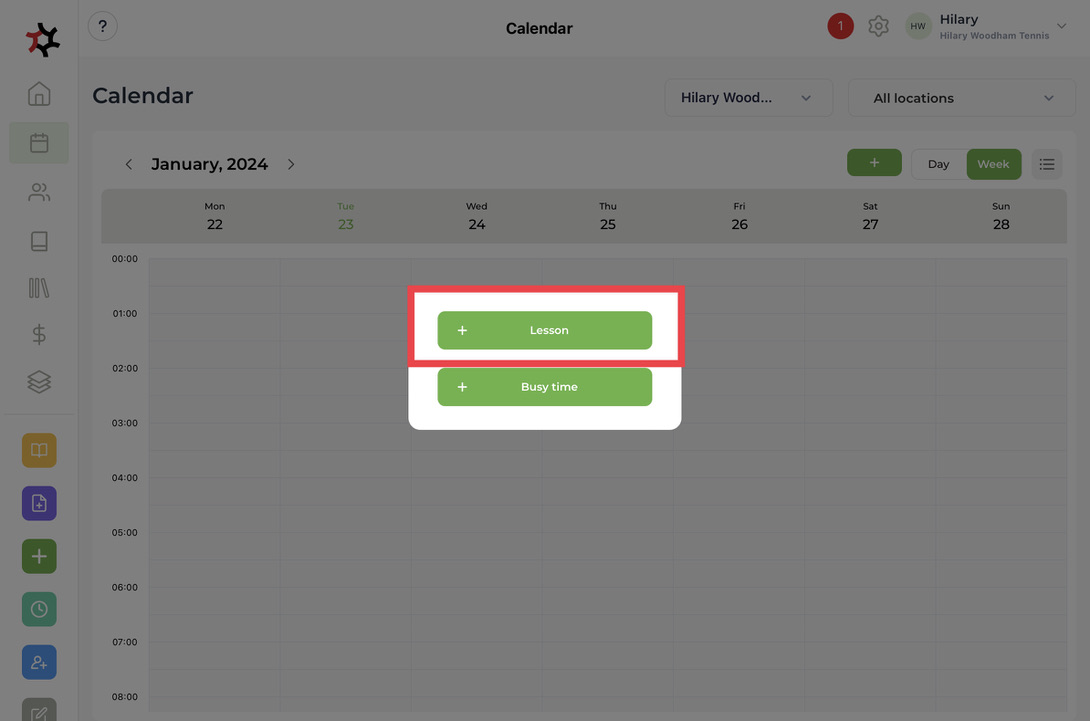
3. Use the green **+ button** to [Add new lesson ](/coaches/support-for-coaches-organisations/welcome-to-totalcoach-support/setting-up-your-workspace/adding-lessons)or [Add busy time](/coaches/support-for-coaches-organisations/welcome-to-totalcoach-support/setting-up-your-workspace/adding-busy-times).

<figure><img src="https://content.gitbook.com/content/AQGETajdcxecrar4lUBE/blobs/KG6DW8FbbeUx8EK3foCy/image.png" alt=""><figcaption></figcaption></figure>

4. In addition, you can activate the [Add new lesson](/coaches/support-for-coaches-organisations/welcome-to-totalcoach-support/setting-up-your-workspace/adding-lessons) or [Add busy time](/coaches/support-for-coaches-organisations/welcome-to-totalcoach-support/setting-up-your-workspace/adding-busy-times) pop-up by long pressing on a **calendar date and time** where there is free time available.
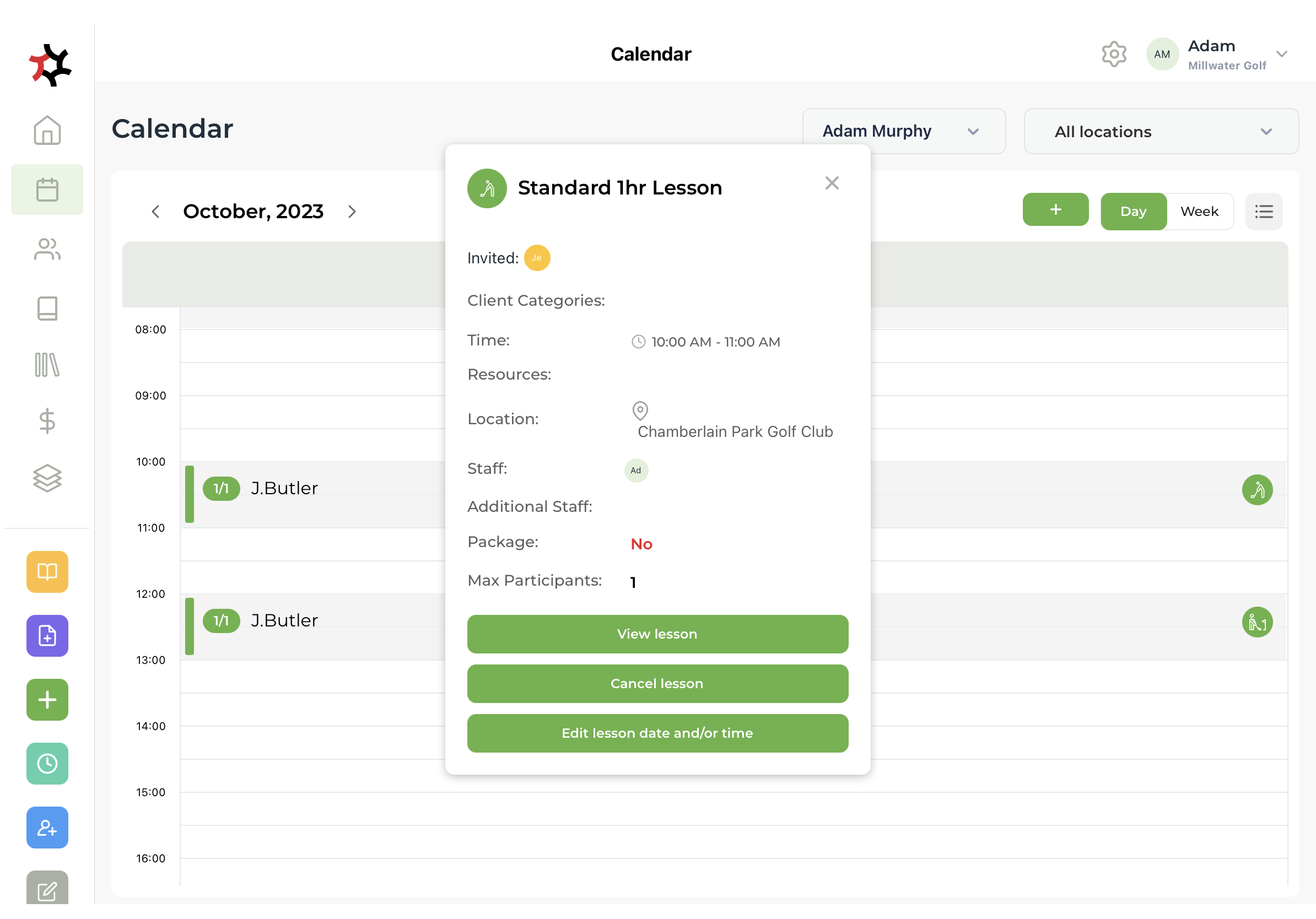
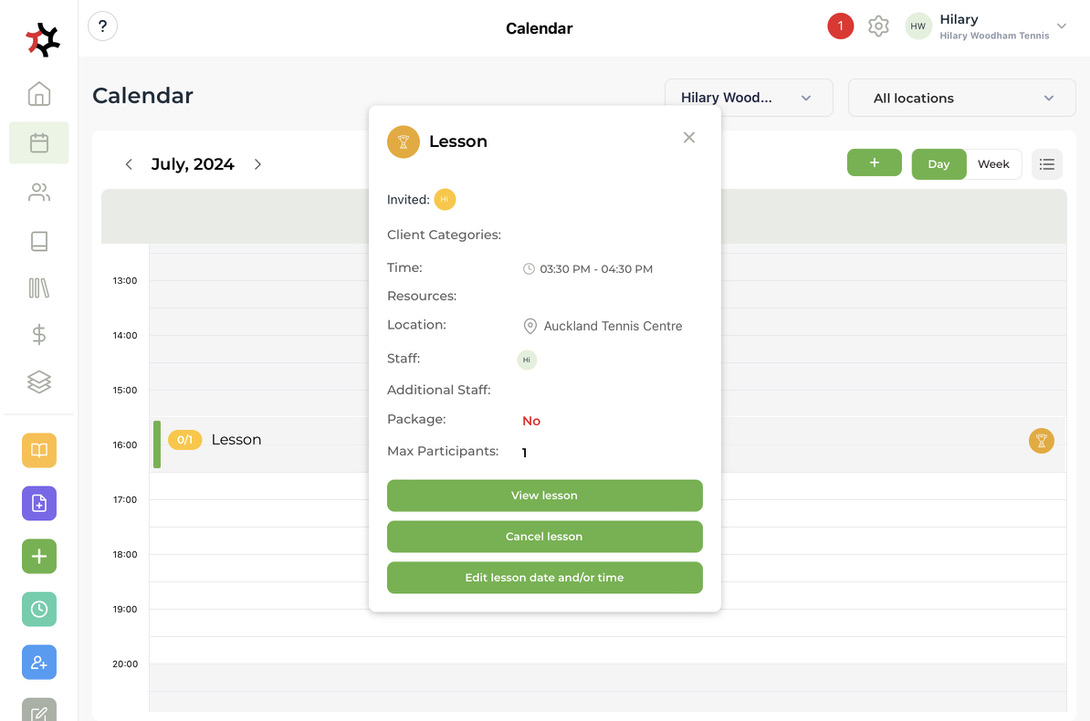
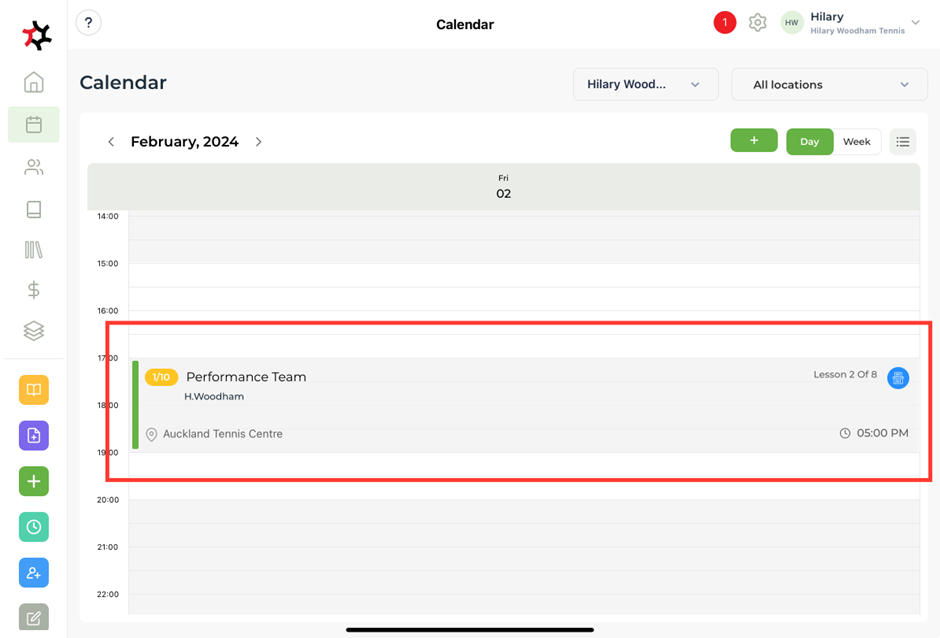
5. **View**, **Cancel** or **Edit** lessons by simply tapping the lesson entry in the **calendar.**
6. The colour bar will change from orange to green if your client accepts the booking invitation. If it stays orange they have not yet accepted the invitation.&#x20;
7. The **Lesson** tile in you**r calendar** will show you how many participants have accepted the invitation. By clicking on the lesson tile you will see a pop-up indicating which of the clients have accepted.&#x20;
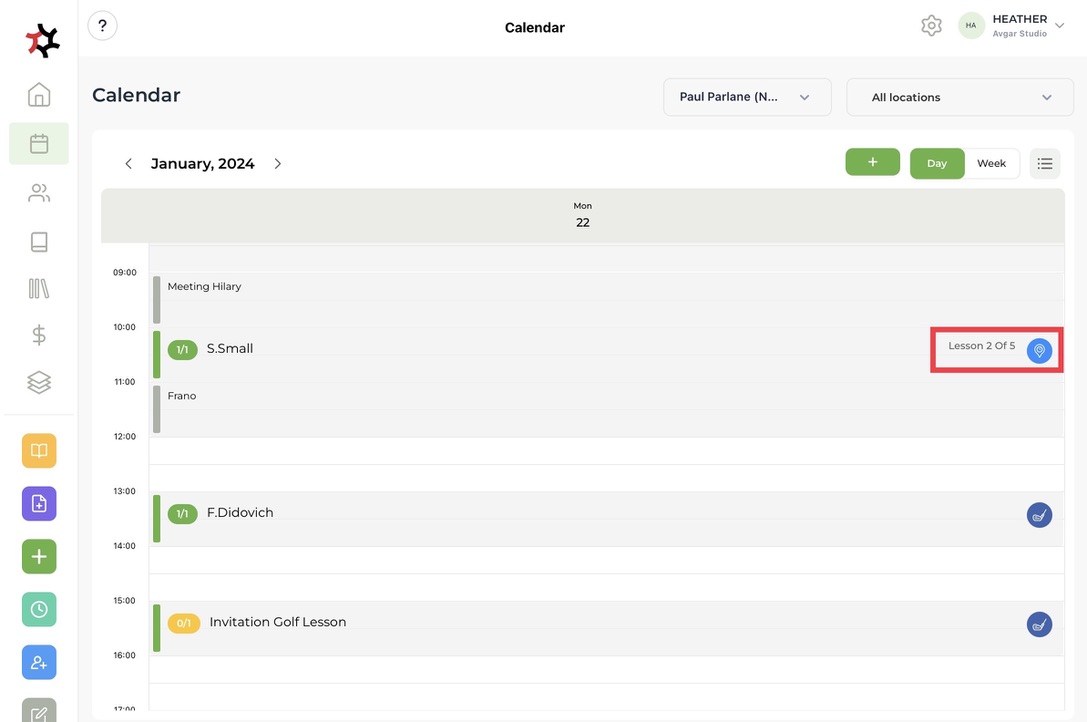
8. Next to the client details on your daily calendar, it will state how many lessons of the pack have been used.

   <figure><img src="https://content.gitbook.com/content/AQGETajdcxecrar4lUBE/blobs/pz7htR0nuNhH57MurWrQ/45AD37EA-D7DC-4457-9F80-8A00081A6F7F_1_105_c.jpeg" alt=""><figcaption></figcaption></figure>
9. The **TotalCoach Credit** dollars will show when clients have available credits to book a lesson with.&#x20;

<figure><img src="https://content.gitbook.com/content/AQGETajdcxecrar4lUBE/blobs/qi9dIdkPD7lLt0mwqil4/image.png" alt=""><figcaption></figcaption></figure>


# Adding lessons

Invite clients to book your pre-existing services here.

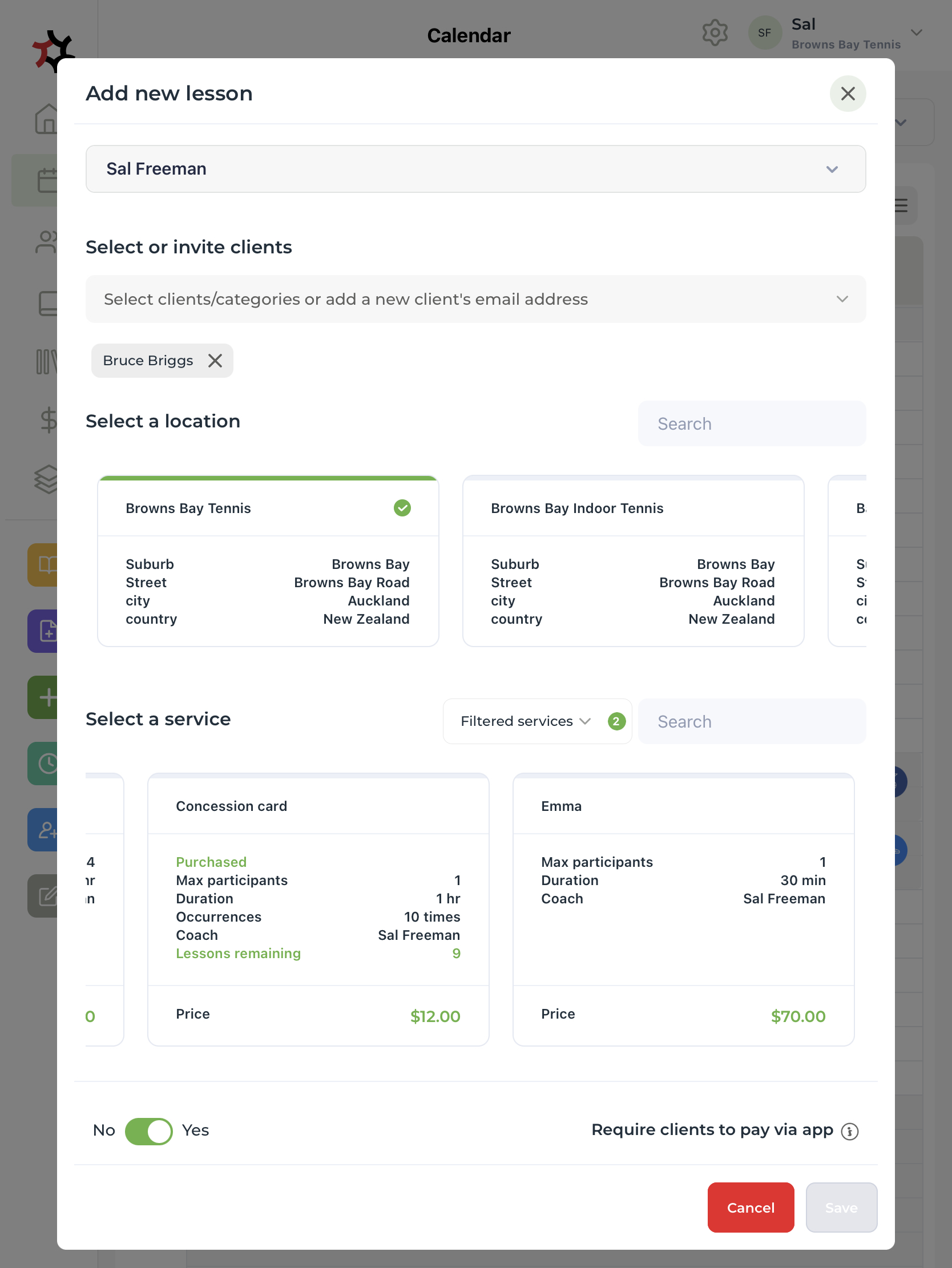
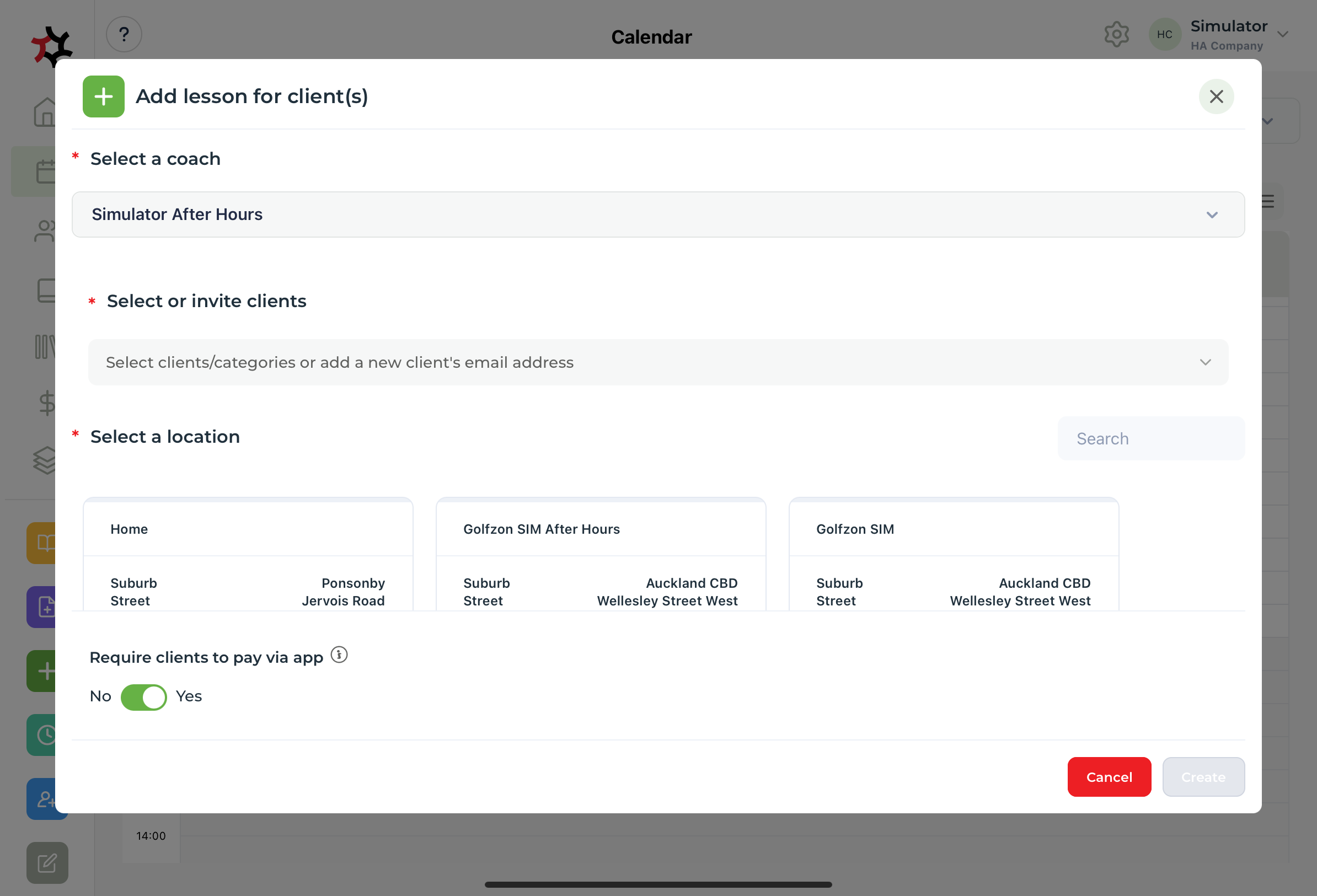
1. Click the green **+** quick link in the sidebar, or press and hold on a time slot on the calendar to open the **Add lesson** feature.

<figure><img src="https://content.gitbook.com/content/AQGETajdcxecrar4lUBE/blobs/yNrwX006m5kd7UcADCvW/F7048B7C-4D91-424F-BFEB-DCB6D97CAA51_1_105_c.jpeg" alt=""><figcaption></figcaption></figure>

<figure><img src="https://content.gitbook.com/content/AQGETajdcxecrar4lUBE/blobs/T2dNIeOzLdO64kEqobWe/025A37B5-060E-4991-82A1-D9113C7EDD54_1_105_c.jpeg" alt=""><figcaption></figcaption></figure>

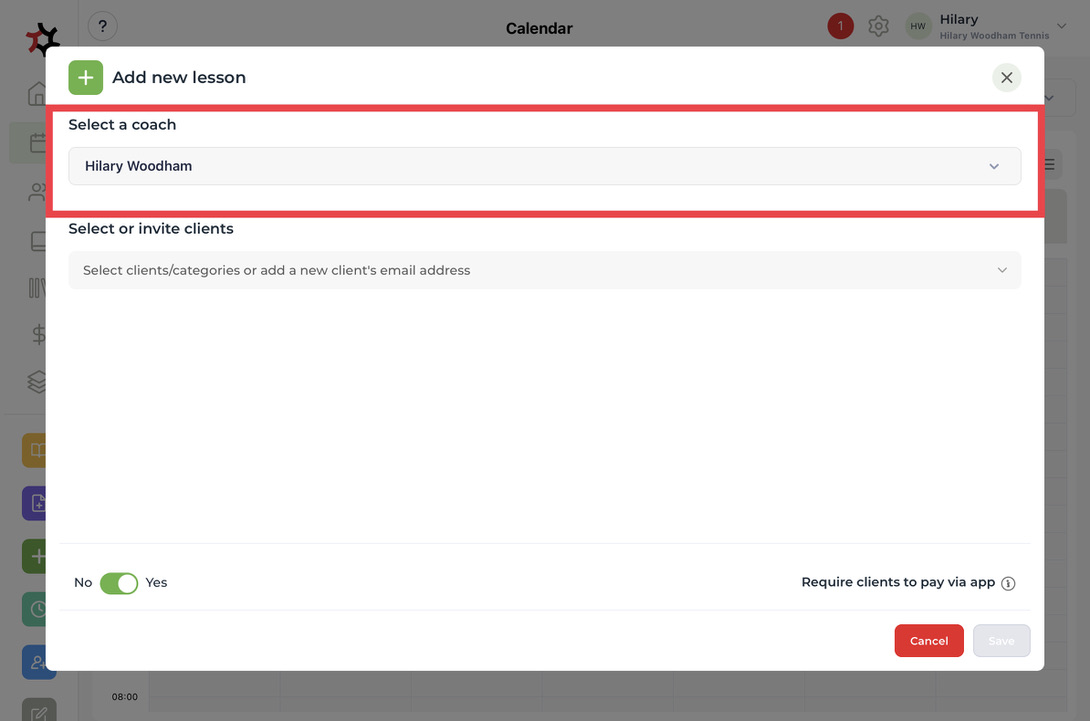
2. Select the **coach** you want for this lesson.&#x20;

<figure><img src="https://content.gitbook.com/content/AQGETajdcxecrar4lUBE/blobs/qXrQZvV0ZfhBjMm6rMgO/0FDB055F-39DE-409F-A182-437BDB82FDA5_1_105_c.jpeg" alt=""><figcaption></figcaption></figure>

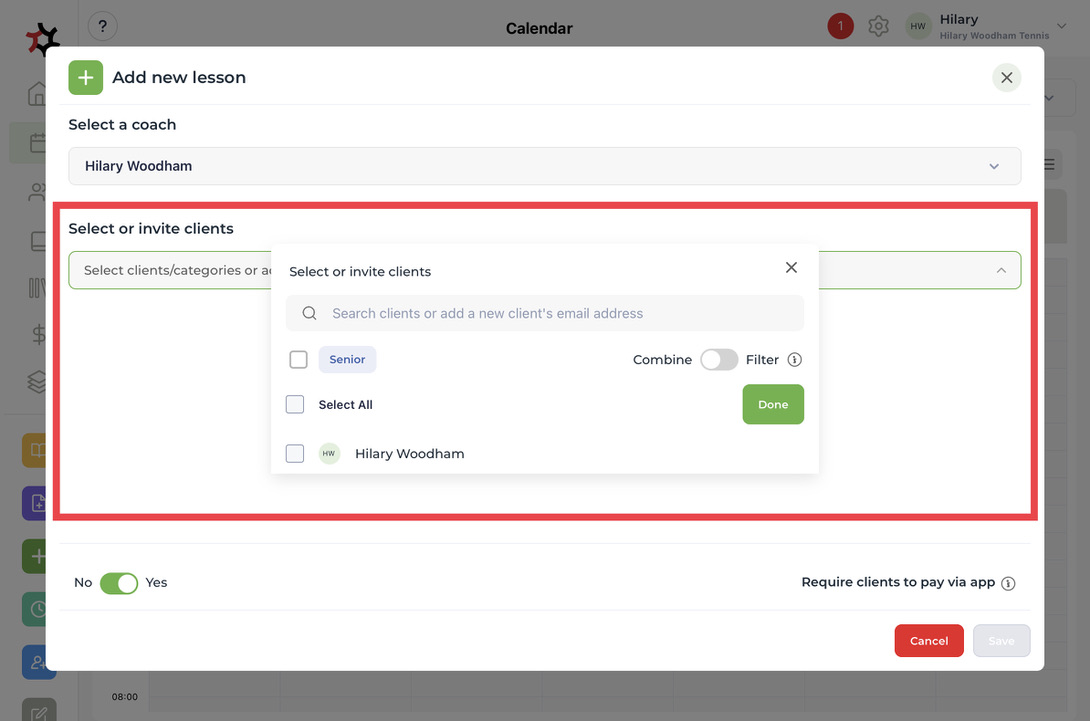
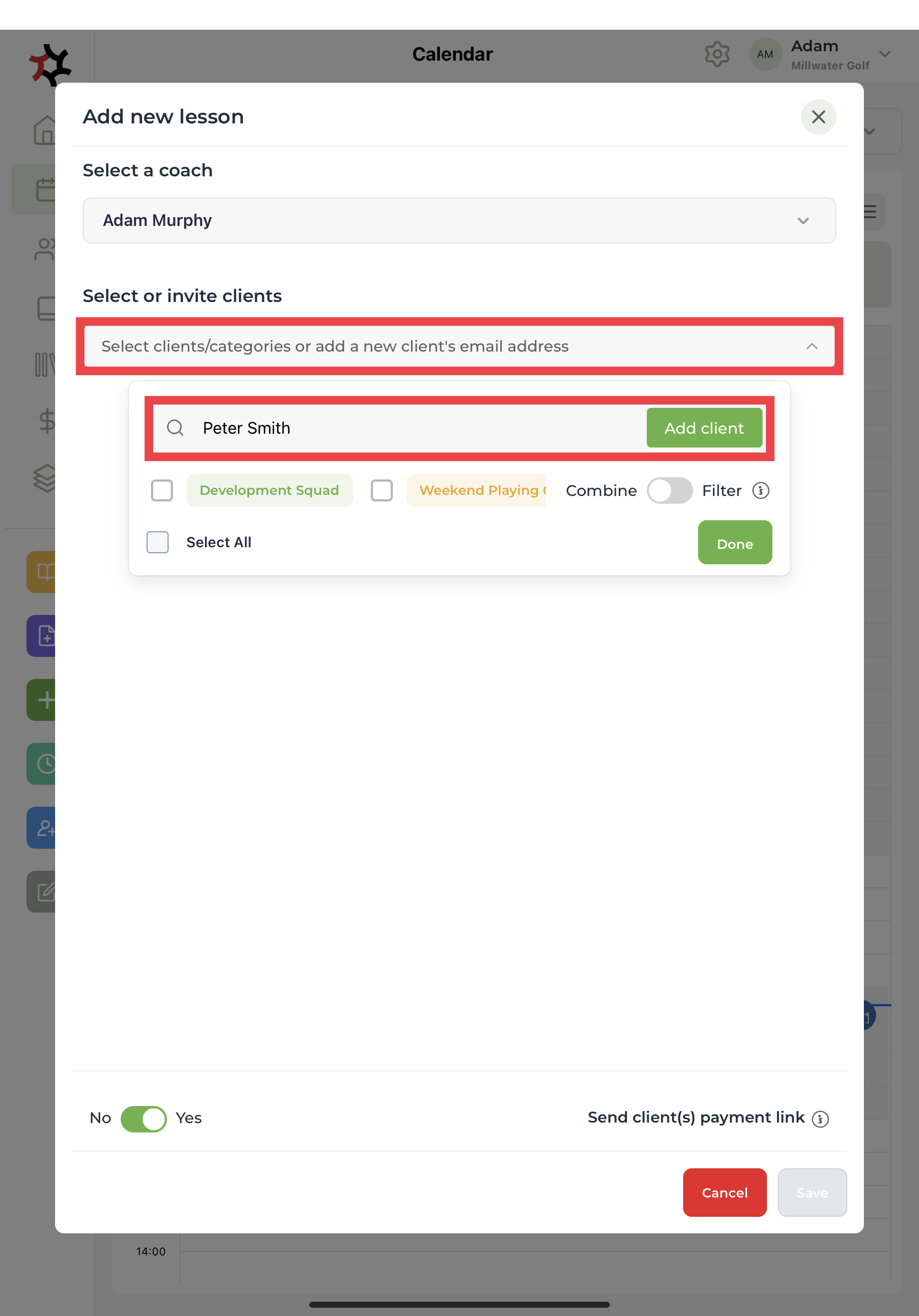
3. **Select** or **invite** your client by tapping the down arrow and selecting the client's tick box followed by the green **Done** button.&#x20;

<figure><img src="https://content.gitbook.com/content/AQGETajdcxecrar4lUBE/blobs/r6ujGO7VA3iSLi7VIWss/A9F2880F-C681-475B-AD74-ACAF9FBE7E40_1_105_c.jpeg" alt=""><figcaption></figcaption></figure>

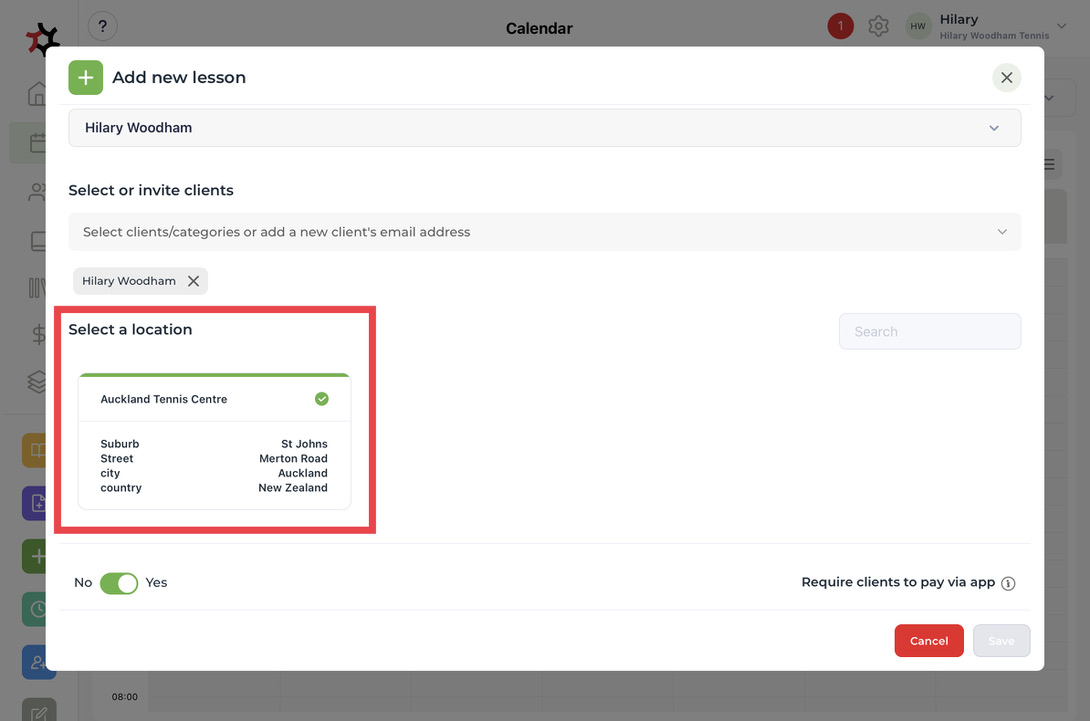
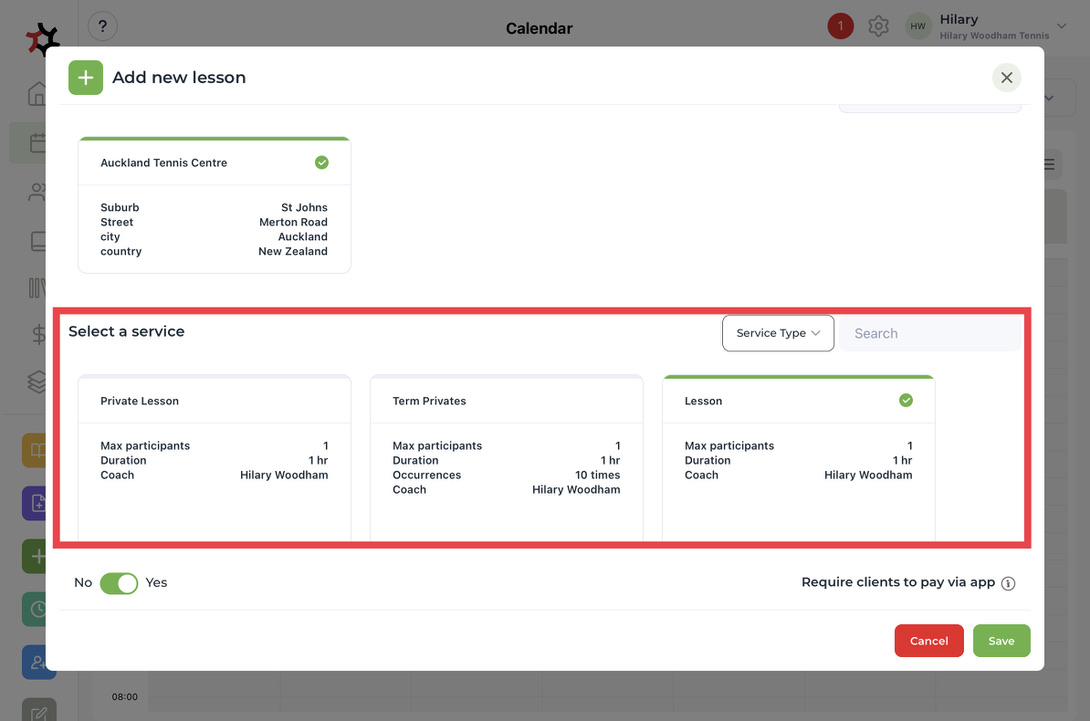
4. **Select a location** for the lesson and choose a **service**. You can only choose one location and one service per lesson.

<figure><img src="https://content.gitbook.com/content/AQGETajdcxecrar4lUBE/blobs/P9kpgSMbwRGl3aG4ujyE/4A515F9C-82F7-423B-8877-E3A47991DBB0_1_105_c.jpeg" alt=""><figcaption></figcaption></figure>

<figure><img src="https://content.gitbook.com/content/AQGETajdcxecrar4lUBE/blobs/hw4ndDfoR2wTqvuZFWLb/126B2CEE-CD91-4C05-9271-235DB822F94C_1_105_c.jpeg" alt=""><figcaption></figcaption></figure>

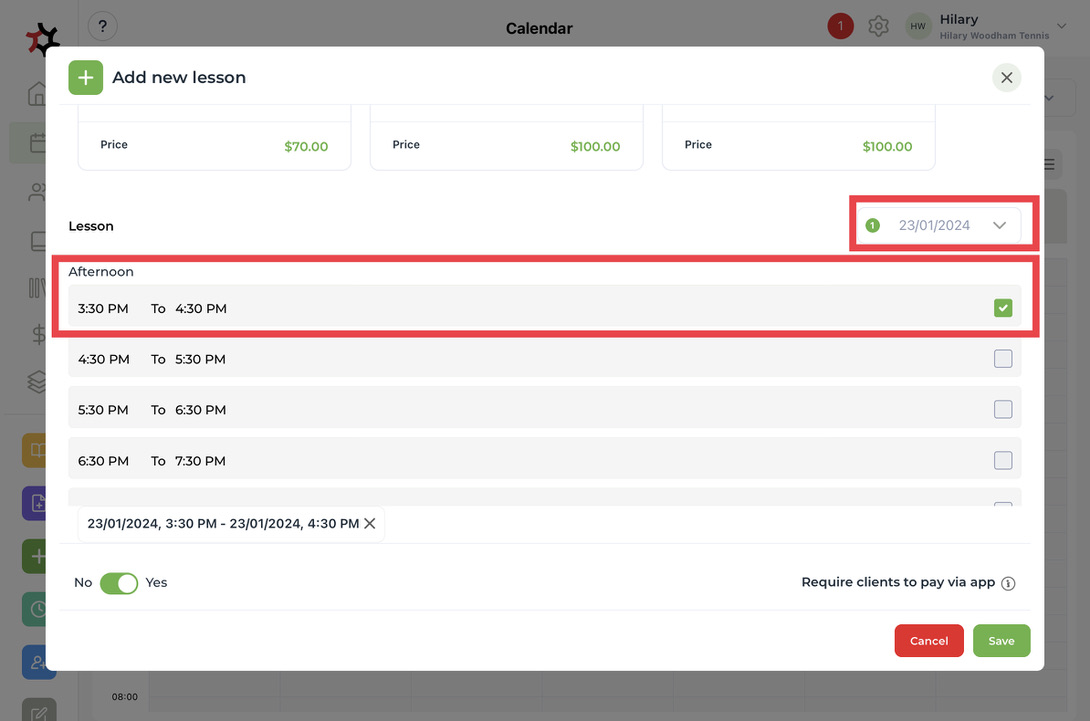
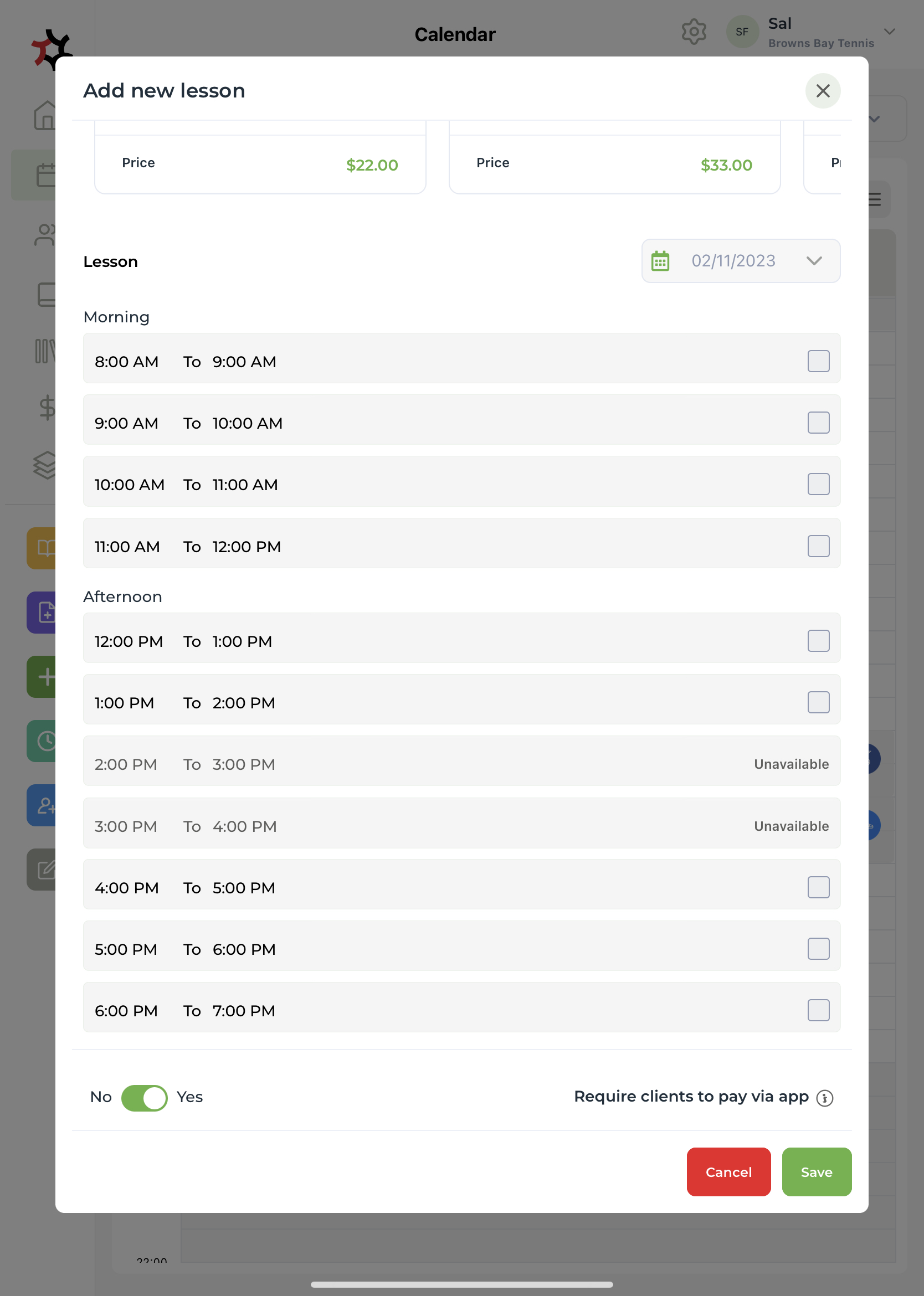
5. Accept the **date** and **time** for your lesson.&#x20;

<figure><img src="https://content.gitbook.com/content/AQGETajdcxecrar4lUBE/blobs/xPQmxCjTzfeJDLkBNcXh/523323EA-35E4-4AEA-97C4-66A2D0E29E8F_1_105_c.jpeg" alt=""><figcaption></figcaption></figure>

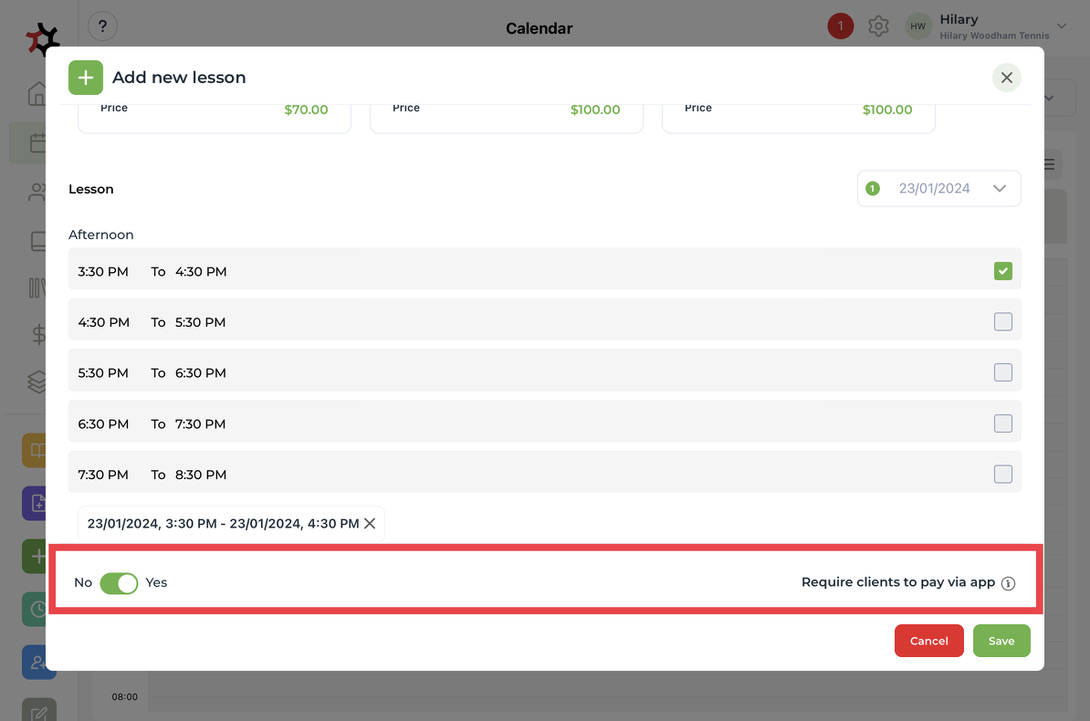
6. Send an invitation to your selected client so they can view and pay for their lesson.&#x20;

<figure><img src="https://content.gitbook.com/content/AQGETajdcxecrar4lUBE/blobs/LtqpslPXVkIVTZwjSmJo/07DEA04E-4FC6-4673-B130-A90F17D16FC3_1_105_c.jpeg" alt=""><figcaption></figcaption></figure>

7. Click the green **Save** button at the bottom.&#x20;
8. The lesson will then be viewable and editable in the calendar.&#x20;

<figure><img src="https://content.gitbook.com/content/AQGETajdcxecrar4lUBE/blobs/aCciOe7WnuogplPjSMnV/9473EBD5-E191-4ED9-8BE8-73AF21D358D3_1_105_c.jpeg" alt=""><figcaption></figcaption></figure>

9. You can then add **content, notes,** and **exercises** into the lesson for your client.

<figure><img src="https://content.gitbook.com/content/AQGETajdcxecrar4lUBE/blobs/5F5nXY8AGt3PI7HNsHLR/5F791BB6-DB1C-47BB-B10C-A553590E7D56_1_105_c.jpeg" alt=""><figcaption></figcaption></figure>

If a service with a **pre-set start time is selected**:

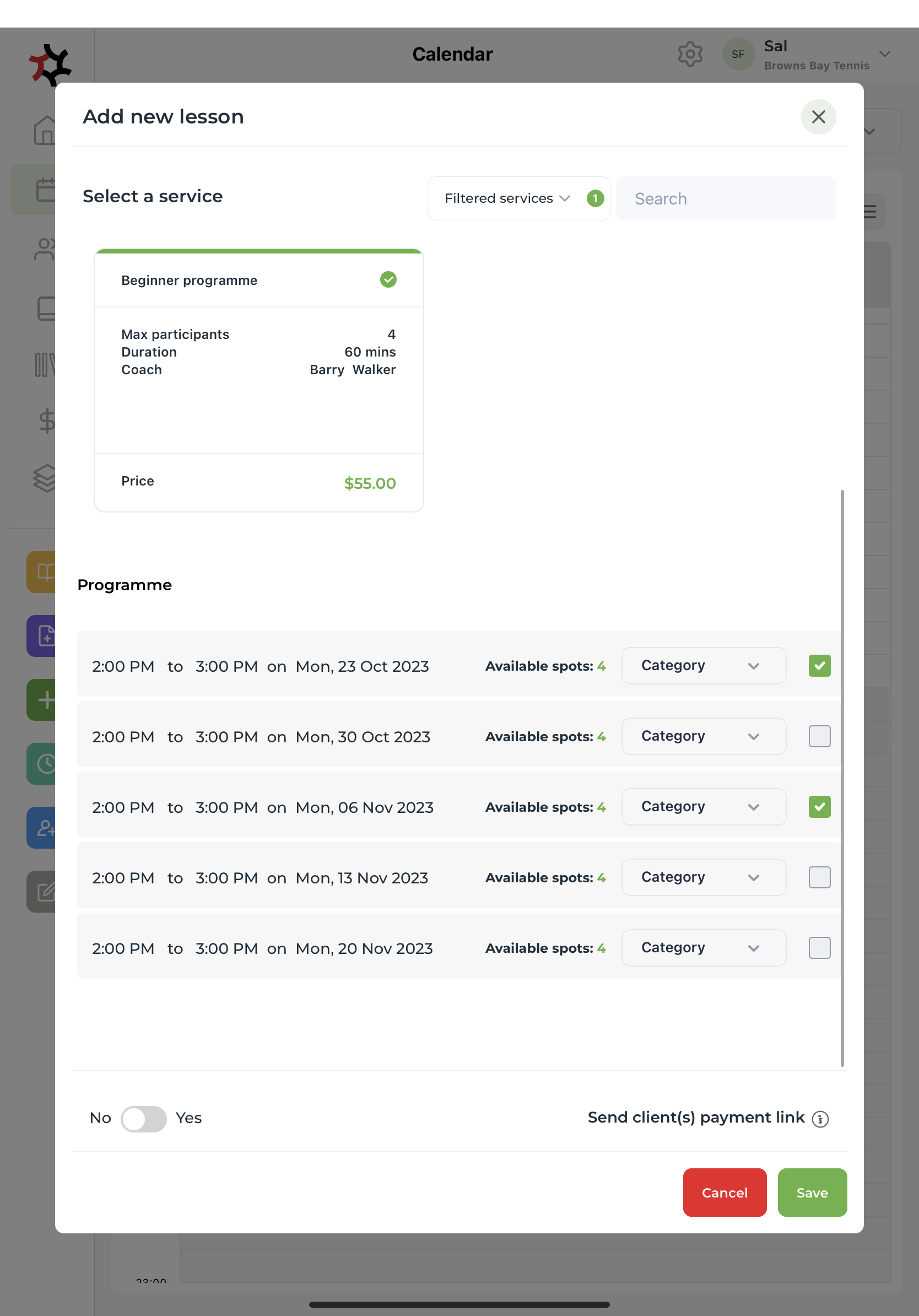
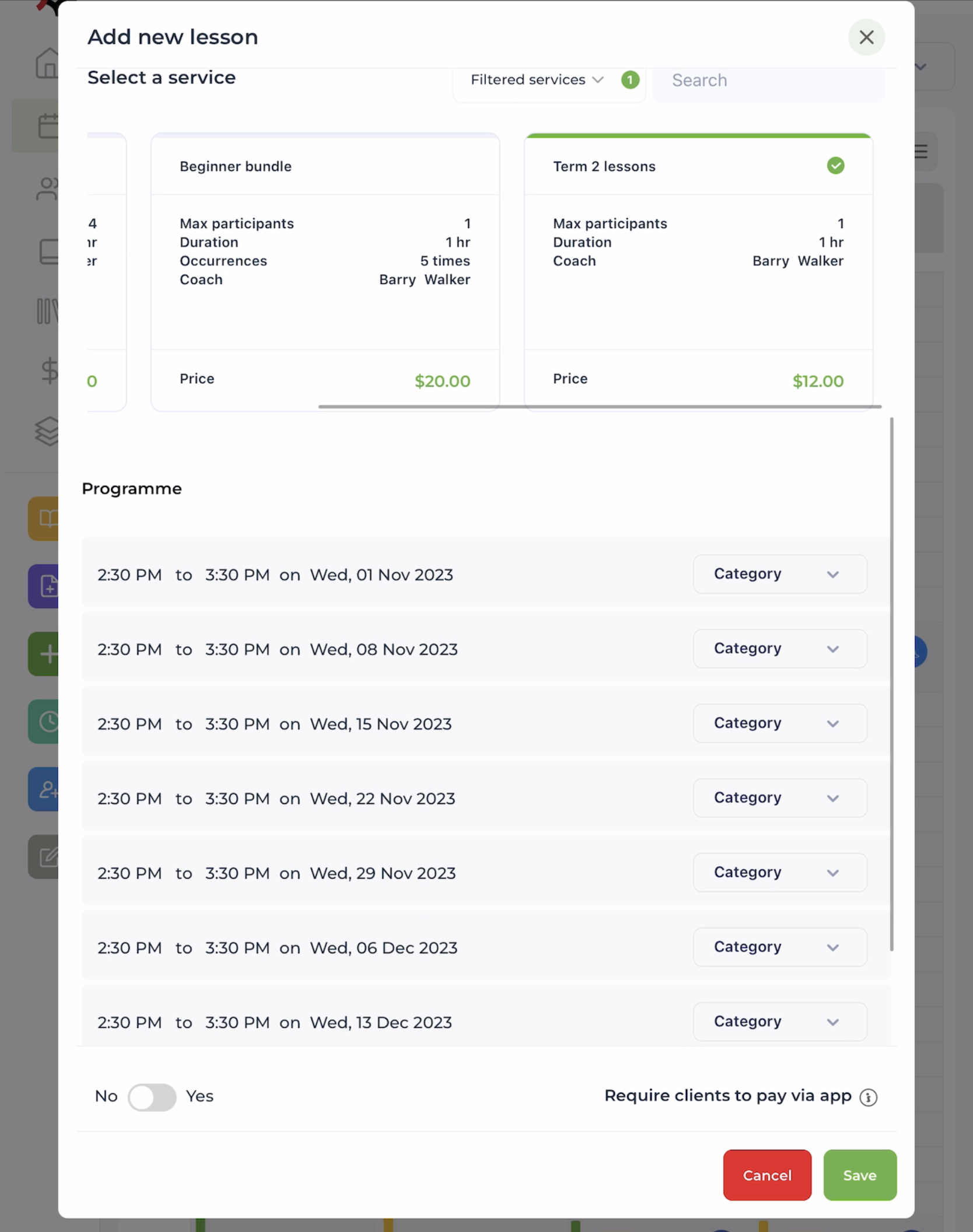
* Times/dates for all repeats are listed.&#x20;
* **If not all lessons are paid for at once**, then the coach can select individual lessons for the client(s) by ticking the checkboxes.

<figure><img src="https://content.gitbook.com/content/AQGETajdcxecrar4lUBE/blobs/FoykwDUvu2SYGphOx3fP/image.png" alt=""><figcaption></figcaption></figure>

**If all lessons are paid for at once,** then the coach can only select the entire package, not individual dates, for the client(s).

<figure><img src="https://content.gitbook.com/content/AQGETajdcxecrar4lUBE/blobs/o9hLWlA1pNOK5FWXb0It/IMG_AE2C343B0C13-1.jpeg" alt=""><figcaption></figcaption></figure>

#### If a service without a pre-set start time is selected: <a href="#title-text" id="title-text"></a>

* The date is auto-filled from the press and hold on the calendar or if from the **+** button then auto-filled from the current date is selected.
* All **available, future** time slots for that day are displayed.&#x20;
* These available time slots match the coach's calendar:&#x20;

<figure><img src="https://content.gitbook.com/content/AQGETajdcxecrar4lUBE/blobs/A5cdf5C5aQQF4bwhKJjD/IMG_3677.jpg" alt=""><figcaption><p>The available time slots</p></figcaption></figure>

<figure><img src="https://content.gitbook.com/content/AQGETajdcxecrar4lUBE/blobs/kcFCTtXvesDXke3HdqCV/IMG_3675.jpg" alt=""><figcaption><p>Coach's calendar</p></figcaption></figure>

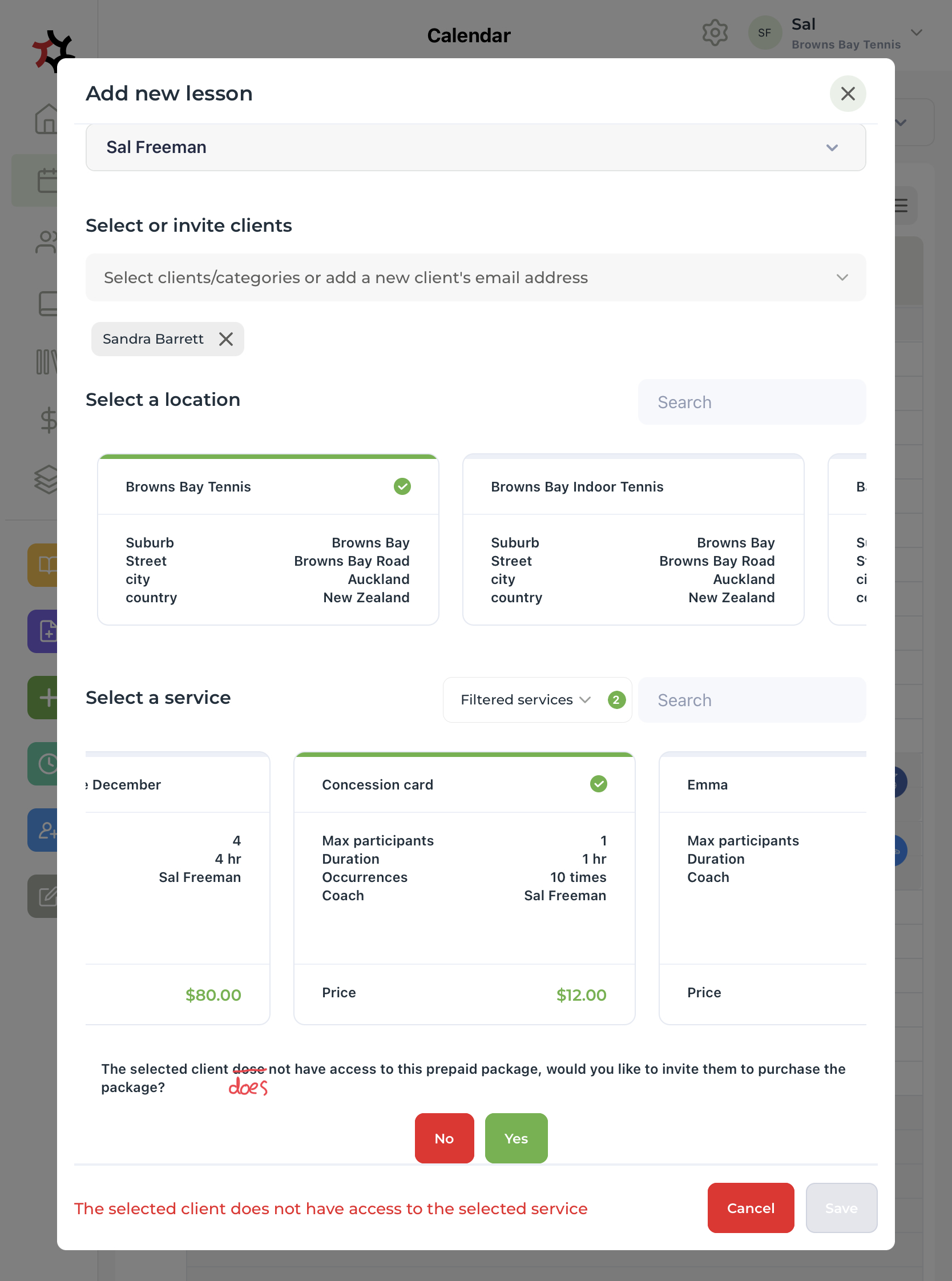
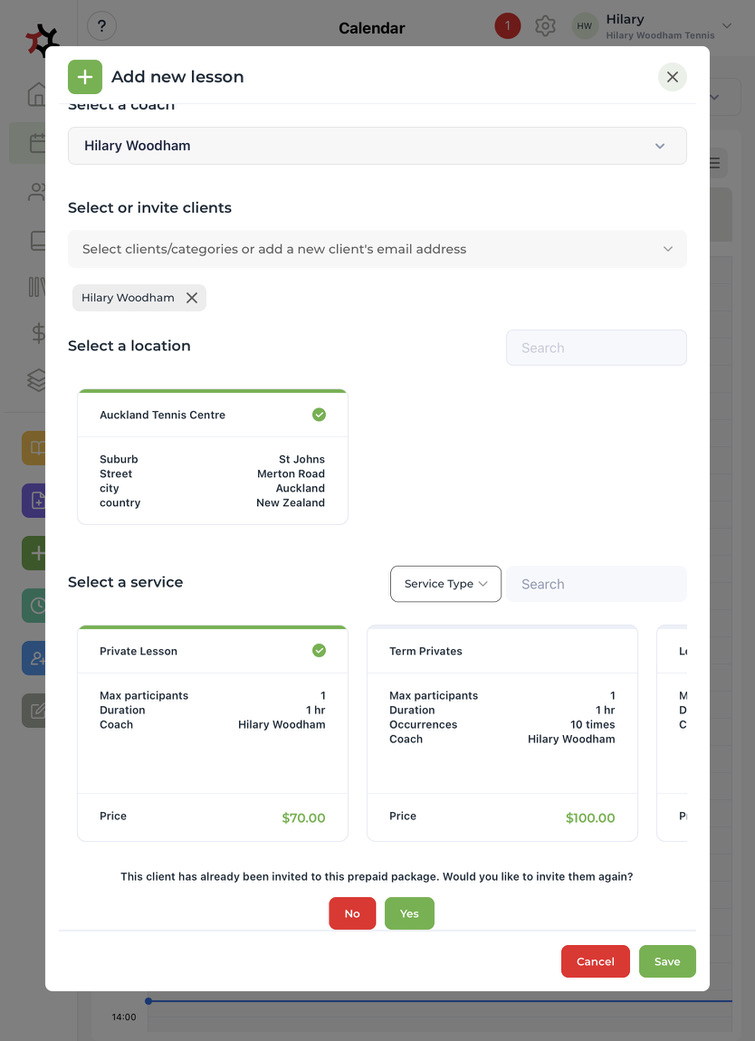
**If a prepaid service without pre-set start times is selected.**

* The coach must invite the client to pay for the package before they can book the client into lessons, or if the service is public, the client can book the service from the coach's booking page.
* Once purchased, both the client and the coach can use the "**lessons remaining**" credit to book the client into lessons.

REPLACE SCREENSHOT BELOW

<figure><img src="https://content.gitbook.com/content/AQGETajdcxecrar4lUBE/blobs/ExkZbygC6pKj8c8G8K8S/IMG_E3B3C95876B1-1.jpeg" alt=""><figcaption><p>The client selected has not purchased the selected package, but the coach can invite them to purchase it.</p></figcaption></figure>

<figure><img src="https://content.gitbook.com/content/AQGETajdcxecrar4lUBE/blobs/KT0dJ1hYMJ1DQwpmNnKl/8BDD681D-C104-4BDF-9976-E9BDD128D48A_1_105_c.jpeg" alt=""><figcaption></figcaption></figure>

<figure><img src="https://content.gitbook.com/content/AQGETajdcxecrar4lUBE/blobs/5GW2qZRSkNrS4cd447wD/IMG_265481CB9A89-1.jpeg" alt=""><figcaption><p>The client selected has purchased the selected package.</p></figcaption></figure>

**Add lesson modal services are filtered by:**

* “Use this service to add lessons to your calendar = Yes”.
* **Coach** - is autoselected from the current calendar selection - but can be edited via the drop-down.
* **Location** - one must be selected from the list of tiles by swiping left.
* **Service type** - all are selected by default, one or more can be selected, which will mean only the service types with ticked boxes will show.
* **Availability** - works in the same way as the client portal - time slots will only show when the service has not yet reached it’s max participants, during work hours (only if there is no set start time(s), and if there are no other services, lessons or events blocking time.
* **Invite a client** - all public services will be displayed, plus any prepaid services that the client has paid for.
* Time slot availability is based on:
* Services that are **fully booked** are **orange**.
* Services that are in the **past** are **not displayed**.
* The price displayed is per person, per lesson.
* **Prepaid lessons** occur when the client has paid for the number of lessons at once and then they can choose the dates.
* **Prepaid lesson services** will NOT be displayed until the client is selected AND that client has paid, then the service name and the number of remaining lessons will be displayed.


# Inviting new clients to book lessons

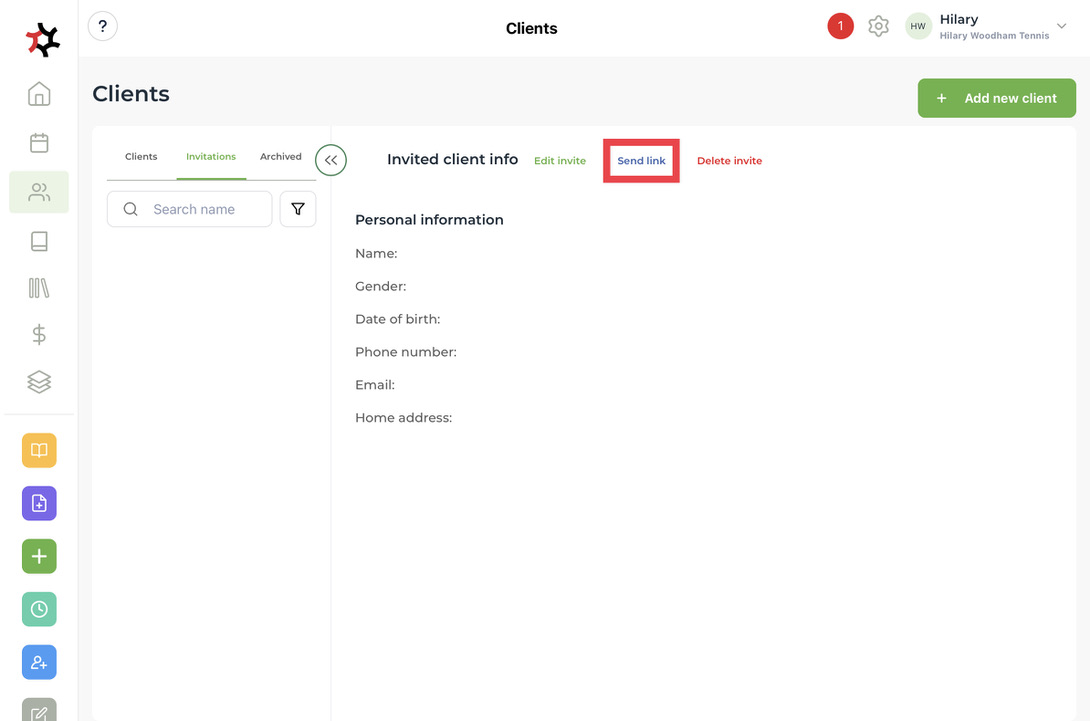
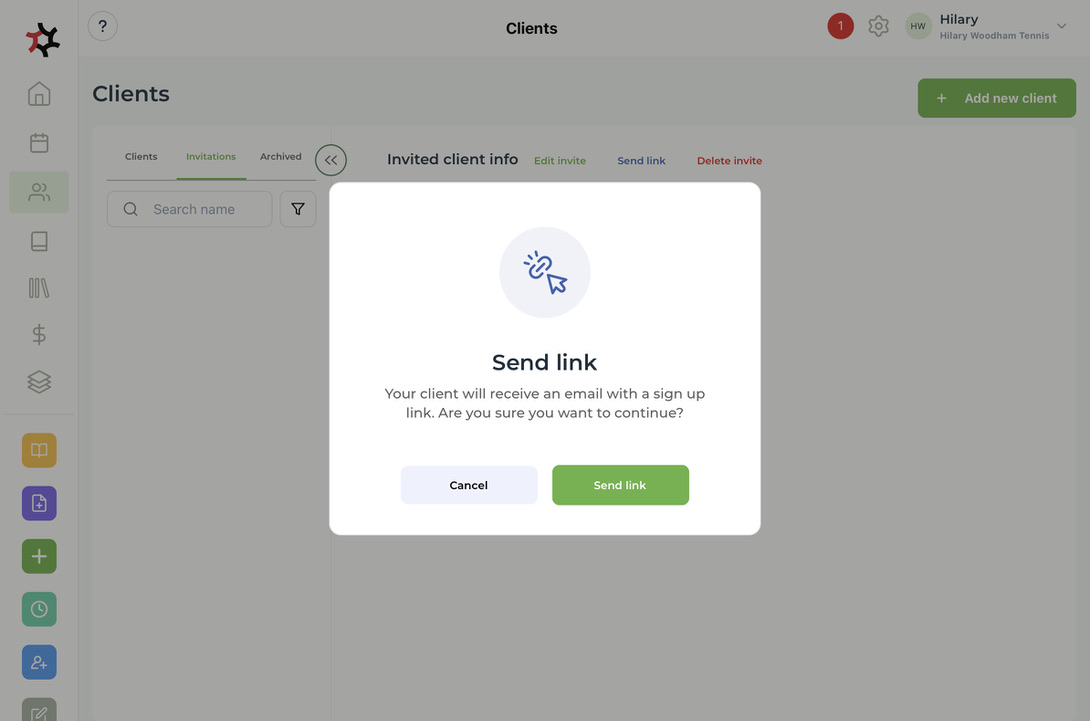
1. Once you have added [a new client](/coaches/support-for-coaches-organisations/welcome-to-totalcoach-support/manage-clients/add-a-new-client-profile) you can invite them to book lessons via your online booking page by selecting **Send link**.

   <figure><img src="https://content.gitbook.com/content/AQGETajdcxecrar4lUBE/blobs/kn1K7U17XIOQR3GarXA8/1746ED6A-758D-4888-A284-6887ABDC8D4C_1_105_c.jpeg" alt=""><figcaption></figcaption></figure>

<figure><img src="https://content.gitbook.com/content/AQGETajdcxecrar4lUBE/blobs/UEq3wk3AKhDU9EXTt8L1/BE59D4B2-12E1-4D6E-AEE4-A4A1E176843C_1_105_c.jpeg" alt=""><figcaption></figcaption></figure>

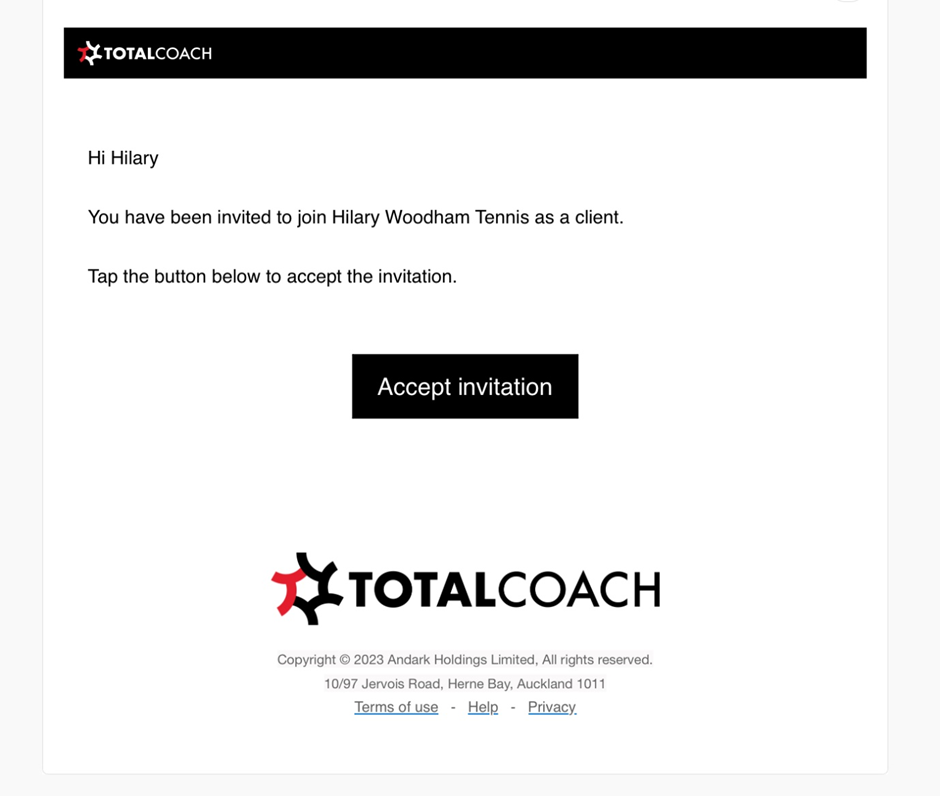
2. The client will then receive an email, allowing them to accept the invitation.&#x20;

<div align="left"><figure><img src="https://content.gitbook.com/content/AQGETajdcxecrar4lUBE/blobs/y6OOpMcHerMBwGsyjQPF/image.png" alt="" width="563"><figcaption></figcaption></figure></div>

3. Your client can then create an account and book your services via your online booking page.

<div align="left"><figure><img src="https://content.gitbook.com/content/AQGETajdcxecrar4lUBE/blobs/8FQFEUNgbJwsoz1F4zlZ/IMG_0090.jpg" alt="" width="563"><figcaption></figcaption></figure></div>


# Adding resources

Add resources that are required to perform services at each location. You can allocate these resources to the services where they are needed.

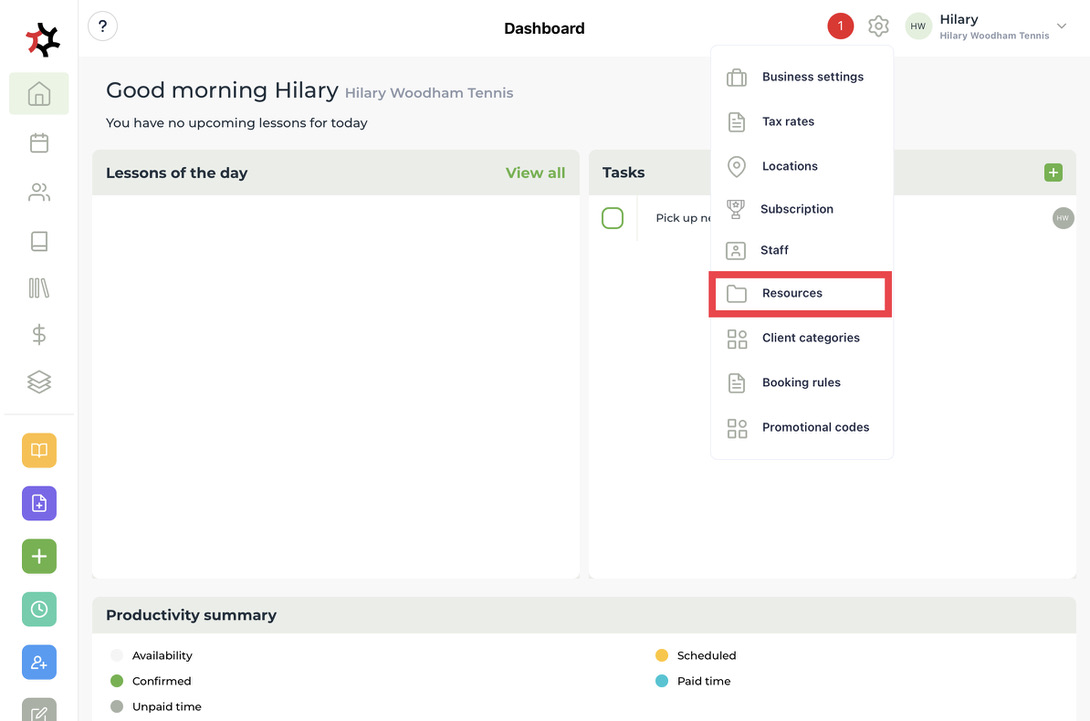
1. Click on the settings icon and go to **Resources**.&#x20;

<figure><img src="https://content.gitbook.com/content/AQGETajdcxecrar4lUBE/blobs/Z7cpKvb3BXgSZRDVfQXj/5EF3D360-6266-456F-B88F-7053A81F9868_1_105_c.jpeg" alt=""><figcaption></figcaption></figure>

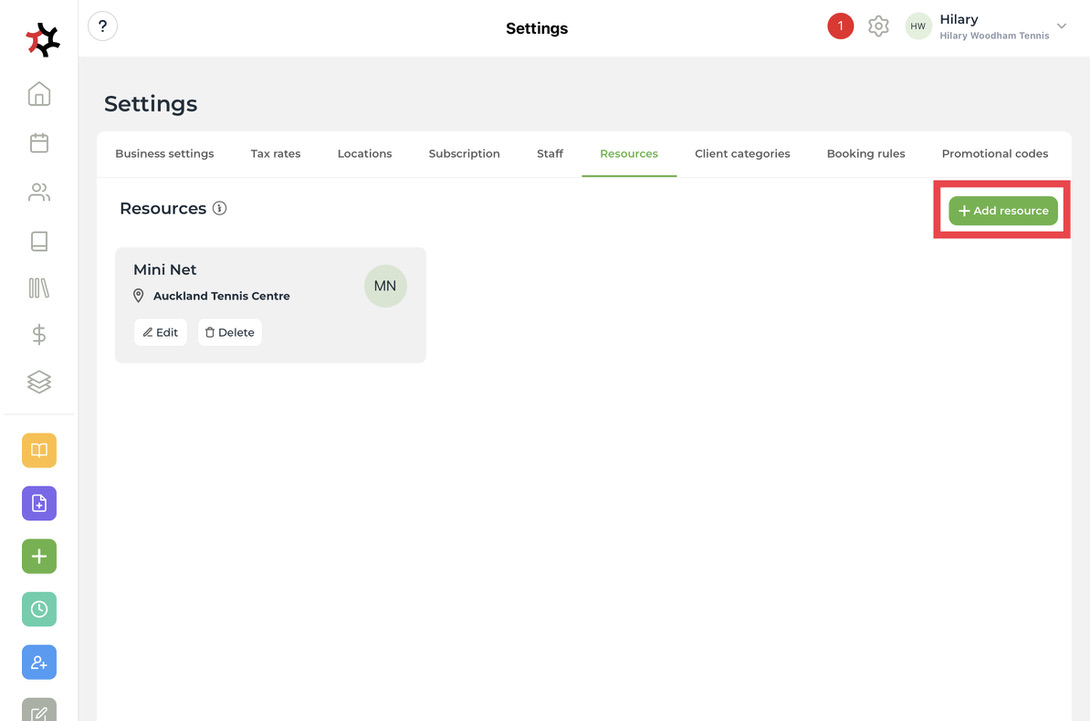
2. Select the **+ Add resource** button.

<figure><img src="https://content.gitbook.com/content/AQGETajdcxecrar4lUBE/blobs/9SEAC5AfGs0hvS3cyNpA/DF3C4559-E23A-4BBD-B288-EF2D1F01F363_1_105_c.jpeg" alt=""><figcaption></figcaption></figure>

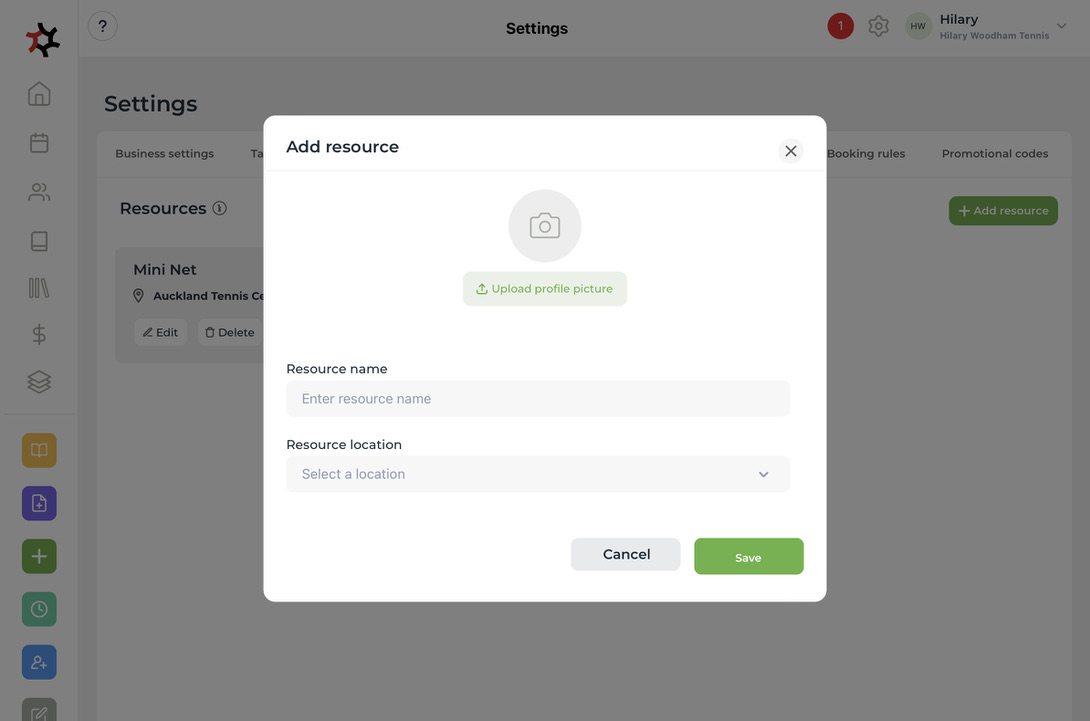
3. Add a **photo**, enter a **name** for your resource, allocate it to a **location,** and **Save**.&#x20;

<figure><img src="https://content.gitbook.com/content/AQGETajdcxecrar4lUBE/blobs/g7tJWYB77fgX6lUMuHcU/17E47698-5D57-47A0-9084-611278A34D32_1_105_c.jpeg" alt=""><figcaption></figcaption></figure>

4. Your resource is now available in your settings where you can edit it.
5. You can allocate this resource to a specific service or services you operate at that location.&#x20;

<figure><img src="https://content.gitbook.com/content/AQGETajdcxecrar4lUBE/blobs/kZv9G61N8pyS1VK3jJdJ/AA1ABDBC-FE1B-4292-8C70-15AF82BBA69D_1_105_c.jpeg" alt=""><figcaption></figcaption></figure>


# Adding exercises

Add exercises to share easily with your athletes.

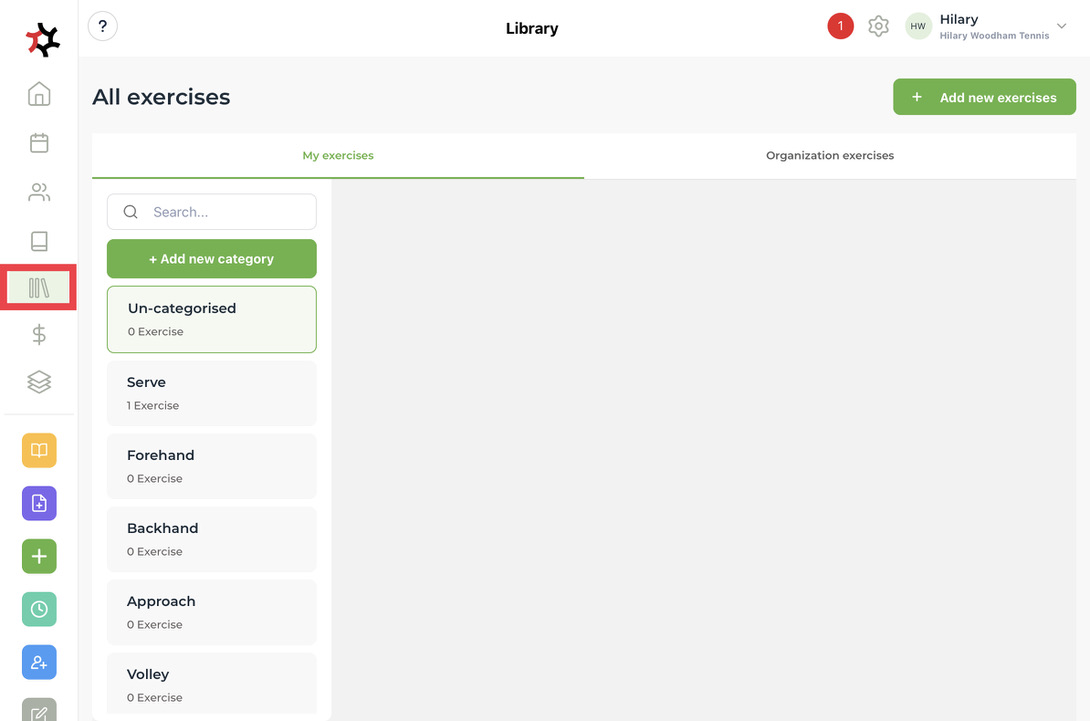
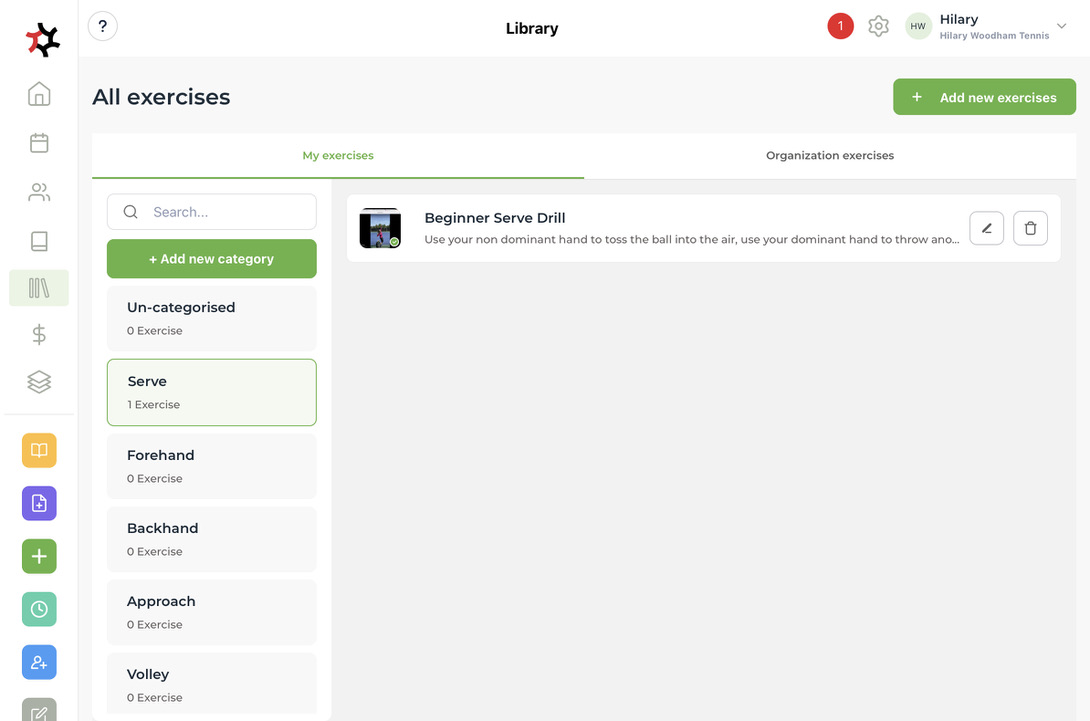
1. Select the **Exercises** quick link in the side menu.

<figure><img src="https://content.gitbook.com/content/AQGETajdcxecrar4lUBE/blobs/Xi7gygpCQNiEjCX27qrJ/3C9570A2-7A64-4A9D-BE7D-0C520455B1A3_1_105_c.jpeg" alt=""><figcaption></figcaption></figure>

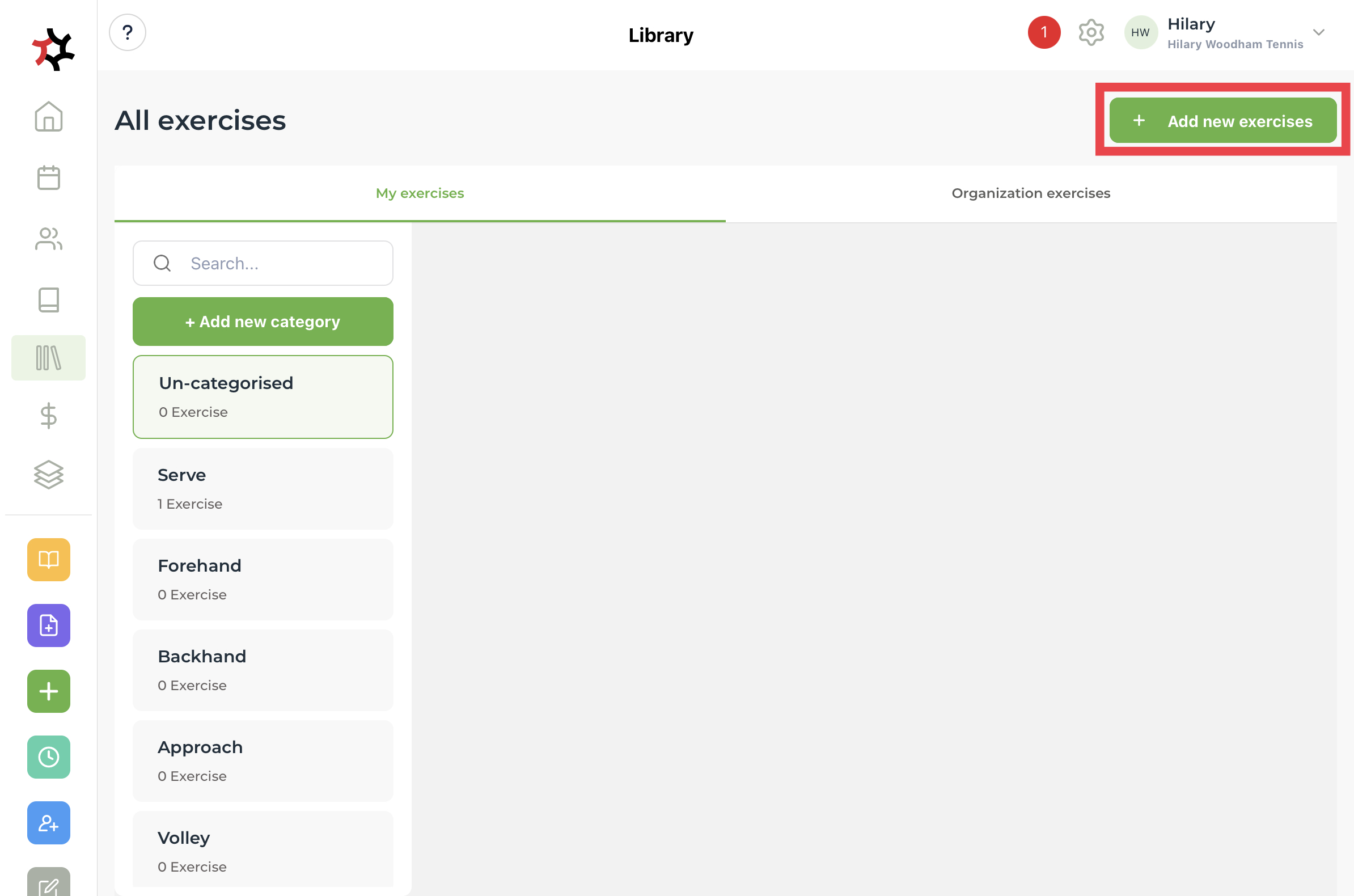
2. Select the green **+ Add new exercise** button.&#x20;

<figure><img src="https://content.gitbook.com/content/AQGETajdcxecrar4lUBE/blobs/T7r6kw5M8Dnbe8id7LrM/57A3F598-7D50-4112-A610-9EB45A289AA1.jpeg" alt=""><figcaption></figcaption></figure>

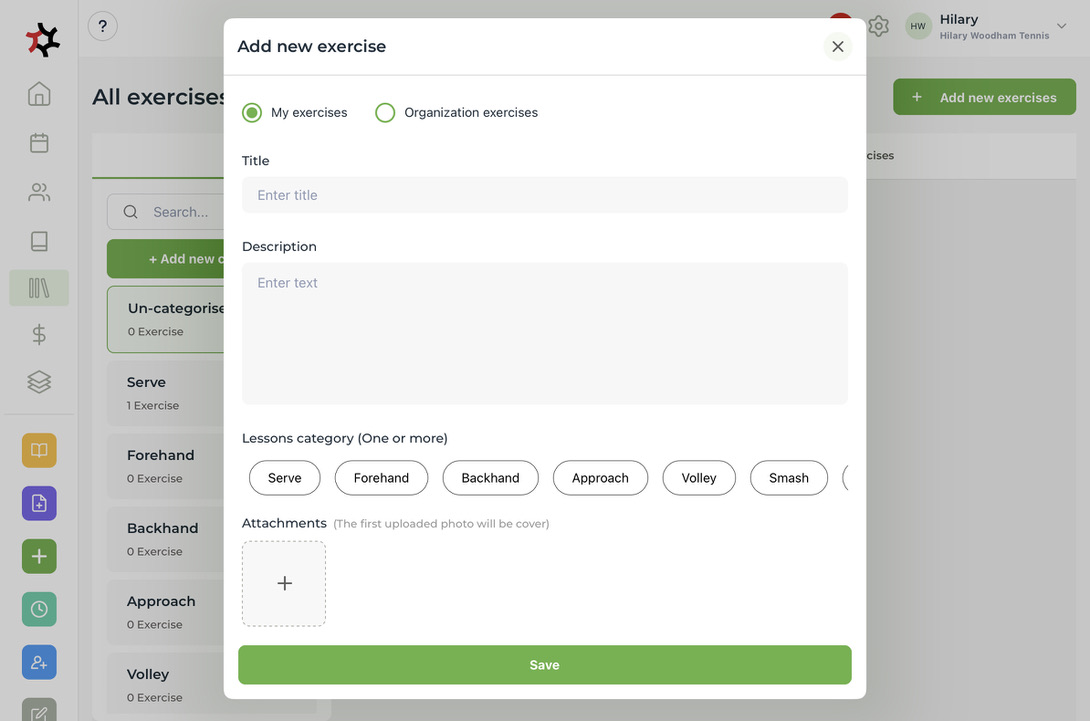
3. It is very important to categorize your **exercise** so it can be easily found by you and your athletes in their libraries. Decide if you want to add the exercise for only your viewing and organization. Give it a name (something descriptive so it can be easily searched) and write your description. Select the lesson categories and add them in the attachments. Select **Save**.&#x20;
4. Your **exercise** will then appear in your library.&#x20;

<figure><img src="https://content.gitbook.com/content/AQGETajdcxecrar4lUBE/blobs/LjAdu9wbs12qsEeTIHZO/D6823D37-71A7-4E9F-9AD4-1BE38FC8E6B5_1_105_c.jpeg" alt=""><figcaption></figcaption></figure>

<figure><img src="https://content.gitbook.com/content/AQGETajdcxecrar4lUBE/blobs/Dw8fxbHOZ1y9O9Qwhe1t/1E2D7A55-3588-48ED-AE6A-63A4CD102B48_1_105_c.jpeg" alt=""><figcaption></figcaption></figure>

<figure><img src="https://content.gitbook.com/content/AQGETajdcxecrar4lUBE/blobs/iiDHqNPjOxFb9h9ZpUbr/55A5343D-E0E5-472A-B4C2-13E2140D068C_1_105_c.jpeg" alt=""><figcaption></figcaption></figure>

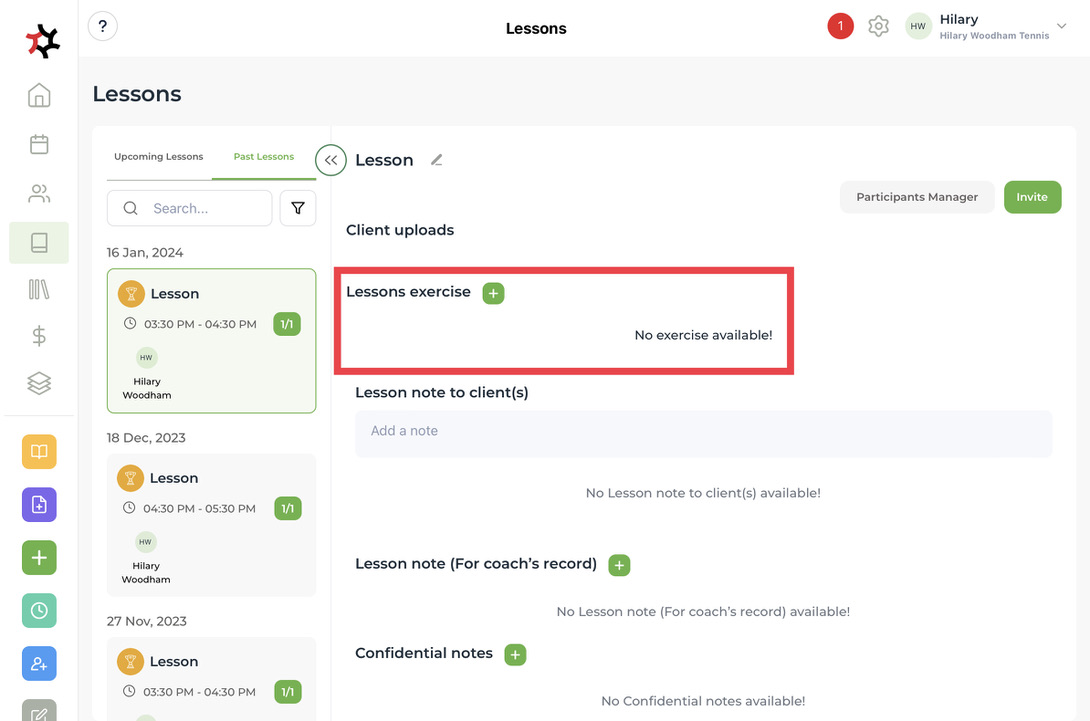
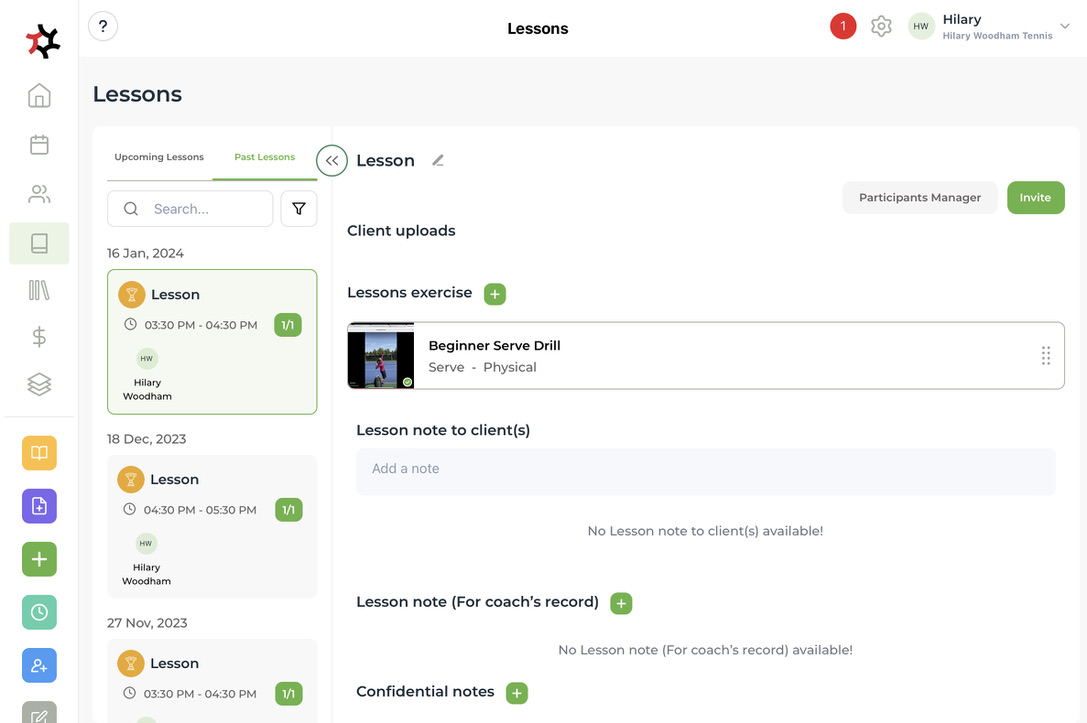
5. You can now input this exercise into a lesson for your client's reference. Click the green **+** to add the **Lesson's exercise.**

<figure><img src="https://content.gitbook.com/content/AQGETajdcxecrar4lUBE/blobs/ywt4qOPaywsrqqLQYG7Q/56B8427A-247D-468A-9C31-8C393ABC156D_1_105_c.jpeg" alt=""><figcaption></figcaption></figure>

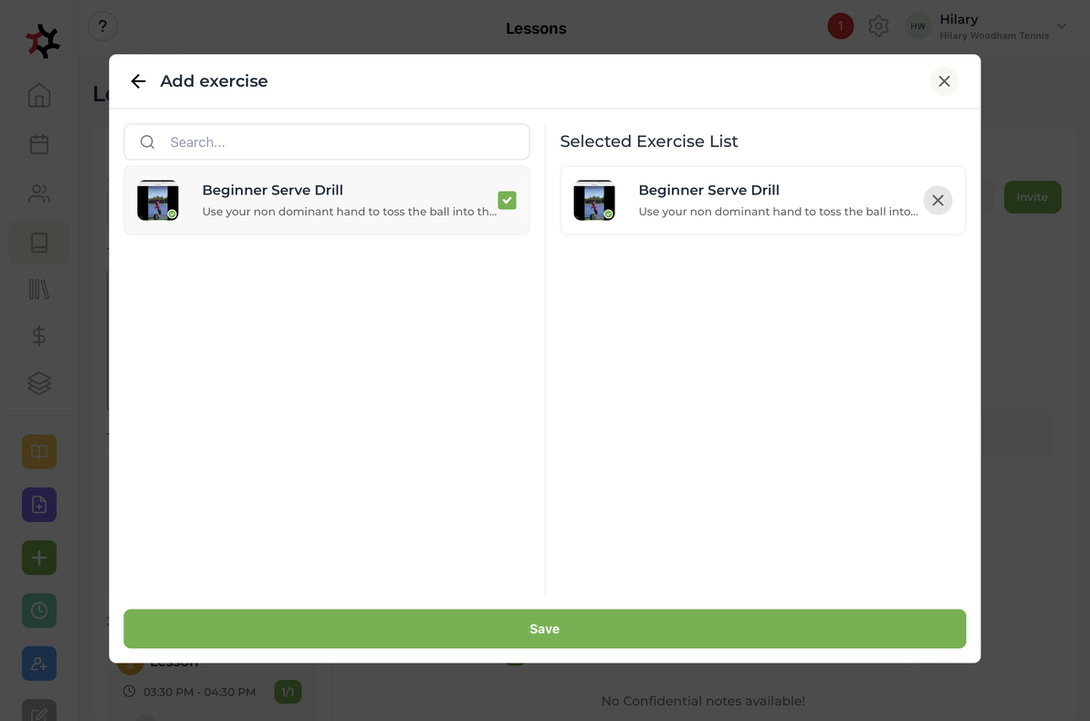
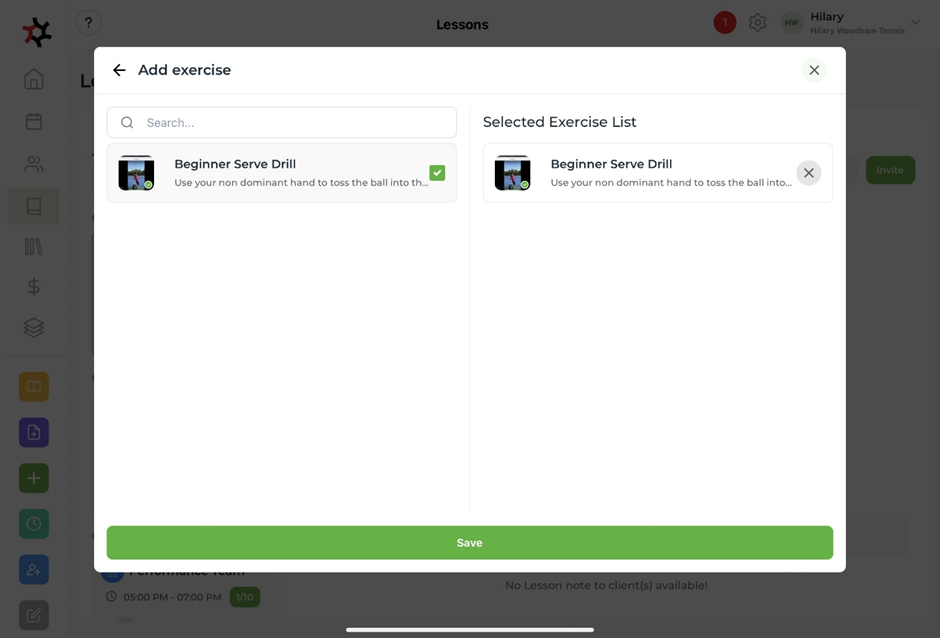
6. Select the exercise(s) you would like to add to the lesson content, then select **Save**.&#x20;

<figure><img src="https://content.gitbook.com/content/AQGETajdcxecrar4lUBE/blobs/O6WWHTAJMnT5PkE3cbpY/AE9456EC-E2DE-4D96-9882-D16018BC3B81_1_105_c.jpeg" alt=""><figcaption></figcaption></figure>

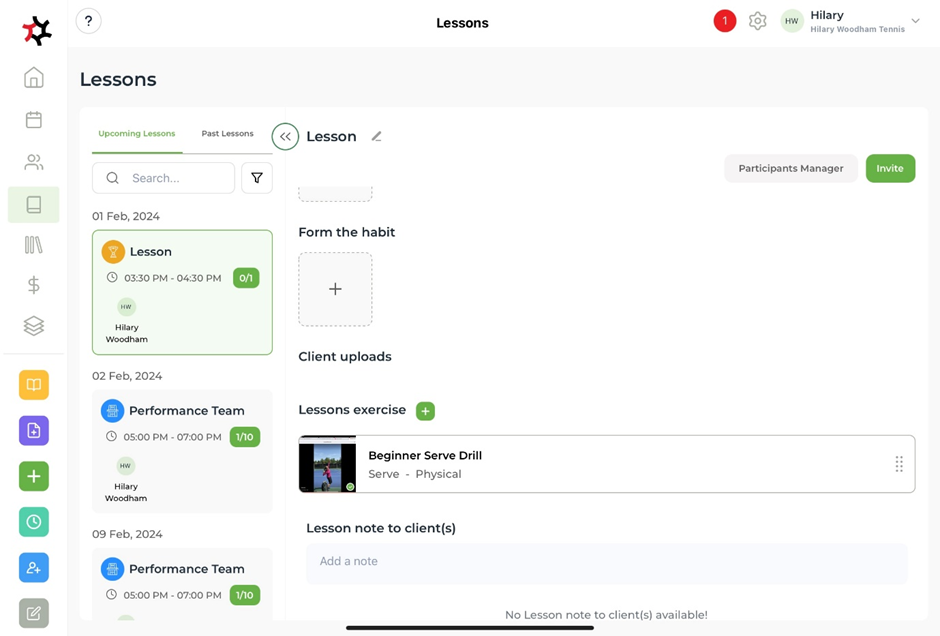
7. This is now viewable in the **Lesson**.&#x20;

<figure><img src="https://content.gitbook.com/content/AQGETajdcxecrar4lUBE/blobs/P13evOqZQiKeTNchjyyu/9534061F-8CC2-4889-8BAB-8E9404C4412B_1_105_c.jpeg" alt=""><figcaption></figcaption></figure>

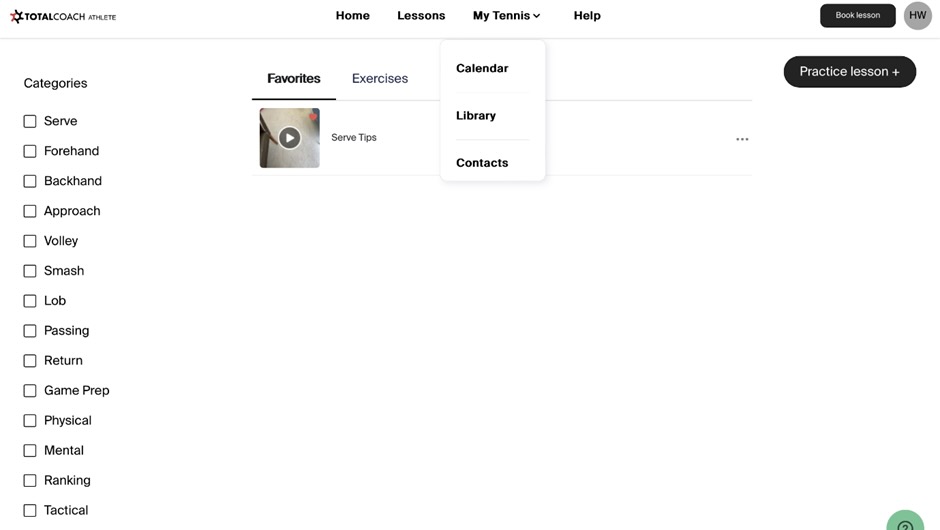
8. When your athlete attending that lesson logs into their account they can find it in their **MySport Library**.&#x20;

<figure><img src="https://content.gitbook.com/content/AQGETajdcxecrar4lUBE/blobs/eui6Fcwhj276fr7IBDqG/872A3756-595E-4645-804E-44C862918890_1_201_a.jpeg" alt=""><figcaption></figcaption></figure>

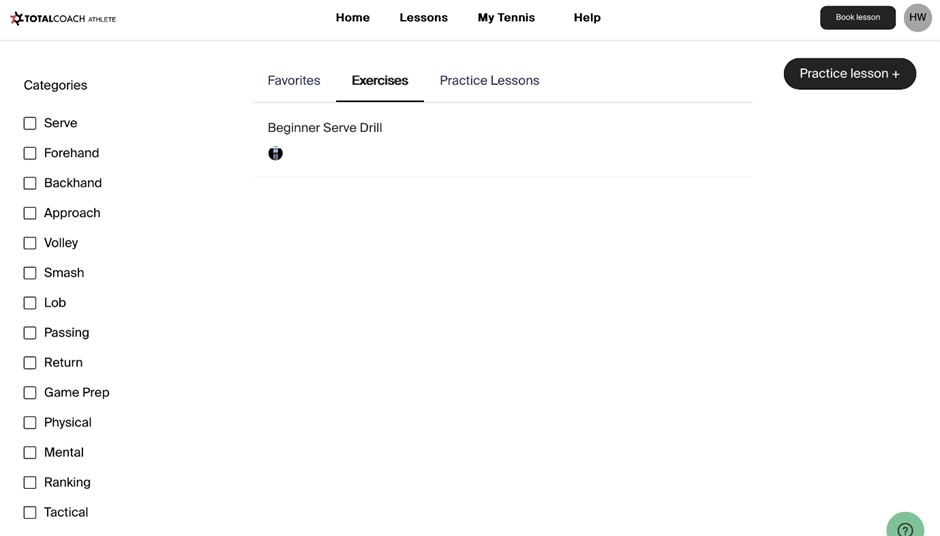
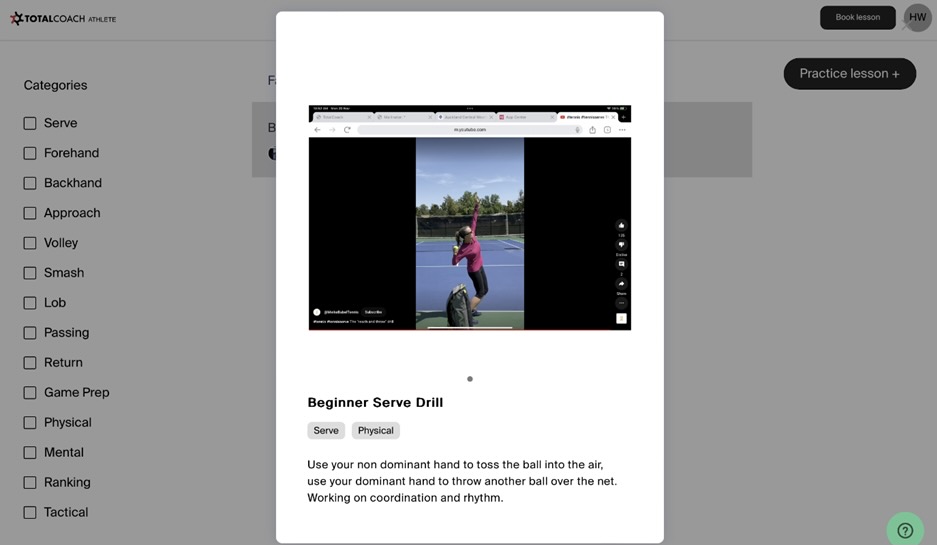
9. If they click across to **Exercises** they can then view the exercise you have provided them.&#x20;

<figure><img src="https://content.gitbook.com/content/AQGETajdcxecrar4lUBE/blobs/hgep7ptNBtTOkByKZ0DW/4823F295-084D-4EFD-8309-AEF5B0152141_1_201_a.jpeg" alt=""><figcaption></figcaption></figure>

<figure><img src="https://content.gitbook.com/content/AQGETajdcxecrar4lUBE/blobs/463vda4SEwEGcYNAK9qZ/DEB380F3-77F0-4A7C-8A45-0D7CA5FC55BF_1_201_a.jpeg" alt=""><figcaption></figcaption></figure>


# Sharing your public booking codes

Share your booking link by publishing it to your website, sharing it on your social media pages, sending it by email, or copying and pasting the link into your preferred messaging app.

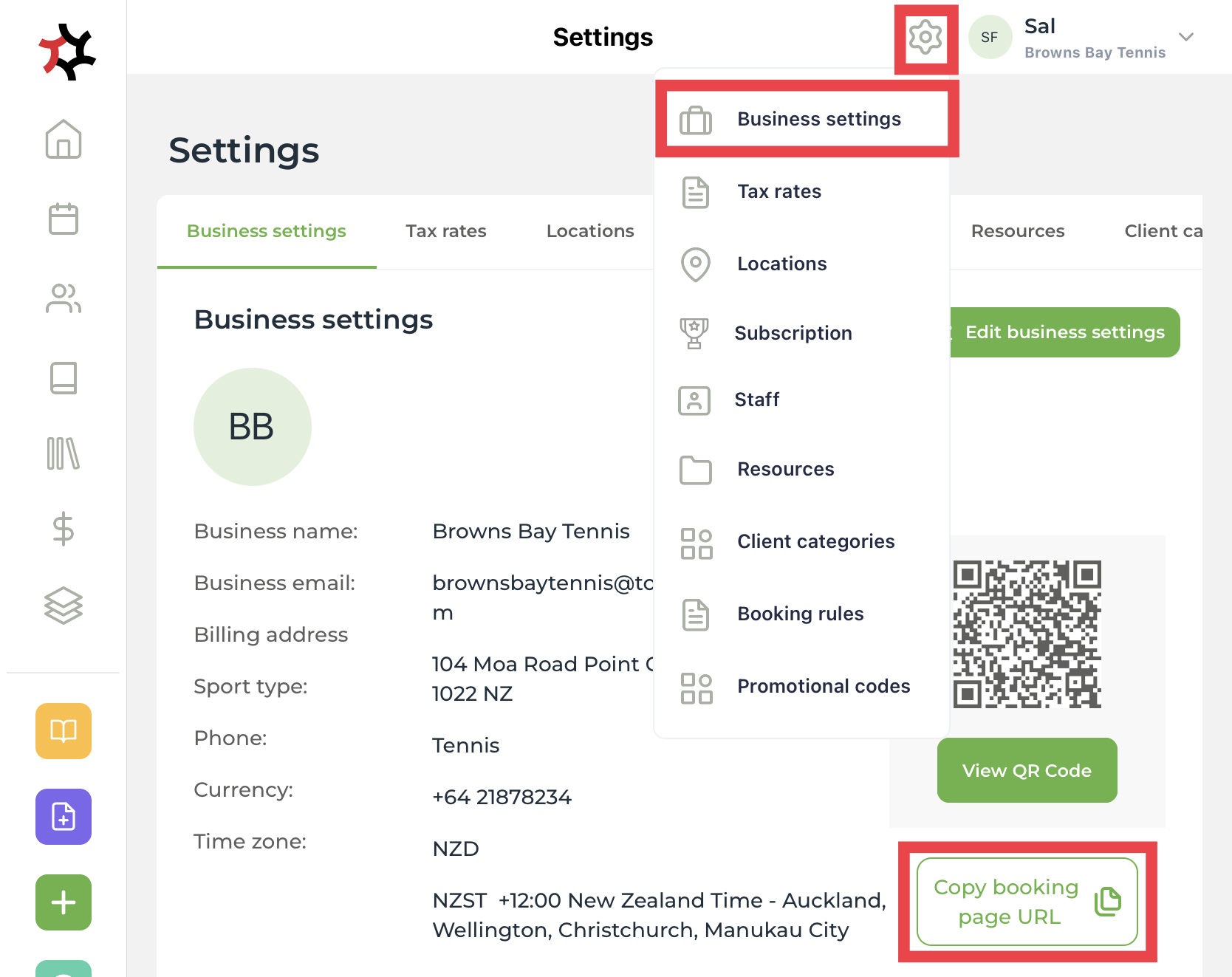
1. Go to your **Business settings** under the **Settings** cog.

<figure><img src="https://content.gitbook.com/content/AQGETajdcxecrar4lUBE/blobs/EWwQnoVXvWmw8cWfjYNL/copyUrl.jpeg" alt=""><figcaption></figcaption></figure>

2. Tap **Copy booking page URL** and then paste it to your website, share it on your social media pages, send it by email, or copy and paste the link into your preferred messaging app.
3. In addition, you have a QR code that is unique to your bookings. Click on the **View QR Code** button to expand the QR code image so that you can copy and paste it into your preferred communication channel.


# Add a new workspace

You can add a new workspace for your organization. This will be helpful if you operate two different facilities or different groups of coaches.

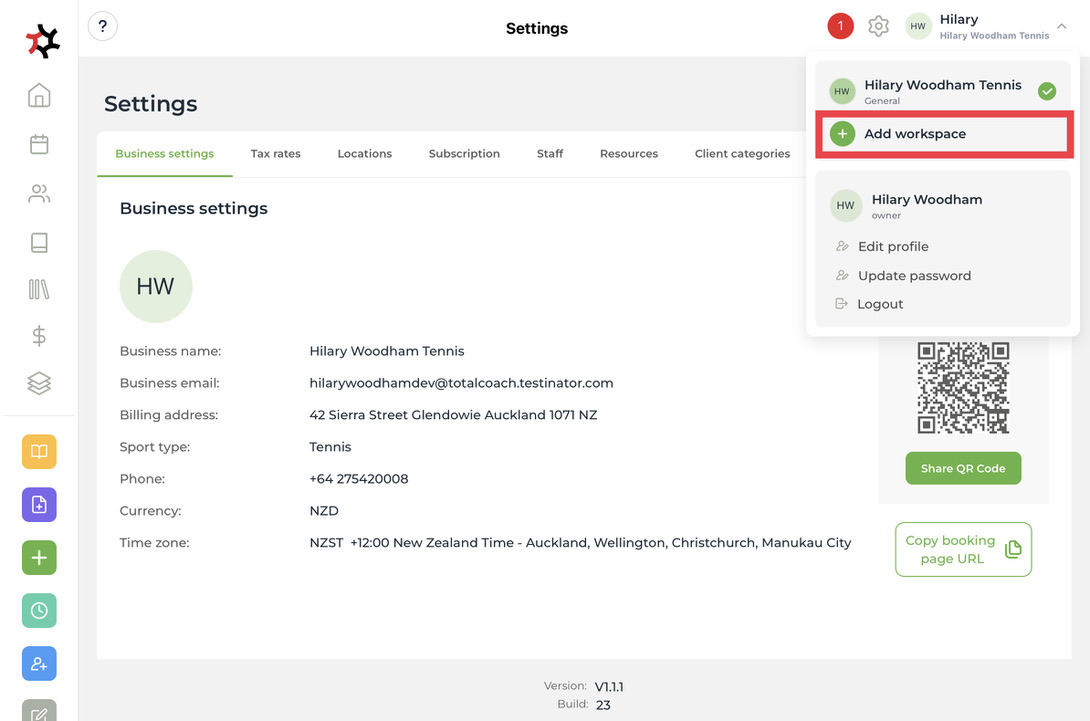
1. Click on your business name in the top right corner and click **+ Add workspace.**&#x20;

   <figure><img src="https://content.gitbook.com/content/AQGETajdcxecrar4lUBE/blobs/AWx8KemUUlt9HhmecpXc/8537E8CB-3936-49AF-AA7D-A1D5E2D0F219_1_105_c.jpeg" alt=""><figcaption></figcaption></figure>
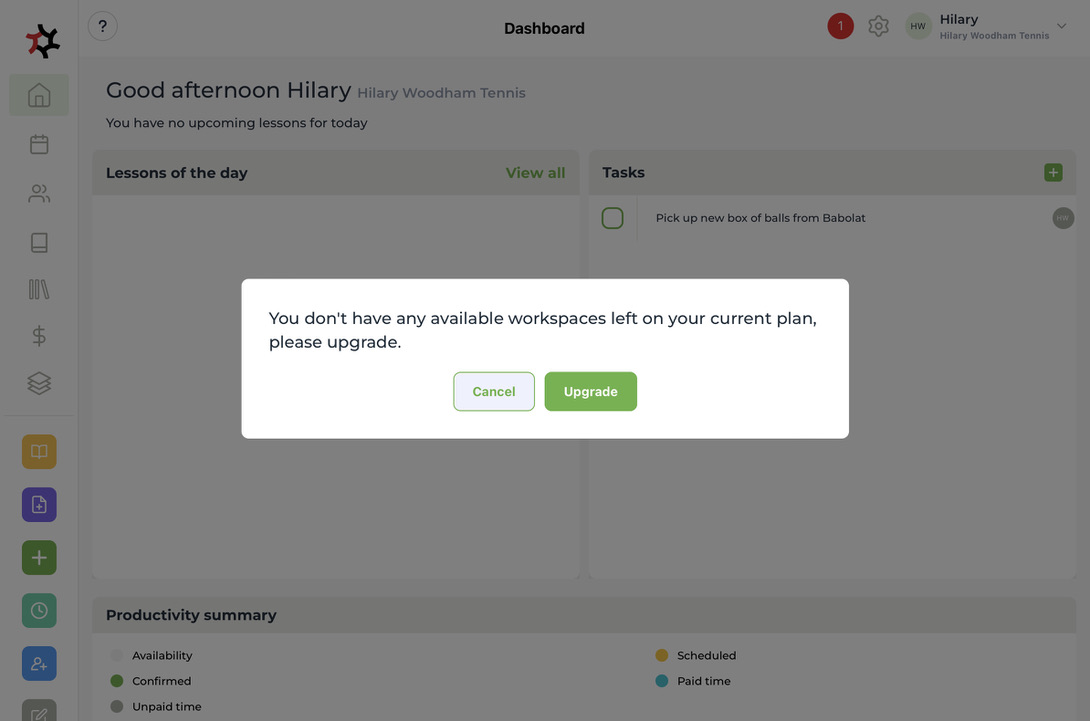
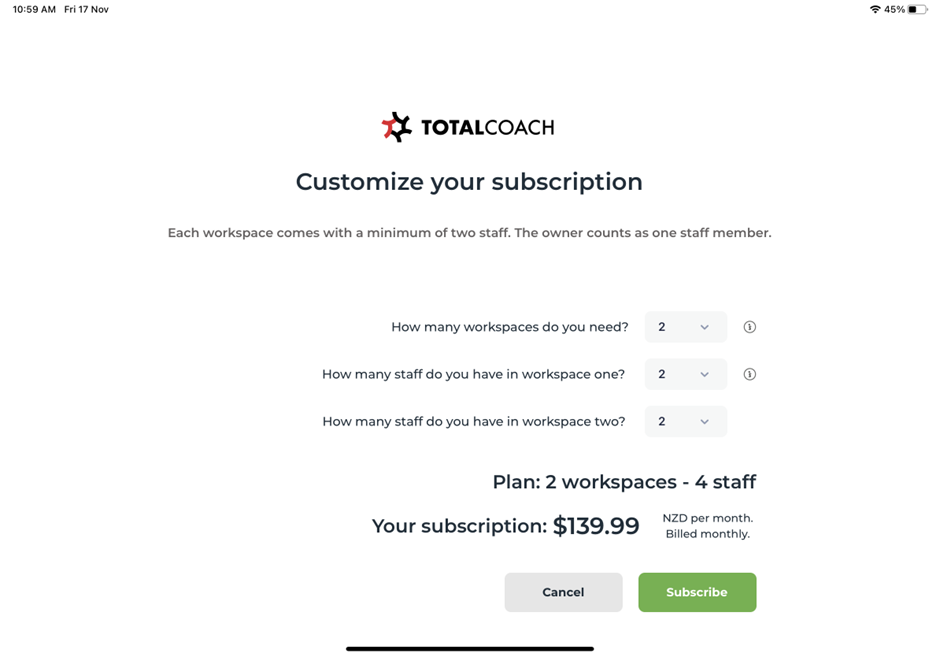
2. If you have already created all of the workspaces in your subscription, you will be asked to upgrade. Customize your subscription by adding a new workspace and new staff members.&#x20;

   <figure><img src="https://content.gitbook.com/content/AQGETajdcxecrar4lUBE/blobs/pdee54AWsqHDgR2kUdVU/04288DF5-5DE8-4910-9F19-918BF6237B67_1_105_c.jpeg" alt=""><figcaption></figcaption></figure>

<figure><img src="https://content.gitbook.com/content/AQGETajdcxecrar4lUBE/blobs/9QdZEYS4mMyXYadJcHVA/image.png" alt=""><figcaption></figcaption></figure>

3. You can manage your workspaces in your **Settings**.&#x20;

   <figure><img src="https://content.gitbook.com/content/AQGETajdcxecrar4lUBE/blobs/0P2SVesZakJO7rlWDNsF/7ECF32C6-43DF-4566-9D42-09EF96C93748_1_105_c.jpeg" alt=""><figcaption></figcaption></figure>
4. After updating your subscription click on your business name in the top right-hand corner and click **+ Add workspace.**&#x20;

   <figure><img src="https://content.gitbook.com/content/AQGETajdcxecrar4lUBE/blobs/d8M4NueEOOFebK3NsJ03/E59B3499-3AC5-469E-9DB9-D7FCF7883930_1_105_c.jpeg" alt=""><figcaption></figcaption></figure>
5. You can now begin setting up your new workspace.&#x20;

<figure><img src="https://content.gitbook.com/content/AQGETajdcxecrar4lUBE/blobs/g2TCedQKXPox2isVnfX9/image.png" alt=""><figcaption></figcaption></figure>


# Subscription

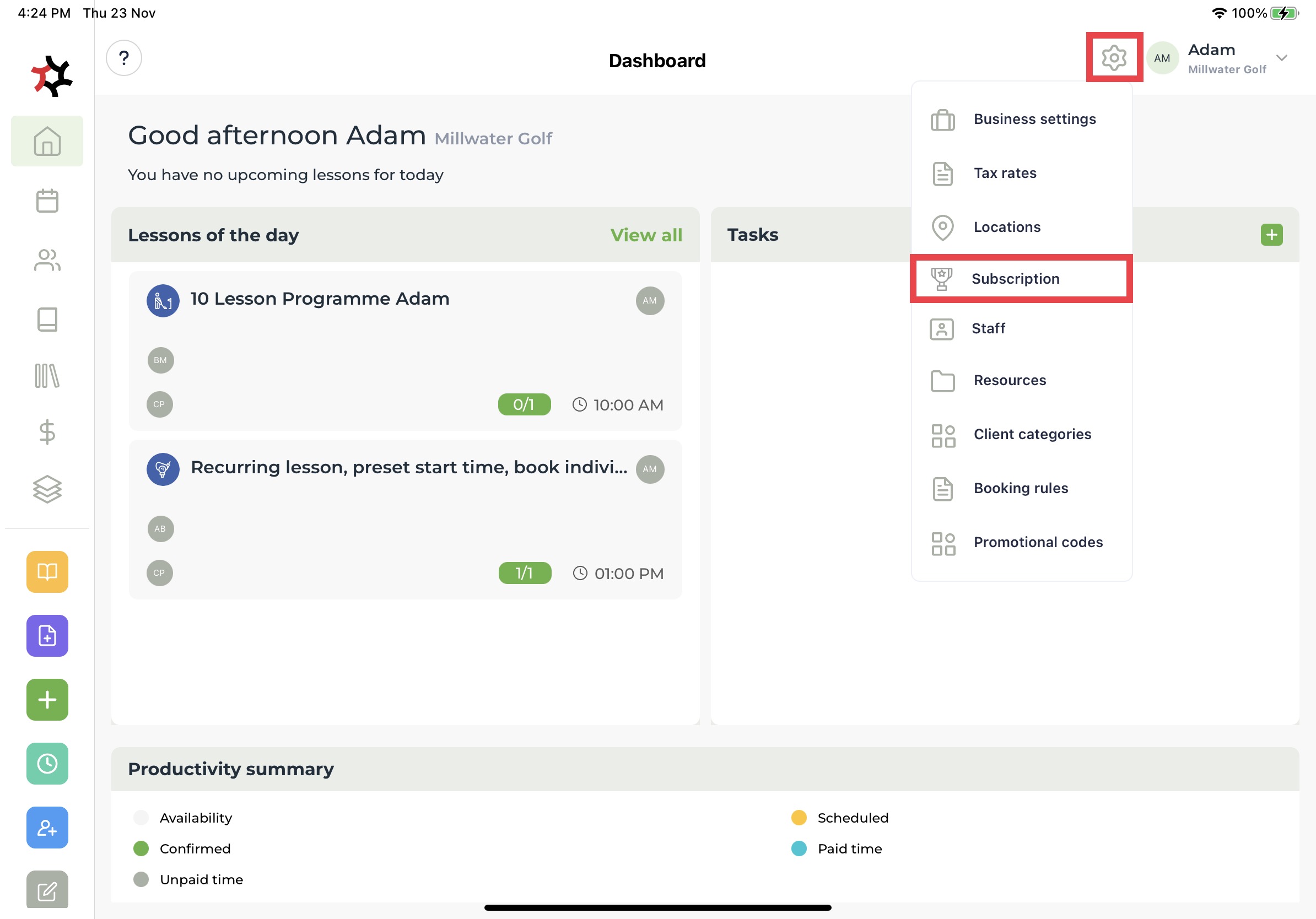
After you sign up for a TotalCoach account, you will be able to try it out for 30 days before the first subscription payment is due.

This article will show you how to select and manage your subscription.&#x20;

When you purchase a TotalCoach subscription, the App Store will automatically display the currency associated with your region or country as set within your Apple ID.&#x20;

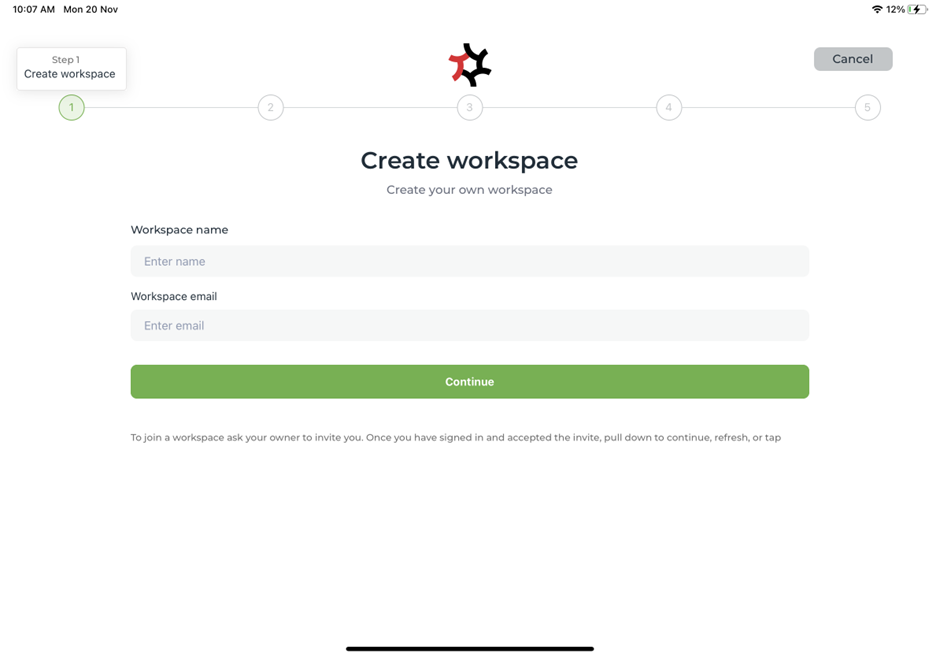
1. After you have completed the initial [**Sign up** process](/coaches/support-for-coaches-organisations/welcome-to-totalcoach-support/setting-up-your-workspace/sign-up-to-totalcoach) you will begin [Setting up your workspace](/coaches/support-for-coaches-organisations/welcome-to-totalcoach-support/setting-up-your-workspace).
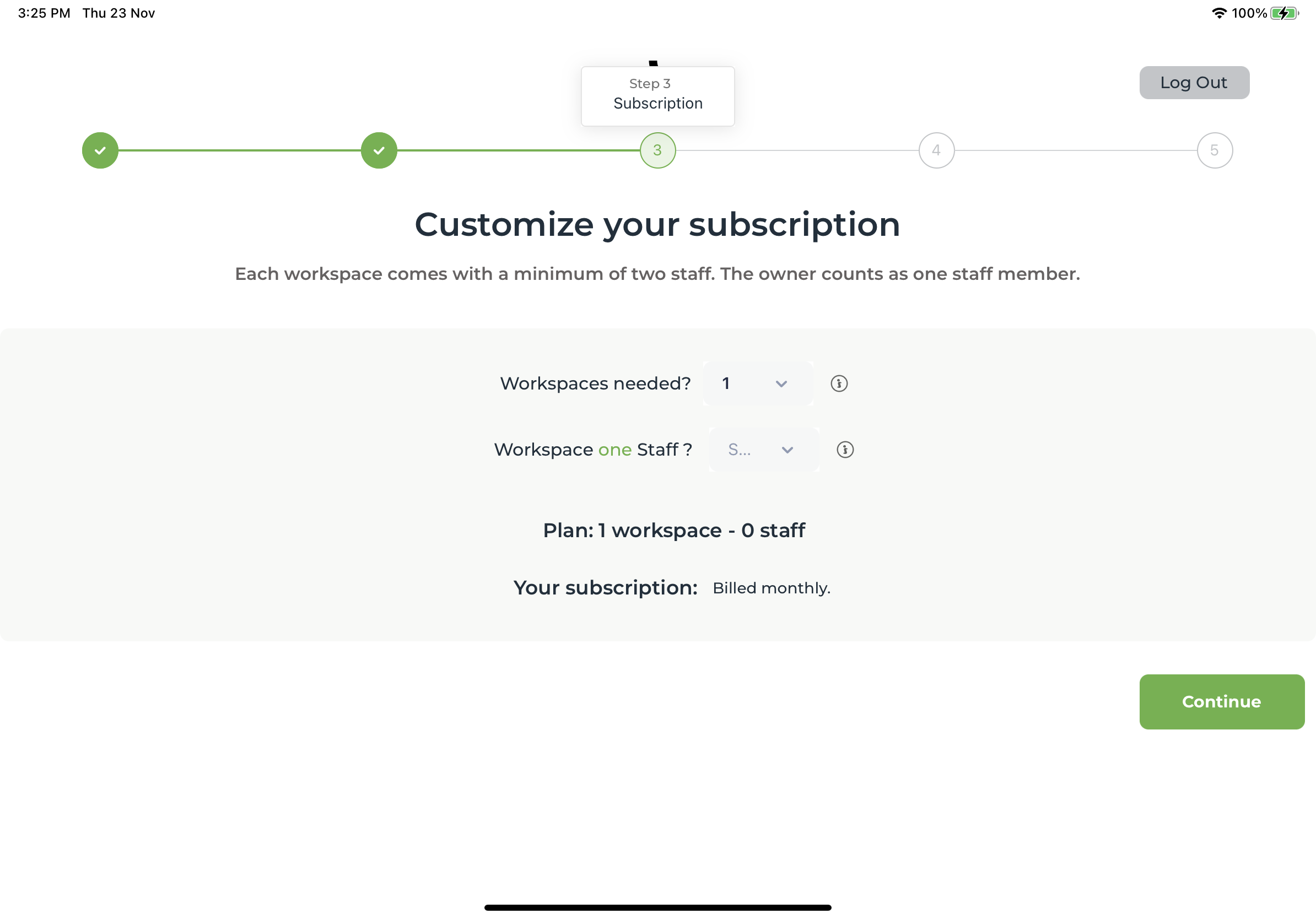
2. You will need to Customize your subscription at Step 3 of the initial Workspace set-up.
3. After choosing the number of workspaces needed, choose how many staff will be assigned to each workspace. Next to **Your subscription**, you'll see the total monthly cost based on your selection.

<div align="left"><figure><img src="https://content.gitbook.com/content/AQGETajdcxecrar4lUBE/blobs/eMBOT7bGIkQHMu7bbaTH/IMG_0269.PNG" alt="" width="563"><figcaption></figcaption></figure></div>

4. You can manage your subscription by using either one of these methods:
   1. By following the steps in this Apple Support article: [how to manage App Store purchases, subscriptions, settings, and restrictions on iPad](https://support.apple.com/en-au/guide/ipad/ipadee10c6e7/ipados).&#x20;
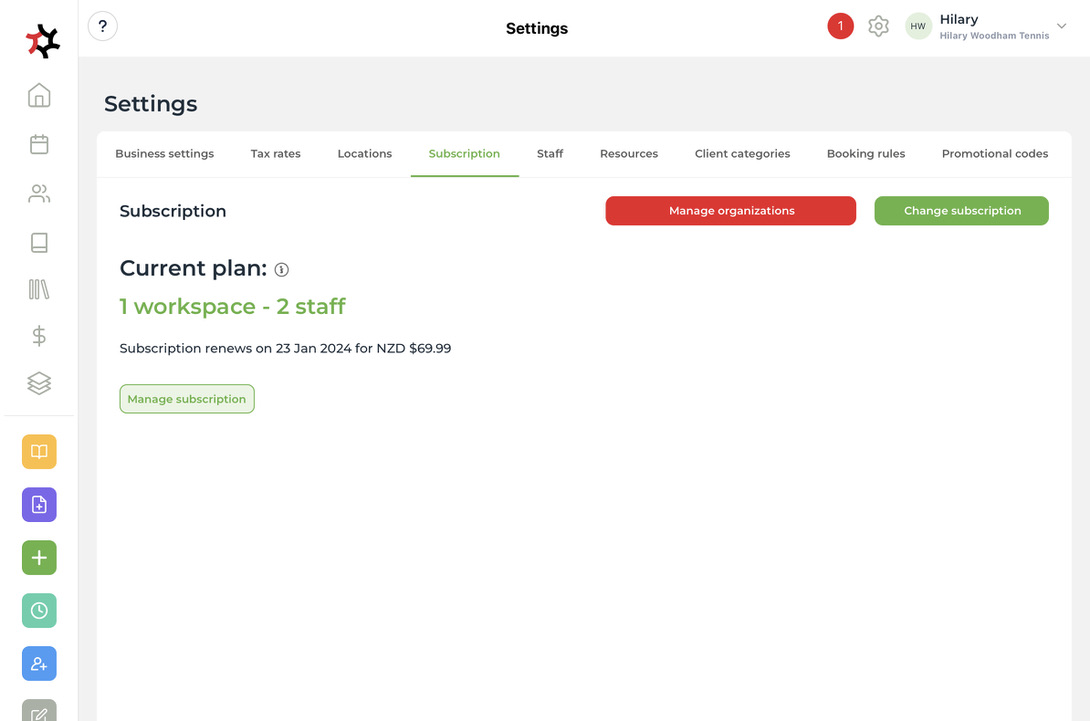
   2. Tap the **Settings** cog, select **Subscriptions**, then tap **Manage Subscription**. &#x20;

<figure><img src="https://content.gitbook.com/content/AQGETajdcxecrar4lUBE/blobs/tdUsFOCGprkTF7hYuPXb/IMG_0271.jpeg" alt=""><figcaption></figcaption></figure>


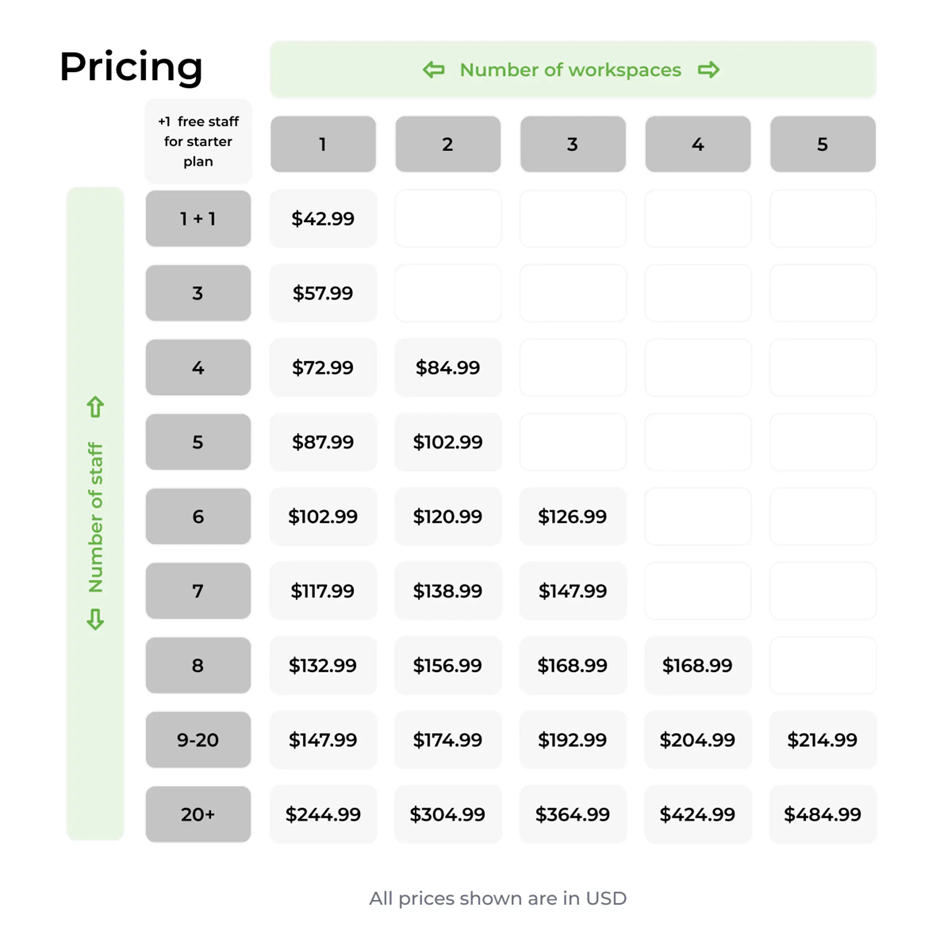
# Pricing Table

The pricing table is listed in USD.

<figure><img src="https://content.gitbook.com/content/AQGETajdcxecrar4lUBE/blobs/TsKrLb8jnLRxBXaxUyag/image.png" alt=""><figcaption></figcaption></figure>


# Promotional Codes

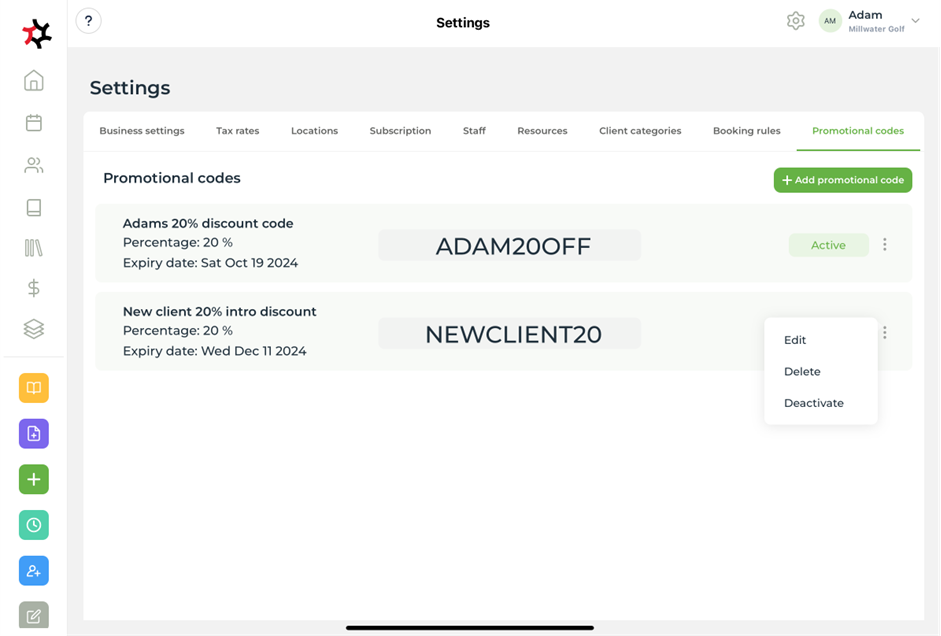
Promotional codes are an excellent way to reward your customers and boost your bookings by offering discounts during the checkout process.

This article will guide you through the simple steps to create and use promotional codes effectively.

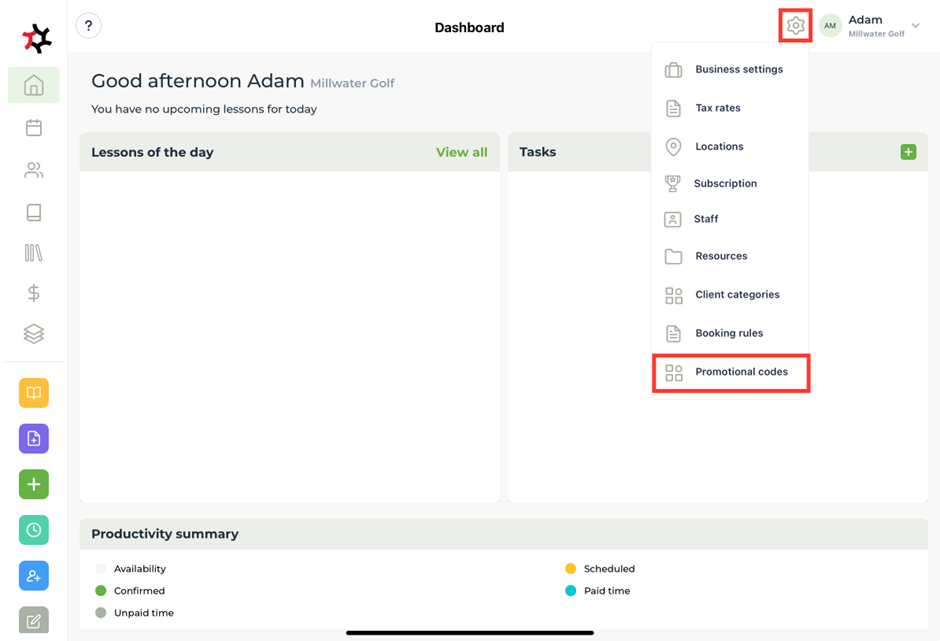
1. Tap the **Settings** cog and navigate to **Promotional codes**.

<figure><img src="https://content.gitbook.com/content/AQGETajdcxecrar4lUBE/blobs/erZj7EAUGDS35u2McUHE/image.png" alt=""><figcaption></figcaption></figure>

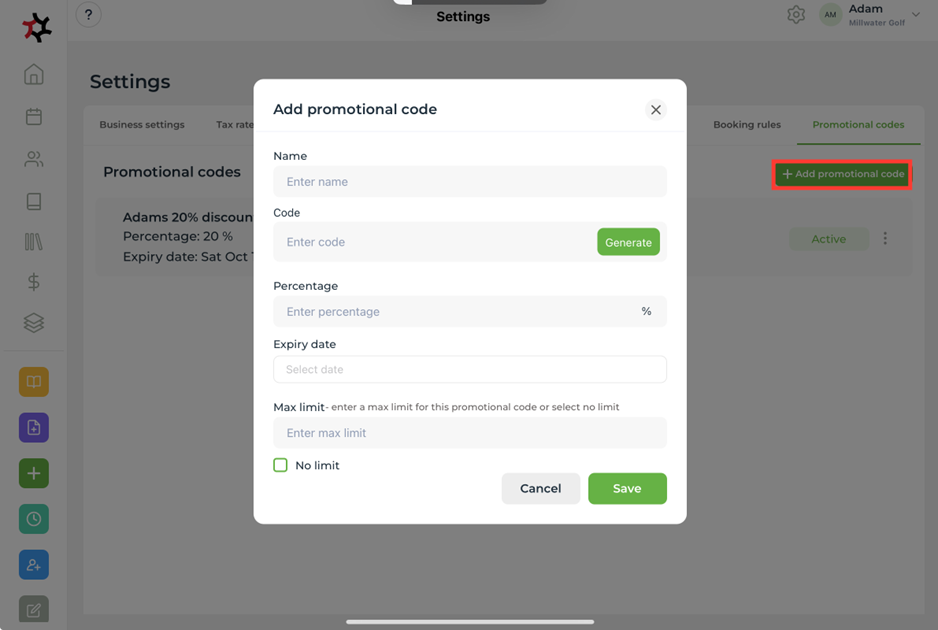
2. Next choose **+ Add promotional code.**

<figure><img src="https://content.gitbook.com/content/AQGETajdcxecrar4lUBE/blobs/uC62yaJg5tYyiPPniyMb/image.png" alt=""><figcaption></figcaption></figure>

3. Define the conditions that must be met for the promotional code to be valid using the following steps:&#x20;
   1. Enter the name of your Promotional Code.&#x20;
   2. You can select **Generate** to autogenerate a unique code, or enter your own, for example, "THANKSGIVING20".&#x20;
   3. Choose a percentage. This will be the percentage discount off your the cost of your service, for example, 20%.
   4. Enter an **Expiry date**&#x20;
   5. Enter a **Max use limit** for the code - this limits the total number of times a code can be used. Eg. If the limit is two it could be used two times by one person, or one time by two people, before it reaches its max limit. You may decide to select **No limit**, meaning the promotional code can be used an unlimited number of times until it expires or is deactivated.
4. Click **Save**.
5. To **Edit, Delete** or **Deactivate** the code, follow step 1 where you will see your promotional codes listed. Tap the vertical ellipsis (dots) next to the code you wish to change to access these options.

<figure><img src="https://content.gitbook.com/content/AQGETajdcxecrar4lUBE/blobs/mIdFnAdIRffDNXlJSPt2/image.png" alt=""><figcaption></figcaption></figure>

6. Communicate the Promotion - Once the promotional code is created, make sure to inform your clients about the ongoing promotion. Utilize various channels, such as email newsletters, social media, and your website, to spread the word and attract more clients.<br>


# Manage clients

This guide will step you through managing your clients.


# Add new client categories

Create client categories to customise your service. Categories can be used to send out emails or lesson invitations to specific client groups.

Use the client categories to invite multiple clients to book your services. For example: create a "Juniors" category and tag all of your juniors to invite them to a holiday program or create a "Private" category and invite all of your one-on-one clients to book their private lessons.&#x20;

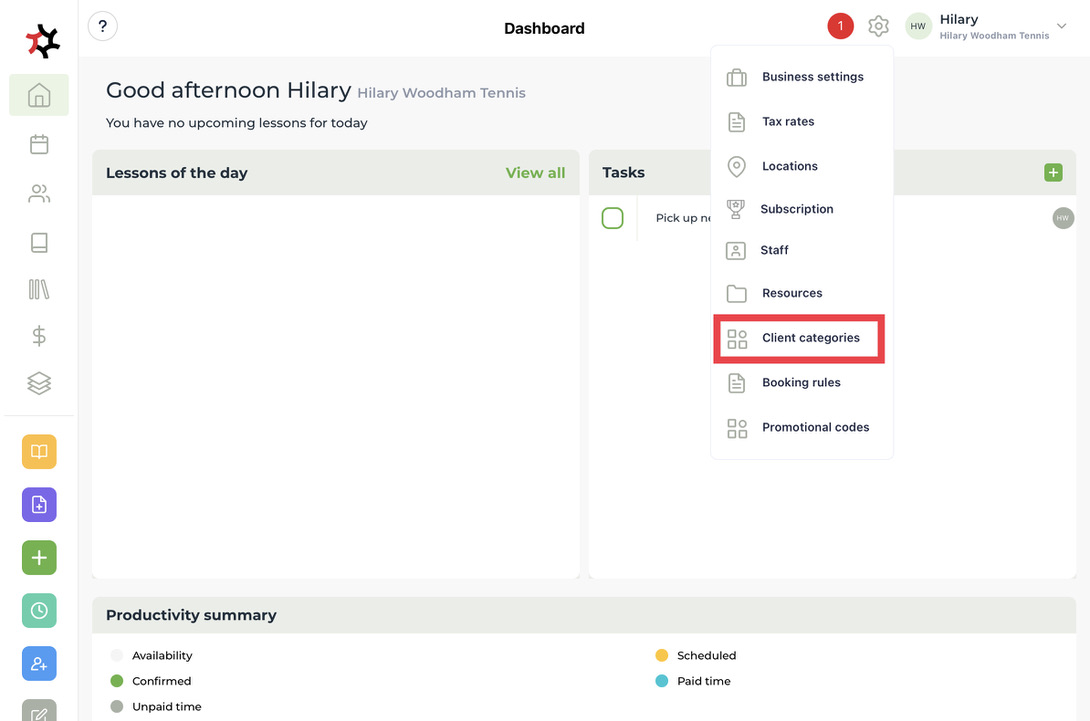
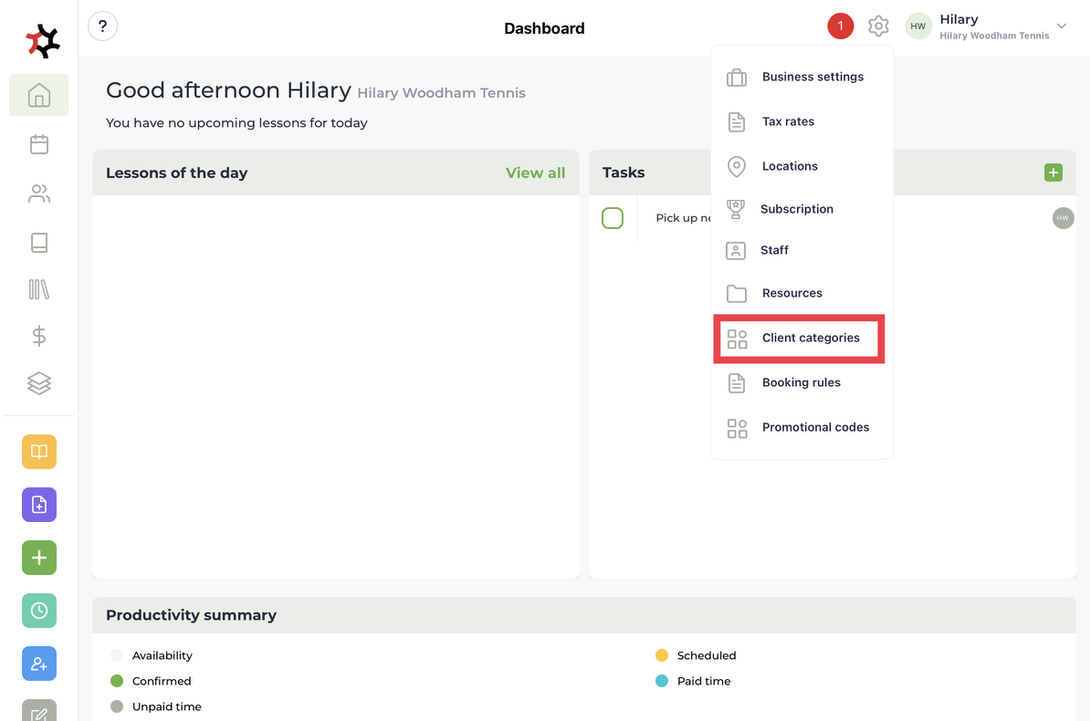
1. Go to the **Settings** cog and click on **Client categories**.&#x20;

   <figure><img src="https://content.gitbook.com/content/AQGETajdcxecrar4lUBE/blobs/RfkiFUpAaaIByj5K9B7T/E59B3499-3AC5-469E-9DB9-D7FCF7883930_1_105_c.jpeg" alt=""><figcaption></figcaption></figure>
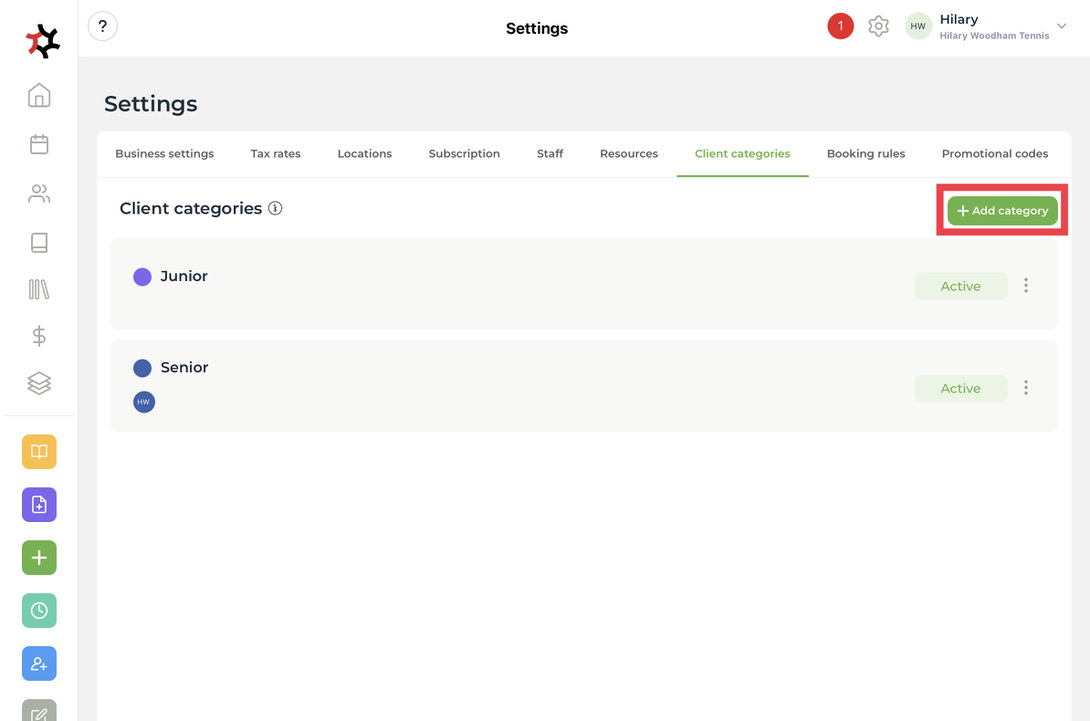
2. Click on the green **+ Add category** button.&#x20;

   <figure><img src="https://content.gitbook.com/content/AQGETajdcxecrar4lUBE/blobs/0wRaam4wcI6DbsBNLUSC/9AA33C0A-85AF-4F71-B3FF-4567299D2700_1_105_c.jpeg" alt=""><figcaption></figcaption></figure>
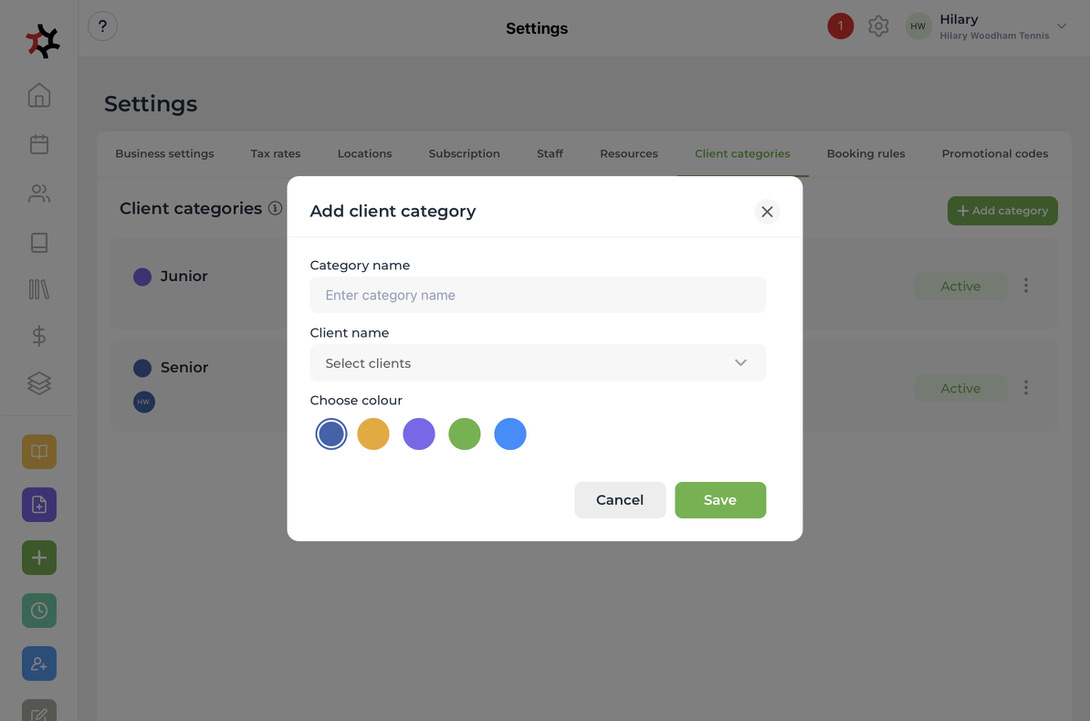
3. Input your **Category name** and **Choose** a **colour** for this category. Here you can also select **Clients** to be allocated to this client category. Then click **Save**.&#x20;

   <figure><img src="https://content.gitbook.com/content/AQGETajdcxecrar4lUBE/blobs/ILYTK846xKOiZqtVwvuD/C95E075C-9696-4BC4-ACD8-BF1812D417E4_1_105_c.jpeg" alt=""><figcaption></figcaption></figure>
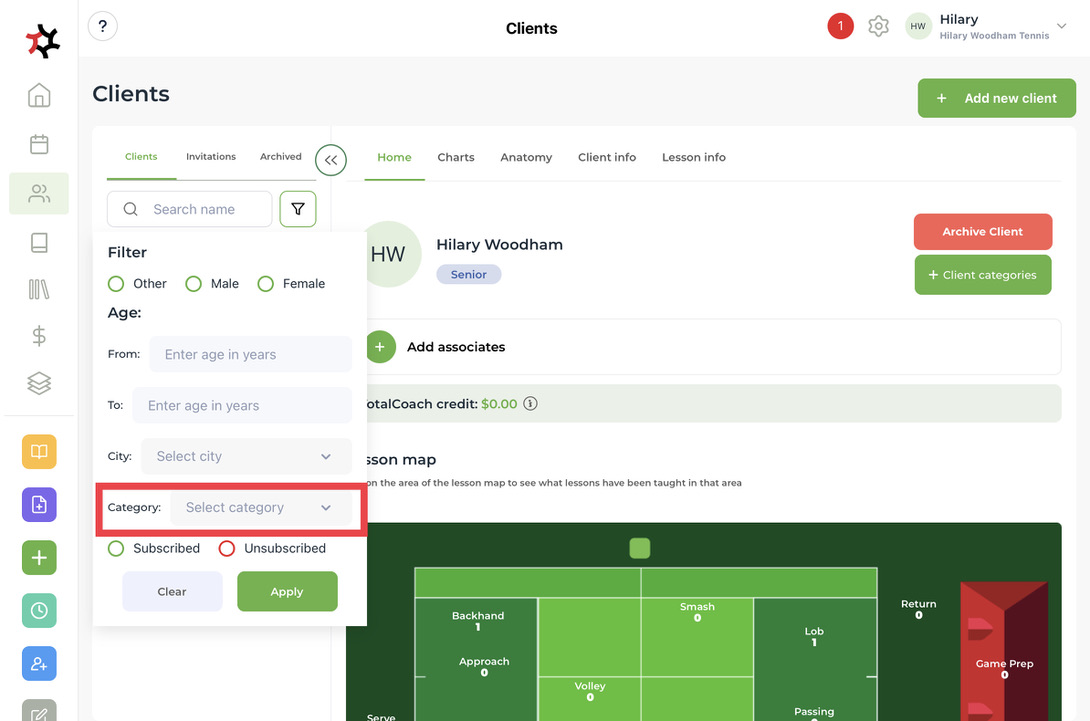
4. You can search your **client list** by filtering client categories.

   <figure><img src="https://content.gitbook.com/content/AQGETajdcxecrar4lUBE/blobs/tDcS08lemGIQaXkz2eal/1C05E2B0-0C4E-45DD-8FAF-B8E836766703_1_105_c.jpeg" alt=""><figcaption></figcaption></figure>
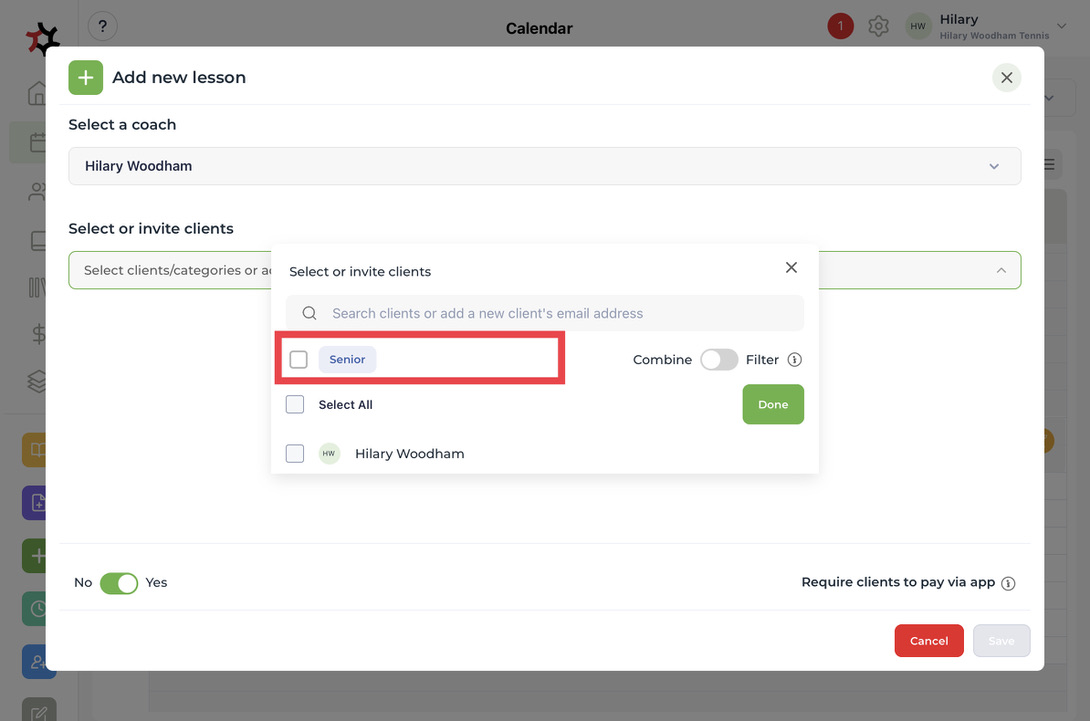
5. When adding a lesson, you can search and filter by **client category** and invite all the categories or just the client(s) you want for this lesson. If you tick 2 categories, it will filter and provide the clients who match both categories.

   <figure><img src="https://content.gitbook.com/content/AQGETajdcxecrar4lUBE/blobs/rbEIhWVJSpKwgZgIGr6l/23527B1C-813C-400F-A780-C14883763FCE_1_105_c.jpeg" alt=""><figcaption></figcaption></figure>


# Add a new client profile

In this section, you will learn how to add clients by creating a client profile

Note: You will need to [Add new client categories](/coaches/support-for-coaches-organisations/welcome-to-totalcoach-support/manage-clients/add-new-client-categories) before completing this step.

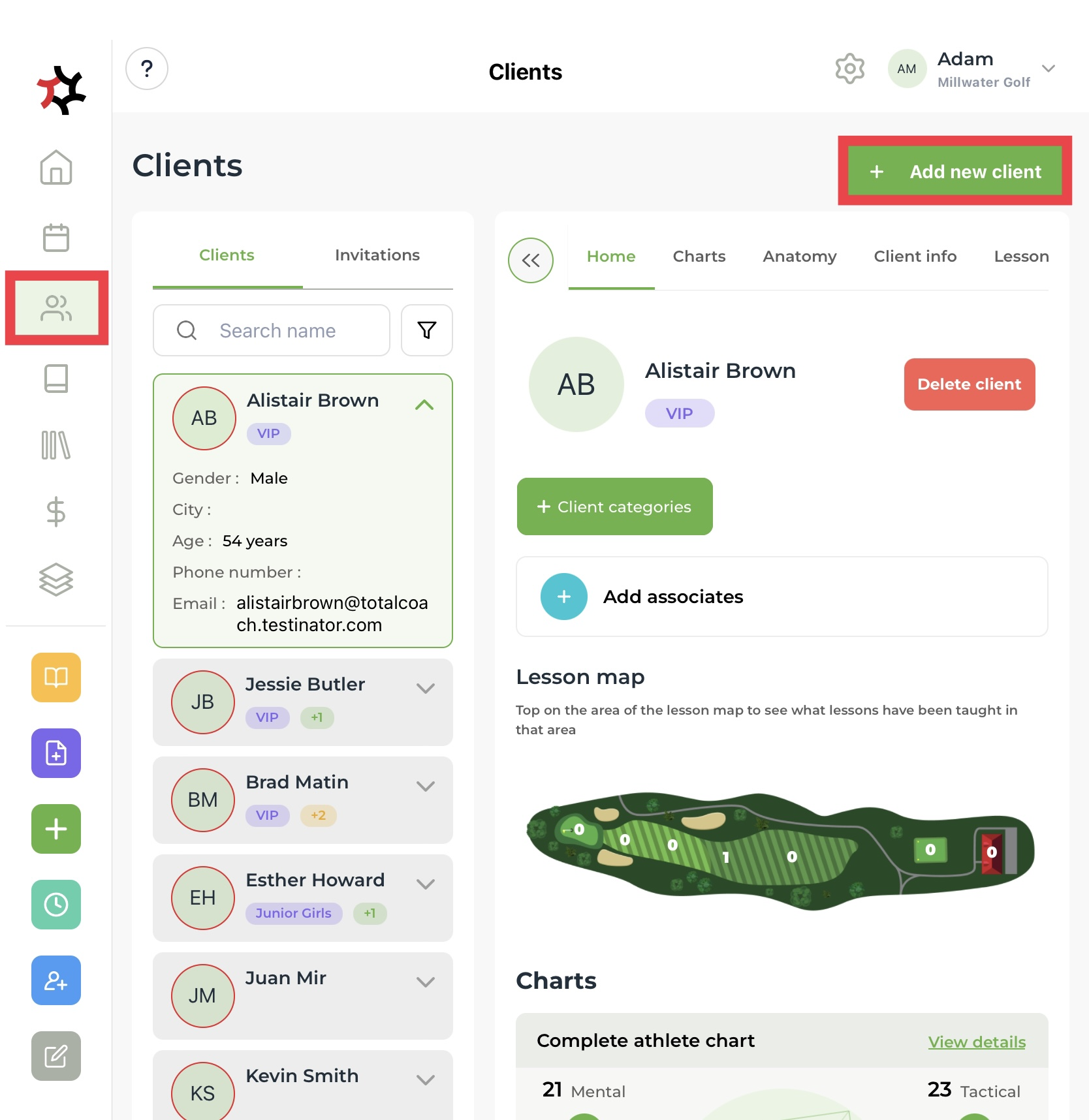
1. Select the **Clients** tab from the sidebar.
2. Select the **Add new client** button.&#x20;

   <figure><img src="https://content.gitbook.com/content/AQGETajdcxecrar4lUBE/blobs/tcWJtqb679SIHQA0sN4X/image.png" alt=""><figcaption></figcaption></figure>
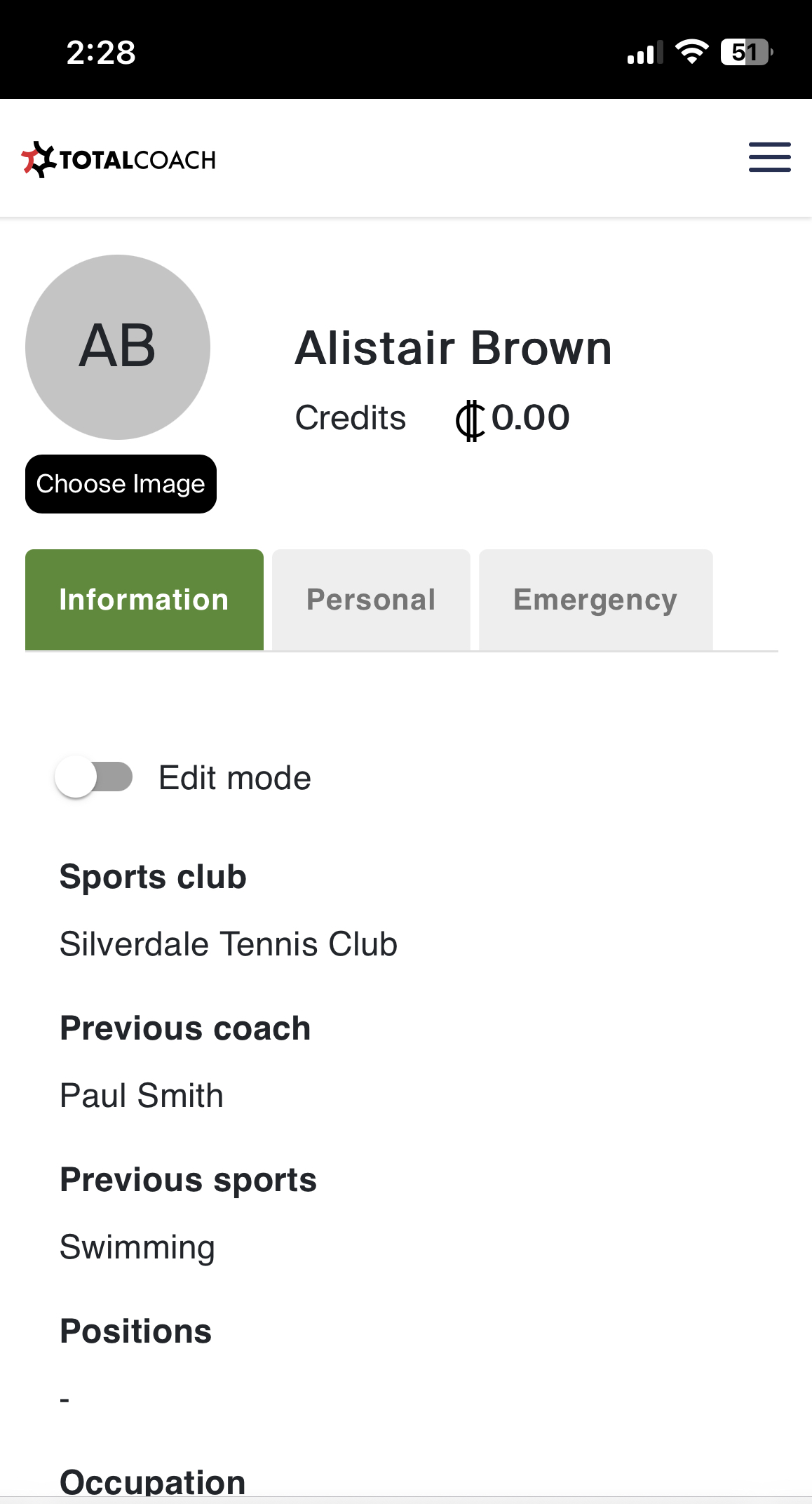
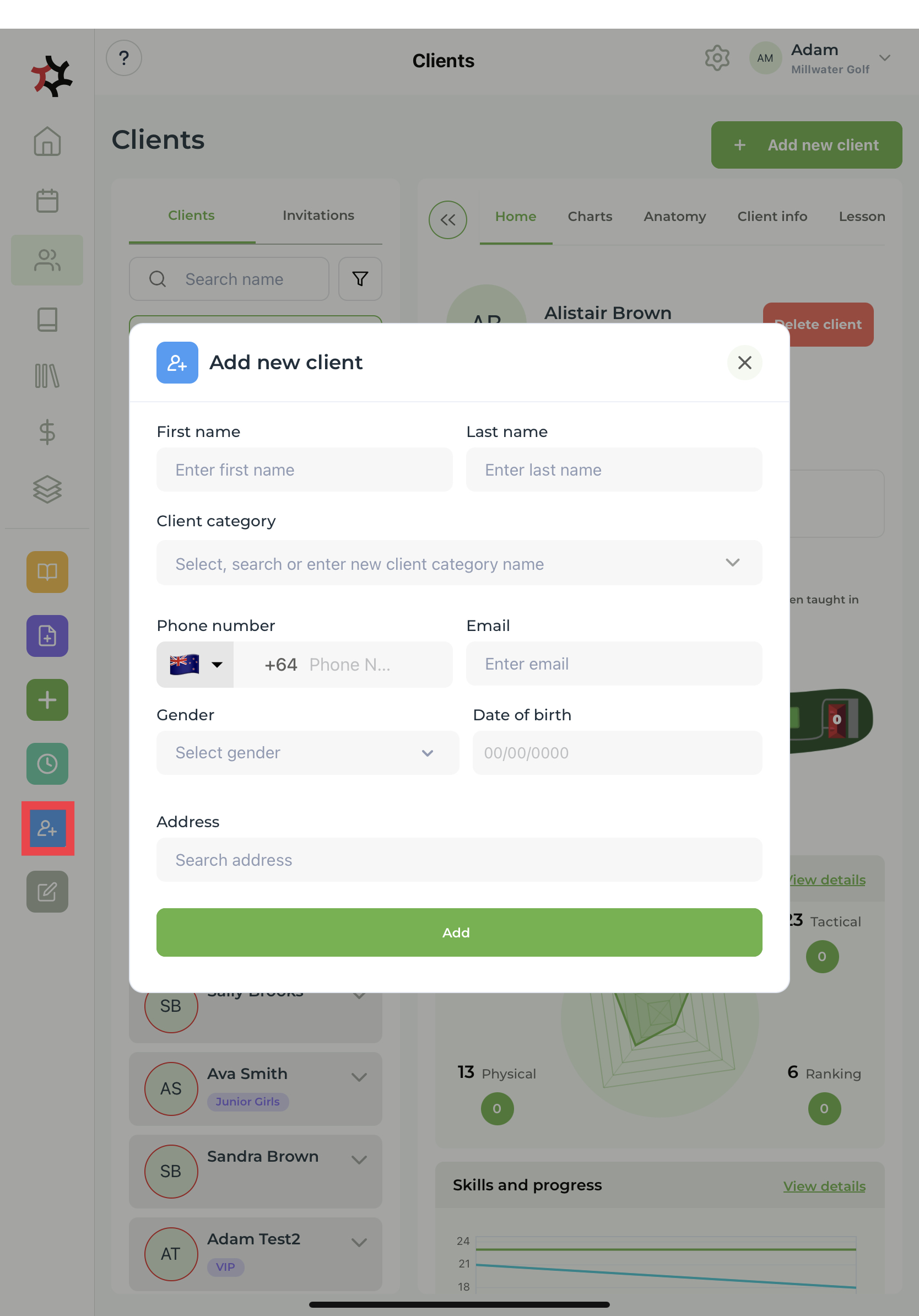
3. Or select the **+ Client** quick link to launch the **Add new client** window. Fill in the new client's details - **First name**, **Last name**, **Email**, and **Gender** are required fields.

<figure><img src="https://content.gitbook.com/content/AQGETajdcxecrar4lUBE/blobs/v8wcRwDX4WtPDwNwmYLe/image.png" alt=""><figcaption></figcaption></figure>

Note: When signing up for TotalCoach Athlete, clients are required to use their preferred email address, which also serves as their sign-in username. This chosen email address plays a crucial role as the primary mode of communication for various purposes such as booking confirmations, sending invoices, lesson invitations, cancellations, lesson uploads, and more. Therefore, it is essential to accurately enter the client's preferred email address when creating a **new client record**.

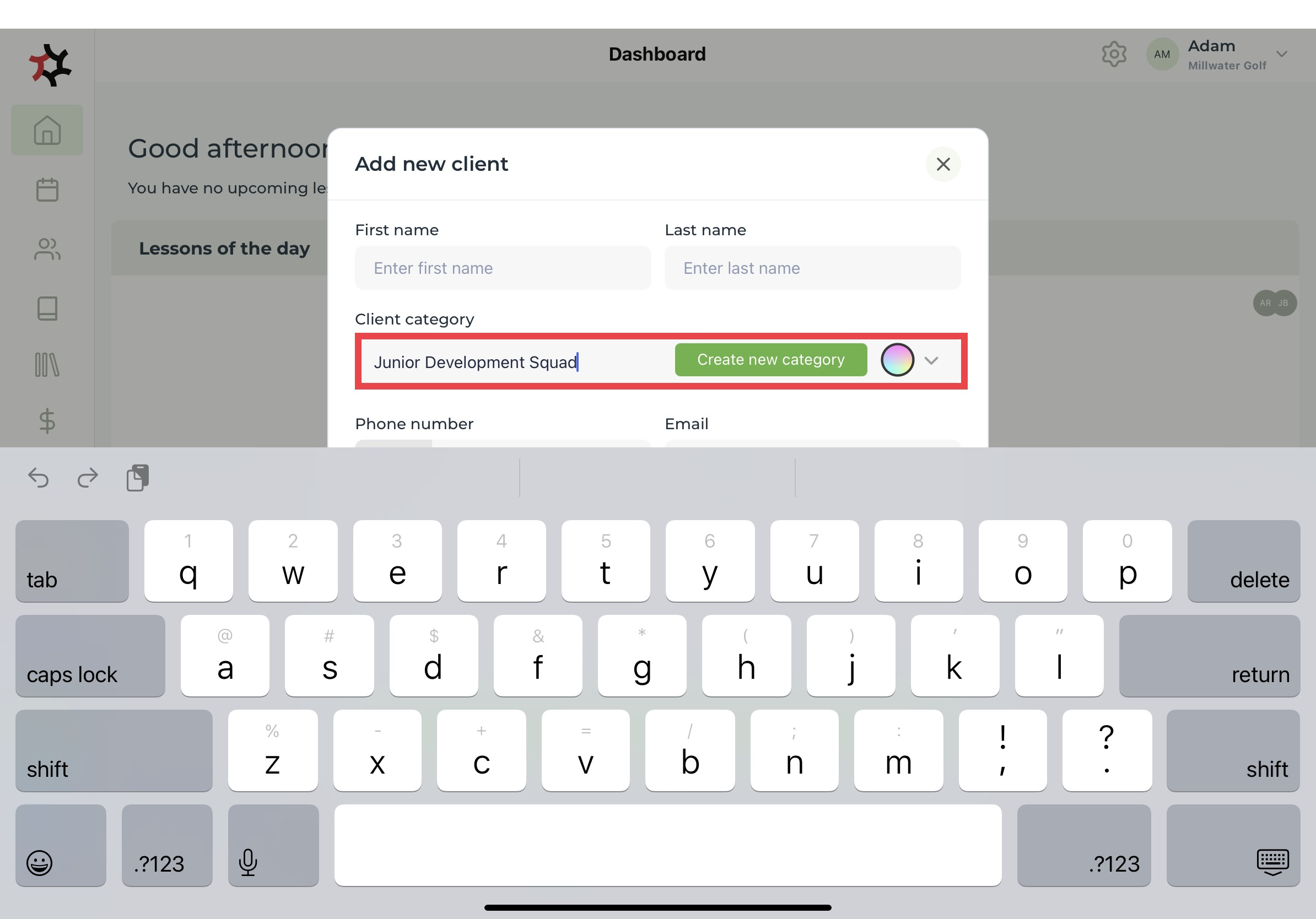
4. You can add a new client category by typing a new client category name into the search bar.

<figure><img src="https://content.gitbook.com/content/AQGETajdcxecrar4lUBE/blobs/4n3qjsSrjd1py59pZPBH/image.png" alt=""><figcaption></figcaption></figure>

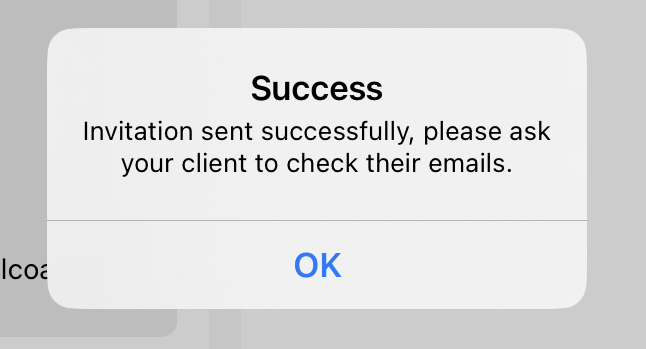
5. After pressing **Add**, you will see this message on your screen:

<div align="left"><figure><img src="https://content.gitbook.com/content/AQGETajdcxecrar4lUBE/blobs/k65PfmBpplYXI5csifdB/invitationSuccess.jpeg" alt="" width="485"><figcaption></figcaption></figure></div>

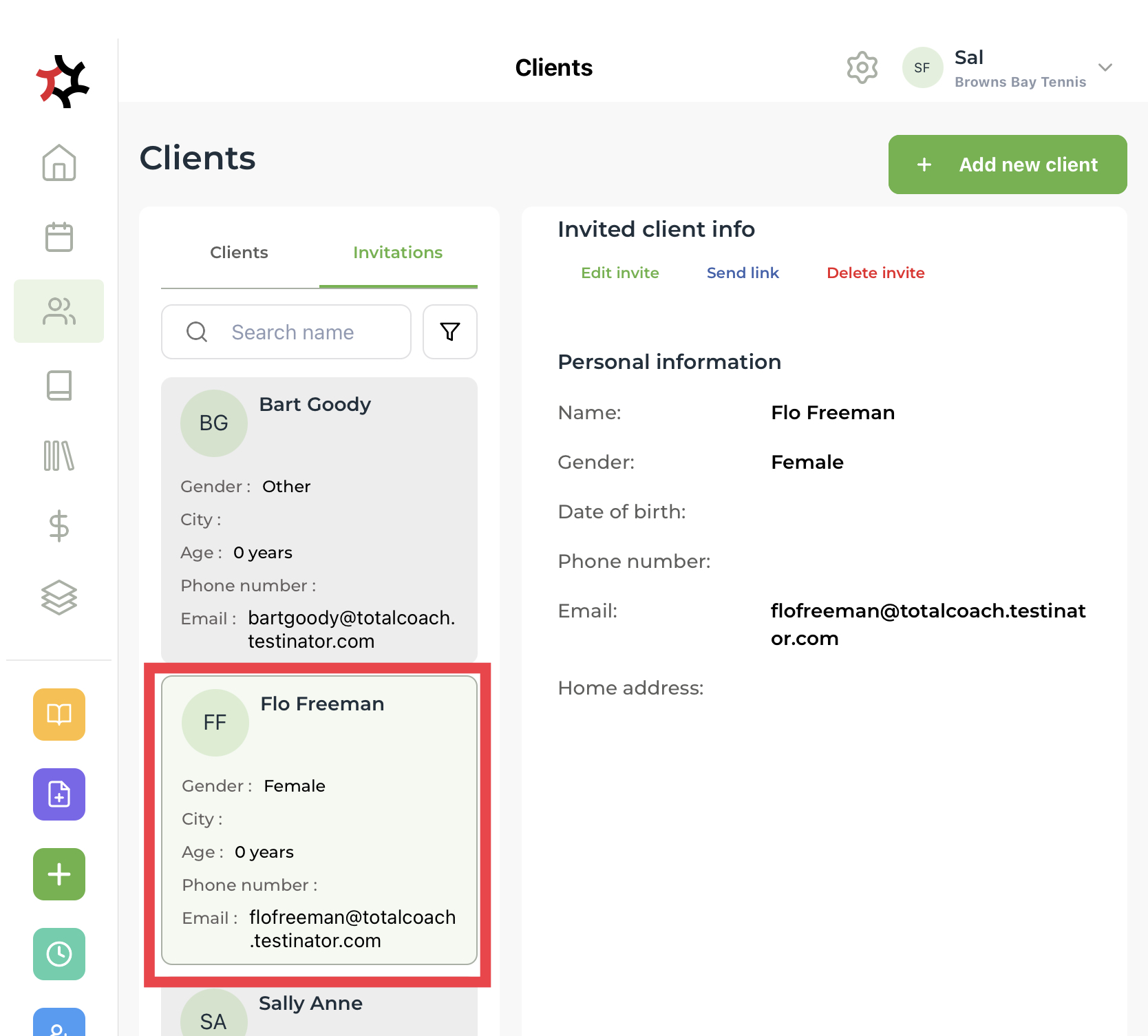
6. Easily locate new clients on the **Invitations** tab until they accept the email invitation sent to them and follow the provided steps to complete their account setup. You can also manage invitations by editing, resending, or deleting them directly from this tab. Once the account setup is complete, they will automatically appear under the **Clients** tab.

<figure><img src="https://content.gitbook.com/content/AQGETajdcxecrar4lUBE/blobs/pwtfzsFsI5zgIM4tHFNW/image.png" alt=""><figcaption></figcaption></figure>


# Complete Athlete

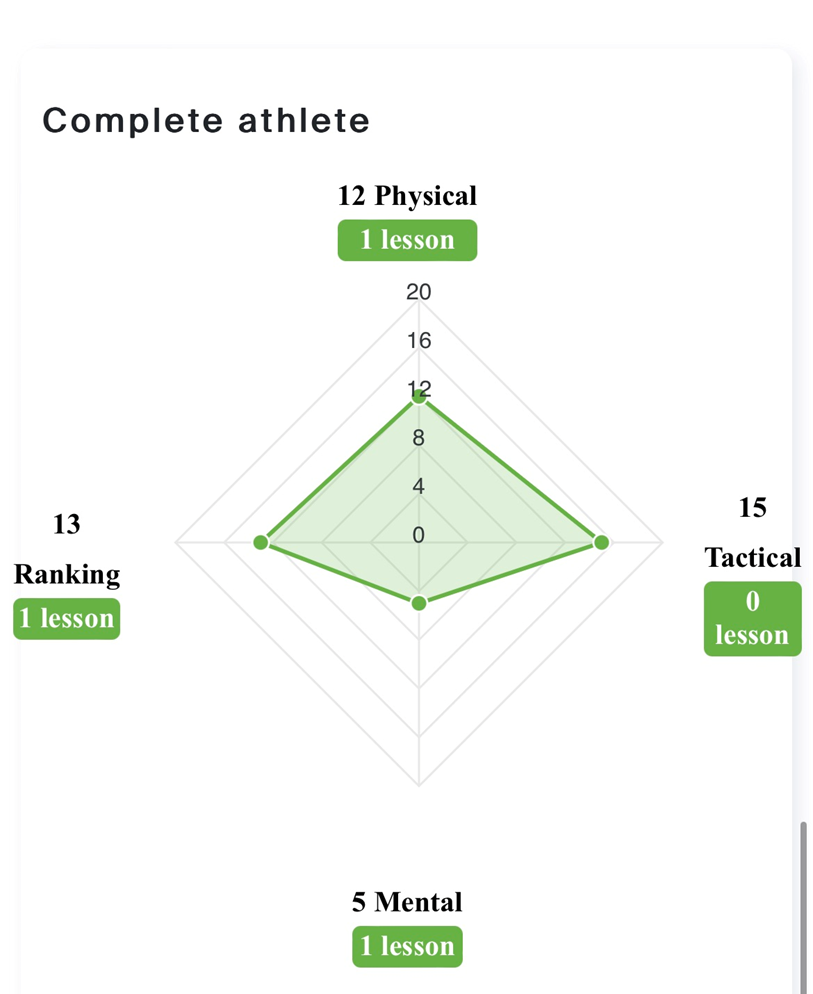
Welcome to the **Complete Athlete** feature, crafted to provide a snapshot of your clients' journey.&#x20;

The Complete Athlete chart rates your clients' progress on a scale from 0 to 100 in the four main areas of sports: **Mental, Physical, Tactical** and **Ranking.**&#x20;

Collaborate with your client to decide what to record against each of the four areas as they develop. The Complete Athlete Chart will track improvements over time, offering valuable insights into your clients athletic journey.

It can be used to analyse your clients game and plan future lessons.

<figure><img src="https://content.gitbook.com/content/AQGETajdcxecrar4lUBE/blobs/Yj5OpfcJoxSoLgXNRgkp/image.png" alt=""><figcaption></figcaption></figure>


# Four alternative ways to Add a new client

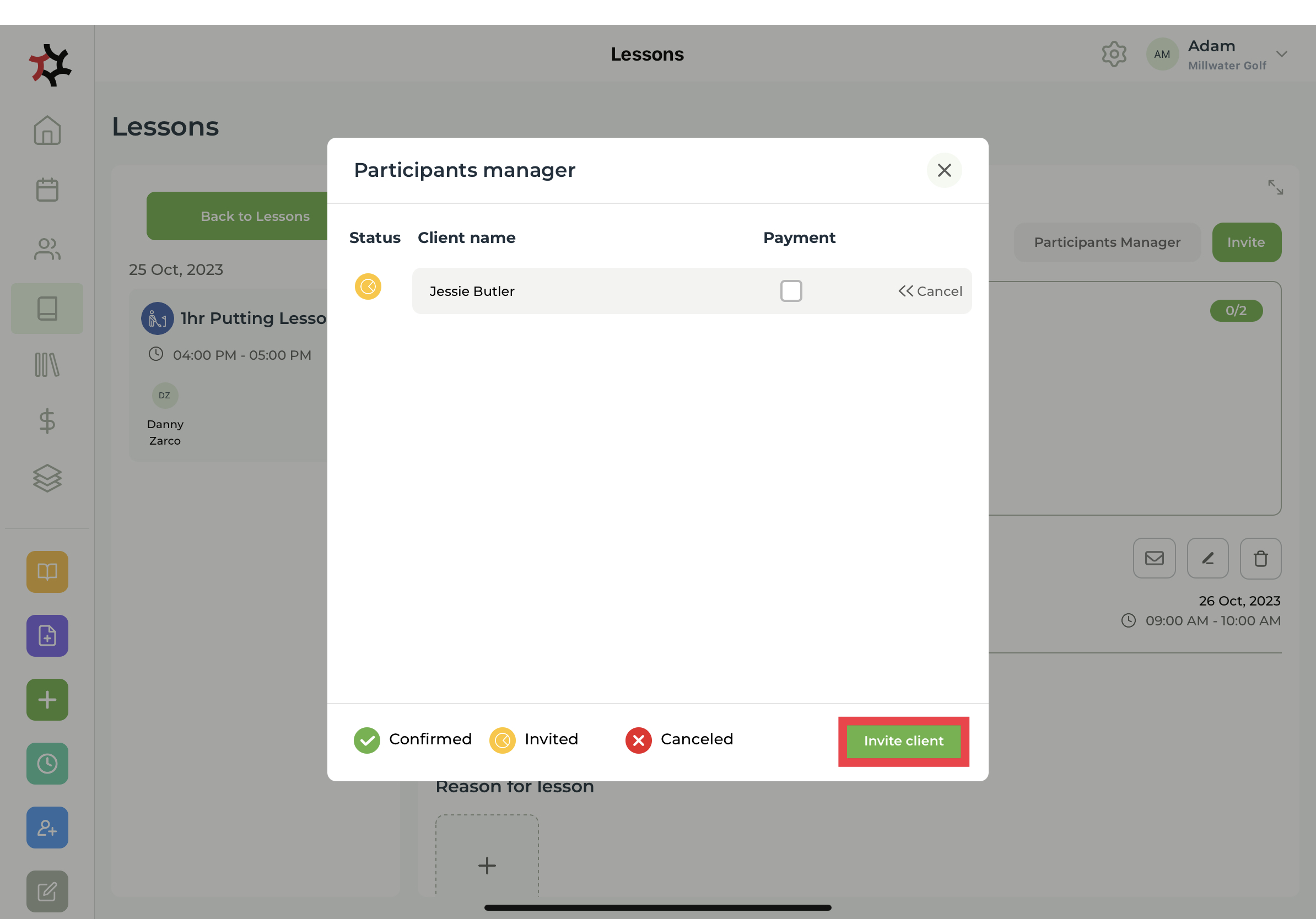
1. You can add a new client via **Adding lessons**, **Adding services,** or via the Lesson **Participant manager** or to an existing service from the **Calendar.**

<figure><img src="https://content.gitbook.com/content/AQGETajdcxecrar4lUBE/blobs/JXDYZO4BrWryKSrKXQqW/image.png" alt="" width="375"><figcaption></figcaption></figure>

<figure><img src="https://2899632634-files.gitbook.io/~/files/v0/b/gitbook-x-prod.appspot.com/o/spaces%2FAQGETajdcxecrar4lUBE%2Fuploads%2FdNiLe824igOO9RwuXcGM%2Fimage.png?alt=media&amp;token=e83affdf-7c3c-489b-a6cc-41d231466da0" alt="" width="375"><figcaption></figcaption></figure>

<figure><img src="https://content.gitbook.com/content/AQGETajdcxecrar4lUBE/blobs/54xIDIsNr2341ucYEy7y/image.png" alt="" width="375"><figcaption></figcaption></figure>

### Sharing your public booking link

You can share your booking link by email, or instant messenger by copy and paste.

1. Tap the **Settings** cog on the top right side of the app.
2. Select **Copy booking page URL**. You can now share this link with potential clients.

<figure><img src="https://content.gitbook.com/content/AQGETajdcxecrar4lUBE/blobs/EWwQnoVXvWmw8cWfjYNL/copyUrl.jpeg" alt=""><figcaption></figcaption></figure>


# Manage staff

See also Section on adding staff  and adding staff working hours in the section under setting up your work space.


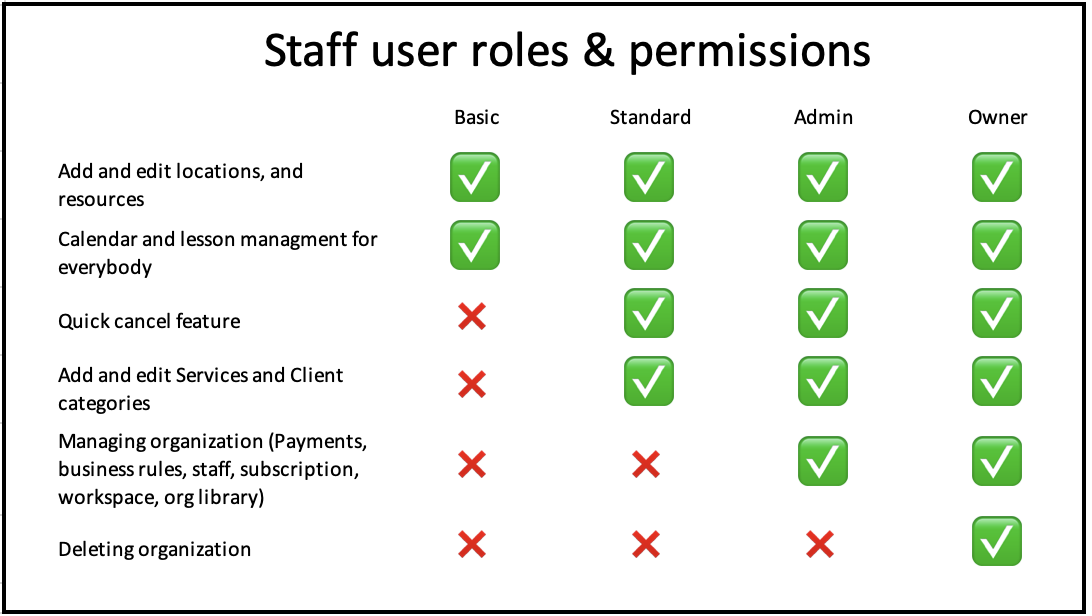
# Staff roles and permissions

You can assign different levels of roles and permissions to each staff member.

When adding a new staff member you can allocate their user role. This will determine their responsibility level.

<figure><img src="https://content.gitbook.com/content/AQGETajdcxecrar4lUBE/blobs/99y6FZoFsvGaR7aKH7re/Screenshot%202023-11-10%20at%202.17.41%20PM.png" alt=""><figcaption></figcaption></figure>

There are four user roles and permissions:

1. **Business Owner** - This is automatically allocated to the person who set up the organization. The business owner has control over all bookings, staff, calendars, services and payments of the entire organization. If you are a sloe operator or still actively coaching this category includes a booking calendar option for you. &#x20;
2. &#x20;**Admin** - TotalCoach is here to assist you to grow your business. You always get 2 staff when you join per workspace. This admin role is so your assistant has similar access to the business owner and can manage the business from an administration perspective. This is likely to be allocated to a person who is not bookable as a coach and will not appear on the online booking page. Although they can have a booking claendar if you wish. We see this Admin role is helping you to always have a contact person, so you spend less time following up on communications and more time on actual coaching. Coaches report having this access has helped them grow their business faster.
3. &#x20;**Standard** - A coach for your organization is likely to be set as **Standard**. This enables the coach to be able to add services, add and edit lessons, input exercises and notes for their client(s), be bookable online and view staff calendars. They will not be able to edit other staff, edit locations, change payments or business rules and settings within the organization.&#x20;
4. &#x20;**Basic** - The basic is for a staff member who is likely an assistant or practise partner. They are able to input their hours, be allocated to lessons by another coach, add and edit lessons, add and edit resources and complete calendar mangement for everybody.&#x20;

<figure><img src="https://content.gitbook.com/content/AQGETajdcxecrar4lUBE/blobs/pNQ617xcMimNFSHDjqiE/IMG_70E28FBD89BE-1.jpeg" alt=""><figcaption></figcaption></figure>


# Disable a staff member from bookings

If you disable staff from your booking page, that staff member will not be displayed on your public booking page and they cannot be selected for new services and lessons.

To hide a staff member or the workspace owner from the workspace's booking page, select **Settings > Staff > View profile > Edit profile** then scroll down and tick the box: **Disable staff from bookings**.

<figure><img src="https://content.gitbook.com/content/AQGETajdcxecrar4lUBE/blobs/vBTaG4wPOVY9m8sSILoo/IMG_3772.jpg" alt=""><figcaption></figcaption></figure>


# Manage lessons

Manage lessons easily and tailor each lesson to the athlete's needs. There are never two lessons alike. This section explains how to get the most out of the lesson features:

Click next to learn how to **Rename the lesson.**

{% content-ref url="/pages/6ElvuApUNTzxZYFBvUAl" %}
[Rename the lesson](/coaches/support-for-coaches-organisations/welcome-to-totalcoach-support/manage-lessons/rename-the-lesson)
{% endcontent-ref %}


# Rename the lesson

Lessons can be edited and renamed to make the lesson relevant and searchable for both you as the coach and your client.

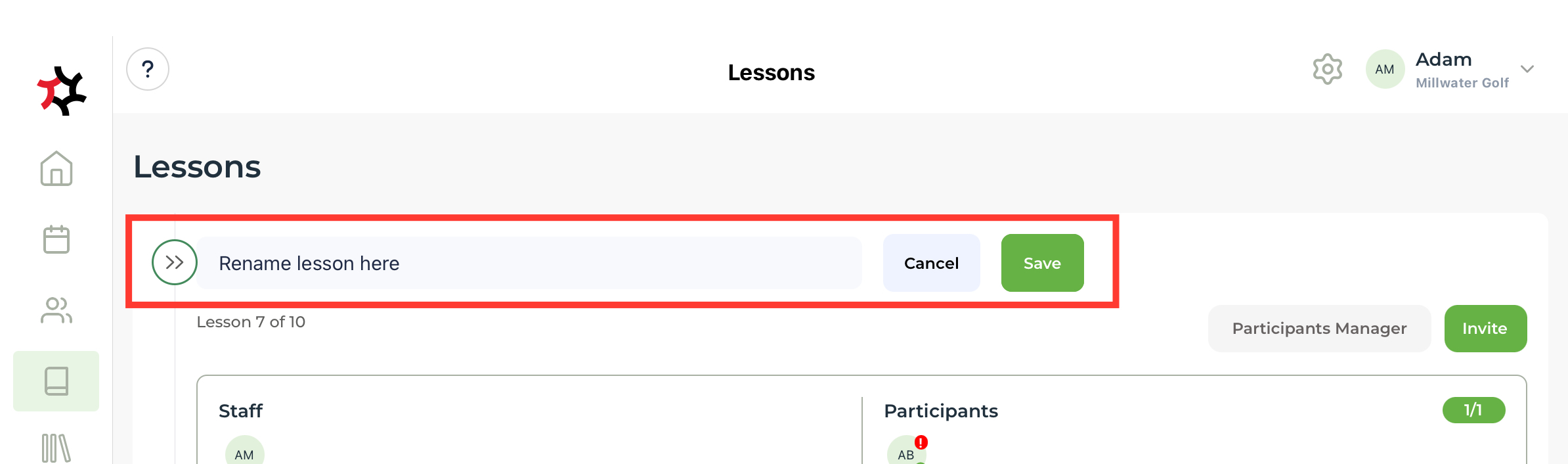
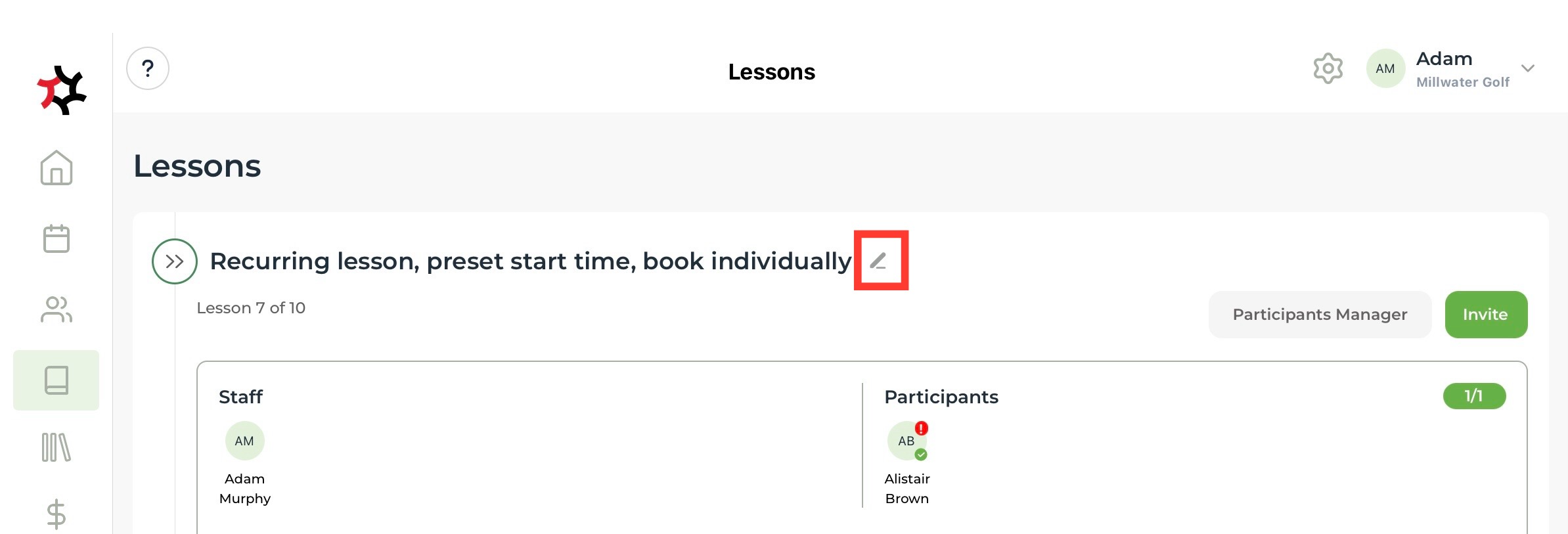
Simply click on the pencil icon next to the current lesson name to rename it. Renaming lessons with a descriptive name is helpful, e.g., the spin type taught on the day of the lesson, perhaps it was a lesson on “footwork loading”. You will find it easier to locate lessons using the search function with a more specific lesson name. Additional categories can also be added to the lesson.&#x20;

<figure><img src="https://content.gitbook.com/content/AQGETajdcxecrar4lUBE/blobs/69dow3gVwu1FE87sgjNU/image.png" alt=""><figcaption></figcaption></figure>

<figure><img src="https://content.gitbook.com/content/AQGETajdcxecrar4lUBE/blobs/Fr437rUzWHQpPRNySK0f/image.png" alt=""><figcaption></figcaption></figure>


# Categorizing lessons

This helps with lesson map function and search through filters to find specific lessons in the future.

**Categorizing**&#x20;

There are 20 categories available for you to file lessons under. For golf, you will find categories such as putt, chip, approach, etc. In Tennis, the categories are: serve, forehand, volley, etc. The athlete can also add additional categories to their lesson via their TotalCoach Athlete app.&#x20;

Your athlete can also choose to add category(ies) to their lesson when adding it to their [Favourites](broken://pages/HIzjEtUznWuzayBmkB5f).

When lessons are categorised, the lesson map shows how many lessons are assigned to that category which can help ensure that all aspects of the sport are covered in your lessons.

Your library of exercises is also categorised in the same way, making it easy for you to locate exercises to add to a lesson. The client's library, within TotalCoach Athlete, will then contain these exercises under the same categories.


# Adding exercises to lessons

Add exercises to your lessons for your athletes to view outside of the lesson.

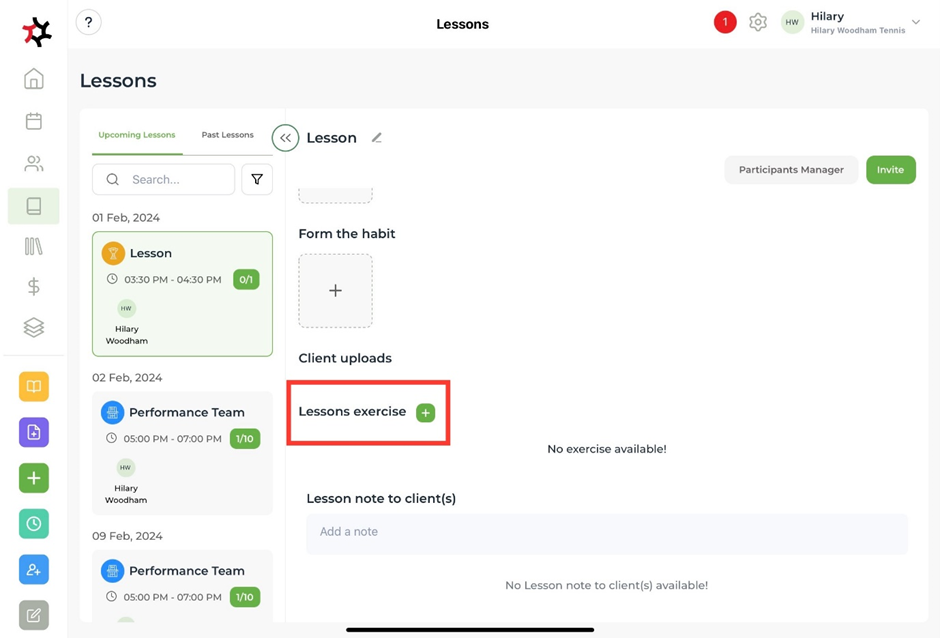
1. Open the lesson you would like to add a [premade exercise](/coaches/support-for-coaches-organisations/welcome-to-totalcoach-support/setting-up-your-workspace/adding-exercises) to and scroll down to **Lesson exercise +**.&#x20;

<figure><img src="https://content.gitbook.com/content/AQGETajdcxecrar4lUBE/blobs/8JY0ViscMyCpckHt4Tjf/image.png" alt=""><figcaption></figcaption></figure>

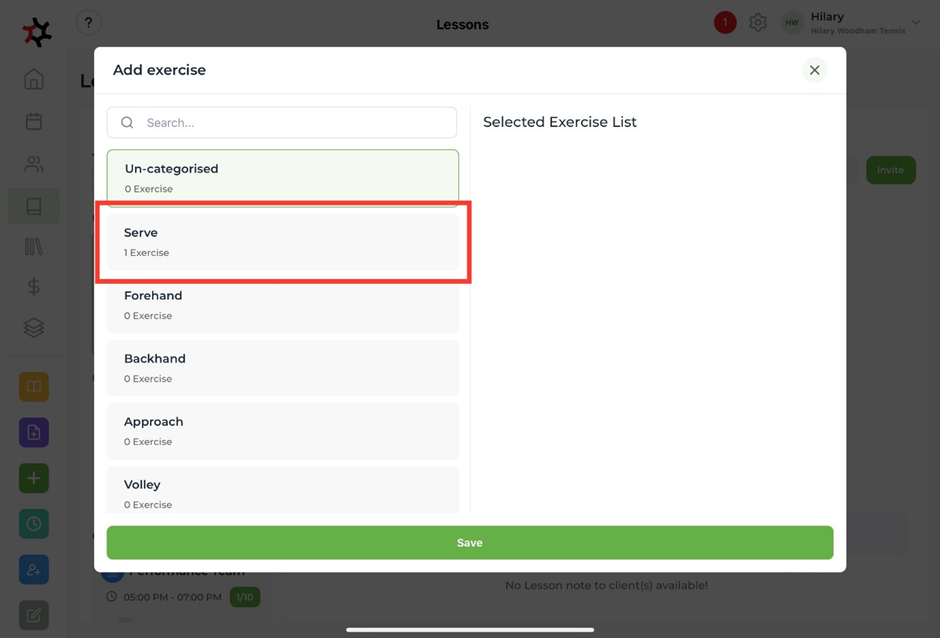
2. Select the category where you have stored the exercise.&#x20;

<figure><img src="https://content.gitbook.com/content/AQGETajdcxecrar4lUBE/blobs/7SeZQ53s5wX0hpBPCLuU/image.png" alt=""><figcaption></figcaption></figure>

3. Select the exercise and **Save**. This will load the exercise into the lesson where the athlete(s) can view it.

<figure><img src="https://content.gitbook.com/content/AQGETajdcxecrar4lUBE/blobs/YUJHLpGByXphifBIhU6F/image.png" alt=""><figcaption></figcaption></figure>

<figure><img src="https://content.gitbook.com/content/AQGETajdcxecrar4lUBE/blobs/iVU9lYpfJp4YxeFITkUF/image.png" alt=""><figcaption></figcaption></figure>

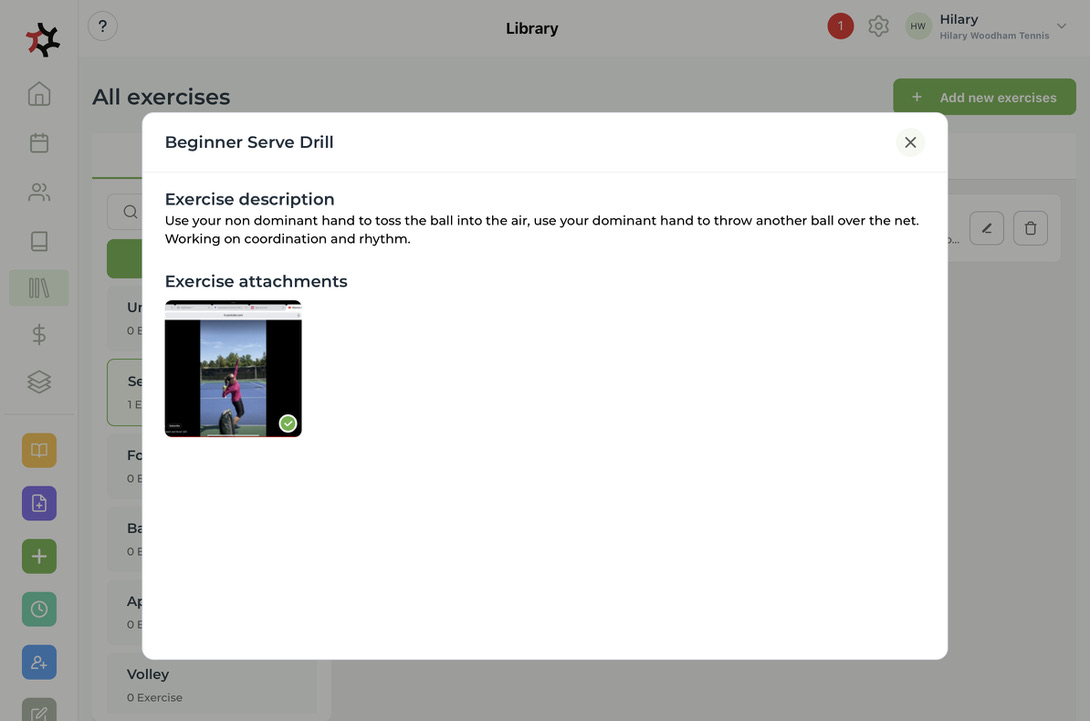
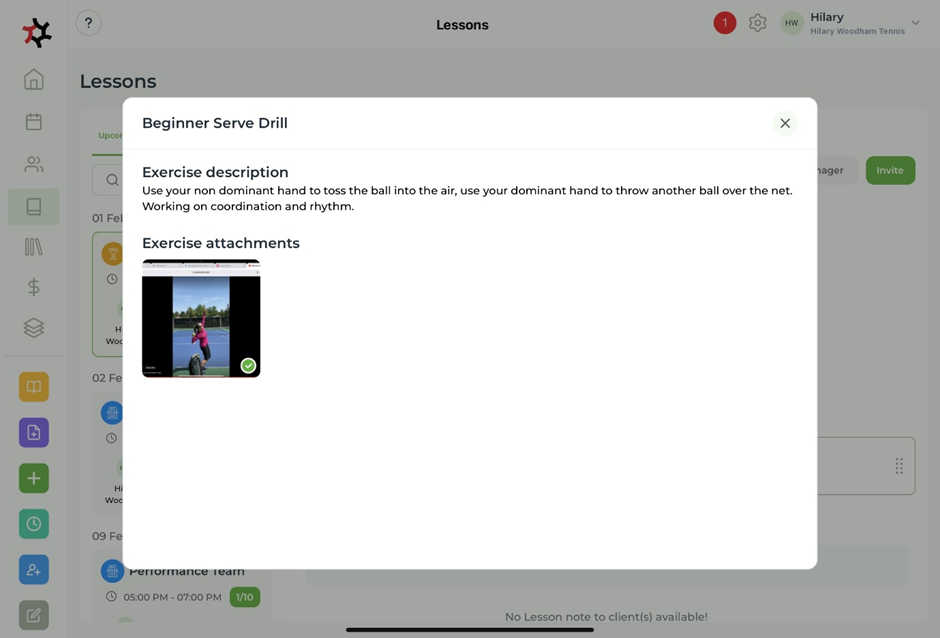
4. Once the exercise is clicked it will show the description and any images or videos you have attached.&#x20;

<figure><img src="https://content.gitbook.com/content/AQGETajdcxecrar4lUBE/blobs/n7tLTPc4kgy6xX6038oA/image.png" alt=""><figcaption></figcaption></figure>


# Edit and cancel lessons

Learn how to edit and cancel your upcoming lessons.

There are multiple ways you can edit and/or cancel your lessons:

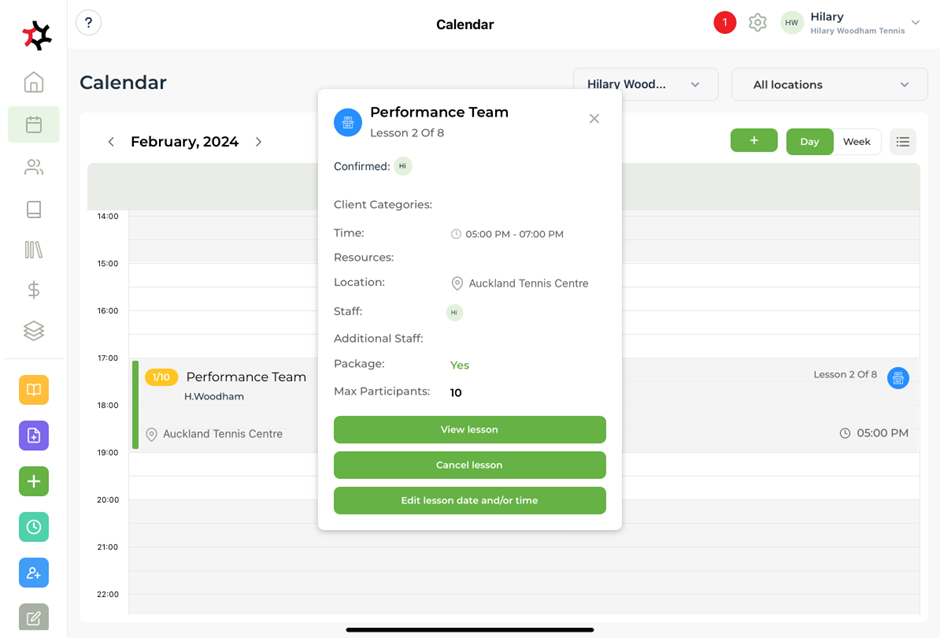
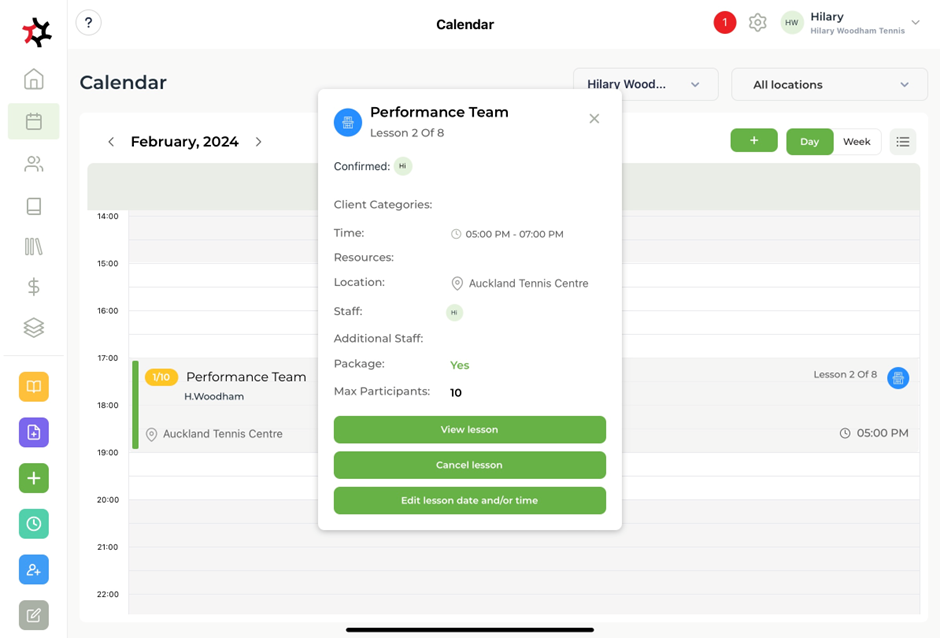
1. Select the **lesson** in your **calendar.**

<figure><img src="https://content.gitbook.com/content/AQGETajdcxecrar4lUBE/blobs/iwSJrzRImEIDZ5TA48it/image.png" alt=""><figcaption></figcaption></figure>

2. This will bring up options for you to **edit, view** and **cancel** the lesson.&#x20;

<figure><img src="https://content.gitbook.com/content/AQGETajdcxecrar4lUBE/blobs/CiPqLDg8k7zxoBqZJyfn/image.png" alt=""><figcaption></figcaption></figure>

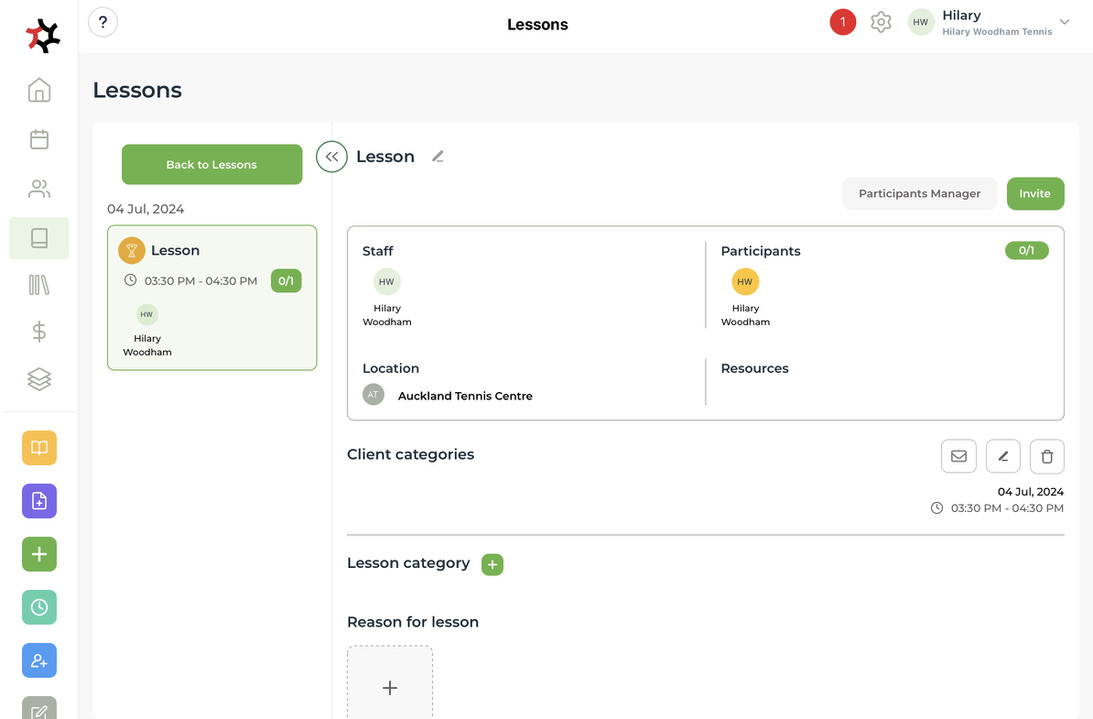
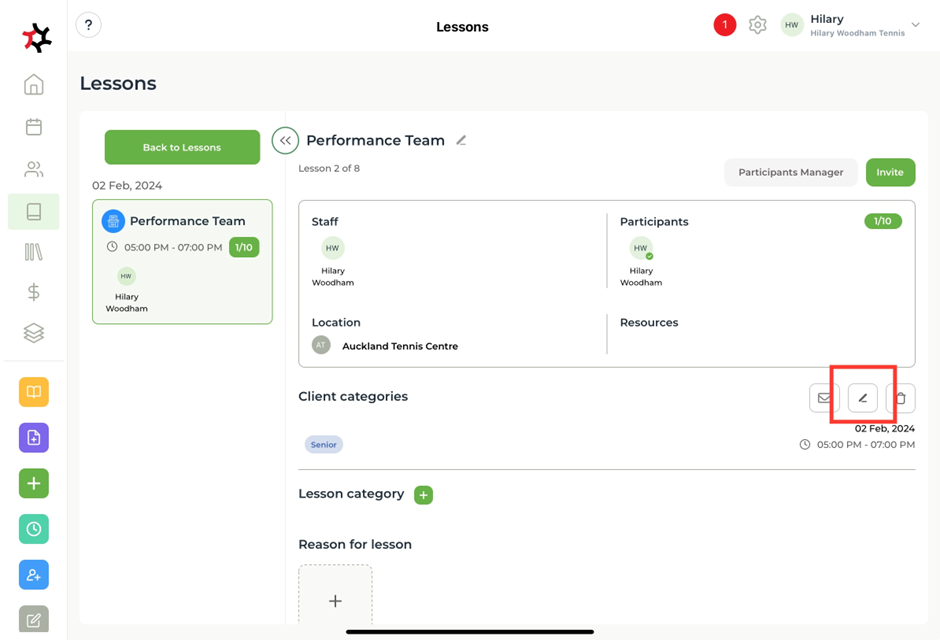
3. You can also do this in the **lessons** section by clicking on the edit icon.

<figure><img src="https://content.gitbook.com/content/AQGETajdcxecrar4lUBE/blobs/jlC7xL77VJshmIB1ZZio/image.png" alt=""><figcaption></figcaption></figure>

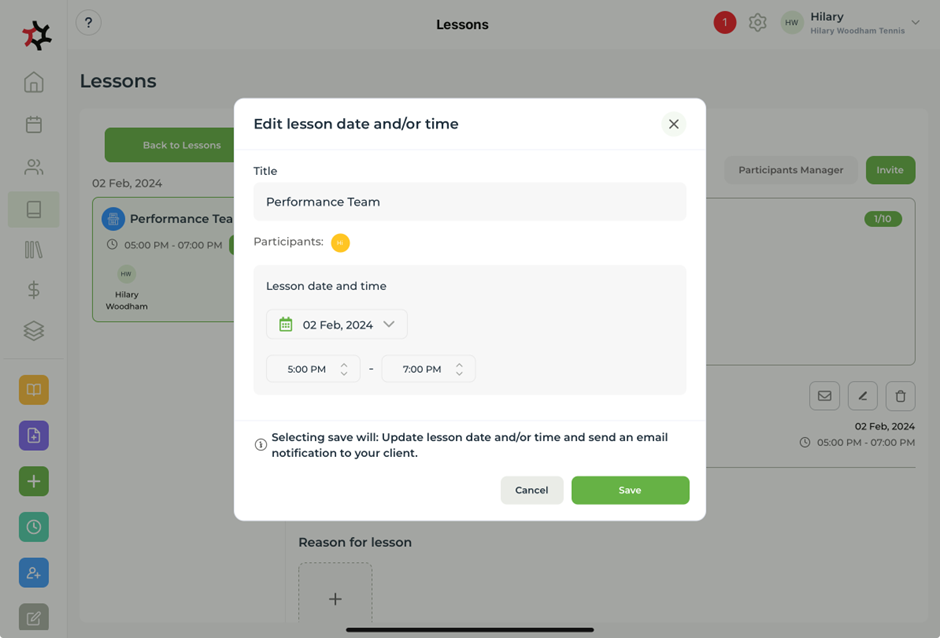
4. Here you can edit the **lesson date** and **time.**

<figure><img src="https://content.gitbook.com/content/AQGETajdcxecrar4lUBE/blobs/7mJhBdR4GVZZTV2BLBJ1/image.png" alt=""><figcaption></figcaption></figure>

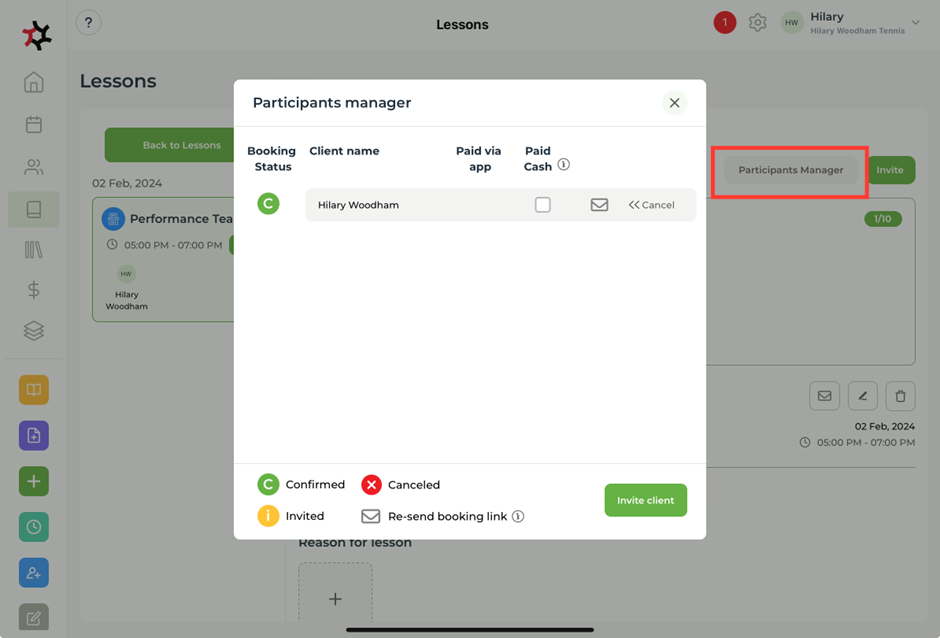
5. You can also edit the participants of the lesson in the **Participants manager**.&#x20;

<figure><img src="https://content.gitbook.com/content/AQGETajdcxecrar4lUBE/blobs/PSmRsuiDWEgPa5ILUWtK/image.png" alt=""><figcaption></figcaption></figure>

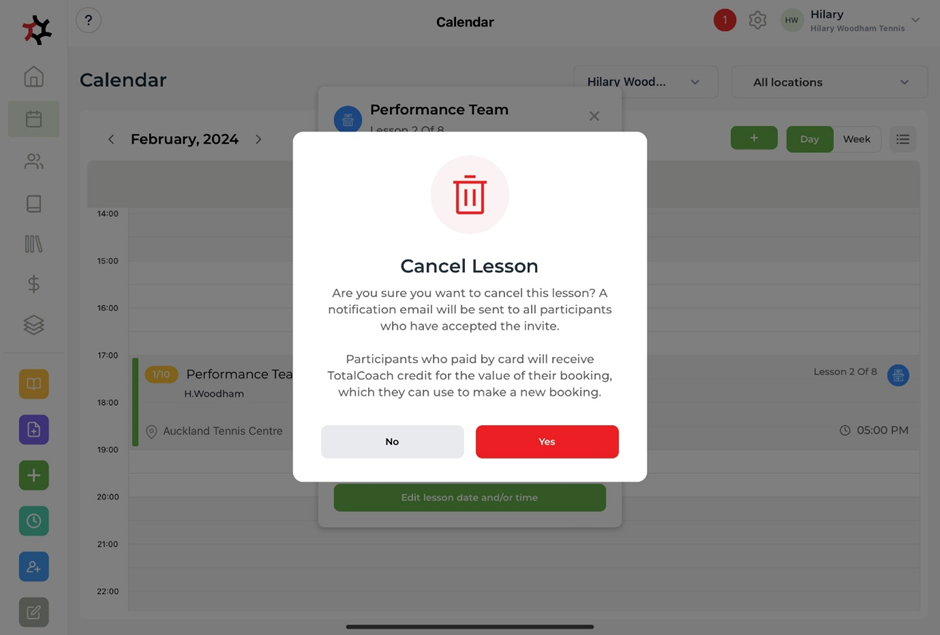
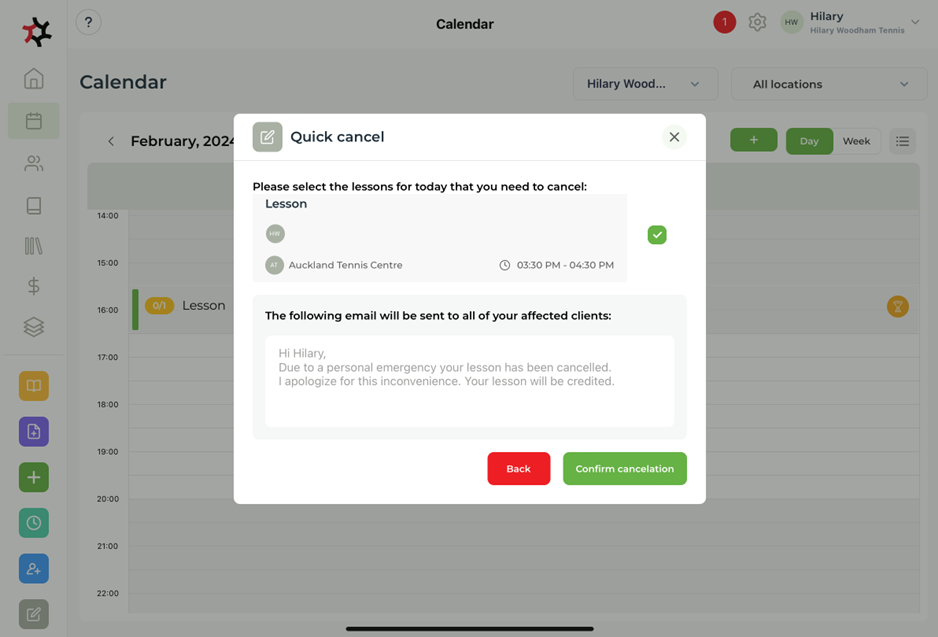
6. If you wish to **cancel** the lesson, you can do this in the **calendar**, the **lesson** or using the **quick cancel** button.&#x20;

<figure><img src="https://content.gitbook.com/content/AQGETajdcxecrar4lUBE/blobs/pibj2ui6sP5kiPgZVThb/image.png" alt=""><figcaption></figcaption></figure>

<figure><img src="https://content.gitbook.com/content/AQGETajdcxecrar4lUBE/blobs/ffRWTBsWgNIAKsaKOGIf/image.png" alt=""><figcaption></figcaption></figure>

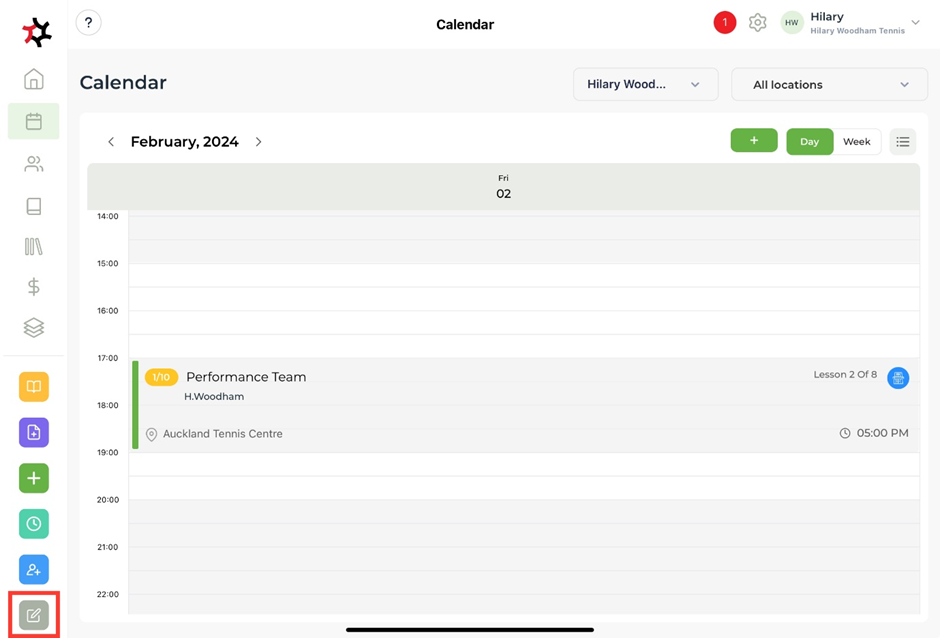
7. The last quick link gives you a quick option to cancel the days lessons. This could be in case of an emergency closure or weather. Email messages will automatically go to all booked clients advising of the emergency closure and the TotalCoach credit dollars to the value of that lesson will be reimbursed. The clients will also be given the option to rebook.&#x20;

<figure><img src="https://content.gitbook.com/content/AQGETajdcxecrar4lUBE/blobs/75XNhmousRnMK0vIIHqg/image.png" alt=""><figcaption></figcaption></figure>


# Quick cancel

Quick cancelling a lesson(s).

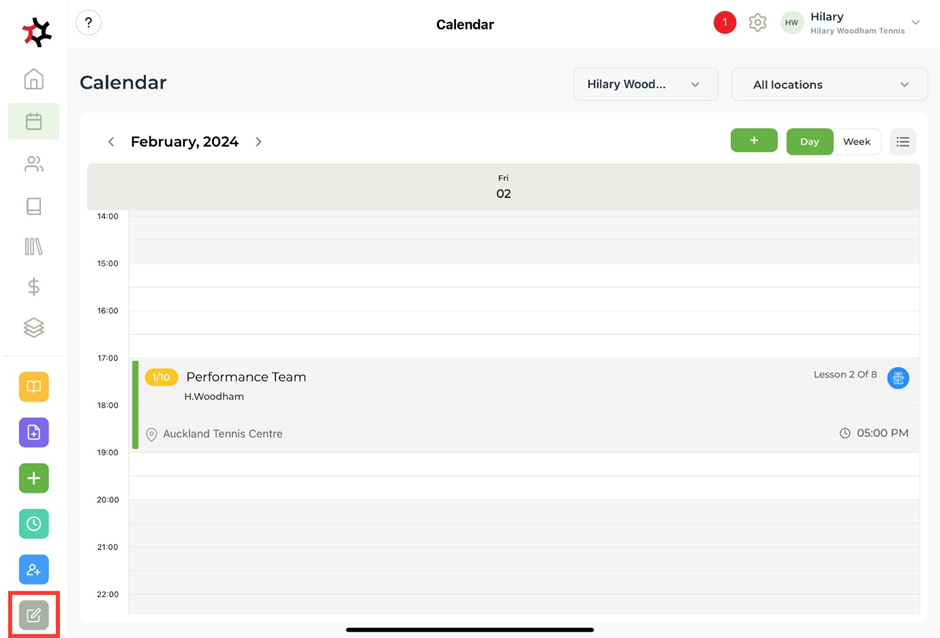
1. Click on the **Quick cancel** icon at the bottom left hand side of the screen with the quick action buttons.&#x20;

<figure><img src="https://content.gitbook.com/content/AQGETajdcxecrar4lUBE/blobs/sSehXfucEwyuPNf6uvXK/image.png" alt=""><figcaption></figcaption></figure>

2. Select which upcoming lessons you are wanting to cancel and write in a message to your clients. This will be sent out via email to your clients that are participants in that service when you click **Confirm cancelation**.&#x20;

<figure><img src="https://content.gitbook.com/content/AQGETajdcxecrar4lUBE/blobs/zjYeBM1rL90gw4GAQLDD/image.png" alt=""><figcaption></figcaption></figure>


# Participant manager


# UView Video Analysis Tool

TotalCoach comes with an embedded video analysis tool called UVIEW to help you enhance your client's learning experience as the coach.

When athletes are learning skills needed to play sports with complex skill requirements, it is often difficult for them to remain objective. This is where video helps. Video is objective and bias-free, allowing the coach and player to better understand what needs to be done to improve the player's game.

Click 'Next' to read the article that will take you through how to use the UView Video Analysis Tool.


# Using the UView Video analysis tool

UVIEW allows coaches and players to retrospectively view key moments of a lesson recorded by the coach.&#x20;

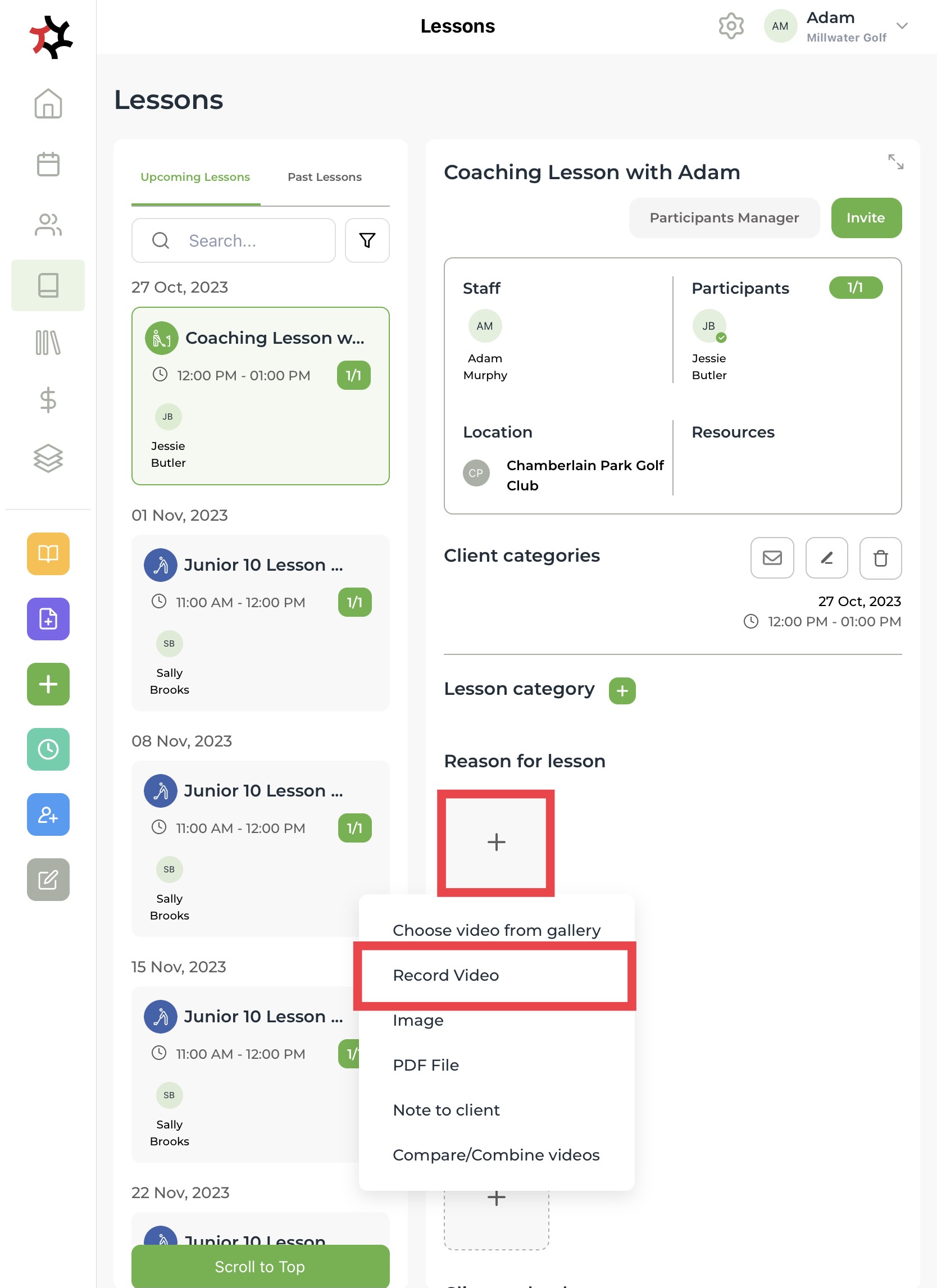
* To commence a recording, simply click the **+** sign within the content tile under any one of the three lesson sections and select **Record Video**.
* In the same menu selector, you can upload a file or a PDF document or send a note to your client.

<figure><img src="https://content.gitbook.com/content/AQGETajdcxecrar4lUBE/blobs/EqgesNTThGx3MPgw1sTq/BE845A17-D190-4E38-8F33-AD198E7D822B_1_201_a.jpeg" alt=""><figcaption></figcaption></figure>

* The default video frame rate is set at 30 FPS. Tap the red record button to commence recording a video. To record using a different frame rate, select your preferred option by tapping either HDR (4K), 60FPS or Slow Mo (240 FPS).&#x20;
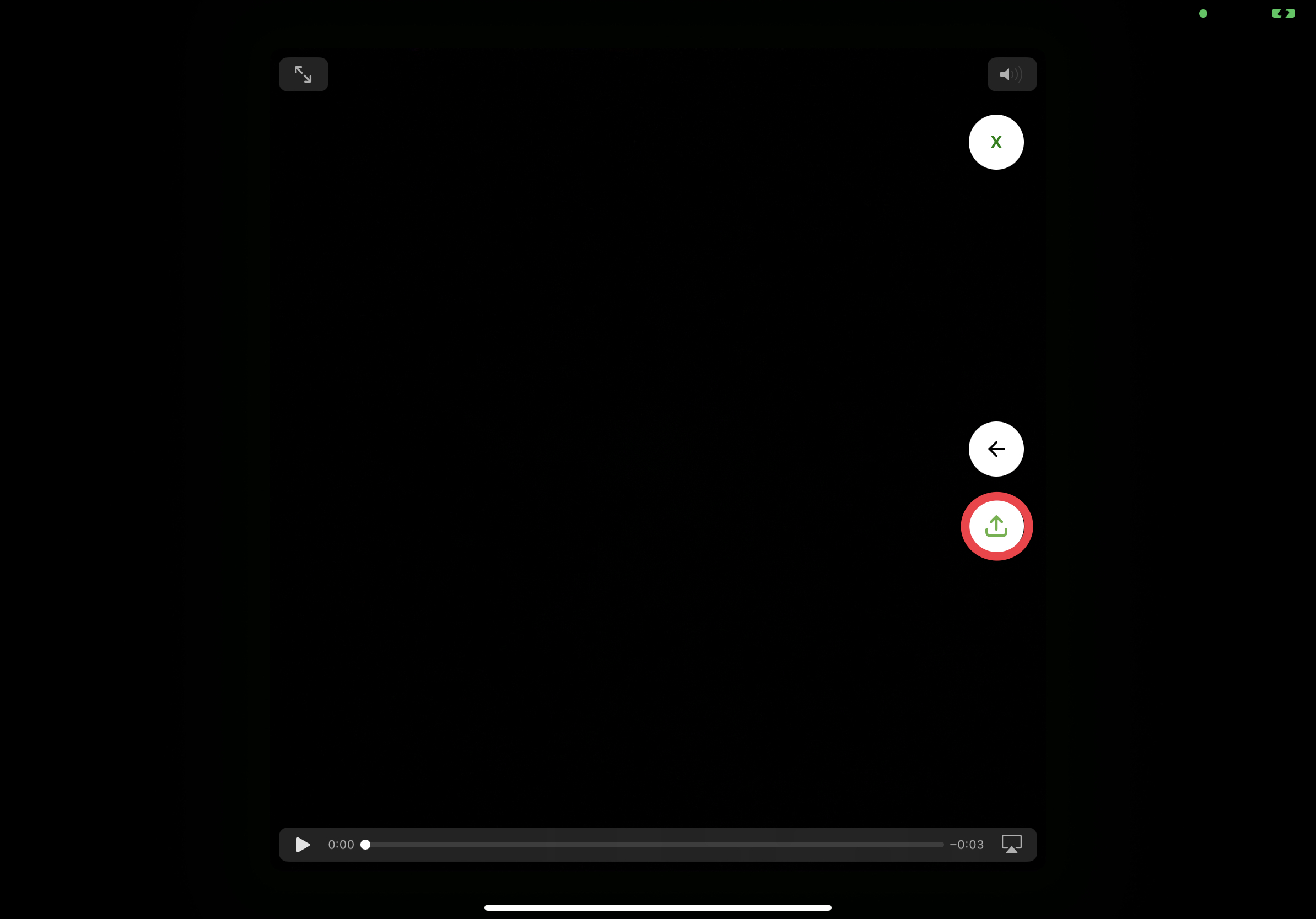
* Once you have finished recording a video, tap the upload button to save the video to the lesson. Note: all videos are simultaneously saved to the device's Photo Library.

<figure><img src="https://content.gitbook.com/content/AQGETajdcxecrar4lUBE/blobs/PF6YbVvgKg7Cx0FJuQ3R/IMG_0192.jpeg" alt="" width="563"><figcaption></figcaption></figure>

* **UVIEW**'s flywheel tool allows for simple, fluid, and precise video scrubbing.&#x20;
* Slow-motion playback or moving the flywheel to a specific point within the video will help you identify and review the client's actions.&#x20;
* The best frame-by-frame playback will be achieved using slow-motion.
* For optimal results, it is advisable to limit the duration of slow-motion videos to 30 seconds or less.
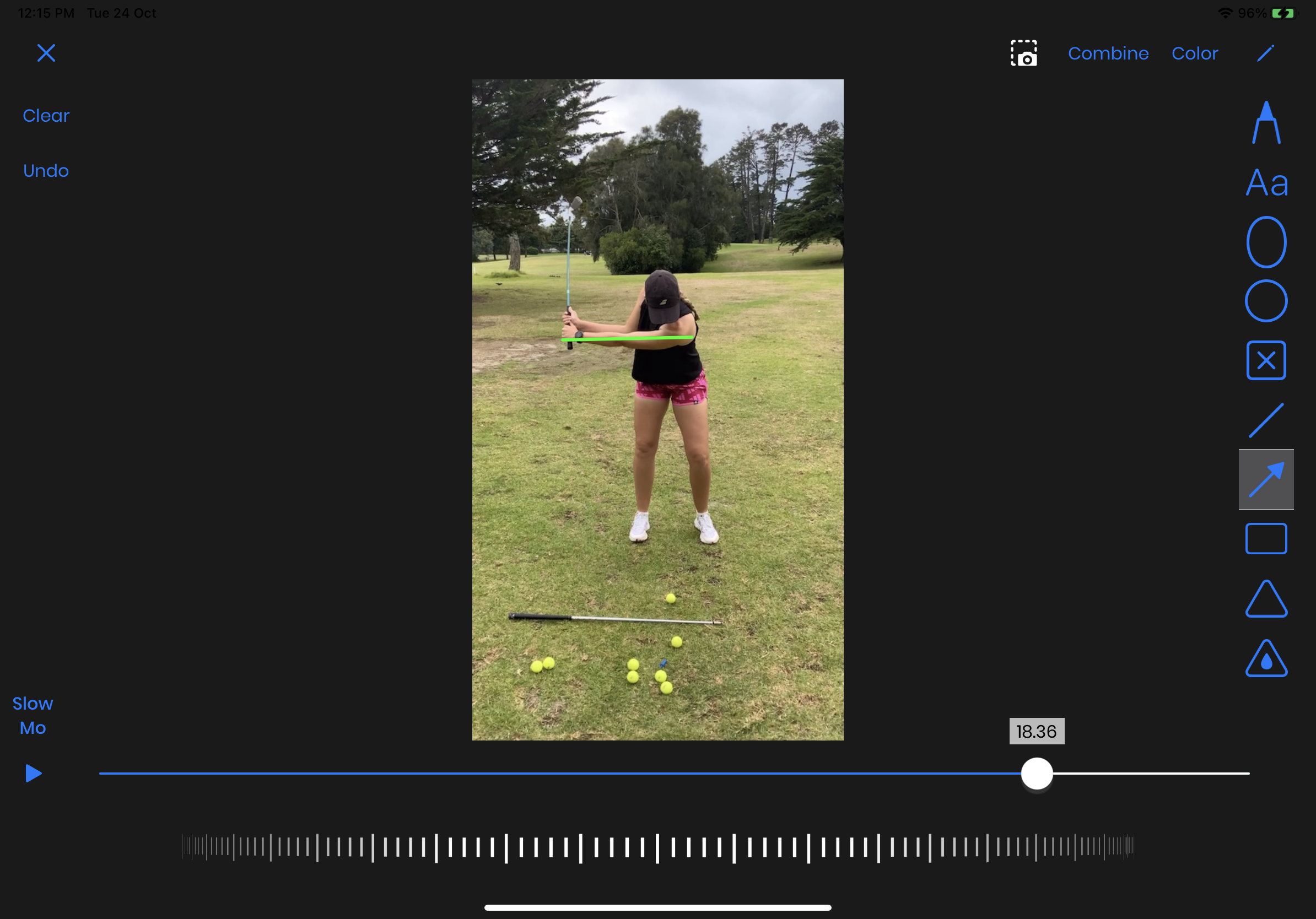
* Easily annotate your video with the **UVIEW** drawing tools. Use freehand lines, freehand arrows, straight lines, circles, and squares to amplify your client's learning experience.

<figure><img src="https://content.gitbook.com/content/AQGETajdcxecrar4lUBE/blobs/Gal20FjpIT4FZ6OoC8Ua/IMG_0189.png" alt="" width="563"><figcaption></figcaption></figure>

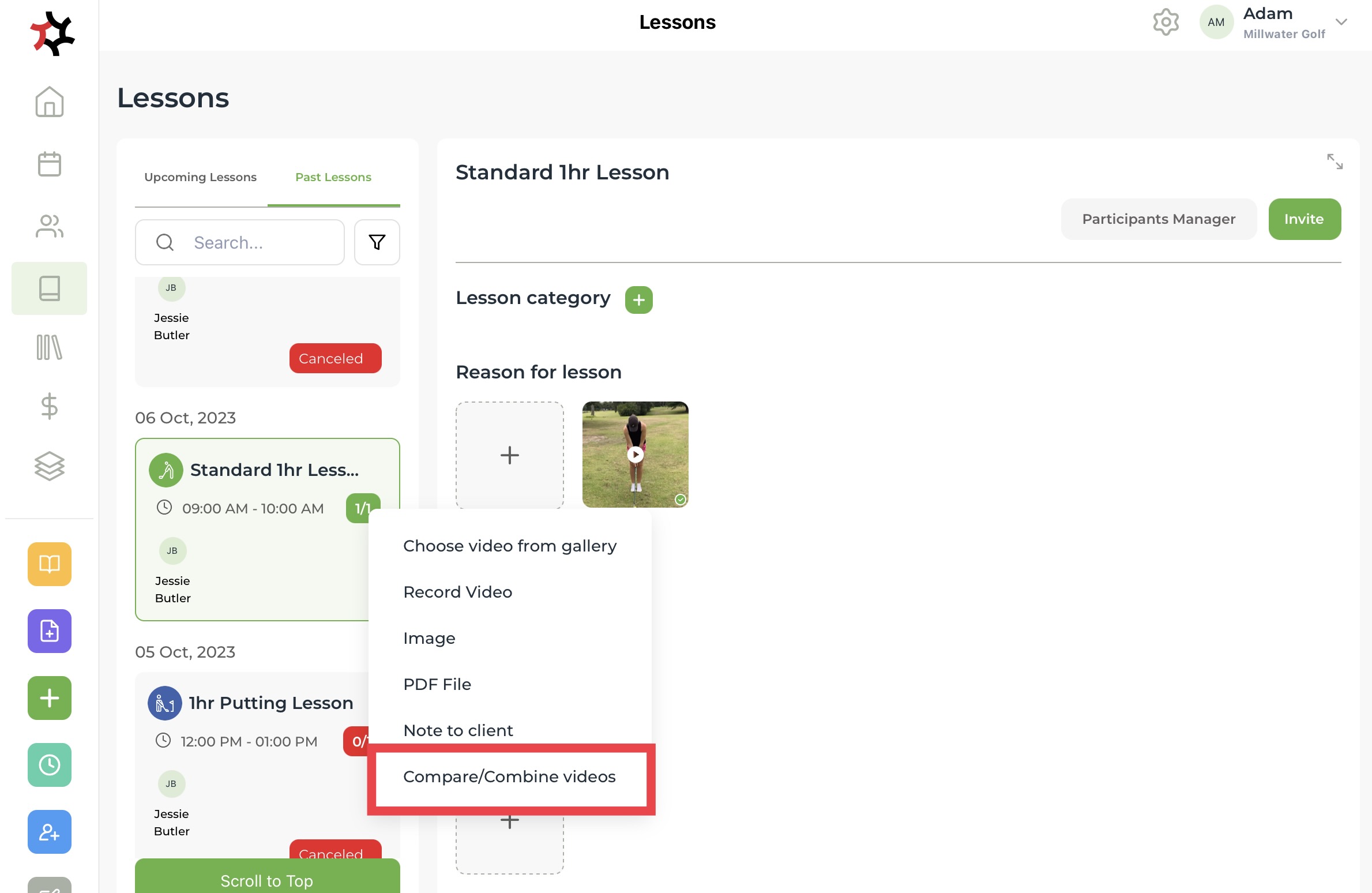
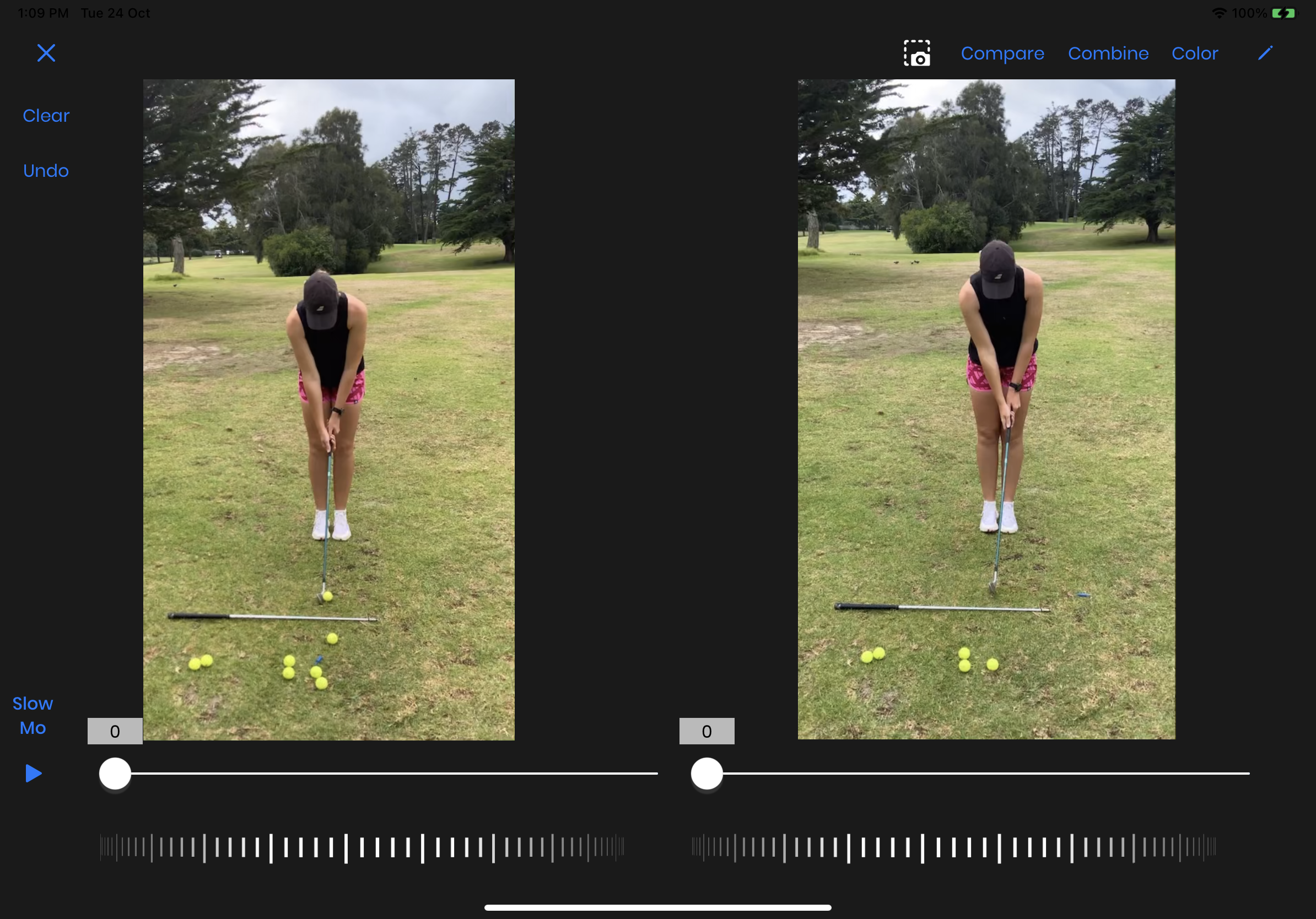
* You can easily compare or combine videos to view them side-by-side. This will help your clients see how they are progressing as they improve over time. You can sync videos with separate controls.

  To combine UVIEW videos click the '**+**' sign within the content tile under any one of the three lesson sections and then tap **Compare/Combine videos.**

<figure><img src="https://content.gitbook.com/content/AQGETajdcxecrar4lUBE/blobs/Gxs51WsEZSTUYJRTBm5E/B636D7A7-FC15-4527-B50F-284C1B719B3A_1_201_a.jpeg" alt=""><figcaption></figcaption></figure>

* Select the videos you want to **Compare/Combine** from the device **Photo Library**, then tap **'Add'**. You can now replay both videos simultaneously or individually using the progress bar or scroll wheel.

<figure><img src="https://content.gitbook.com/content/AQGETajdcxecrar4lUBE/blobs/fTEfn4lwwLD9aEgFoVak/IMG_0193.png" alt=""><figcaption></figcaption></figure>


# Features

TotalCoach is your all-in-one coaching platform for all your coaching tasks and communications. Perfectly synchronised between coach and athlete.

With the starter plan, coaches can enjoy the following key features along with 2 staff accounts for the price of one.

1. **Client Management:**
   1. Group clients by one or more categories.&#x20;
   2. Target client categories with tailored services.
   3. Easily access the client’s lesson history and notes.
   4. Store detailed client information, past sporting history, injuries and learning style.
   5. Manage training schedules for athletes.
   6. Manage tournament programmes for junior players.
2. **Lesson Management:**
   1. Record every lesson on a new lesson template.
   2. Plan each lesson by adding notes, categories and pre-set exercises from your library.
   3. Add content in real-time during each lesson.
   4. The lesson page syncs with your clients via the athlete app.
   5. Categorize each lesson for review in the future via the Lesson Map.
3. #### Modular scheduling system:
   1. Access – public or signed-in clients only.
   2. Invites - individual clients or client categories.
   3. Timing - set start times for your services, or accept bookings during your available working hours.
   4. Recurring - once or multiple times.
   5. Participants – offered packages, group or individual lessons.
   6. Locations, Staff and Resources.
4. **Public booking page:**
   1. Setup your and your staff's working hours and services across multiple locations and/or workspaces.
   2. Your services can be made public on your special booking page.
   3. Send email lesson or event invitations to your categorized clients directly via the app.
5. **UView video analysis:**
   1. UView is a complete video analysis tool, embedded within TotalCoach.
   2. Your clients can play back their lesson videos via the complimentary athlete app.
6. **Library**
   1. Build a valuable database of learning resources.
   2. Support your team of coaches with ready-to-share content.
   3. Upload a variety of file types such as videos, images and documents.
   4. Categorize your content library with tags.
7. **Payment**
   1. Receive payments via stripe.
   2. Automatic invoicing.
   3. Track earnings over time.

These TotalCoach features are available to organizations with multiple staff and/or locations and include everything freelance coaches receive, plus:

1. Create multiple workspaces.
2. Resource management.
3. Offer lessons across multiple locations.
4. View all staff calendars across multiple locations - set work hours, schedule paid and unpaid time.
5. Setup staff roles and permission.
6. Track payments.


# FAQ's


# How do I invite my clients to weekly lessons in the most flexible way

Add services that you can use to add lessons to your calendar. Note: This method works best when you don't have any lessons that are bookable by everyone visiting your booking page - only programmes.

Select **Add new service** using the purple button on the side bar.&#x20;

Select service type: **Lesson**

Select any staff members who you may want to perform this service.

Ensure this service is only available to clients if you invite them by:&#x20;

Switching **Bookable by everyone visiting your booking page** to **No.**

Switch **Bookable only by clients you select** to **No.**

<figure><img src="https://2899632634-files.gitbook.io/~/files/v0/b/gitbook-x-prod.appspot.com/o/spaces%2FAQGETajdcxecrar4lUBE%2Fuploads%2F3vAAVQDLzQGSy4TsRs5S%2FIMG_C39B46CC01F5-1.jpeg?alt=media&amp;token=39c47e30-e842-4585-9794-c4f1dabb8a49" alt=""><figcaption></figcaption></figure>

Select **Create service**

Now you can use the service you just created to invite your clients to lessons by selecting a timeslot in your calendar by **'press and hold'** on a timeslot that you want to invite clients to in your calendar and then select **+ Lesson**.

<figure><img src="https://2899632634-files.gitbook.io/~/files/v0/b/gitbook-x-prod.appspot.com/o/spaces%2FAQGETajdcxecrar4lUBE%2Fuploads%2F9of8uQ3ldDCYvm8jrIbG%2FIMG_3601.PNG?alt=media&amp;token=73426cdf-384d-4b17-abca-4c751a887385" alt=""><figcaption></figcaption></figure>

Select a coach, clients to invite, a location, service type **Lesson,** then select the service. Double check the day and time is what you want and finally select the payment method.

<figure><img src="https://2899632634-files.gitbook.io/~/files/v0/b/gitbook-x-prod.appspot.com/o/spaces%2FAQGETajdcxecrar4lUBE%2Fuploads%2F169GvZuuxxBfcdoxqv5y%2FIMG_3602.PNG?alt=media&amp;token=436b4ece-e724-4e97-a035-fd8d852a021a" alt=""><figcaption></figcaption></figure>

Your clients will receive a lesson invitation like this:

<figure><img src="https://2899632634-files.gitbook.io/~/files/v0/b/gitbook-x-prod.appspot.com/o/spaces%2FAQGETajdcxecrar4lUBE%2Fuploads%2FTYdNpENuprrtunAwqtxG%2FScreenshot%202024-07-30%20at%205.08.40%20PM.png?alt=media&amp;token=162a7c3d-4a42-4470-94f7-b6e236001999" alt=""><figcaption></figcaption></figure>


# How do I create gift vouchers?

If you want to gift someone a lesson or a discounted lesson you can use Promotional codes.\
1\. Go to settings - Promotional codes

<figure><img src="https://2899632634-files.gitbook.io/~/files/v0/b/gitbook-x-prod.appspot.com/o/spaces%2FAQGETajdcxecrar4lUBE%2Fuploads%2FBAyCt59SKNqIhrU2nbFE%2FIMG_2CAAB189CA8A-1.jpeg?alt=media&amp;token=57f39317-cc12-4d9c-9353-a6abf305f1c7" alt=""><figcaption></figcaption></figure>

2. Enter details \
   You can add an expiry date, or limit the number of uses per client.\
   If you want to make the lesson free then you can create a 100% discount code.

<figure><img src="https://2899632634-files.gitbook.io/~/files/v0/b/gitbook-x-prod.appspot.com/o/spaces%2FAQGETajdcxecrar4lUBE%2Fuploads%2F9SuJaaydV4Vbot7kaFLt%2FIMG_6326F25E2704-1.jpeg?alt=media&amp;token=46f6e297-9613-4b95-924b-52719b6b8c57" alt=""><figcaption></figcaption></figure>


# What is the best way to invite a new client to book my services?

We recommend that you create a service that is reusable for any invited person or category. Although it may seem counterintuitive to have invite set to the **no** option, this is required to avoid creating a service for a specific person and to leave the service open for use in **Add lesson** from the side bar.

Here are the steps to follow:

1. Create reusable services via the **Add new service** modal by tapping on the blue **Add new service** button on the side bar (make sure you leave **Bookable by client categories** or **Invite only** switched to **“No”** if you want to re-use the service for all types of clients).

<figure><img src="https://2899632634-files.gitbook.io/~/files/v0/b/gitbook-x-prod.appspot.com/o/spaces%2FAQGETajdcxecrar4lUBE%2Fuploads%2F9qZnIX8Zc5yErO5nc9cj%2FIMG_0067.PNG?alt=media&amp;token=a1a1ae5e-531e-4579-8ea9-212fcbd038c2" alt=""><figcaption></figcaption></figure>

<figure><img src="https://2899632634-files.gitbook.io/~/files/v0/b/gitbook-x-prod.appspot.com/o/spaces%2FAQGETajdcxecrar4lUBE%2Fuploads%2FR9QZ5dwnUJ6G1BF21YVA%2FIMG_0068.PNG?alt=media&amp;token=caeff28f-42fc-4fac-ae21-b9e31158dbba" alt=""><figcaption></figcaption></figure>

2. Press the **+** button on the side bar to **Add lesson**.

<figure><img src="https://2899632634-files.gitbook.io/~/files/v0/b/gitbook-x-prod.appspot.com/o/spaces%2FAQGETajdcxecrar4lUBE%2Fuploads%2FTBK7AK3f3miTUp0fje88%2FIMG_0070.PNG?alt=media&amp;token=70cd722b-f714-4cf0-a38e-66b1b9caa243" alt=""><figcaption></figcaption></figure>

3. Enter the **new** client’s email address and name.
4. Select **coach**, **location** and **service**.
5. Select dates (if applicable).
6. Once you have completed the form, the client will receive an invitation by email.


# How do I book a client (or clients) every week at the same time?

Programmes should only be used if you know all of the times and dates for a service, for example every Tuesday at 9am.

To invite a client to a regular time slot you should create a programme for that client following the steps below:

1. Select Add new service – the purple button on the side bar.
2. Select Service type: **Programme**
3. Enter a service name – If it's for just one or two clients I’d recommend entering a title with their names eg. Lessons for Fran and Janet
4. Select payment method – Require payments via app or Allow outside app payments

<figure><img src="https://2899632634-files.gitbook.io/~/files/v0/b/gitbook-x-prod.appspot.com/o/spaces%2FAQGETajdcxecrar4lUBE%2Fuploads%2FRtJZC3sb1OaHQZCHoXGh%2FIMG_3D96441187E7-1.jpeg?alt=media&amp;token=0cb60f9c-83dd-49d7-8d6f-fa389a3f6942" alt=""><figcaption></figcaption></figure>

5. Switch **Bookable by invite only** to **Yes**\
   a. To invite a **new** client enter their email address, first and last name of your client(s):<br>

   <figure><img src="https://2899632634-files.gitbook.io/~/files/v0/b/gitbook-x-prod.appspot.com/o/spaces%2FAQGETajdcxecrar4lUBE%2Fuploads%2FpJXZFbagFrX4QD8Gmdkj%2FIMG_3525.PNG?alt=media&amp;token=8efae90e-0b4b-42cf-b276-4727000ff71a" alt=""><figcaption></figcaption></figure>

b. To invite an existing client(s) select the tick box next to their name(s):<br>

<figure><img src="https://2899632634-files.gitbook.io/~/files/v0/b/gitbook-x-prod.appspot.com/o/spaces%2FAQGETajdcxecrar4lUBE%2Fuploads%2FzAPJGEwb9erakEIwAUfv%2FIMG_C5CAF6AD116C-1.jpeg?alt=media&amp;token=b688ac91-837d-4c42-85b9-5164627ead68" alt=""><figcaption></figcaption></figure>

6. Set the day, start time, and start date, and choose whether you want your client to Pay for all occurrences at once or pay as they go - either way, all of the days and times you select will be blocked out for them in your calendar:<br>

   <figure><img src="https://2899632634-files.gitbook.io/~/files/v0/b/gitbook-x-prod.appspot.com/o/spaces%2FAQGETajdcxecrar4lUBE%2Fuploads%2FgTINs9batqhgsRtKkh40%2FScreenshot%202024-07-23%20at%205.09.44%20PM.png?alt=media&amp;token=37932fdc-9c3b-4f57-9452-e4cdc832184d" alt=""><figcaption></figcaption></figure>
7. A new client will receive an email like this:

   <figure><img src="https://2899632634-files.gitbook.io/~/files/v0/b/gitbook-x-prod.appspot.com/o/spaces%2FAQGETajdcxecrar4lUBE%2Fuploads%2FtU32QBhWSPWKZVqbvFyK%2FScreenshot%202024-07-17%20at%201.55.36%20PM.png?alt=media&amp;token=6bba59b8-8b54-4795-8cf2-cb5f58655366" alt=""><figcaption></figcaption></figure>
8. An existing client invited to a programme that is **Pay all at once** will receive an email like this:<br>

   <figure><img src="https://2899632634-files.gitbook.io/~/files/v0/b/gitbook-x-prod.appspot.com/o/spaces%2FAQGETajdcxecrar4lUBE%2Fuploads%2FvIX74ODomzr5pPtdunMU%2FScreenshot%202024-07-23%20at%205.17.19%20PM.png?alt=media&amp;token=f527b6f4-52e9-4861-a72c-0b51eaca0fe3" alt=""><figcaption></figcaption></figure>
9. The service will appear in your calendar immediately - your calendar is now blocked an no one else can book at this time.\
   The participant counter will show as 0/1 if no one has booked yet:&#x20;

<figure><img src="https://2899632634-files.gitbook.io/~/files/v0/b/gitbook-x-prod.appspot.com/o/spaces%2FAQGETajdcxecrar4lUBE%2Fuploads%2FvrOJbEdCujjpMS7Ts7xt%2FIMG_D8F4FDF18A2F-1.jpeg?alt=media&amp;token=0c718d99-bdca-4f76-a096-46e89b6cb345" alt=""><figcaption></figcaption></figure>

10. When the client has booked, the tile will turn to green and the participant counter will change from 0/1 to 1/1 - so the service is fully booked. \
    Note: If the max participants is 2 then the counter will change from 0/2 to 1/2 when one client has confirmed.<br>

    <figure><img src="https://2899632634-files.gitbook.io/~/files/v0/b/gitbook-x-prod.appspot.com/o/spaces%2FAQGETajdcxecrar4lUBE%2Fuploads%2FfWkLxF7GFUEEbhSoQgVq%2FIMG_1E23A3AEF928-1.jpeg?alt=media&amp;token=05aa039a-ca00-4856-9670-0f76fd06e7e8" alt=""><figcaption></figcaption></figure>
11. You will also receive a confirmation email:&#x20;

<figure><img src="https://2899632634-files.gitbook.io/~/files/v0/b/gitbook-x-prod.appspot.com/o/spaces%2FAQGETajdcxecrar4lUBE%2Fuploads%2Fw5bphYW9Atwoq4LmCnaX%2FScreenshot%202024-07-23%20at%205.38.57%20PM.png?alt=media&amp;token=bbbb1f36-bc9b-4f44-b2ce-f4fa96741edb" alt=""><figcaption></figcaption></figure>

10. If you want to create a similar service for a different client you could go to your services page, find the service you just made under Programmes and select the Copy button. The information will be auto-filled, you just need to change the fields that need changing, so this is a time saver.\ <br>

    <figure><img src="https://2899632634-files.gitbook.io/~/files/v0/b/gitbook-x-prod.appspot.com/o/spaces%2FAQGETajdcxecrar4lUBE%2Fuploads%2FXGogA0p2yG96ugGbt1gO%2FIMG_FC185EFF6788-1.jpeg?alt=media&amp;token=8cc11012-1059-485a-b686-132eb3b51937" alt=""><figcaption></figcaption></figure>


# How do I add weekly classes to my public booking page?

Programmes should only be used if you know all of the times and dates for a service, for example an after school class which occurs every Wednesday at 4:30 for 10 weeks.

To add a regular weekly class to your booking page follow the steps below:

1. Select Add new service – the purple button on the side bar.
2. Select Service type: **Programme**&#x20;
3. Enter a service name – If it's for a certain type of client we recommend you add that to the title for example **Junior beginners.**&#x20;
4. Select payment method – Require payments via app or Allow outside app payments<br>

   <figure><img src="https://2899632634-files.gitbook.io/~/files/v0/b/gitbook-x-prod.appspot.com/o/spaces%2FAQGETajdcxecrar4lUBE%2Fuploads%2FNDongPtSt0J5qWauiqod%2FScreenshot%202024-07-24%20at%205.09.20%E2%80%AFPM.jpeg?alt=media&amp;token=e9f71dd9-dfb4-4a82-9381-14e3a0e0ad5b" alt=""><figcaption></figcaption></figure>
5. Switch **Bookable by everyone visiting your booking page** to **Yes**<br>

   <figure><img src="https://2899632634-files.gitbook.io/~/files/v0/b/gitbook-x-prod.appspot.com/o/spaces%2FAQGETajdcxecrar4lUBE%2Fuploads%2F5KCWusQrNfJJlywGP9a2%2FScreenshot%202024-07-24%20at%205.16.05%E2%80%AFPM.jpeg?alt=media&amp;token=20578f73-53d5-4695-bebb-c5ceed18c82d" alt=""><figcaption></figcaption></figure>
6. Set the day, start time, and start date, and choose whether you want your client to Pay for all occurrences at once or pay as they go - either way, all of the days and times you select will be blocked out for them in your calendar:<br>

   <figure><img src="https://2899632634-files.gitbook.io/~/files/v0/b/gitbook-x-prod.appspot.com/o/spaces%2FAQGETajdcxecrar4lUBE%2Fuploads%2FfTiwSWV4MtBMEfvmQifI%2FScreenshot%202024-07-24%20at%205.18.21%E2%80%AFPM.jpeg?alt=media&amp;token=7da13087-3d00-4e83-a3fb-ae6d10bab48f" alt=""><figcaption></figcaption></figure>
7. The service will appear in your calendar immediately - your calendar is now blocked and no one else can book at this time.\
   The participant counter will show as 0/8 if no one has booked yet: <br>

   <figure><img src="https://2899632634-files.gitbook.io/~/files/v0/b/gitbook-x-prod.appspot.com/o/spaces%2FAQGETajdcxecrar4lUBE%2Fuploads%2Ff3zSz1tIJ6pIx5QBEz87%2FScreenshot%202024-07-24%20at%205.24.17%E2%80%AFPM.jpeg?alt=media&amp;token=646fdd2a-2e61-4893-8e9f-ef3a6622bce4" alt=""><figcaption></figcaption></figure>
8. The Junior beginners programme will now be displayed on your public booking page:<br>

   <figure><img src="https://2899632634-files.gitbook.io/~/files/v0/b/gitbook-x-prod.appspot.com/o/spaces%2FAQGETajdcxecrar4lUBE%2Fuploads%2FQl4GwNMlDZu9y0ynLYio%2FIMG_BB832E3FE236-1.jpeg?alt=media&amp;token=1d652db4-ab87-4fa3-a117-1bfce3957022" alt=""><figcaption></figcaption></figure>
9. When the client has booked, the tile will turn from yellowe to green and the participant counter will change from 0/8 to 1/8.<br>

   <figure><img src="https://2899632634-files.gitbook.io/~/files/v0/b/gitbook-x-prod.appspot.com/o/spaces%2FAQGETajdcxecrar4lUBE%2Fuploads%2FYQ3bclNMJjoJ0qXEQwh9%2FScreenshot%202024-07-25%20at%2011.09.22%E2%80%AFAM.jpeg?alt=media&amp;token=2782649b-71e3-41f3-90ec-addd95936b50" alt=""><figcaption></figcaption></figure>
10. Both coach and client will receive a confirmation email: \ <br>

    <figure><img src="https://2899632634-files.gitbook.io/~/files/v0/b/gitbook-x-prod.appspot.com/o/spaces%2FAQGETajdcxecrar4lUBE%2Fuploads%2F8u9YFoVUXpnId5uRLG9c%2FScreenshot%202024-07-25%20at%2011.15.16%20AM.png?alt=media&amp;token=554f4c9c-b477-42bf-91ad-9877a7b5b3e4" alt=""><figcaption></figcaption></figure>
11. If you want to invite clients you can select Invite clients from the service in the calendar:<br>

    <figure><img src="https://2899632634-files.gitbook.io/~/files/v0/b/gitbook-x-prod.appspot.com/o/spaces%2FAQGETajdcxecrar4lUBE%2Fuploads%2F0kuRQFcw8ClwFlNl6xOn%2FScreenshot%202024-07-25%20at%2010.26.11%E2%80%AFAM.jpeg?alt=media&amp;token=775a1ace-633d-46b0-8cb5-a1709166f454" alt=""><figcaption></figcaption></figure>
12. Or you can invite clients from the participant manager on the lesson page:<br>

    <figure><img src="https://2899632634-files.gitbook.io/~/files/v0/b/gitbook-x-prod.appspot.com/o/spaces%2FAQGETajdcxecrar4lUBE%2Fuploads%2FO7Ekfdbzb3NoSQ3KwVnN%2FScreenshot%202024-07-25%20at%2011.23.54%E2%80%AFAM.jpeg?alt=media&amp;token=0704121d-75a4-4713-8d37-8b33cbacba1a" alt=""><figcaption></figcaption></figure>

    You can select an existing client to invite, or enter the email address of a new client to invite them:<br>

    <figure><img src="https://2899632634-files.gitbook.io/~/files/v0/b/gitbook-x-prod.appspot.com/o/spaces%2FAQGETajdcxecrar4lUBE%2Fuploads%2FxJFFeLcbpQMfZ2bGUu3T%2FScreenshot%202024-07-25%20at%2010.27.21%E2%80%AFAM.jpeg?alt=media&amp;token=5b265e41-4873-4264-b9c4-eb168873f49d" alt=""><figcaption></figcaption></figure>
13. If you want to create a similar service for different dates or clients, you could go to your services page, find the service you just made under Programmes and select the Copy button. The information will be auto-filled, you just need to change the fields that need changing, so this is a time saver.\ <br>

    <figure><img src="https://2899632634-files.gitbook.io/~/files/v0/b/gitbook-x-prod.appspot.com/o/spaces%2FAQGETajdcxecrar4lUBE%2Fuploads%2FXGogA0p2yG96ugGbt1gO%2FIMG_FC185EFF6788-1.jpeg?alt=media&amp;token=8cc11012-1059-485a-b686-132eb3b51937" alt=""><figcaption></figcaption></figure>


# How do I invite a client to book a lesson pack service?

1. Create a reusable Lesson pack service via the **Add new service** modal by tapping on the blue **Add new service button** on the side bar (make sure you leave **Bookable by client categories** or **Invite only** switched to **“No”** if you want to re-use the service for **all** types of clients).

<figure><img src="https://2899632634-files.gitbook.io/~/files/v0/b/gitbook-x-prod.appspot.com/o/spaces%2FAQGETajdcxecrar4lUBE%2Fuploads%2F9qZnIX8Zc5yErO5nc9cj%2FIMG_0067.PNG?alt=media&amp;token=a1a1ae5e-531e-4579-8ea9-212fcbd038c2" alt=""><figcaption></figcaption></figure>

2. Press **+** button on the side bar to **Add lesson.**
3. Choose the **coach,** **location**, **client**, and **service**.
4. If the client has already paid you directly then ensure **Require clients to pay via app** is switched to **No**.

<figure><img src="https://2899632634-files.gitbook.io/~/files/v0/b/gitbook-x-prod.appspot.com/o/spaces%2FAQGETajdcxecrar4lUBE%2Fuploads%2FqISimT9TpykuQHrw18Hc%2FScreenshot%202024-04-15%20at%207.00.08%E2%80%AFPM.JPEG?alt=media&amp;token=4e75d44a-ba43-4b4c-9c16-b7146125ab70" alt=""><figcaption></figcaption></figure>

5. Click the **Yes** button to invite them to your lesson pack service.

<figure><img src="https://2899632634-files.gitbook.io/~/files/v0/b/gitbook-x-prod.appspot.com/o/spaces%2FAQGETajdcxecrar4lUBE%2Fuploads%2FxIqvRQZgwfKIxtcHWJZr%2FIMG_0071.PNG?alt=media&amp;token=bcedc799-93d7-4b74-b1d5-39ed888c79cc" alt=""><figcaption></figcaption></figure>

6. Once they have **purchased** the lesson pack, they can select date/times themselves, or you can use the **+** button again to invite them to book a lesson at a selected date/time using lesson pack service they have purchased.


# What is the booking fee?

Payments made via the app are subject to a booking fee, which is added to the lesson price. Every transaction is charged a 2.2% platform fee, plus Stripe fees. For example: if a lesson price is $100, your client will be charged $105.34 if they pay via the app.


# How do client subscriptions work?

Clients are automatically subscribed to the Free Plan when they first sign up. If they want access to their past lessons, coach exercises, and chosen favorites, they can upgrade to Total Plan.

**A TotalCoach Athlete subscription is like having a personal coach in their pocket at all times!**

The full suite of services includes My Golf library, personalized lesson content, video playback anytime, lesson history, advanced search and filter options, My Golf calendar, and booking.&#x20;

&#x20;**Athlete subscription options are:**

\- **Athlete Free Plan**

View upcoming lessons plus your last two lessons&#x20;

* Online bookings and payments
* Access to latest and upcoming lessons
* Upload notes or videos for your coach for the latest lesson only
* Tailored lesson content
* Replay your last two lessons
* My Calendar for bookings and events
* Cloud-based and secure
* Flexible cancellation policy

&#x20;  **$0USD /monthly**

\- **Athlete Total Plan**

Access to all historical lessons, favourited videos, and exercises from your lessons

* Online bookings and payments
* Access to all historical and upcoming lessons
* Upload notes or videos for your coach
* Tailored lesson content
* Replay any past lesson&#x20;
* Replay the coach's exercises from your library&#x20;
* Use "My Calendar" feature for tour personal bookings and events
* Cloud-based and secure
* Flexible cancellation policy
* Unlimited access to all features
* Categorized lessons for easy search and then review
* Favourite your preferred videos from your lesson&#x20;
* Quick view of past lessons from lesson map
* Library of favorites, exercises, and practice lessons

**$10USD /monthly or** or **$100USD** **/year**. A saving of $20USD per annum.


# How does TotalCoach credit work?

If your clients cancel a lesson before your cancelation period ends, or if the coach cancels their lesson at any stage, and they have paid via the app, they will automatically receive TotalCoach credit for the value of the lesson.

TotalCoach credit does not expire and can be used for any of the services offered by the workspace.

A client can check their TotalCoach credit balance on their profile page.

1 TotalCoach Credit = $1 NZD

<figure><img src="https://content.gitbook.com/content/AQGETajdcxecrar4lUBE/blobs/yAJiigKr0WqXIfpba6bc/IMG_0871.jpeg" alt=""><figcaption></figcaption></figure>


# Page